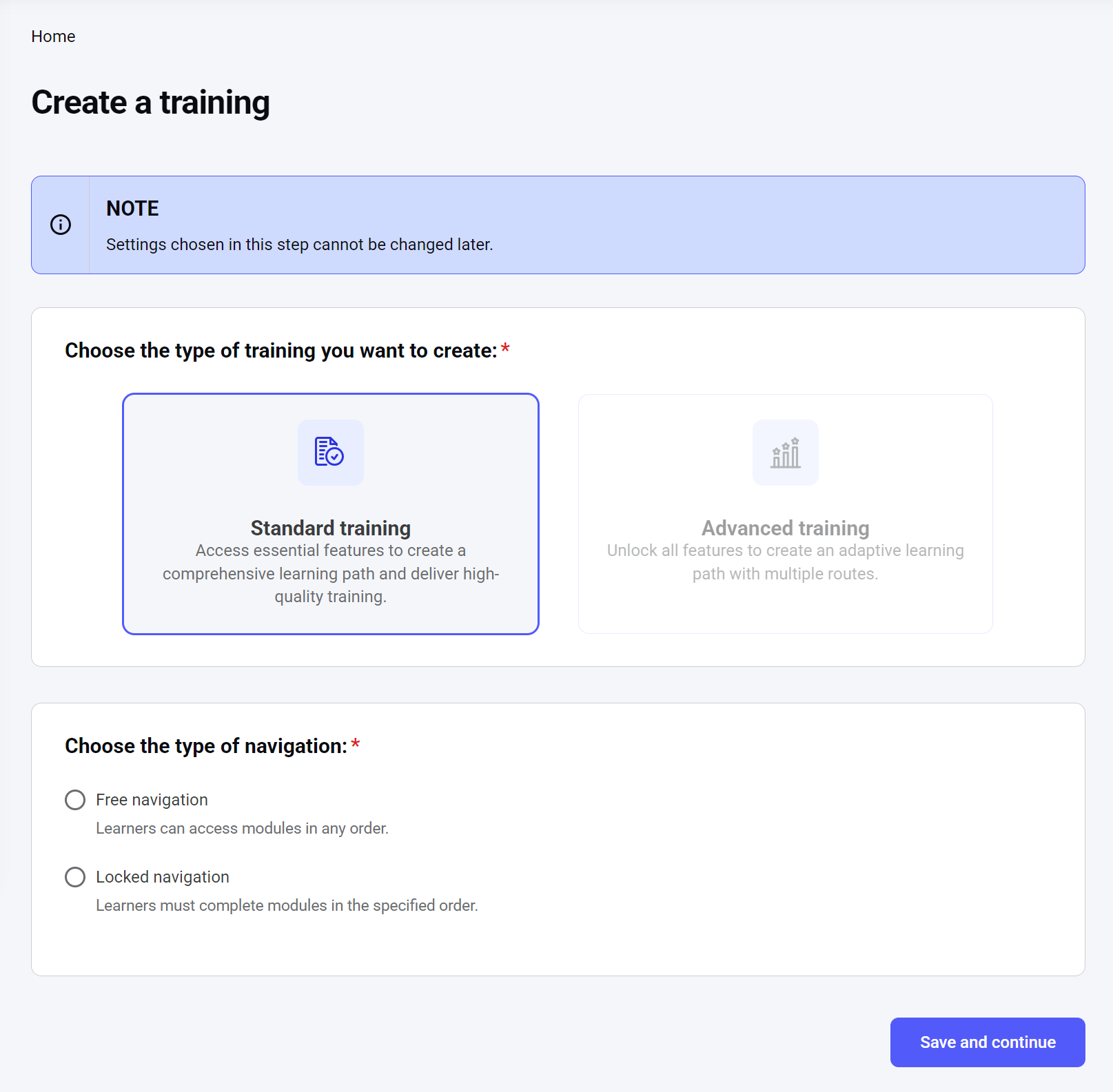
Training types
There are two types of training you can choose from:- Standard training: A linear learning path.
- Advanced training: An adaptive, branching learning path.
Navigation types
There are two types of training navigation you can choose from:- Free navigation: Learners can take modules of the training in any order.
- Locked navigation: Learners can only follow the sequence of modules determined during the training creation process. They cannot skip ahead or access modules out of order, thereby maintaining the structured learning path intended by the administrator.
Step 1. General settings
During Step 1, you can set general settings that affect who can view and access your training and how it is presented.NOTE: This step is the same for both Standard and Advanced training types.
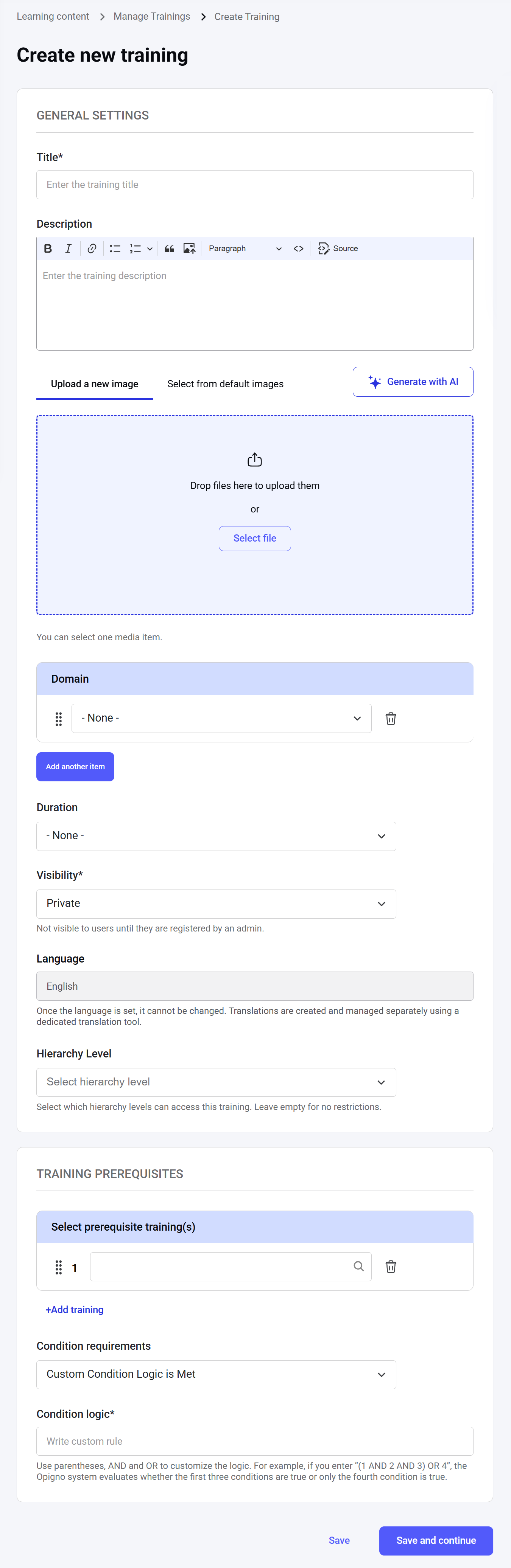
Title
The name of the training, searchable and visible in the training catalog. The maximum length is 255 characters. It is a required field.
Description
Here, you can put an overview of the training content for the learners. The text length is unlimited, while the editor tool provides flexible editing capabilities.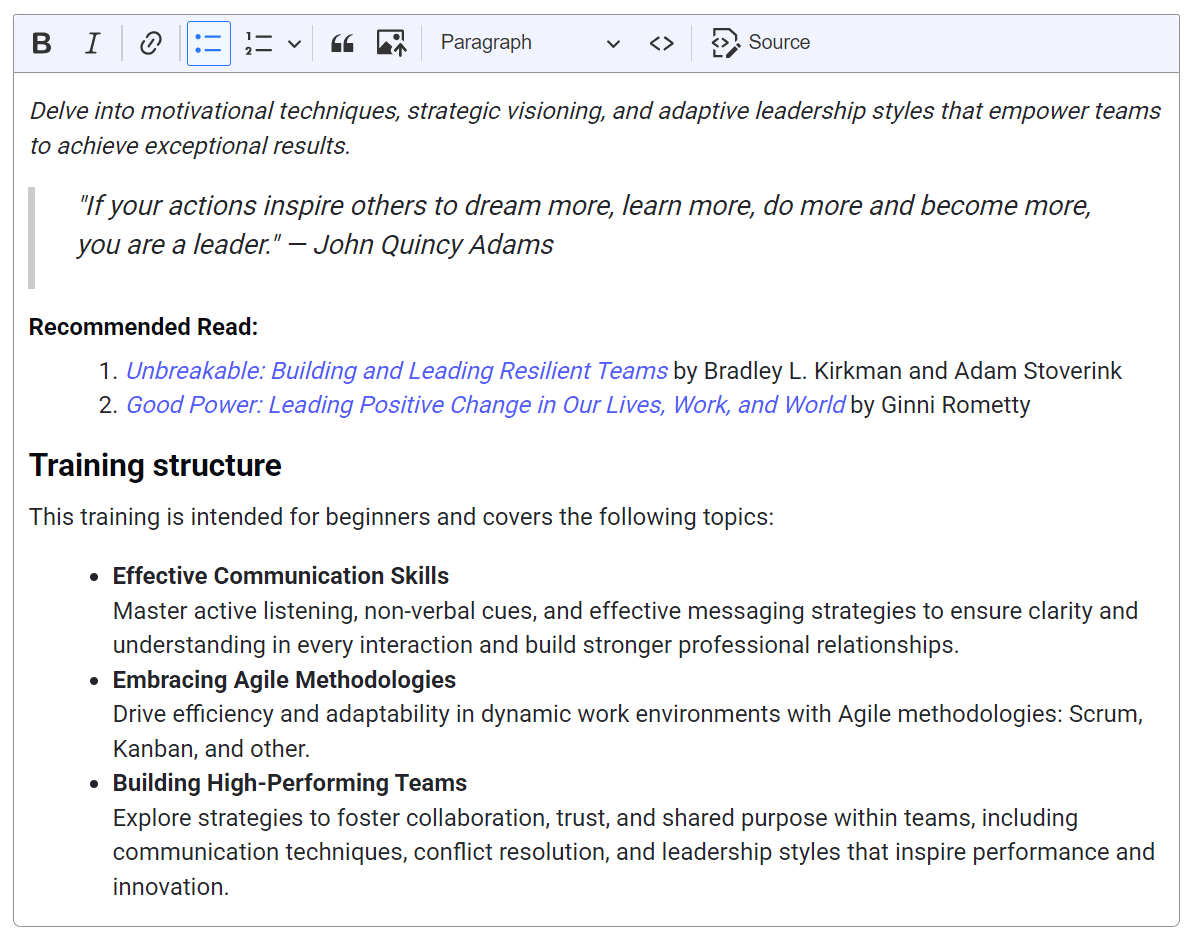
Cover image
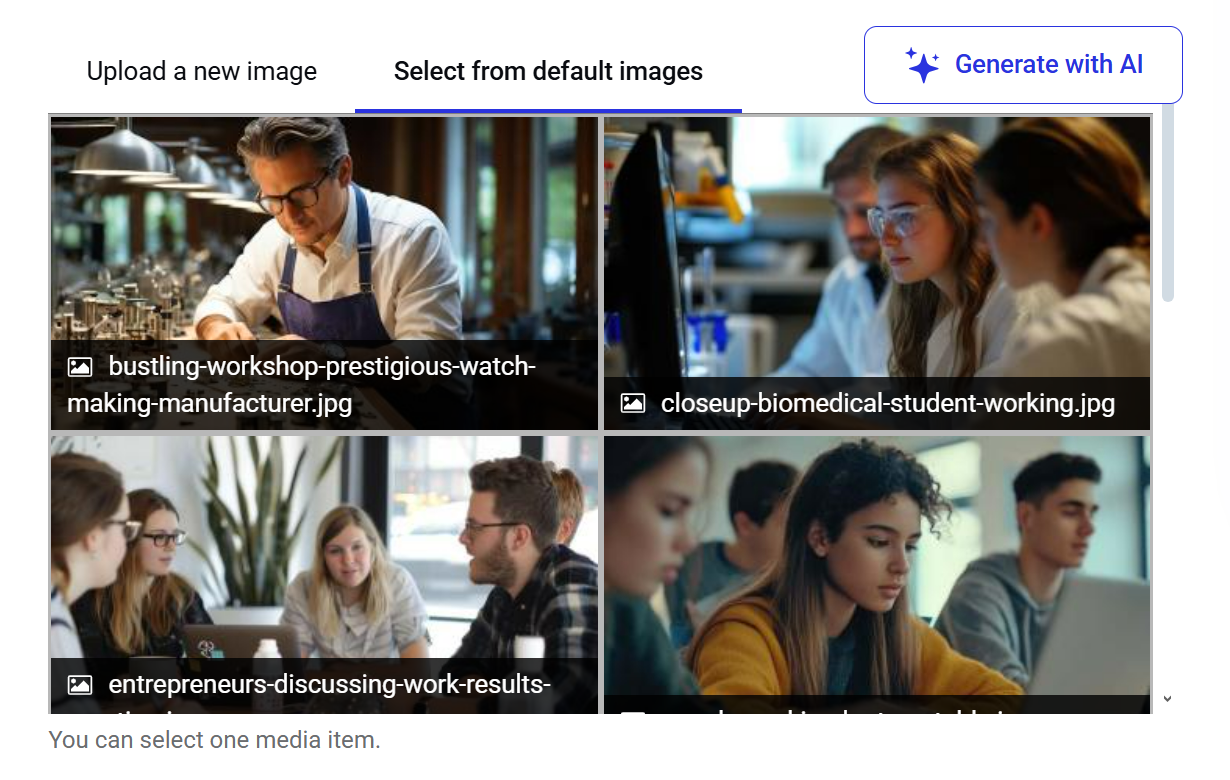
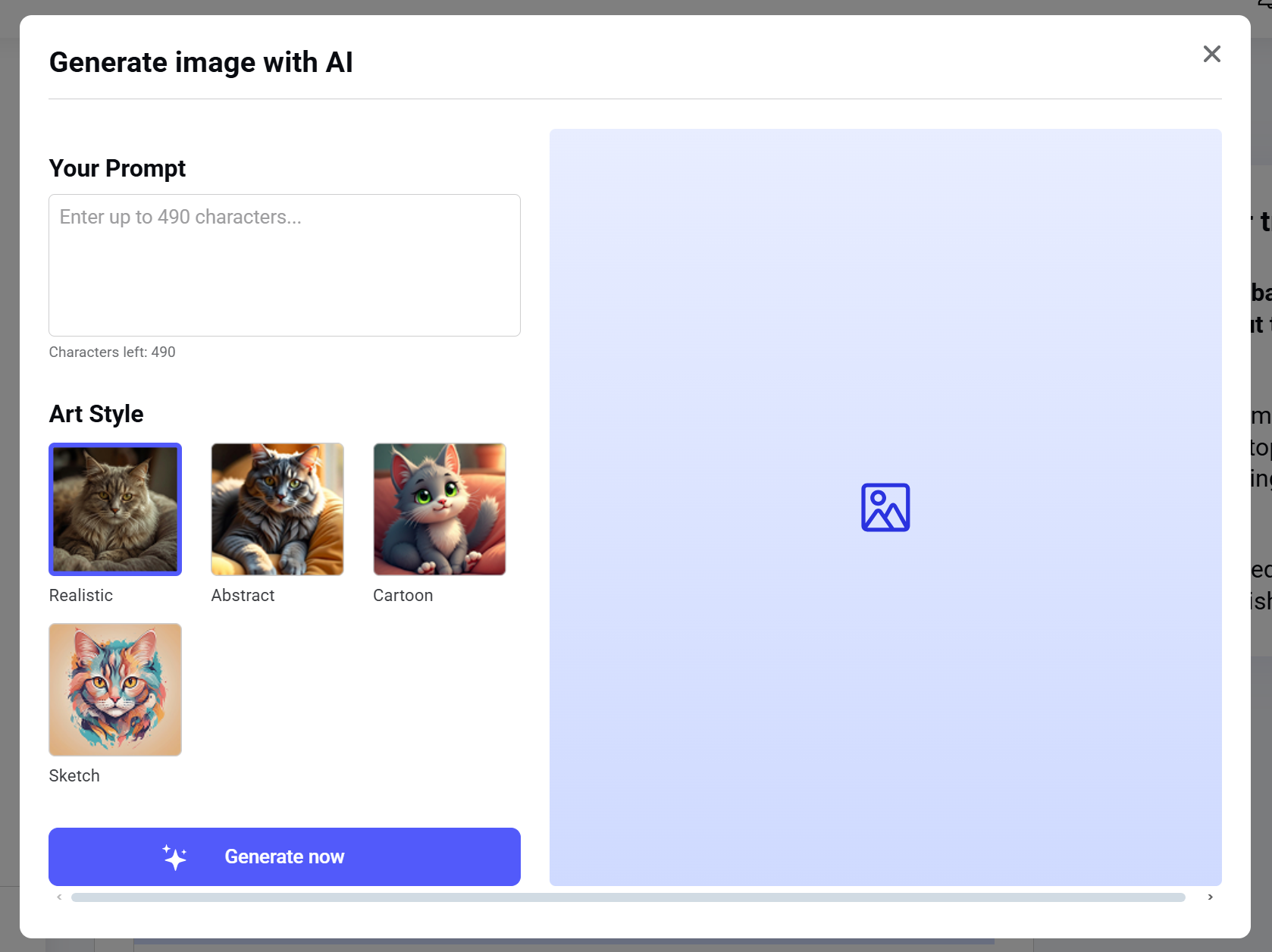
Here, you can set up a cover image that will be displayed in the training catalog and on the training homepage. You can either upload an image file of your choice, pick one from the image bank, or generate it using a built-in AI tool.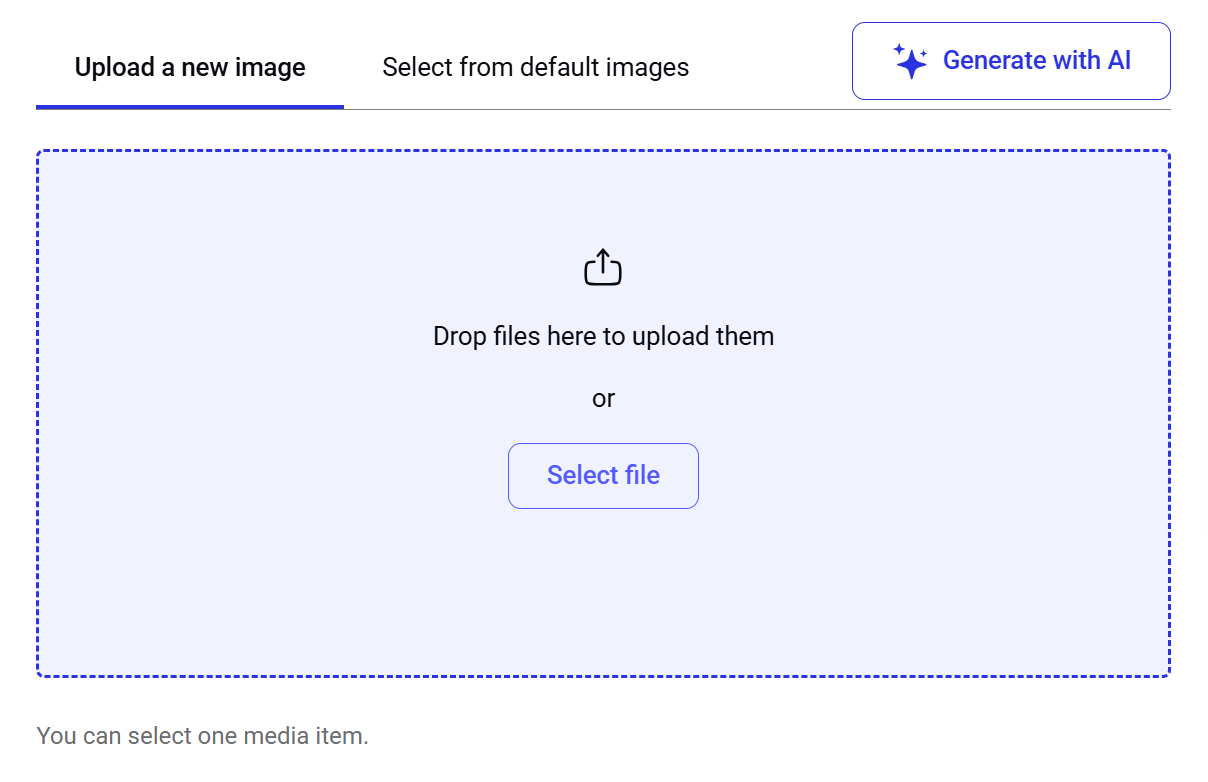

Domain
Here, you can associate the training with the relevant domains from the list. Domains are taxonomy categories used to filter trainings.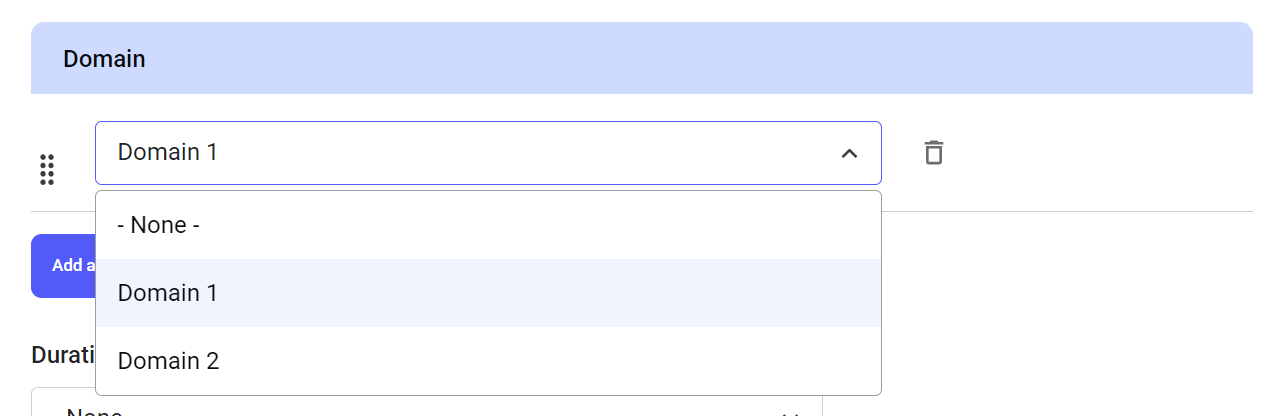
Duration
Here, you can set an estimated duration for completing the training.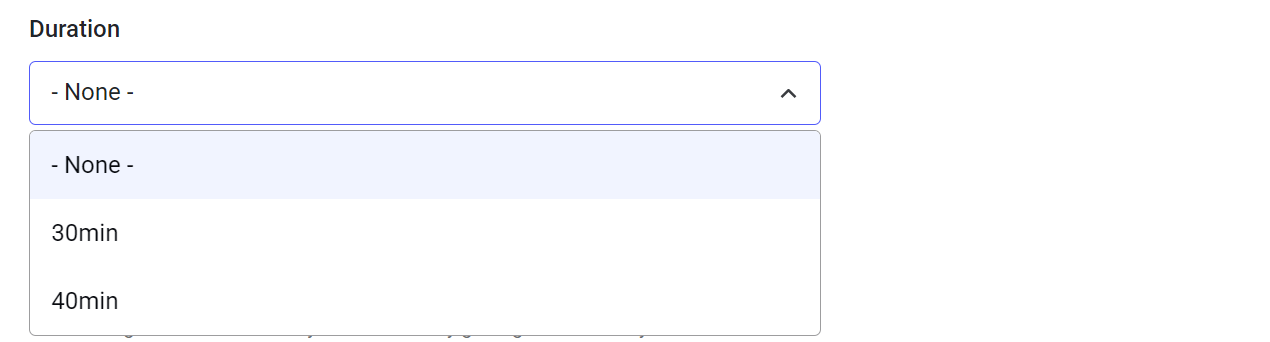
Visibility
Here, you can control who can access the training. It is a required field. Private (default setting) training remains hidden from all users unless explicitly assigned by an administrator or manager. This option is the default.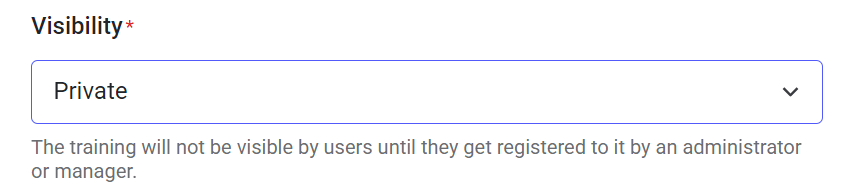
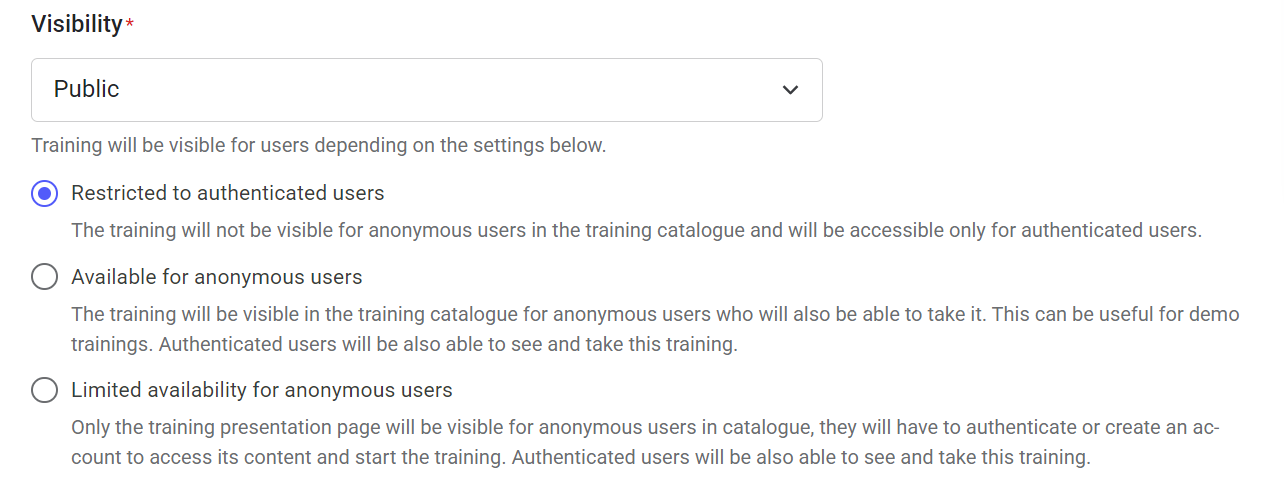
- Restrict visibility to authenticated users only (default).
- Allow anonymous users to see and take the training (useful for demo purposes).
- Allow anonymous users to access only the presentation page, requiring authentication to access content.
Language
Here, you can specify the language of the training for the system. This setting cannot be changed afterwards.
You can translate your training into another language using a dedicated translation tool (see Translations for more details).
Hierarchy
Here, you can assign the training to specified learner areas (hierarchies). Only users within the selected hierarchy and its sub-levels will be able to access the training. If you leave this field empty, the training will remain available for all hierarchies.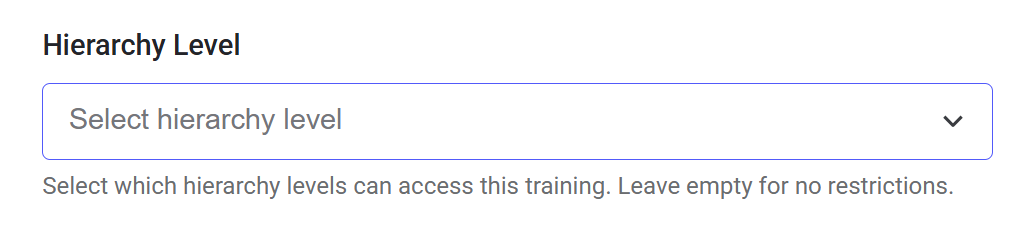
NOTE: This functionality is only available via Opigno Custom API.
Training prerequisites
Here, you can define whether a learner must complete other trainings before they can begin this one.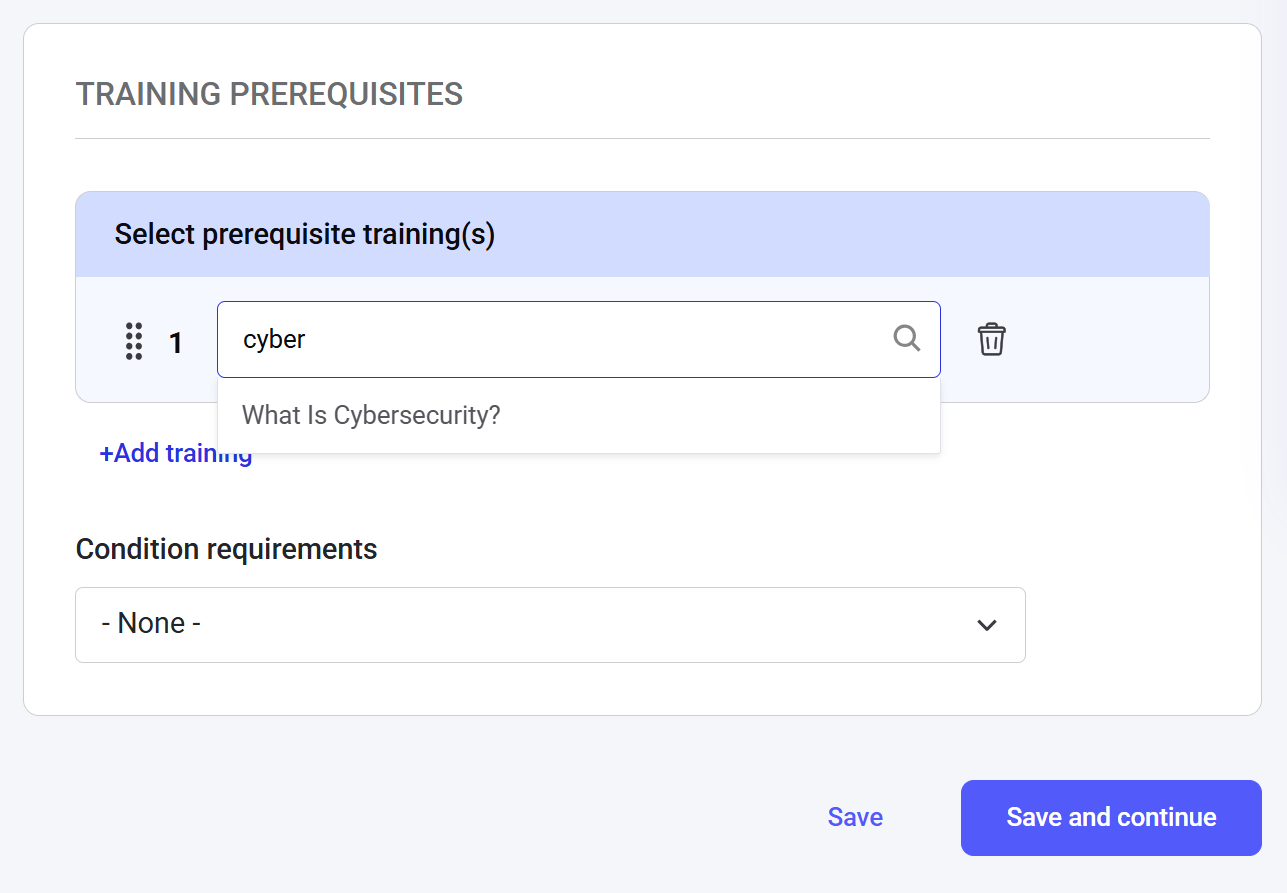
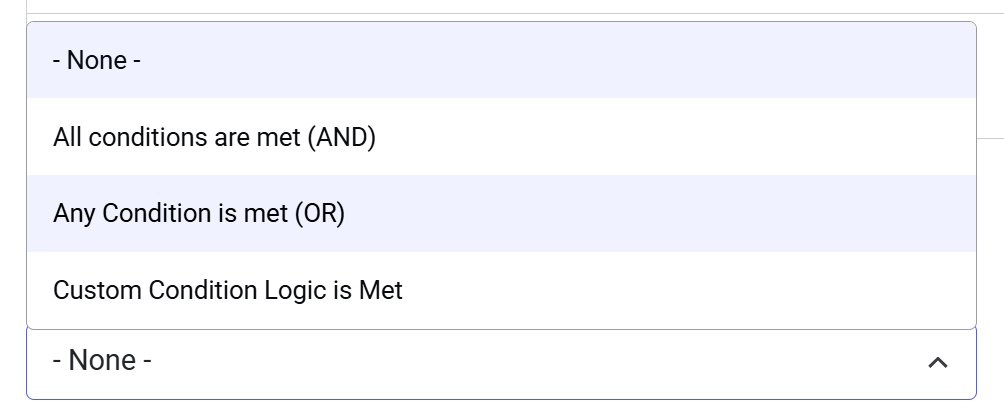
- All conditions are met (AND rule), meaning a learner must pass all selected prerequisite trainings to be able to start this training.
- Any condition is met (OR rule), meaning a learner must pass at least one of the selected prerequisite trainings to be able to start this training.
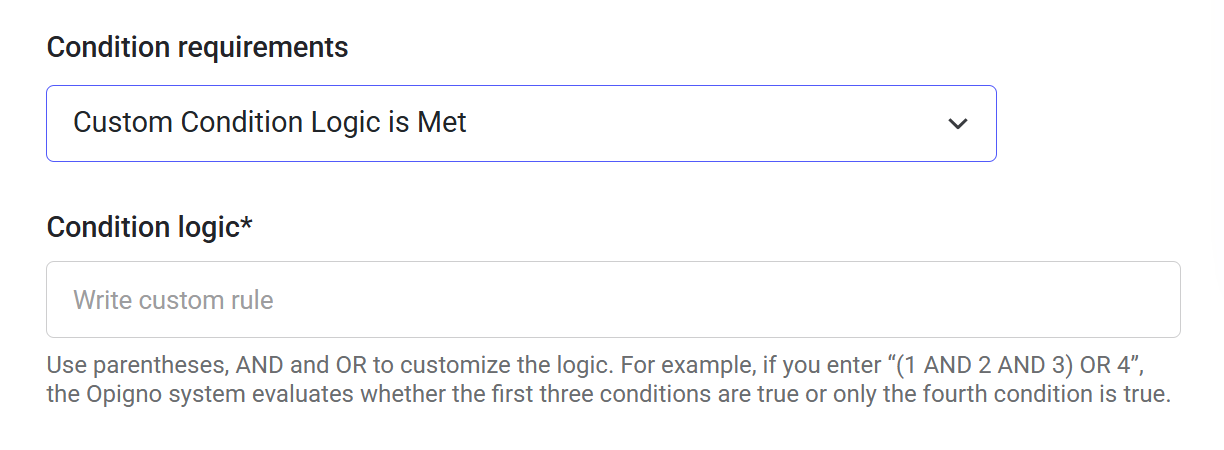
- Custom condition logic, where you can set up a custom rule using AND and OR operators. Each selected training is automatically assigned an ordinal number, which you can use in the formula to define the logic.
If a prerequisite training is later unpublished, an administrator must manually update the prerequisite settings for this training. Otherwise, learners who have not completed the unpublished training will be blocked from starting this one
Step 2. Adding modules, topics, and activities
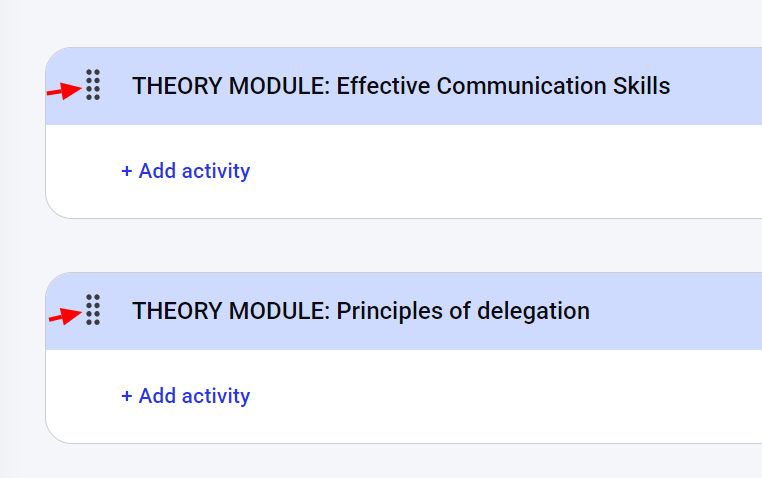
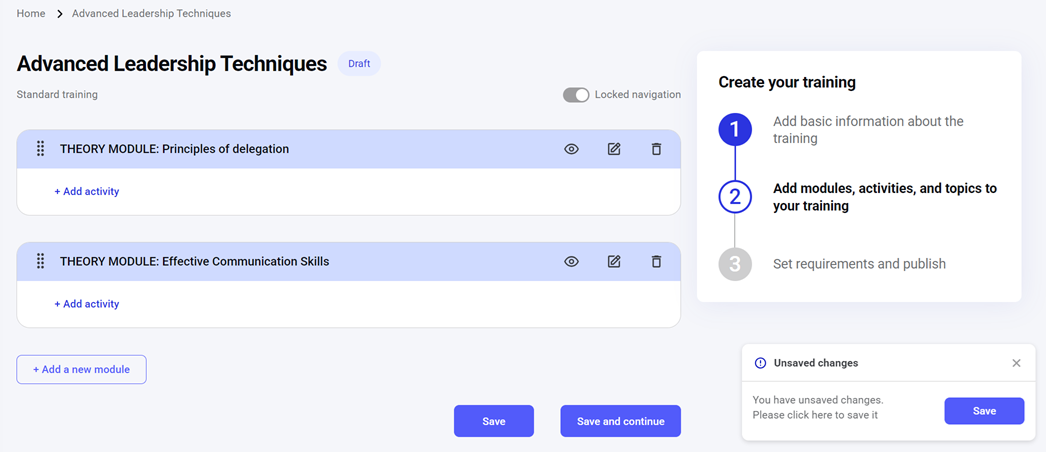
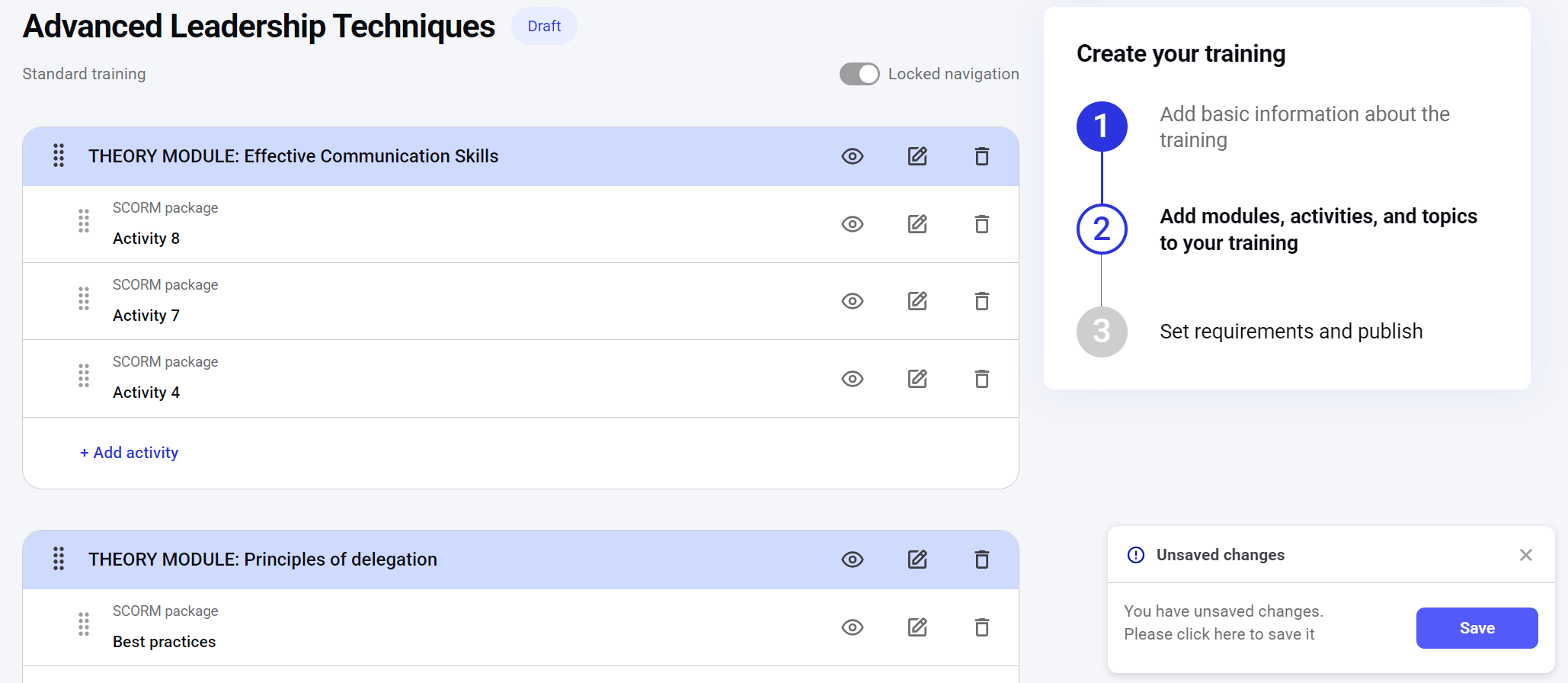
After configuring the general settings of the training you are creating/editing, you can build the learning path.Managing modules within a training
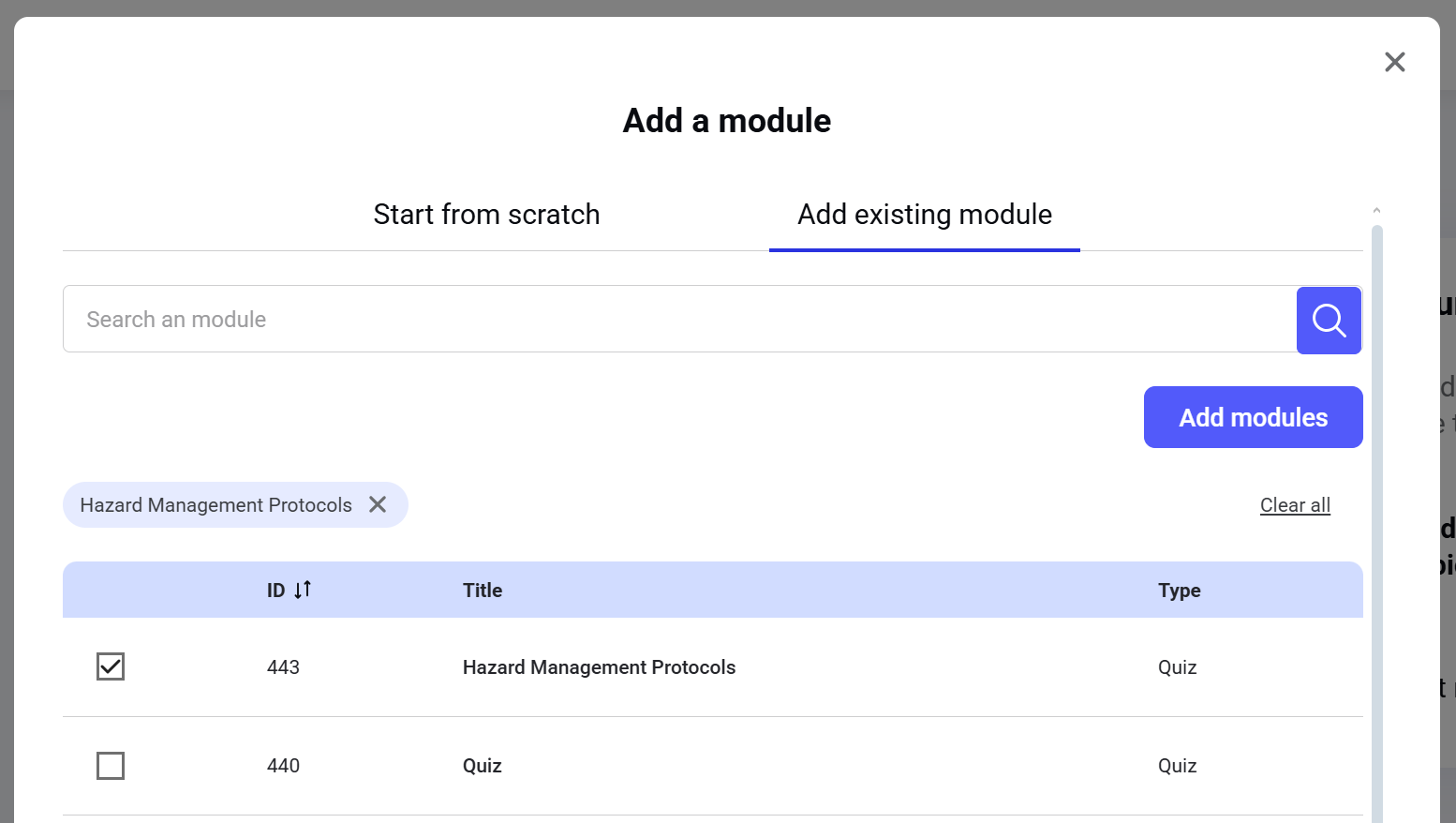
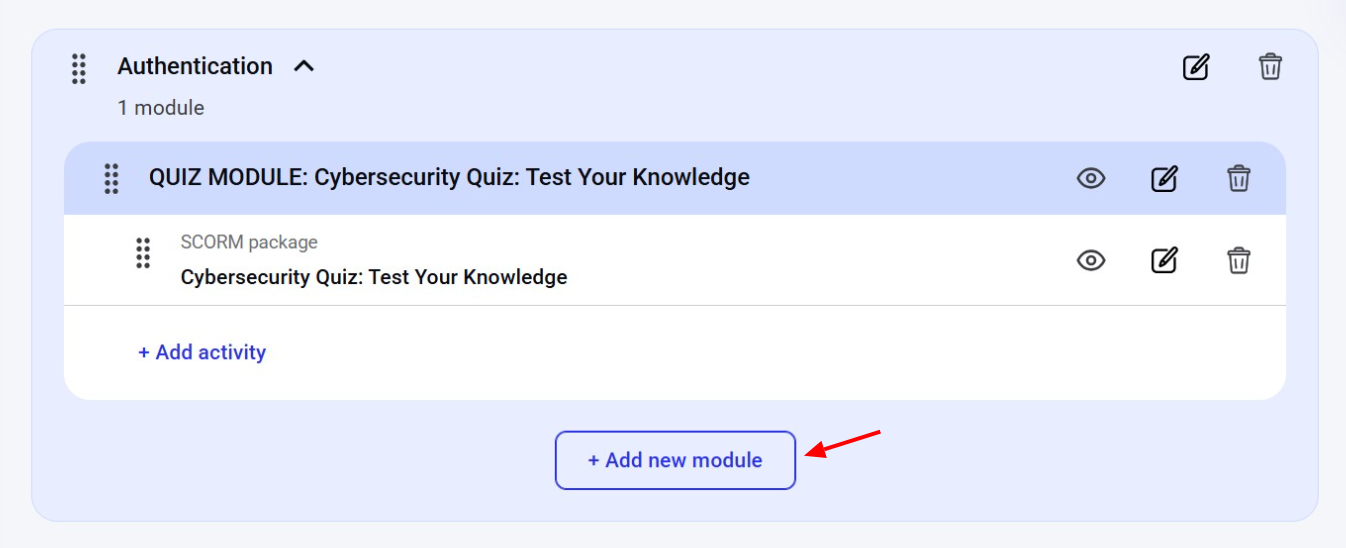
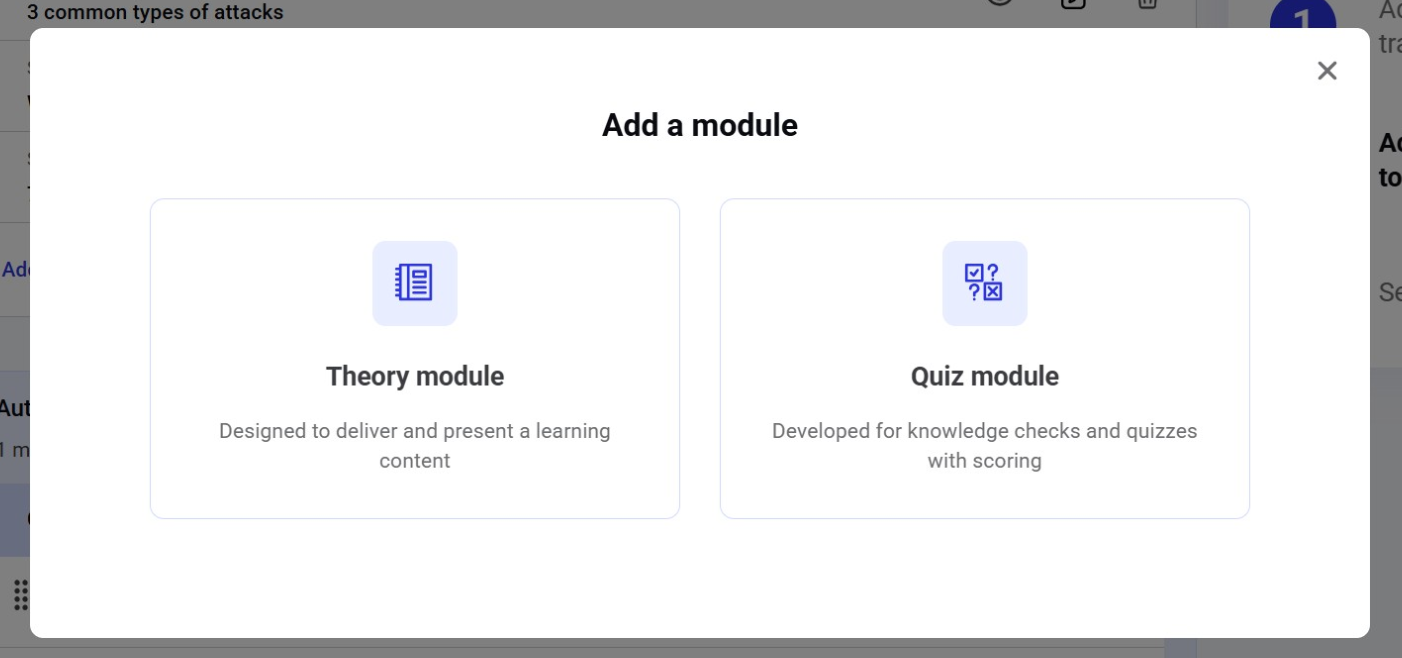
To add a module, click the Add a new module button.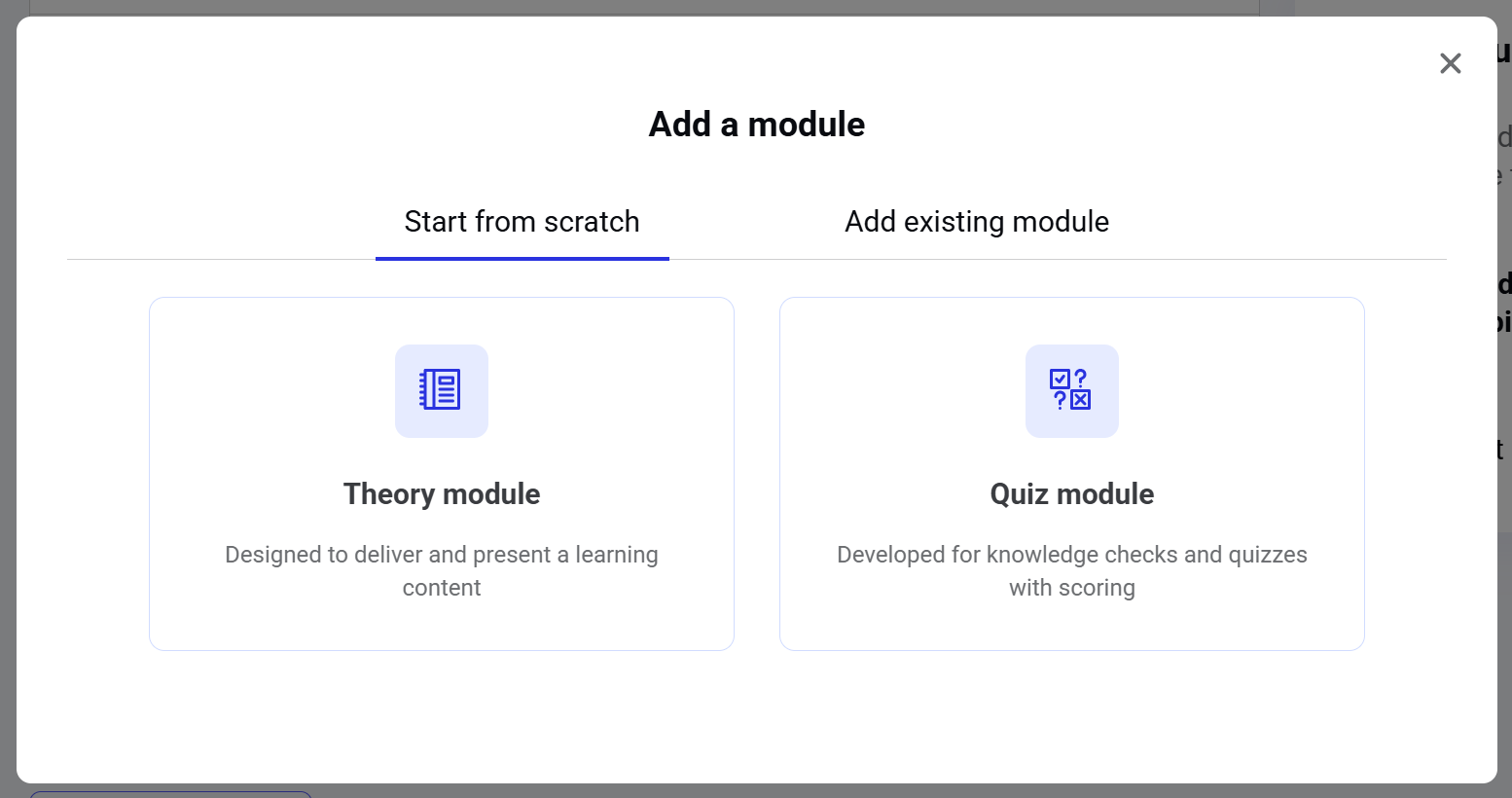
To learn more about creating modules, check Module creation.

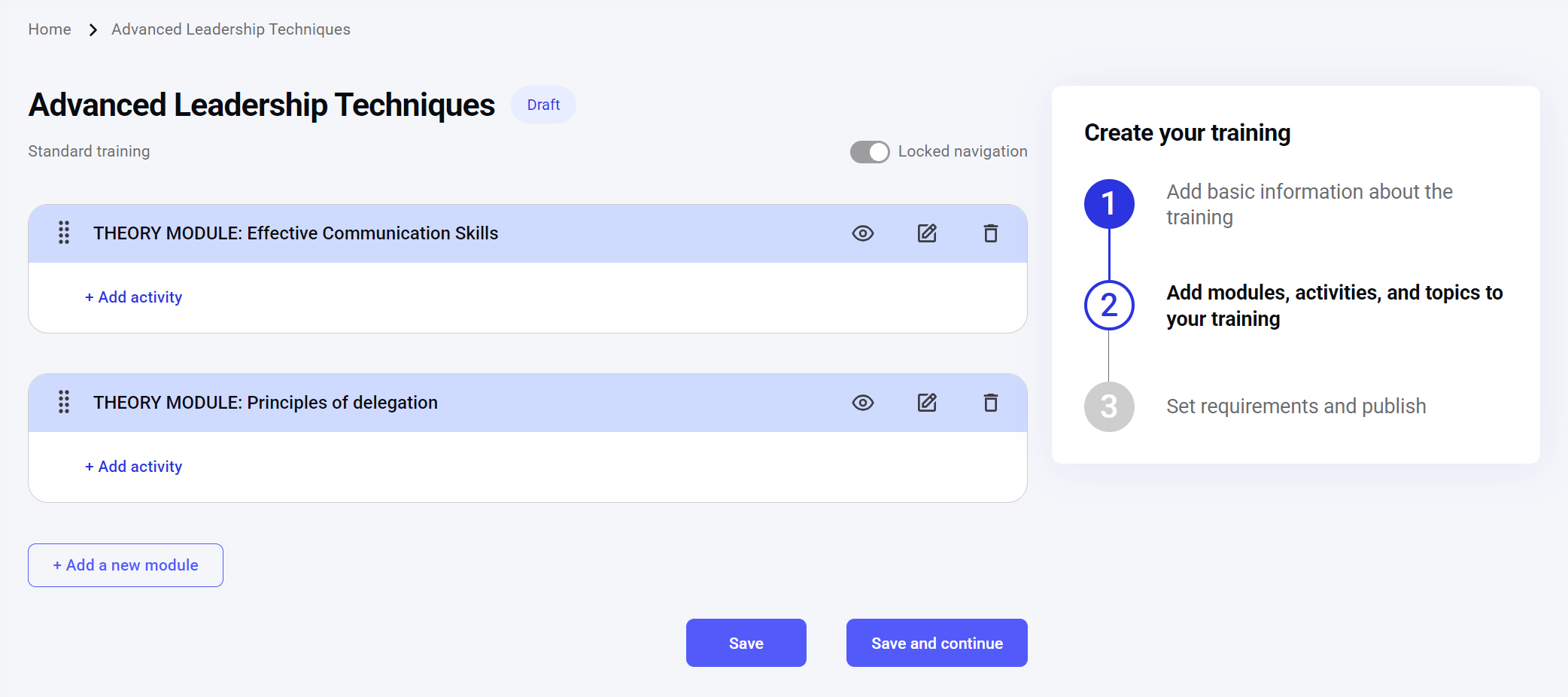
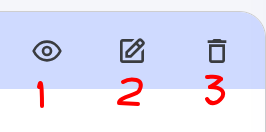
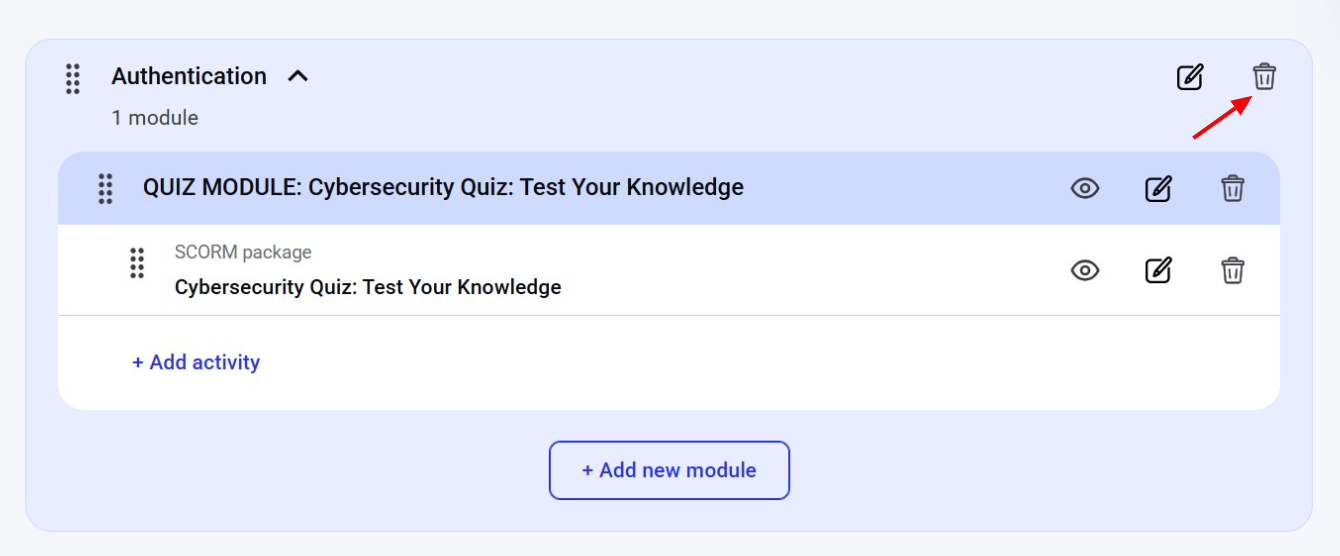
- Preview: Clicking this icon opens the module in a learner interface for a preview.
- Edit: Clicking this icon opens the module creation interface, where you can change the general settings and module content.
- Delete: Clicking this icon removes the module from the training only. It does not delete the module from the system; you can still access it from the Manage modules dashboard.
To learn more about editing modules, check Module creation | Editing a module.
Managing activities within a module
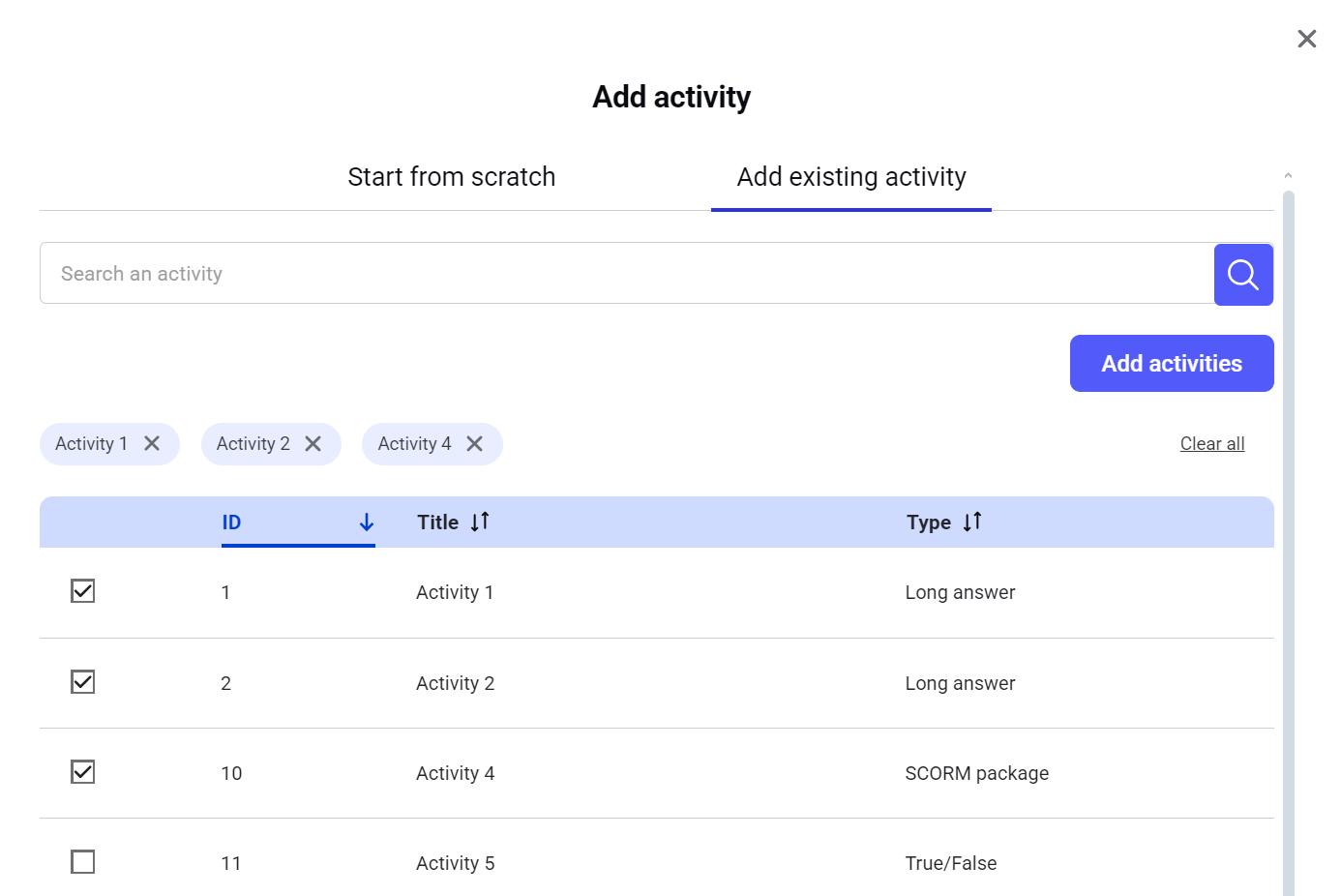
After configuring the general settings of the module you are creating/editing, you can build its content by adding as many activities as needed.NOTE: Changing modules or activities in the published training will trigger a training revision. To learn more about training revisions, check Training revision.
To learn more about creating activities, check Activity creation.

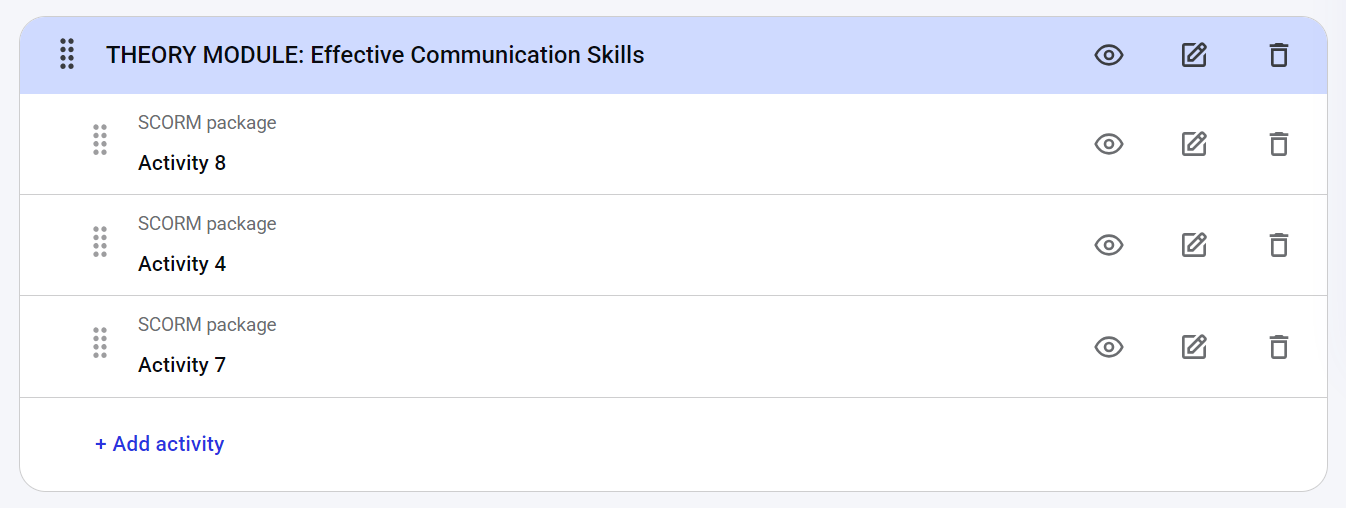
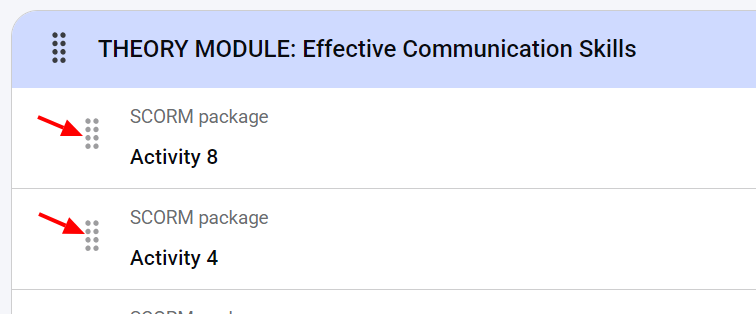
- Preview: Clicking this icon opens the activity in a learner interface for a preview.
- Edit: Clicking this icon opens the activity creation/editing interface, where you can change its settings and content.
- Delete: Clicking this icon removes the activity from the module only. It does not delete the activity from the system; you can access this activity from the Manage activities dashboard.
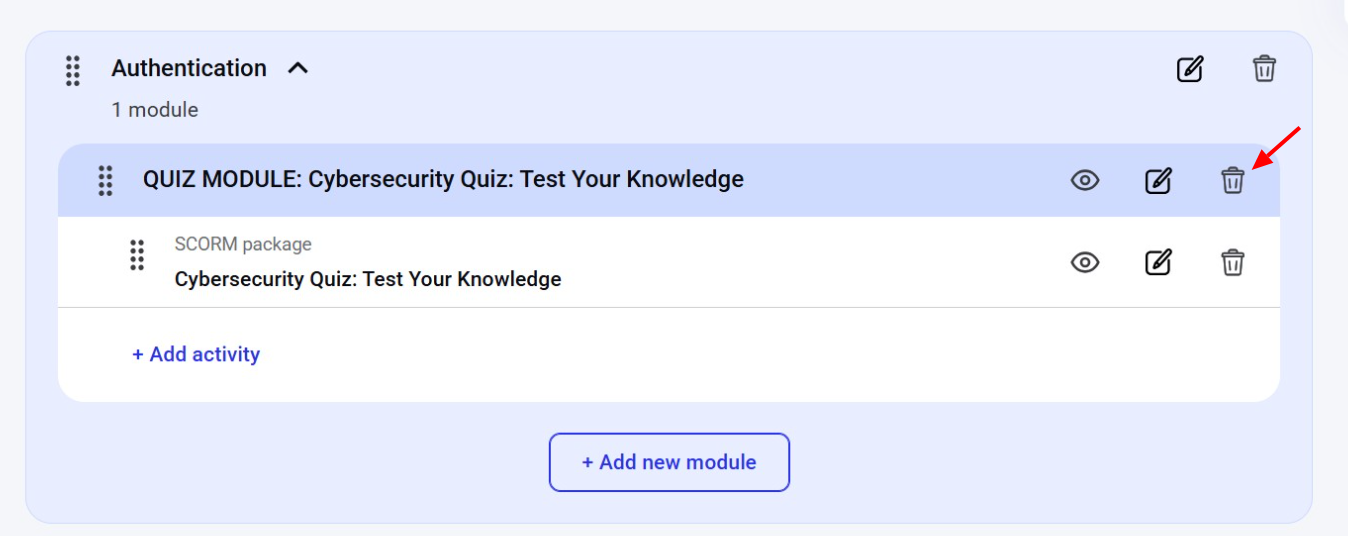
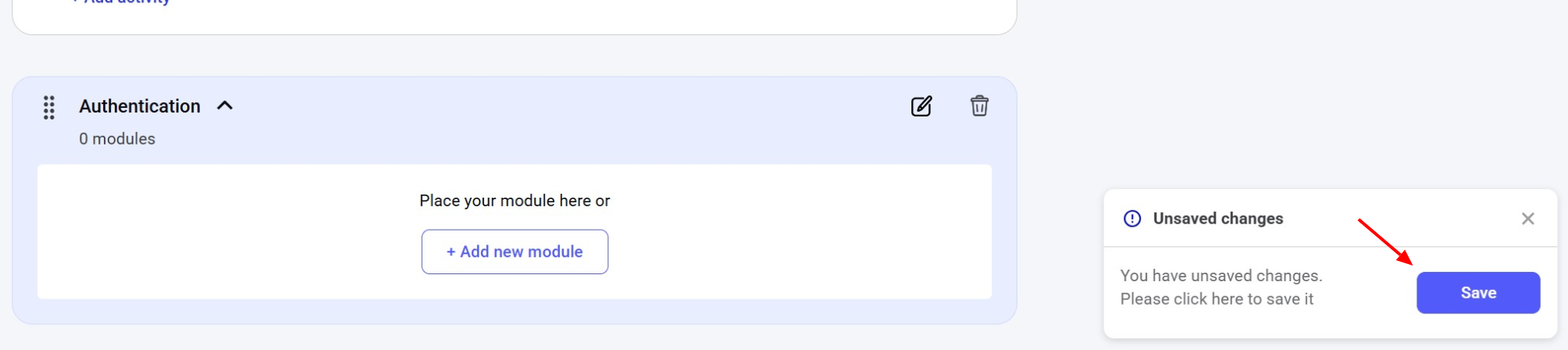
NOTE: If a module has only one activity, removing that activity will also remove the module from the training.
To learn more about creating activities, check Activity creation.
Grouping modules into topics
You can group several modules into a topic to help learners navigate the training. In the learner area, a topic is displayed as a dropdown list of modules, each with its own title.NOTE: Topics do not affect passing requirements or the order in which modules are taken, and are used only for display purposes.Topics are created within a given training and cannot be reused across multiple trainings.
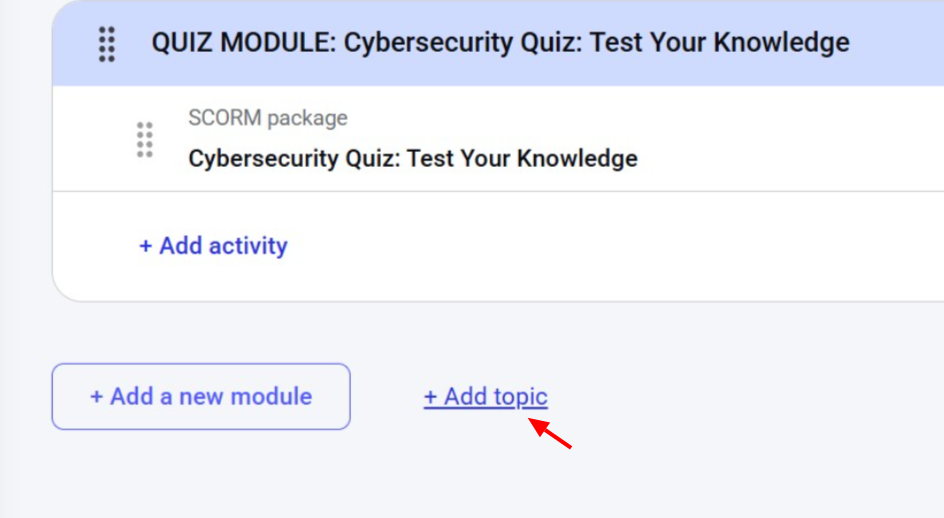
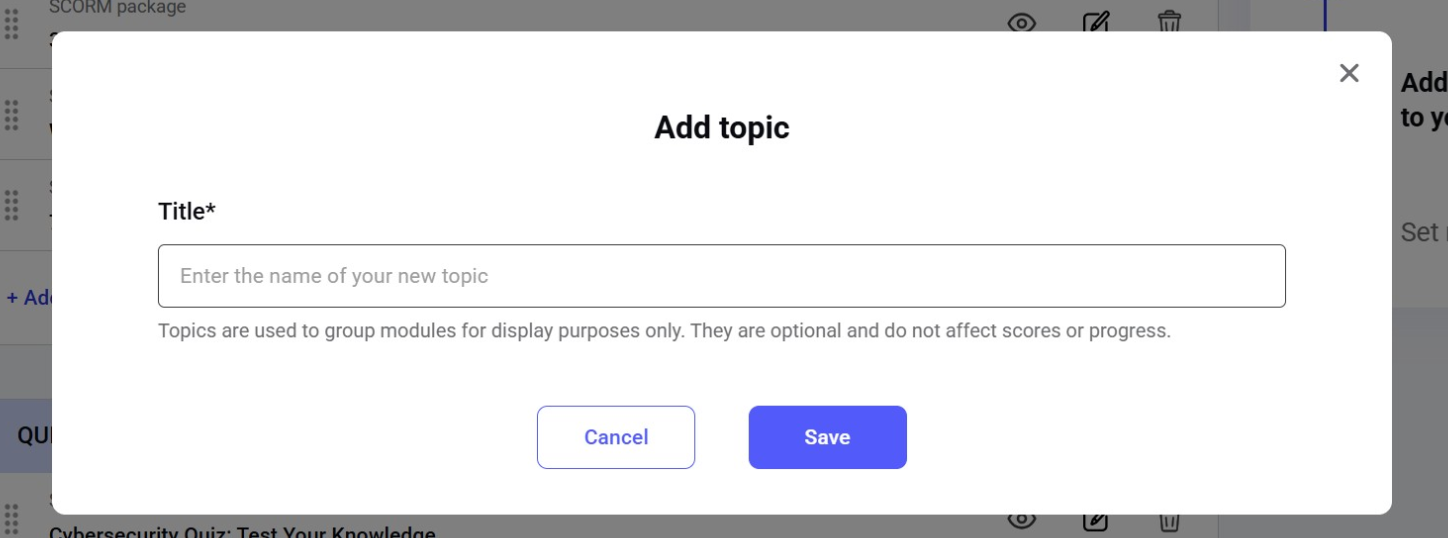
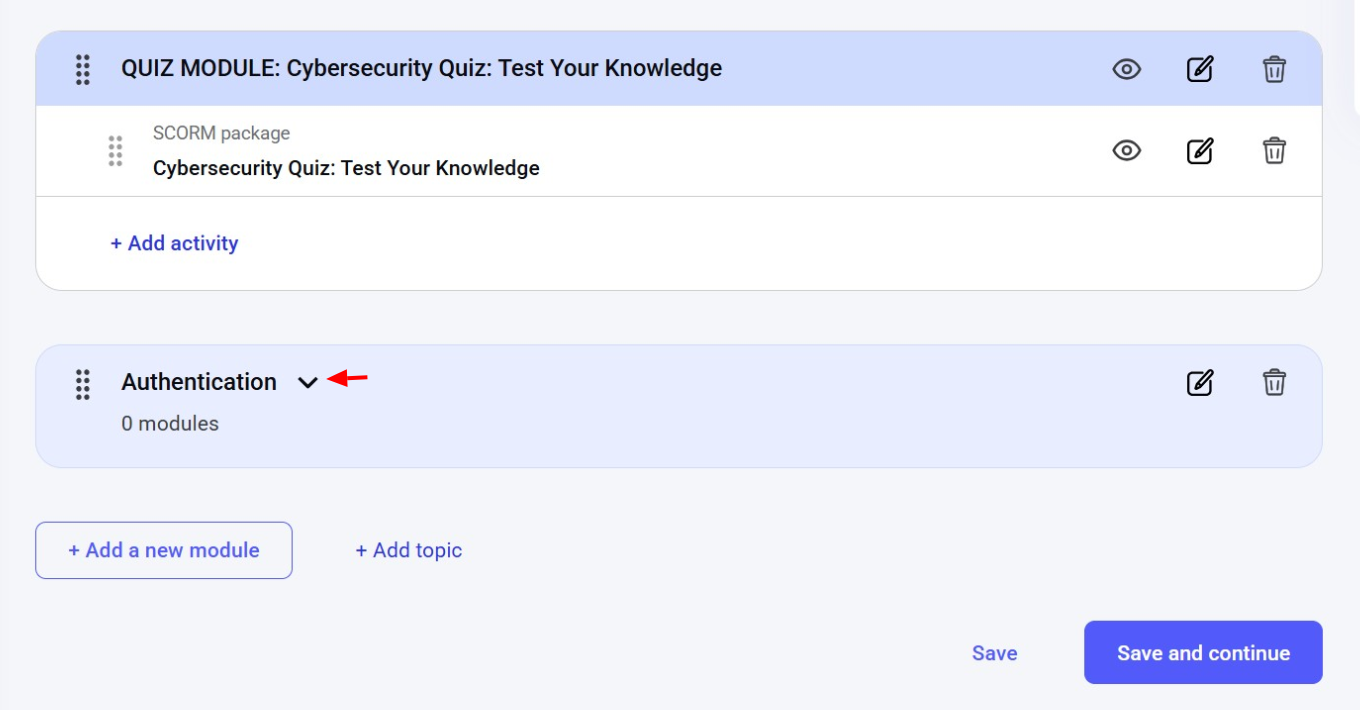
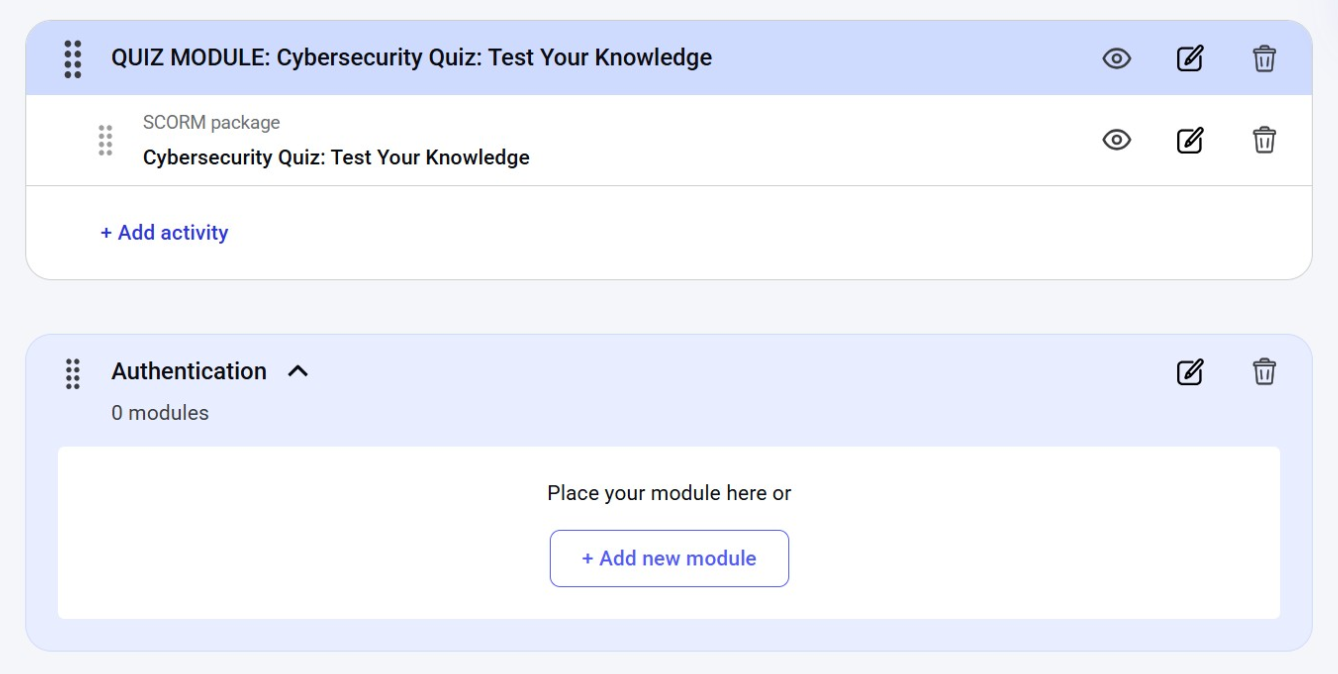
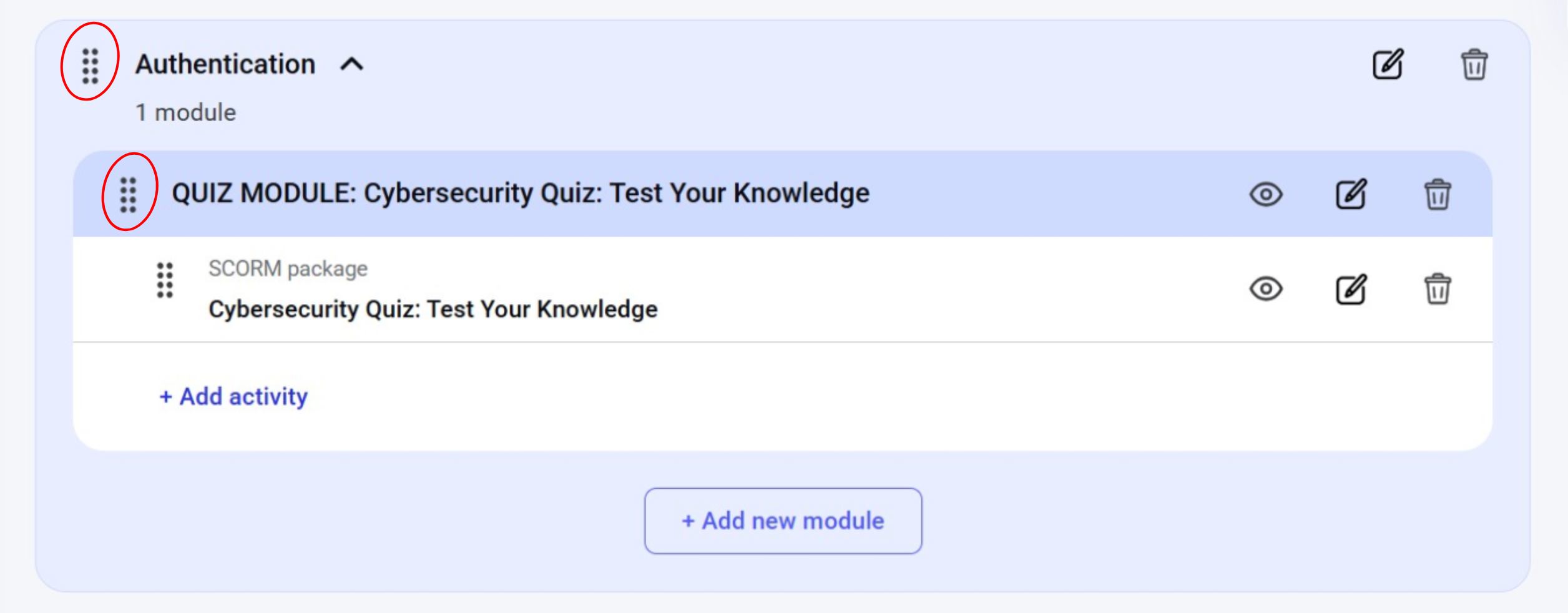
NOTE: You can only add an existing or new module to the topic if it contains activities.
Step 3. Passing requirements
NOTE: This step differs for Standard and Advanced training types. The features available for the Advanced training type only are marked as such.
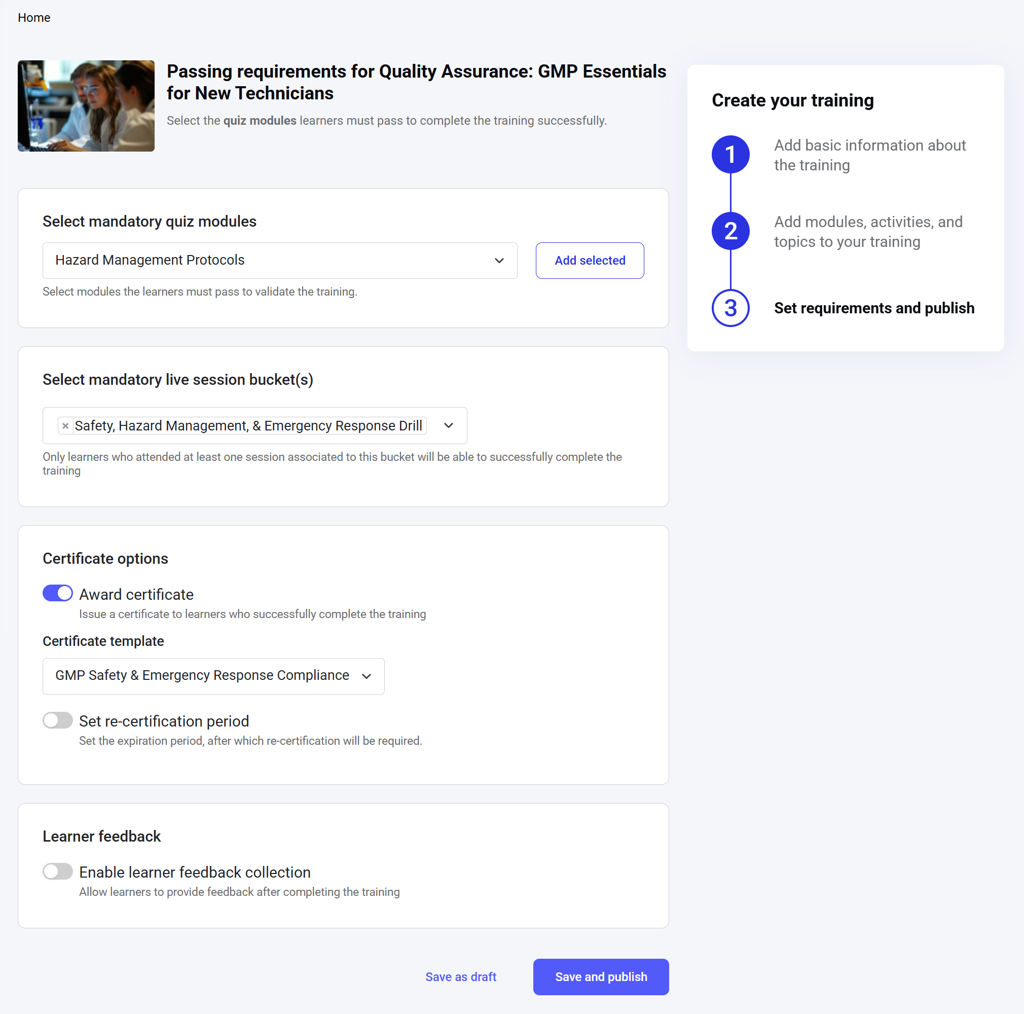
Selecting mandatory modules
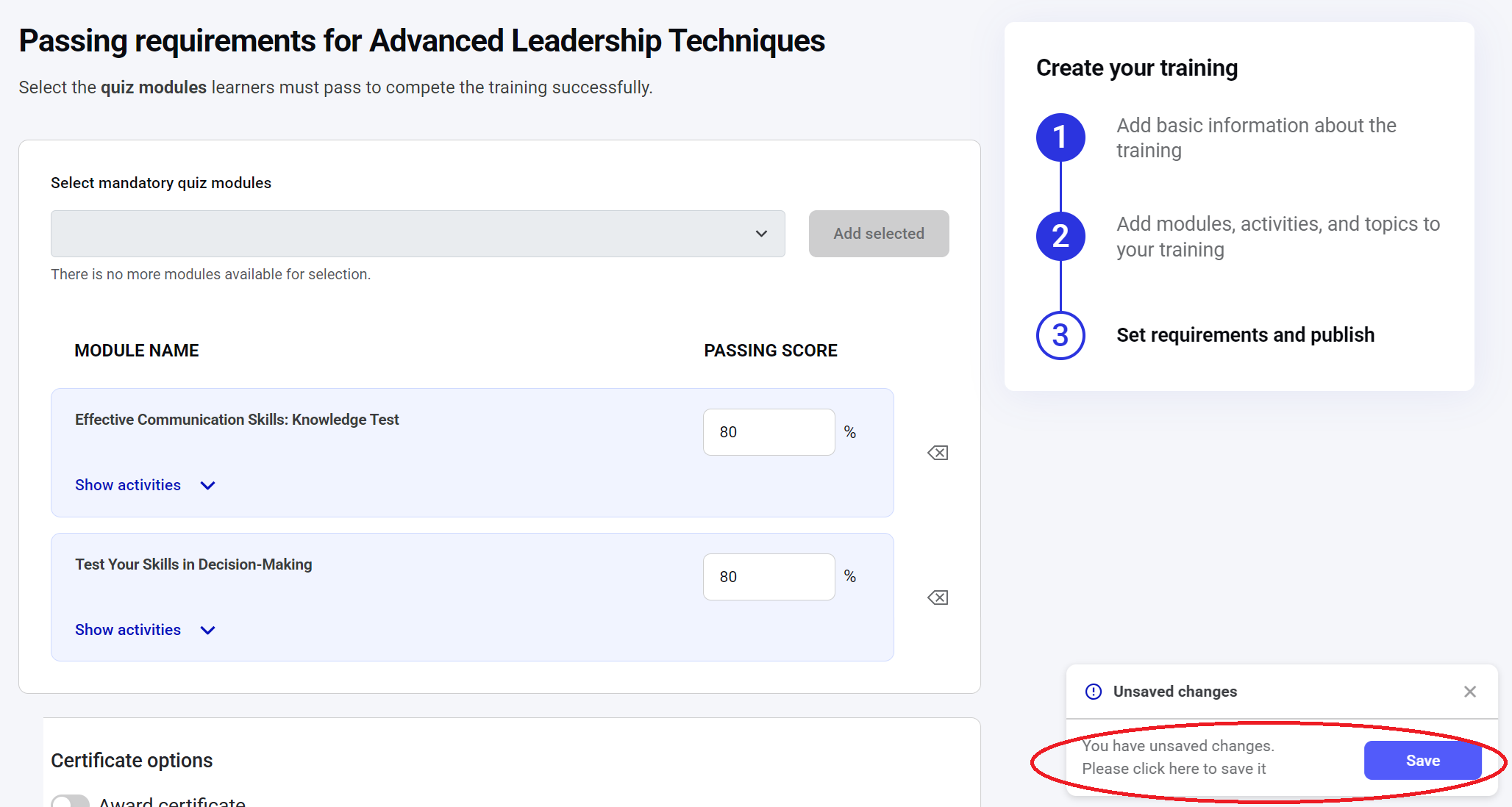
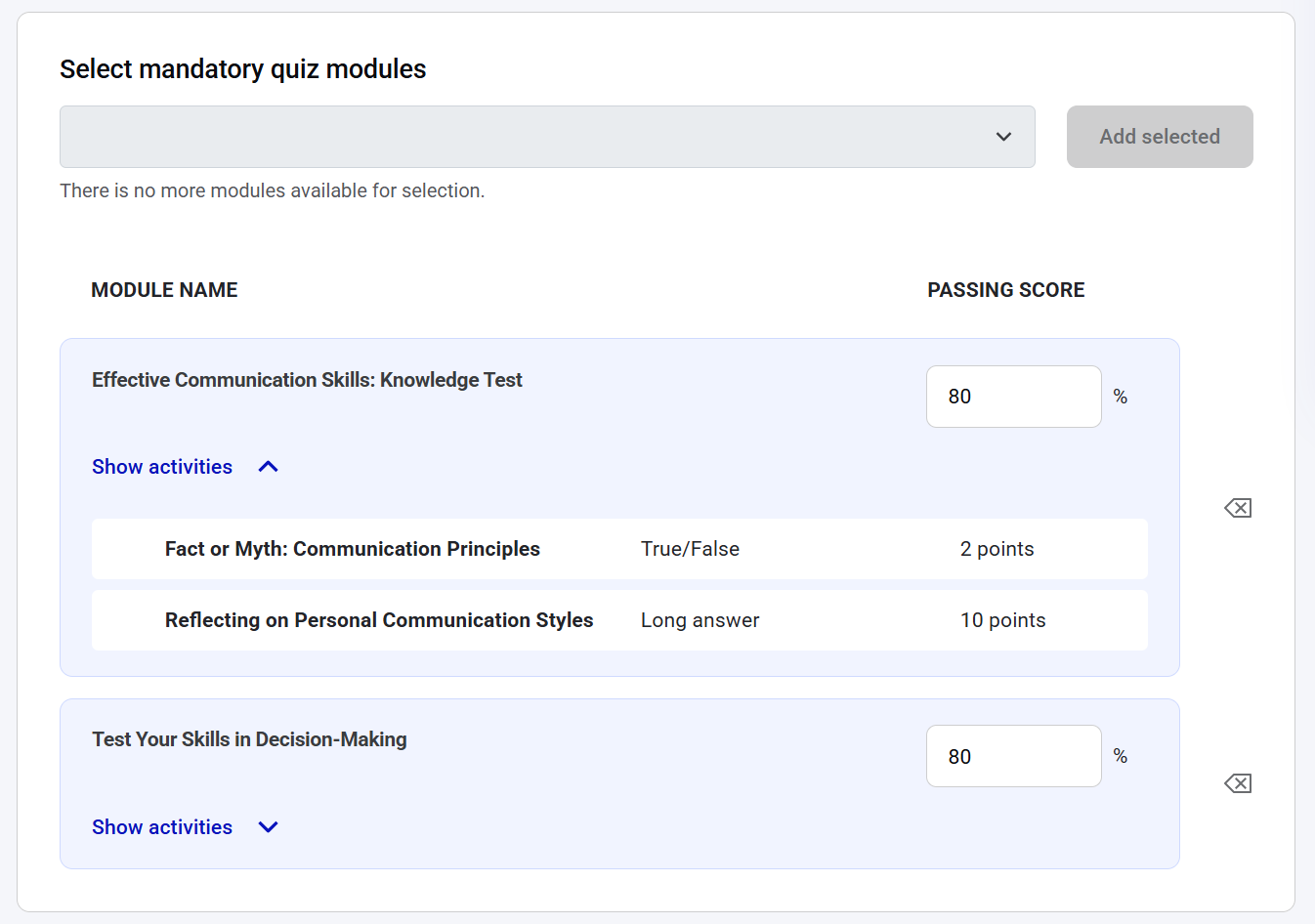
In the dropdown list under Select mandatory quiz modules, all the quiz modules used in the training are listed. Select the module learners must pass successfully to pass the training, and click Add selected. You can add multiple modules.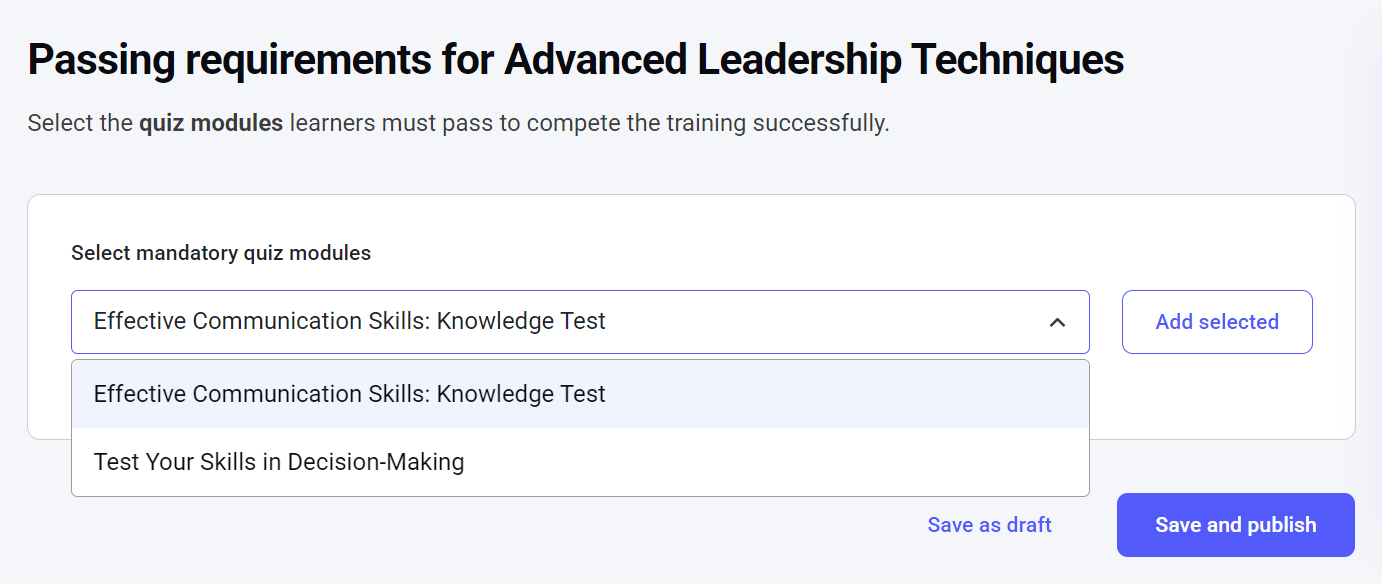

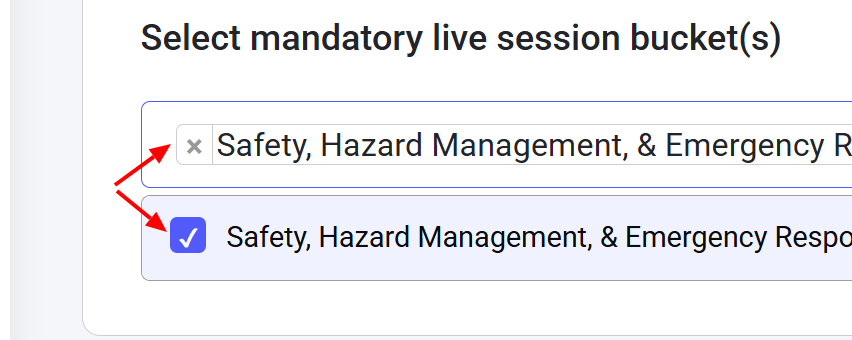
Selecting mandatory live session buckets (Advanced training type only)
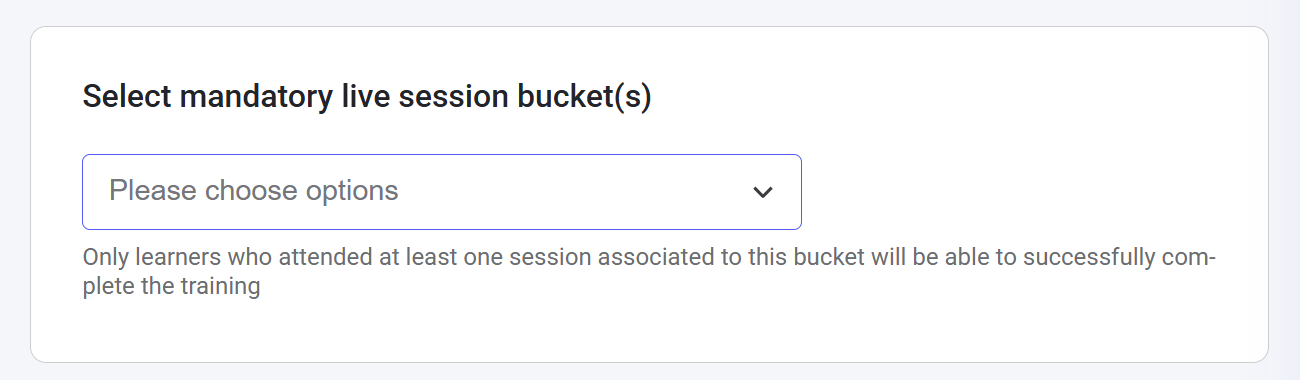
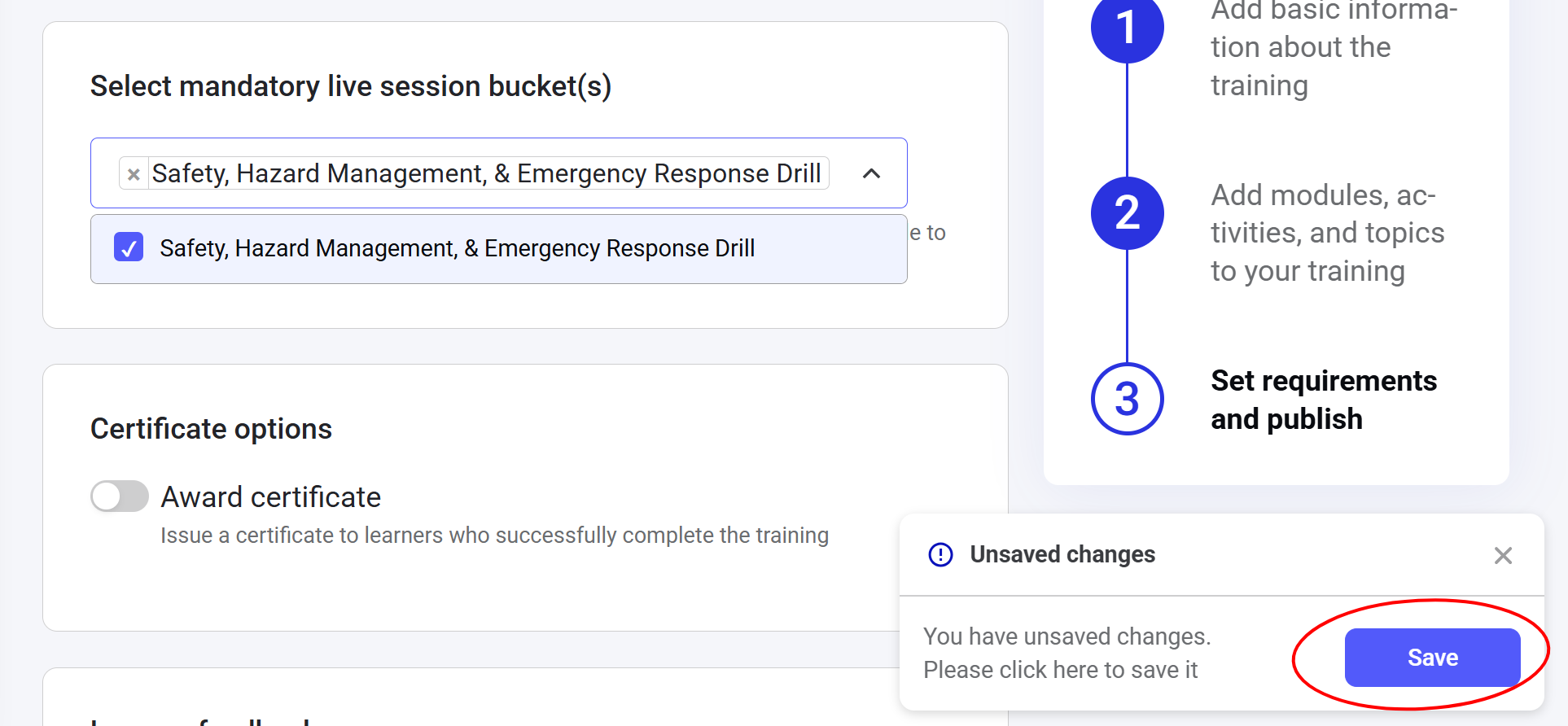
For the Advanced training, you can also set learning sessions that learners must attend to pass the training.NOTE: Live session buckets are created and managed in a separate dedicated interface. Check Live session bucket creation for more details.
Adding a certificate
You can assign a certificate to a training by enabling the Award certificate toggle. If enabled, learners who meet the passing requirements will receive a certificate upon finishing the training.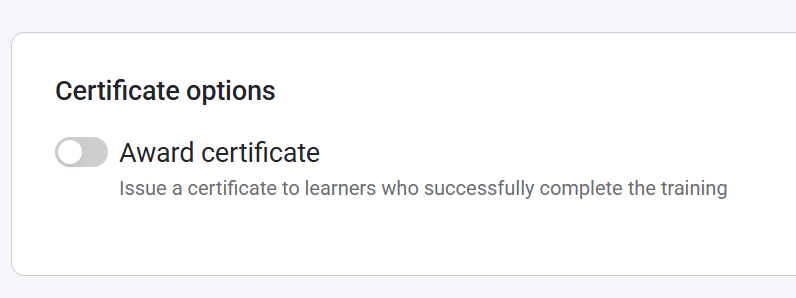
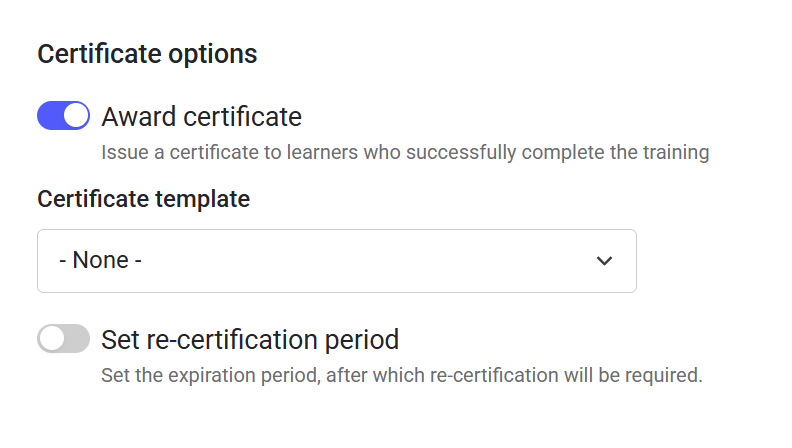
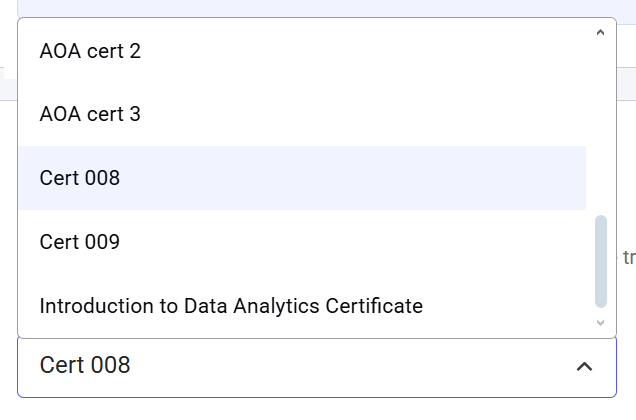
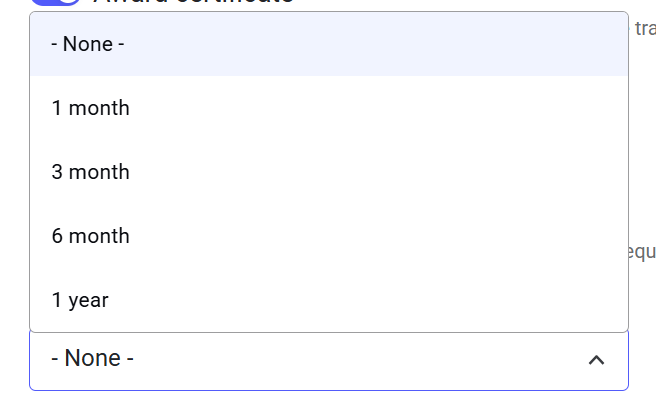
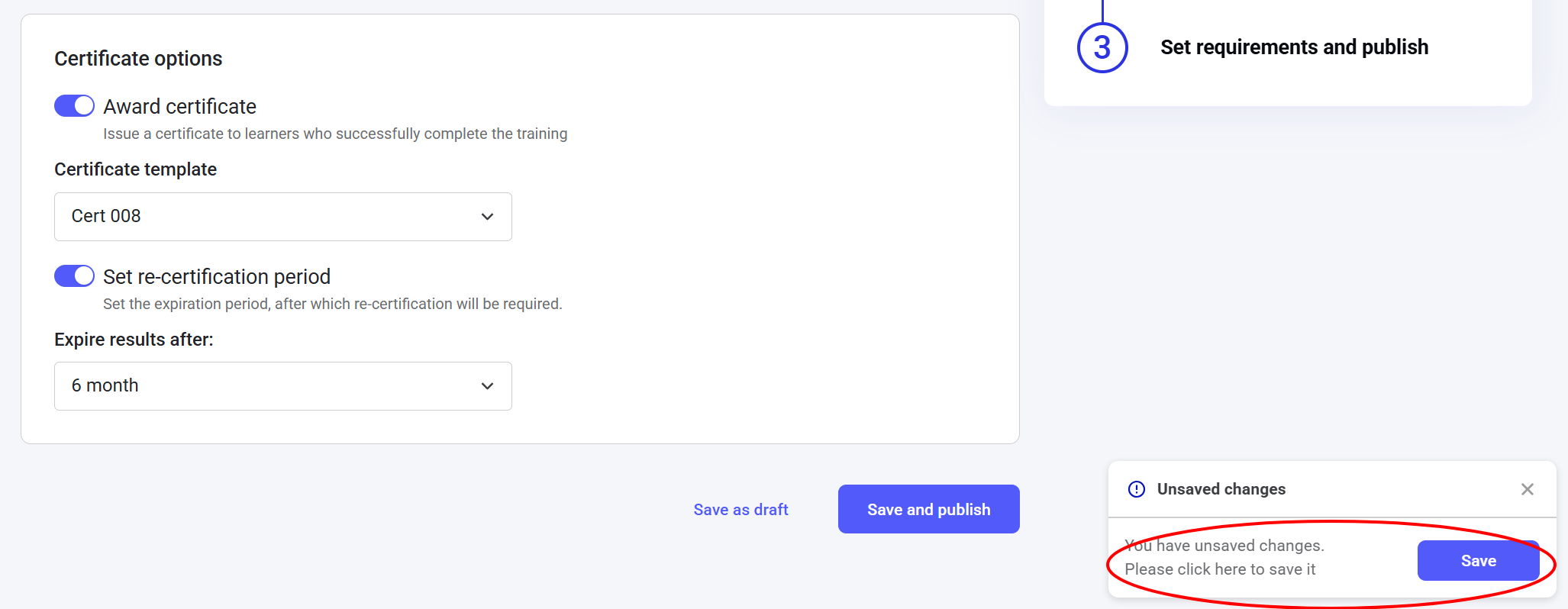
To learn more about managing certificate templates, check Certificates.
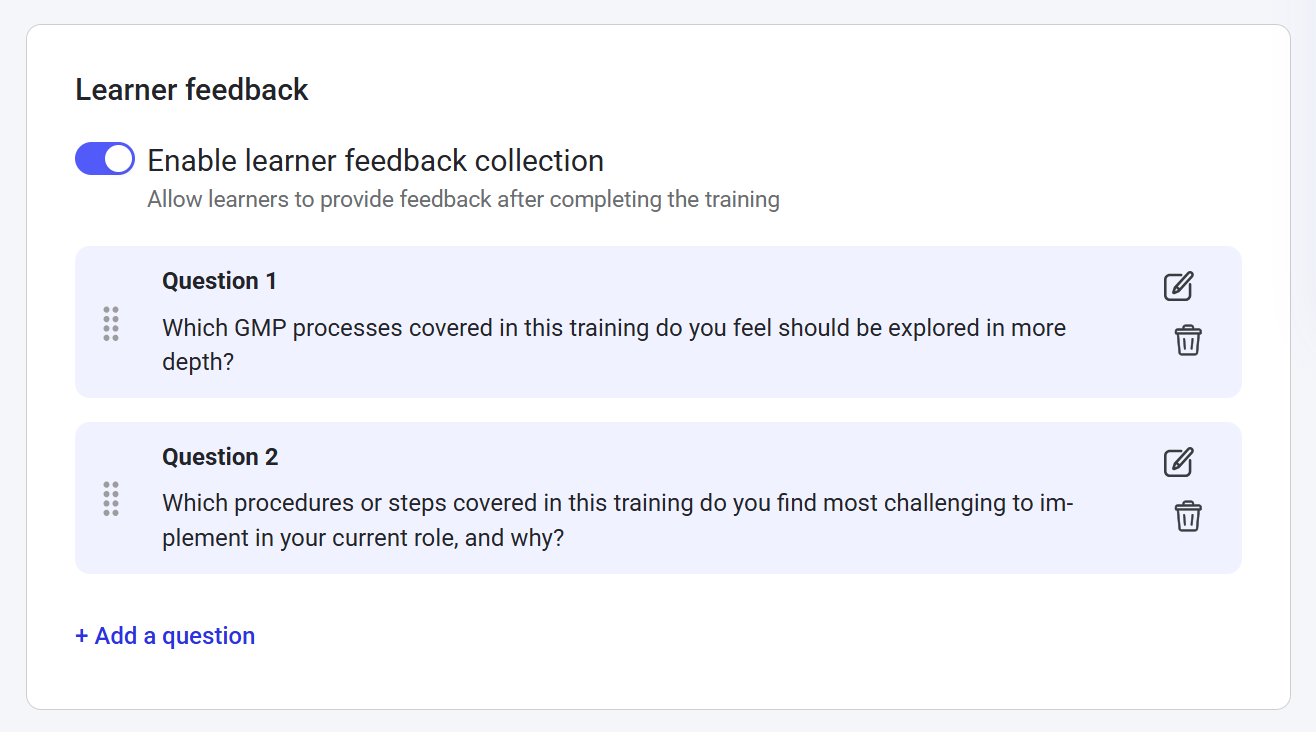
Enabling learner feedback
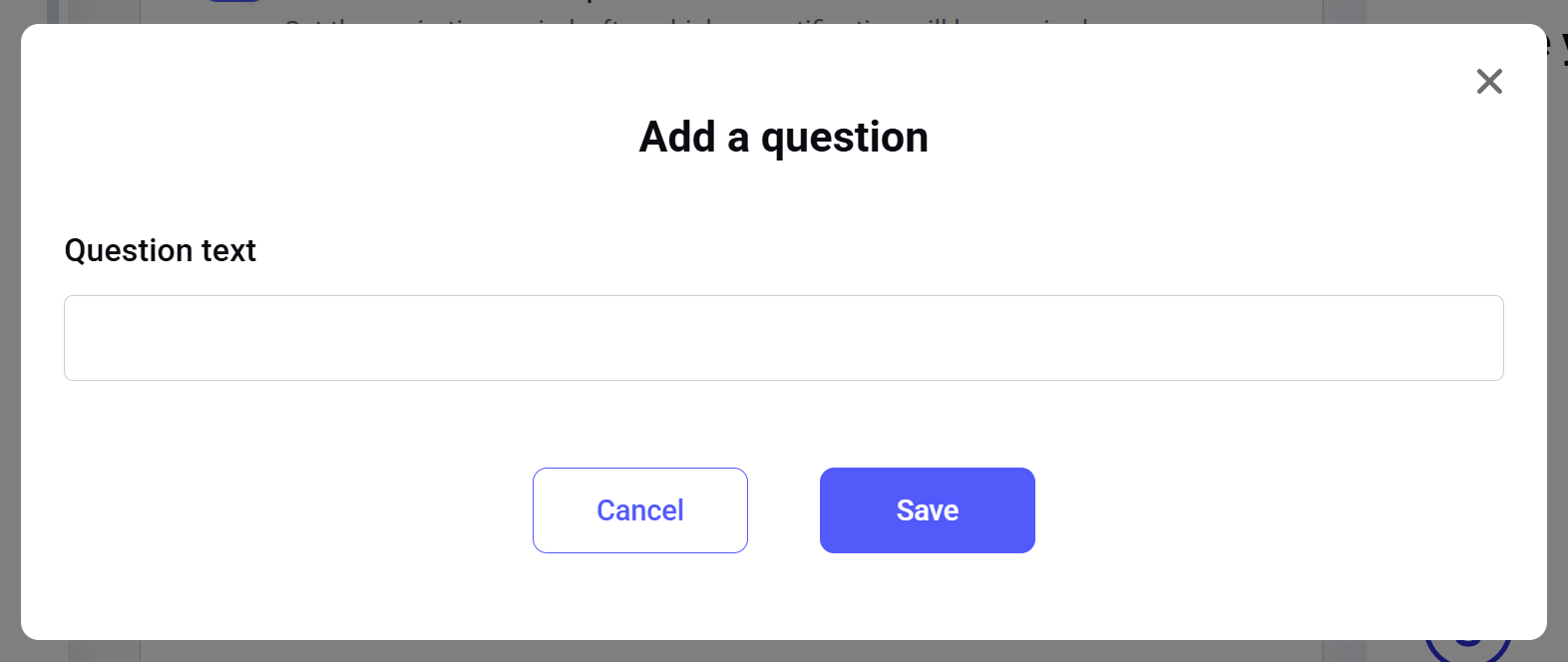
You can allow learners to rate the training after completing it. To do that, enable the Enable learner feedback collection toggle: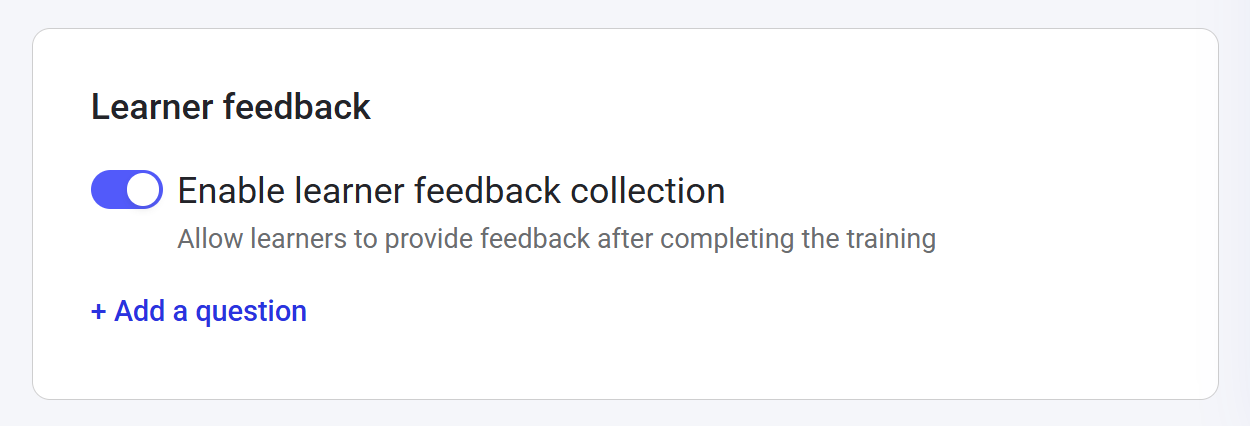
Publishing the training
After you have finished setting passing requirements, click Save as draft to save the training draft with all the current settings, or click Save and publish to publish the training.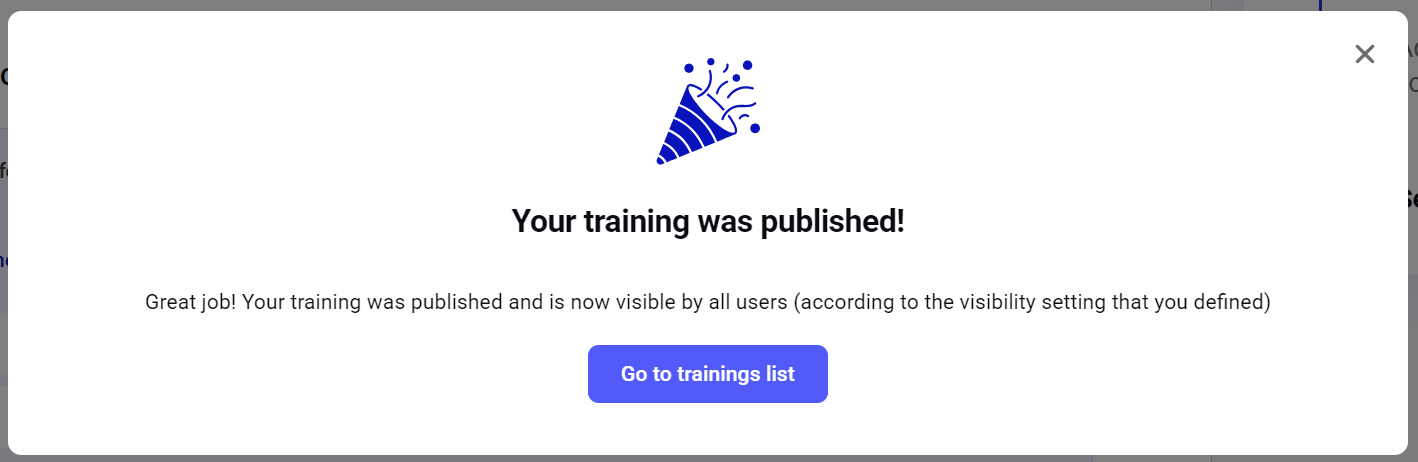
Editing
If you need to change an existing training, click Edit next to the corresponding line in the training dashboard table.
Step 1: General settings
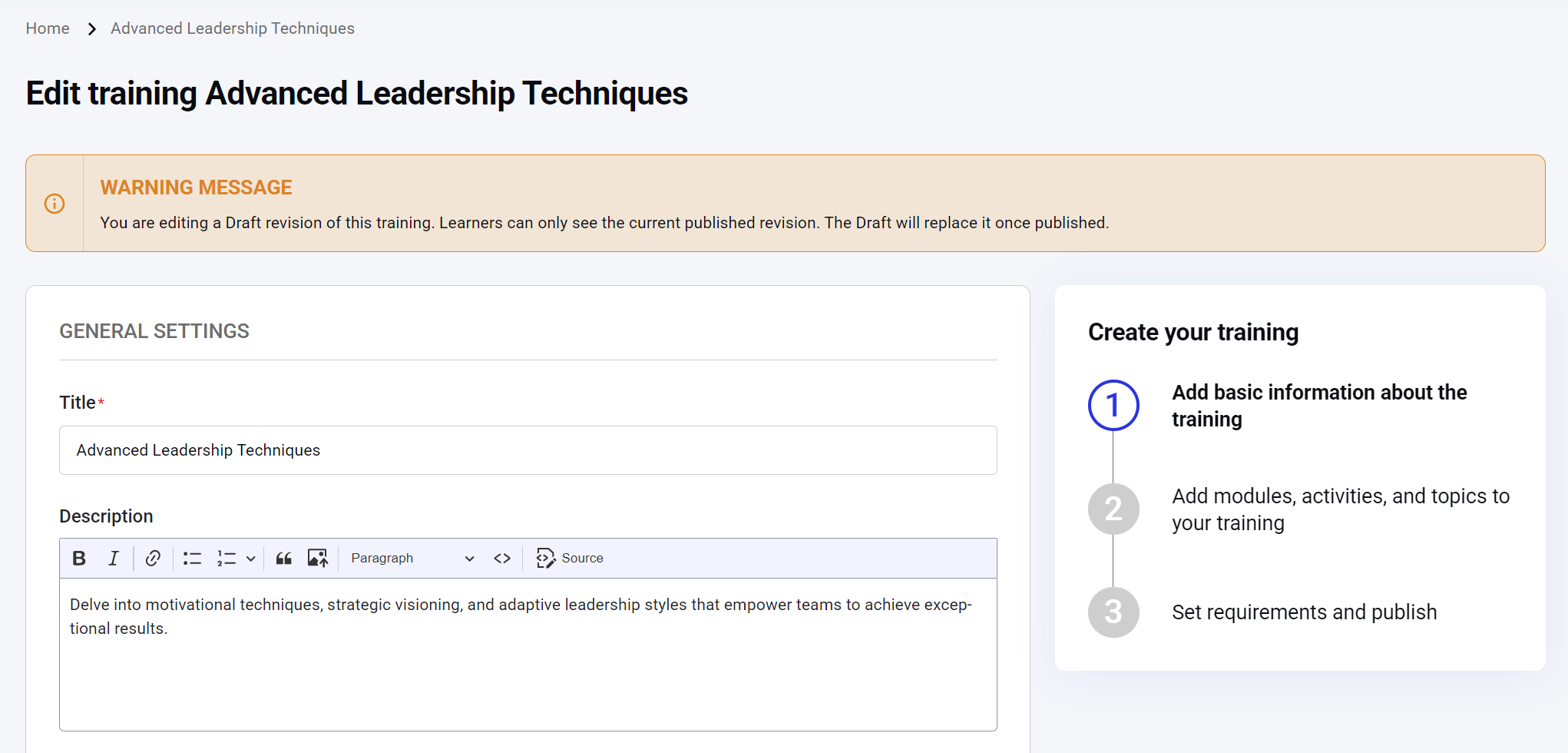
Here, you can change the following settings: title, description, cover image, domains, duration, visibility, hierarchy level, and training prerequisites. Click the Save button to save the current changes without publishing them. The changes will be saved in the system, and the last update timestamp will be updated accordingly. However, the saved changes won’t affect the current published training version until you publish the edited version. Click Save and continue to move to Step 2.Step 2: Training content
During Step 2 of training editing, you can change the content of the training: add, remove, or edit modules, topics, and activities. Making changes to modules or activities, or to their order, will create a new revision draft.A training can have only one draft revision at a time. If multiple users edit the same content simultaneously, conflicts may occur.For example, User 1 and User 2 both open the editing form for Content 1. User 1 makes changes and saves them before User 2. As a result, User 2 is now editing an outdated version of the content without being aware of User 1’s updates. When User 2 tries to save their changes, they will see the following error message:
To learn more about revisions, check Training revision.
Step 3: Passing requirements and publishing
Once you have finished arranging the modules and activities of the learning path, you can set the requirements for passing the training, assign a certificate, and publish it or save it as a draft. After you’ve edited the passing requirements, click Save on the pop-up notification at the bottom right to save the changes: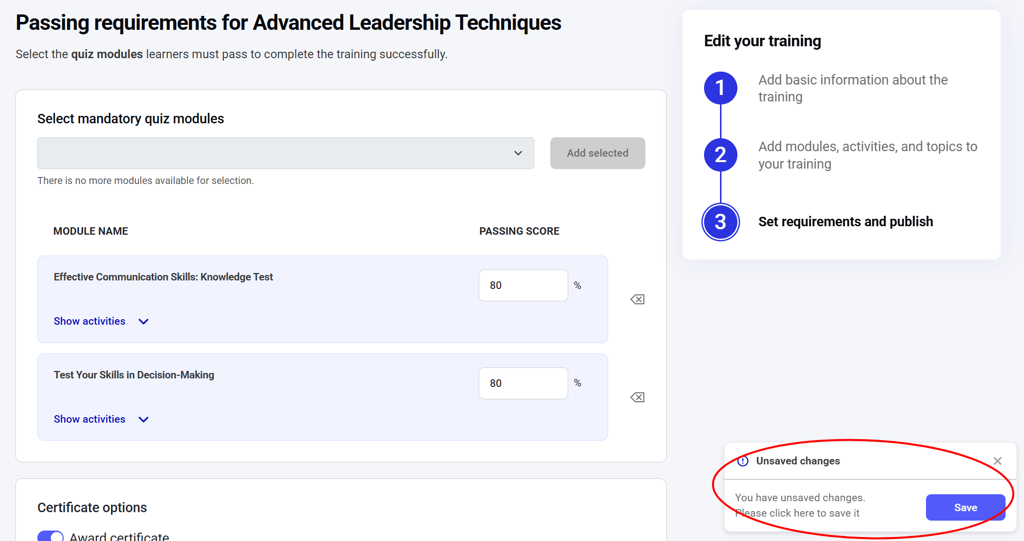
Editing a training revision
If you make changes to the training during Step 2 and Step 3 and save them without publishing the training, a revision draft is created.To learn more about training revisions, check Training revision.