Here, you can set the general settings for the live session bucket.Title: The name of the bucket, searchable and visible in the catalog of modules. The maximum length is 255 characters. It is a required field.Description: An overview of the live session bucket for the learners. The text length is unlimited, while the editor tool provides flexible editing capabilities.Registration: Configure how learners can be registered for a live session within the bucket. You cannot modify this setting after saving.
Open: learners select and register for a session themselves. Sessions available for registration will be visible in the “Sessions” tab of the training catalog and on the associated training homepage as open slots.
Admin-signed: only admins can register learners. A learner will see only the live sessions they are registered for.
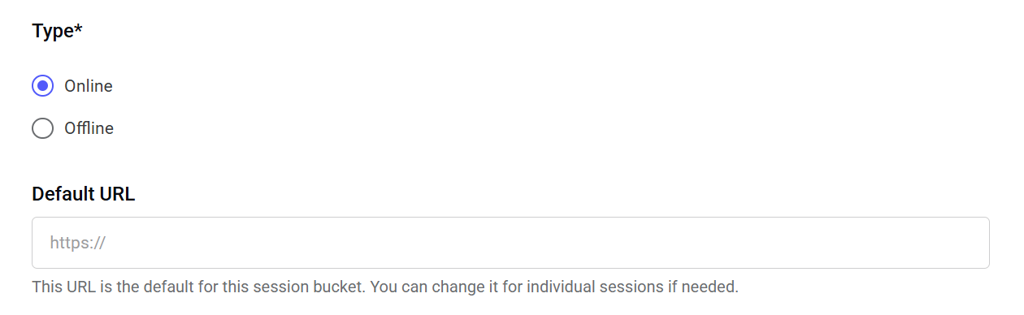
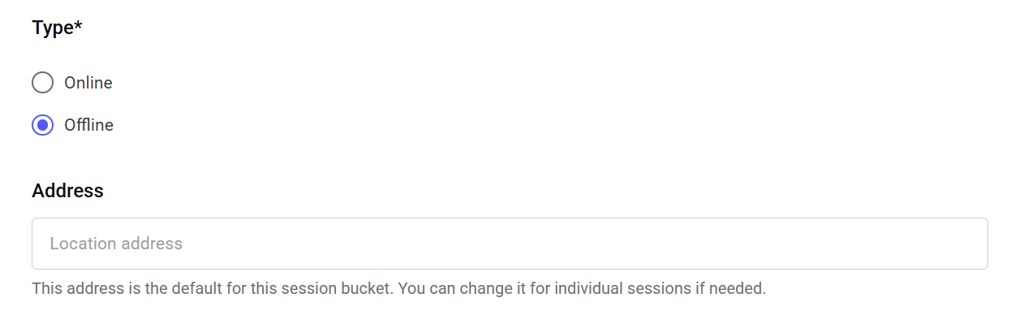
Type: The type of live sessions contained in the bucket—online or offline. You cannot modify this setting after saving.
Online
Offline
An online live session. If you choose this option, you can enter a video call URL that will be set as the default for all live sessions in the bucket. You can change the URL for individual live sessions if needed.
An offline live session. If you choose this option, you can input a location address that will be set as the default for all live sessions contained in the bucket. You can change the address for individual live sessions if needed.
Associated training: Here, you can assign the bucket to a published advanced training. One bucket can be assigned to only one training. You cannot modify this setting after saving.After you have applied all the necessary settings on this page, click the Save and continue button. To discard the draft of the live session bucket, click Cancel.
After saving general settings, you can add individual live sessions to the bucket.Here, you can set the start and end time for a live session, as well as adjust the video call URL or location address to override the defaults set at the bucket level.Click Add session to add another live session to the bucket. There is no limit to the number of live sessions you can add. To delete a live session, click Remove in its box.
NOTE: A bucket must contain at least one live session to be published.If a bucket has only one live session, that session cannot be deleted.A saved bucket without sessions will remain in Disabled status.
After you have applied all the necessary settings on this page, click the Save and publish button to publish the bucket.To save the bucket as a draft with Disabled status, click the Save button. To discard the draft of the live session bucket, click Cancel.
Assistant
Responses are generated using AI and may contain mistakes.