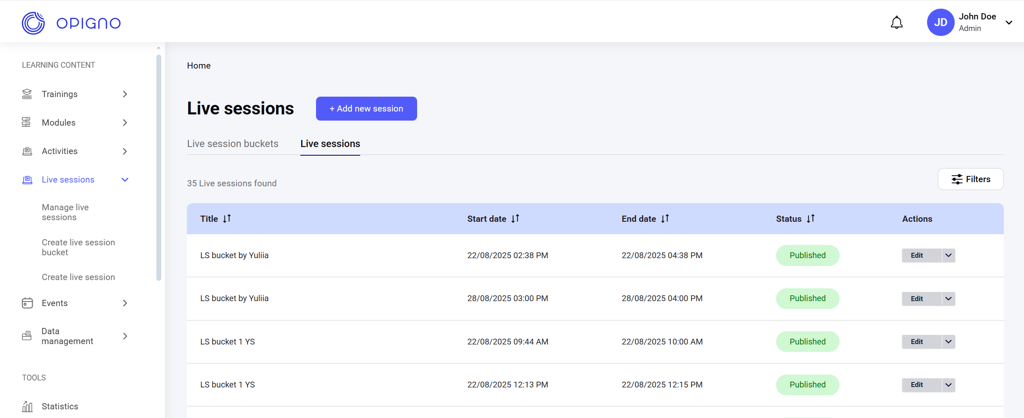
You can access all live session buckets and individual live sessions from Manage live sessions on the left menu. The dashboard allows you to switch between two tables: Live session buckets and Live sessions.

Live session buckets dashboard
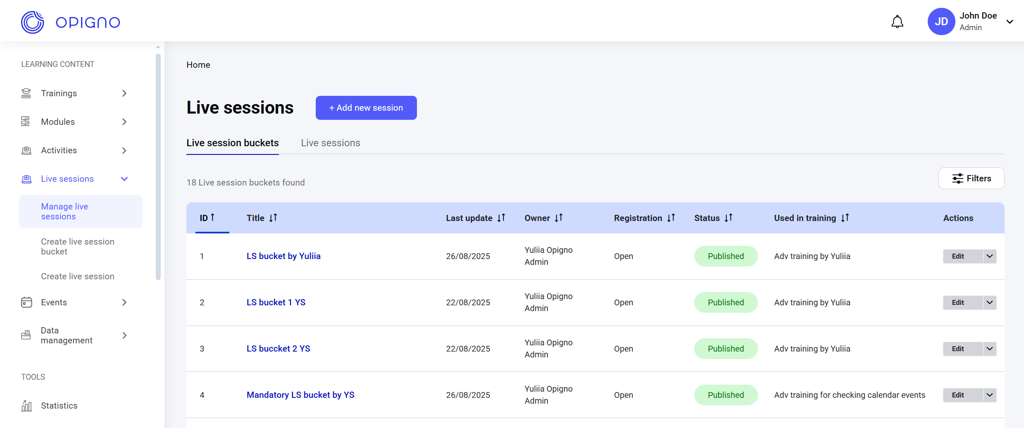
Image 2026 02 16 171945602 The bucket dashboard displays a table that you can customize to show the following attributes: ID: Unique identifier of the live session bucket. Title: The title of the live session bucket. Last update: Date of the last modification to the bucket or its sessions. Owner: The user who created the live session bucket. Registration: The type of live session bucket registration. There are two registration types:
  • Open – learners can select and register for a session themselves.
  • Admin-signed – only admins can register learners.
Status: The publication status of the live session bucket. There are two possible statuses:
  • Published: The live session bucket is active and visible to learners.
  • Disabled: The live session bucket was unpublished; learners no longer see it or its sessions.

Used in training: The training linked to the bucket (each bucket can be used in one training only). You can sort the table by any attribute in ascending or descending order by clicking the column header. Actions: Apart from attributes, each live session bucket has three actions: Image 2026 02 16 172137938 Image 2026 02 16 172247482
  1. Edit: Opens the creation interface, where you can modify the bucket and its sessions.
  2. Disable: Available from the drop-down arrow next to Edit. Disables the bucket and all its sessions, hiding them from learners.
  3. Publish: Available from the drop-down arrow next to Edit. Publishes the bucket and all its sessions, making them visible for learners.
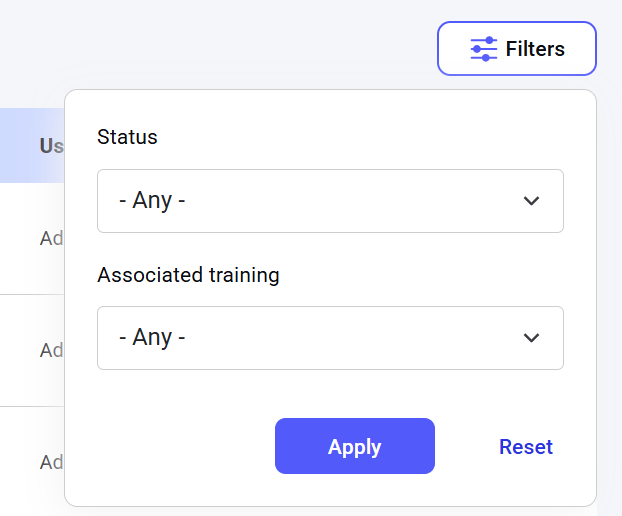
Filters: You can narrow down the list of buckets by their publication status or associated training: Image 2026 02 16 172332161

Live sessions dashboard

Image 2026 02 16 172353346 The table is customizable and can be set to show the following attributes: Title: Title of the bucket containing this session. Start date: The start date and time of the live session. End date: The end date and time of the live session. Status: The publication status of the live session. There are two possible statuses:
  • Published: The live session is active and visible to learners.
  • Disabled: The live session was unpublished and is no longer visible.

You can sort the table by any attribute by clicking the column header. Actions: Apart from attributes, each live session bucket has an Actions button: Image 2026 02 16 173013521 Image 2026 02 16 173027727
  1. Edit: Opens the creation interface, where you can adjust session settings.
  2. Disable: Available from the drop-down arrow next to Edit. Disables the session, hiding it from learners.
  3. Publish: Available from the drop-down arrow next to Edit. Publishes the session, making it visible to learners.
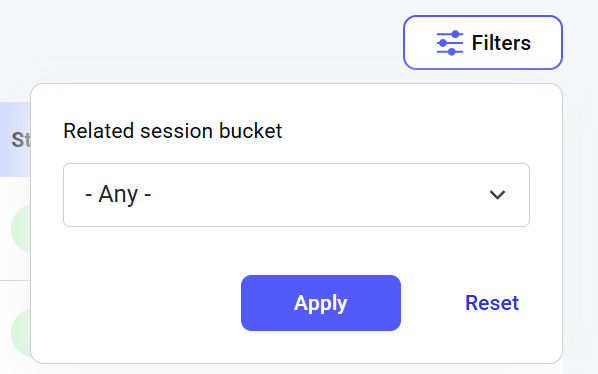
Filters: You can narrow down the list of sessions by their related bucket: Image 2026 02 16 173056532

Managing live session attendance

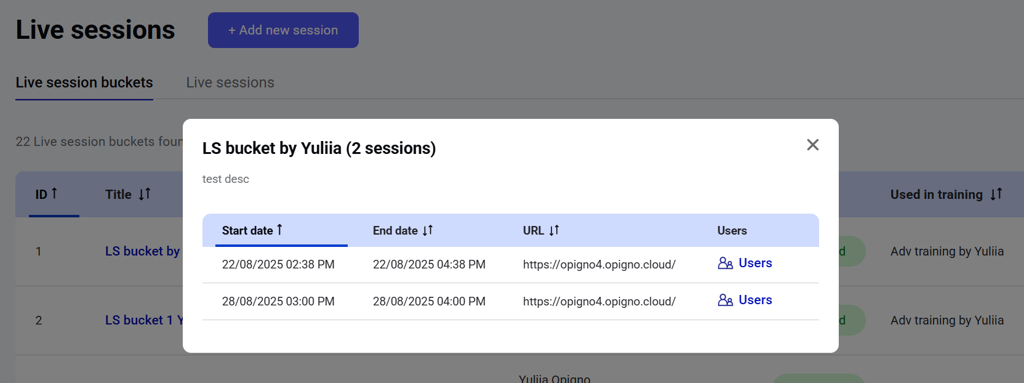
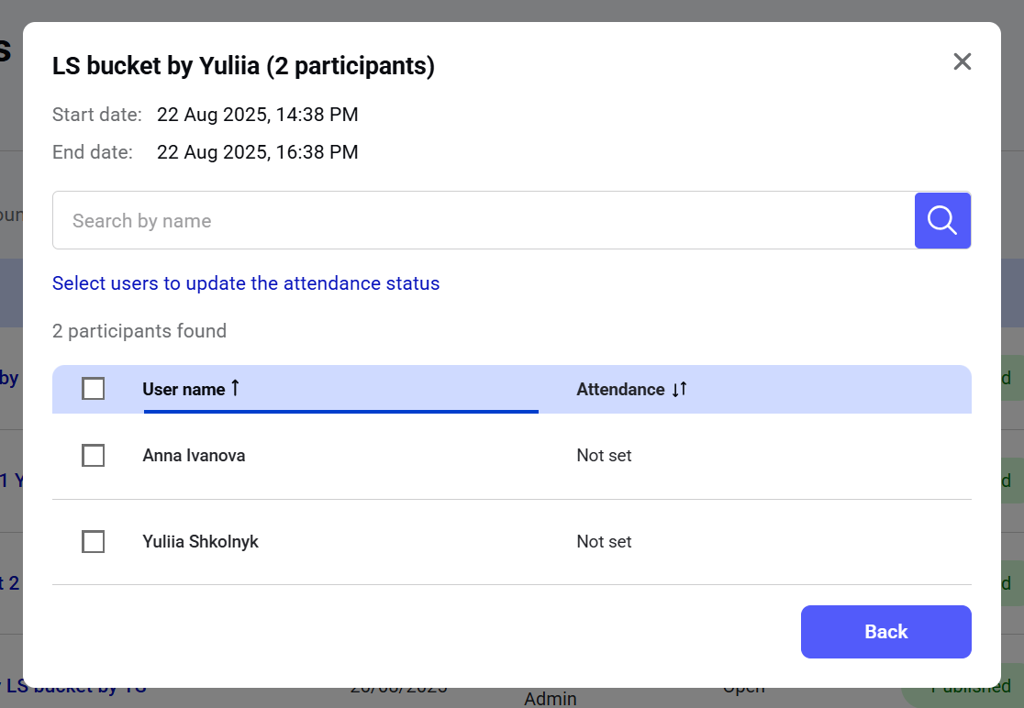
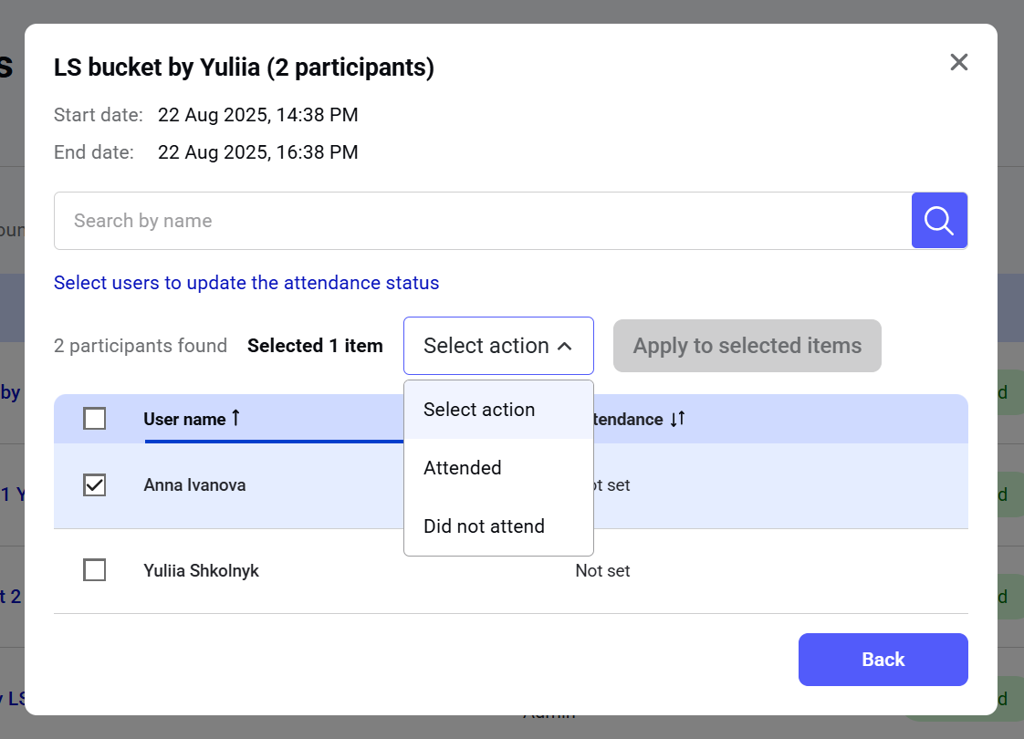
To manage live session attendance, go to Manage live sessions > Live session buckets dashboard, then click on the bucket title. A pop-up will appear with a list of all live sessions in the bucket. Image 2026 02 16 173125639 Click on Users next to the live session you want to track. A list of all users registered to this session will open: Image 2026 02 16 173140760 From here, you can set the correct attendance status for selected users: Image 2026 02 16 173204397