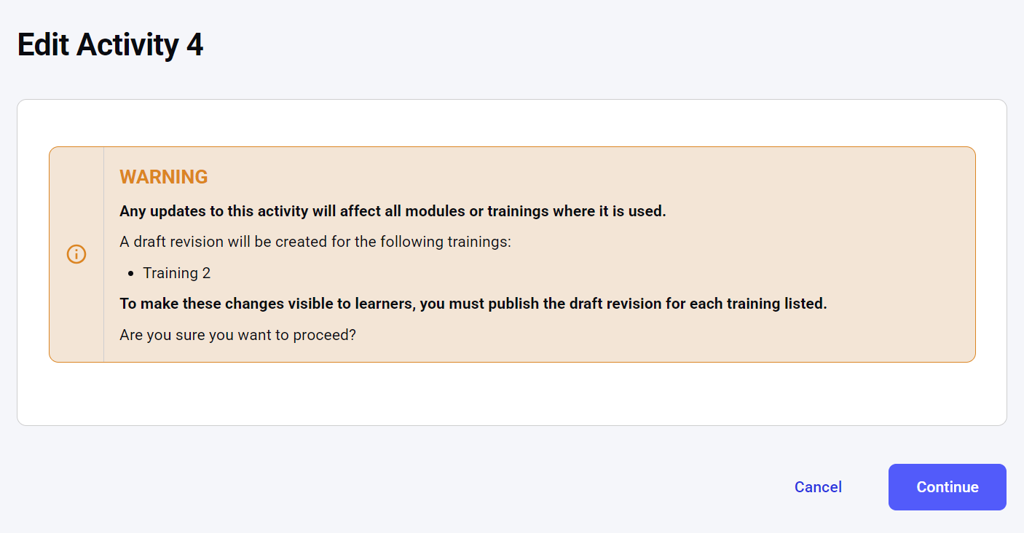
- By clicking the Add Activity button above the dashboard with the list of all activities. Activities created here are saved as separate entities and can then be added to a module or training of your choice.
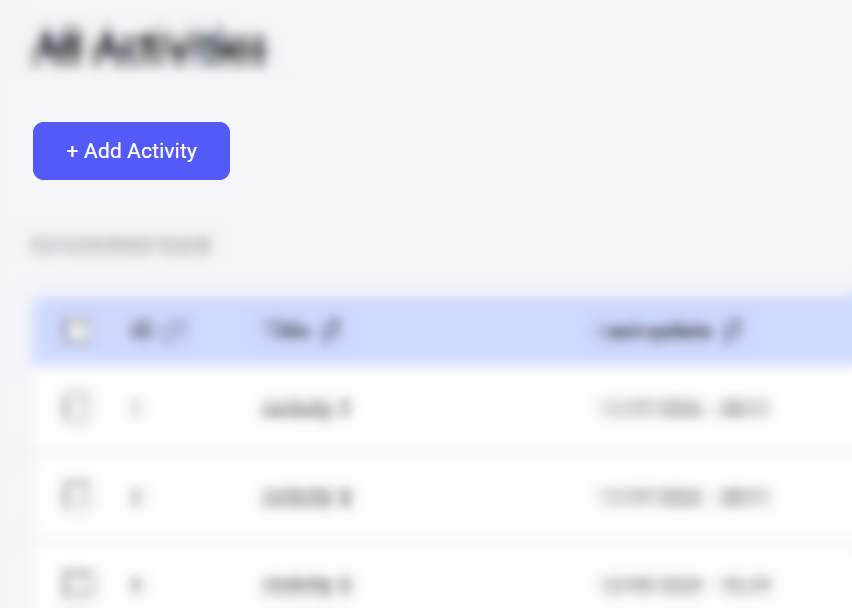
- During Step 2 of training creation or Step 2 of module creation. From here, you can either create a new activity or add an existing activity to the module.
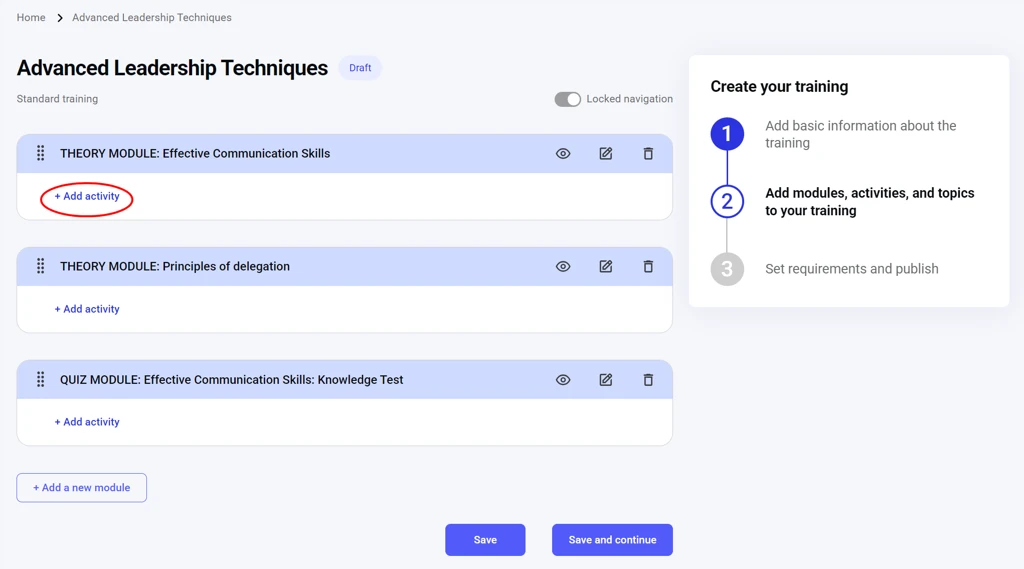
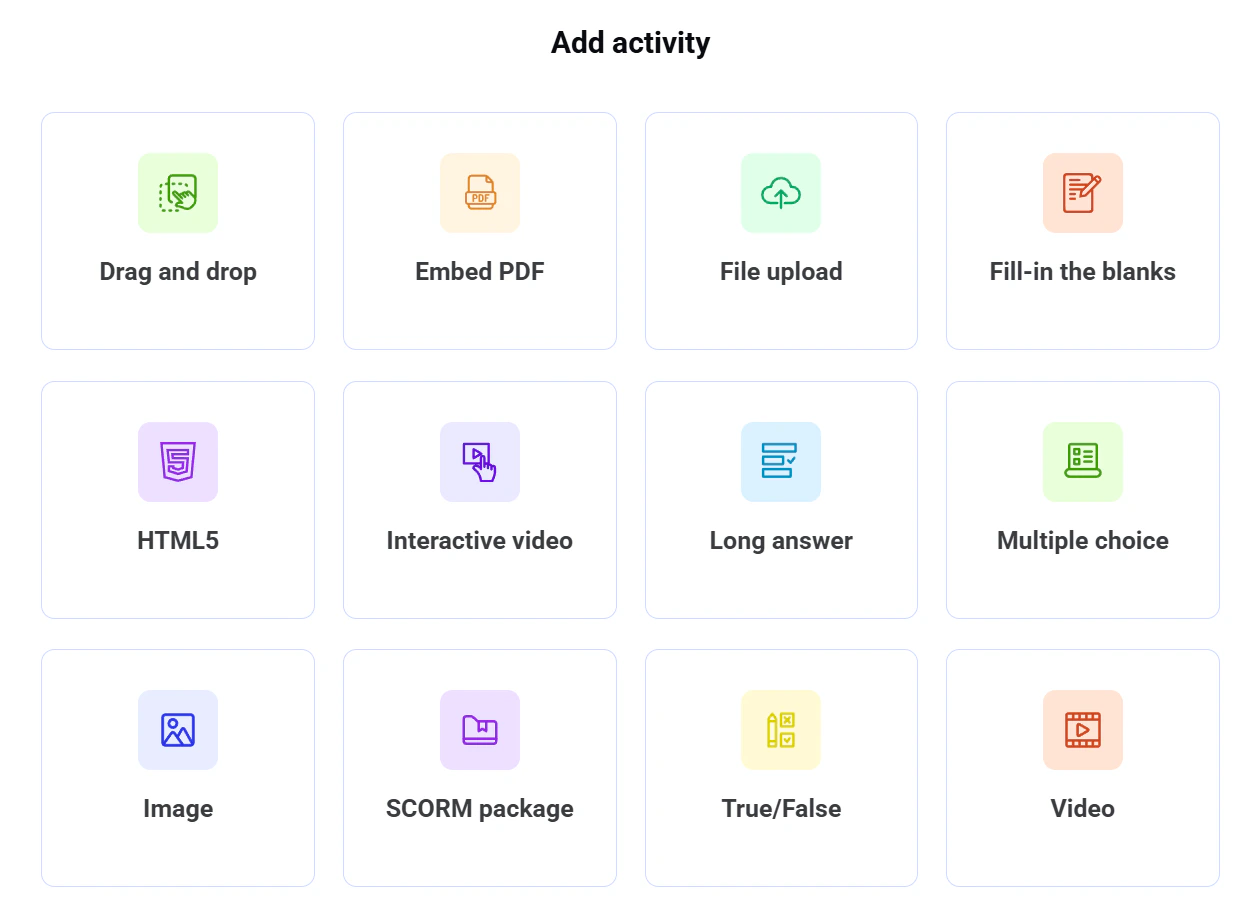
Drag and drop
To create a drag-and-drop activity, click Add activity > Drag and drop. The activity creation interface will open.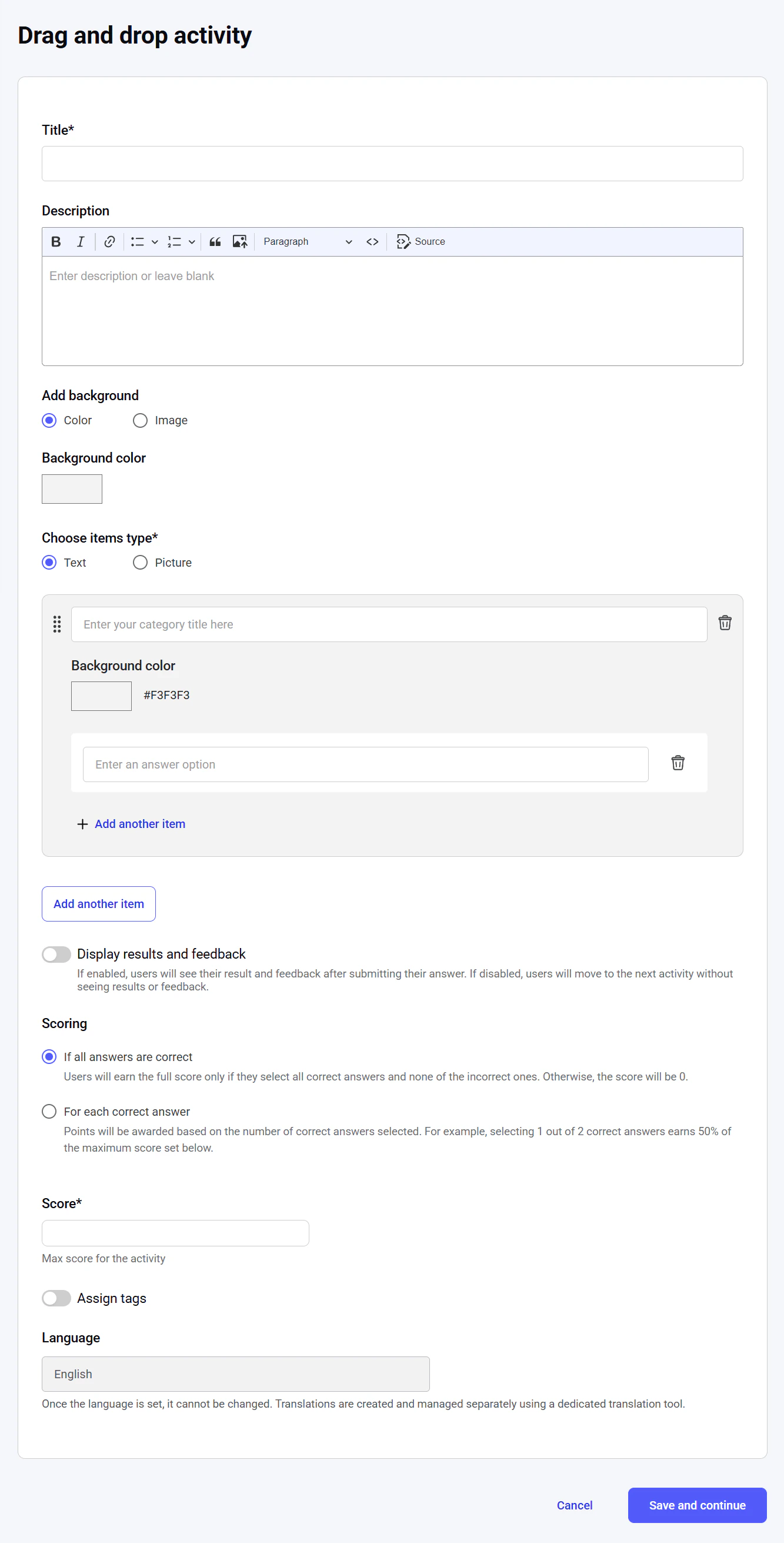
The name of the activity, searchable and visible in the catalog of activities. The maximum length is 255 characters. It is a required field. Description
An overview of the activity for the learners. The text length is unlimited, while the editor tool provides flexible editing capabilities. Add background
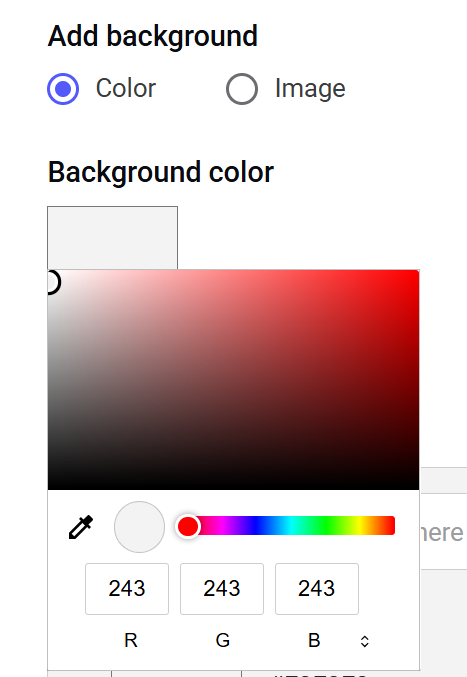
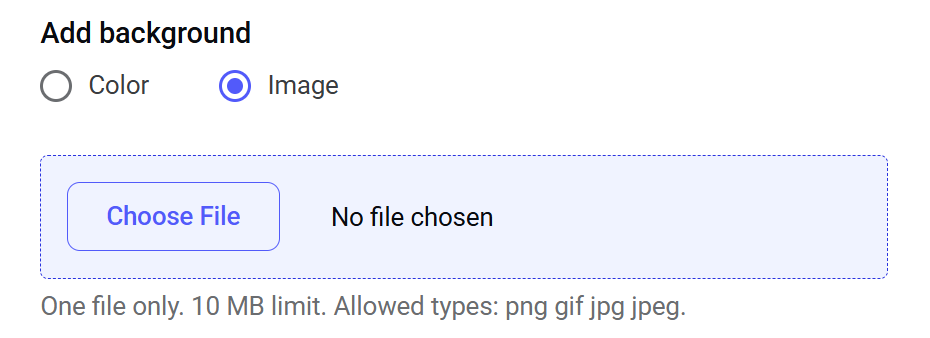
A visual displayed on the background of the entire activity. You can set a specific color or upload an image as a background.
- Color
- Image
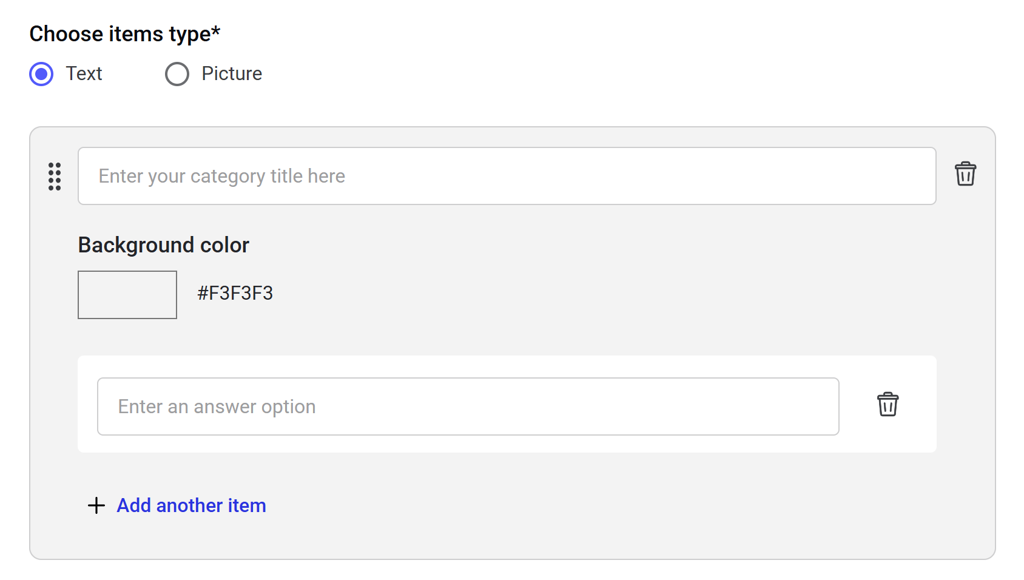
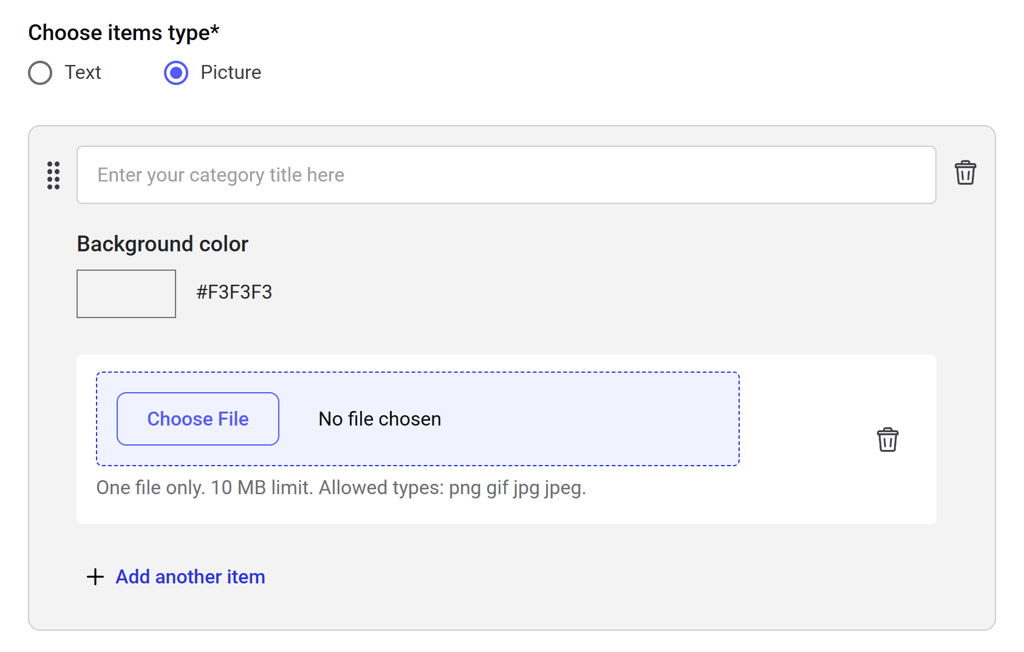
Specify the type of items in this category (text or image), enter the category name, and add its items. This is a required field.
You can add multiple categories; however, the item type will be the same for all of them.
- Text
- Image
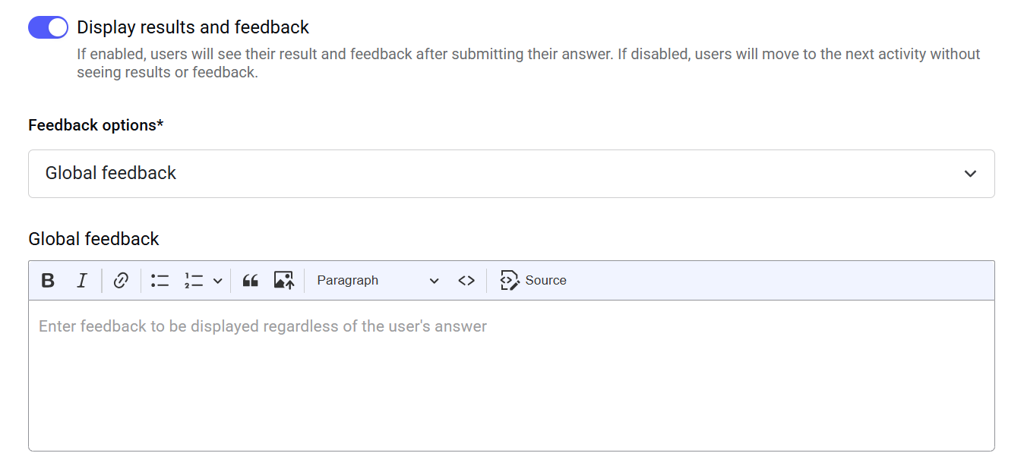
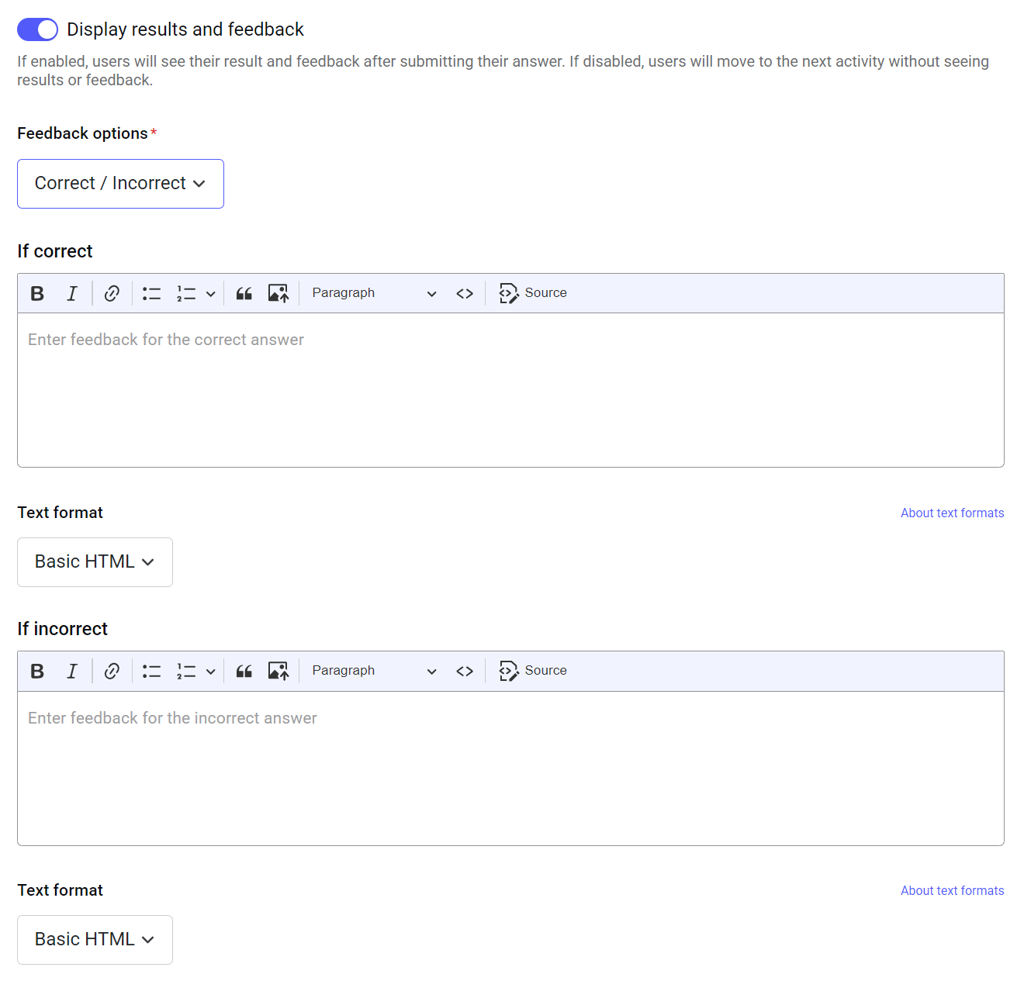
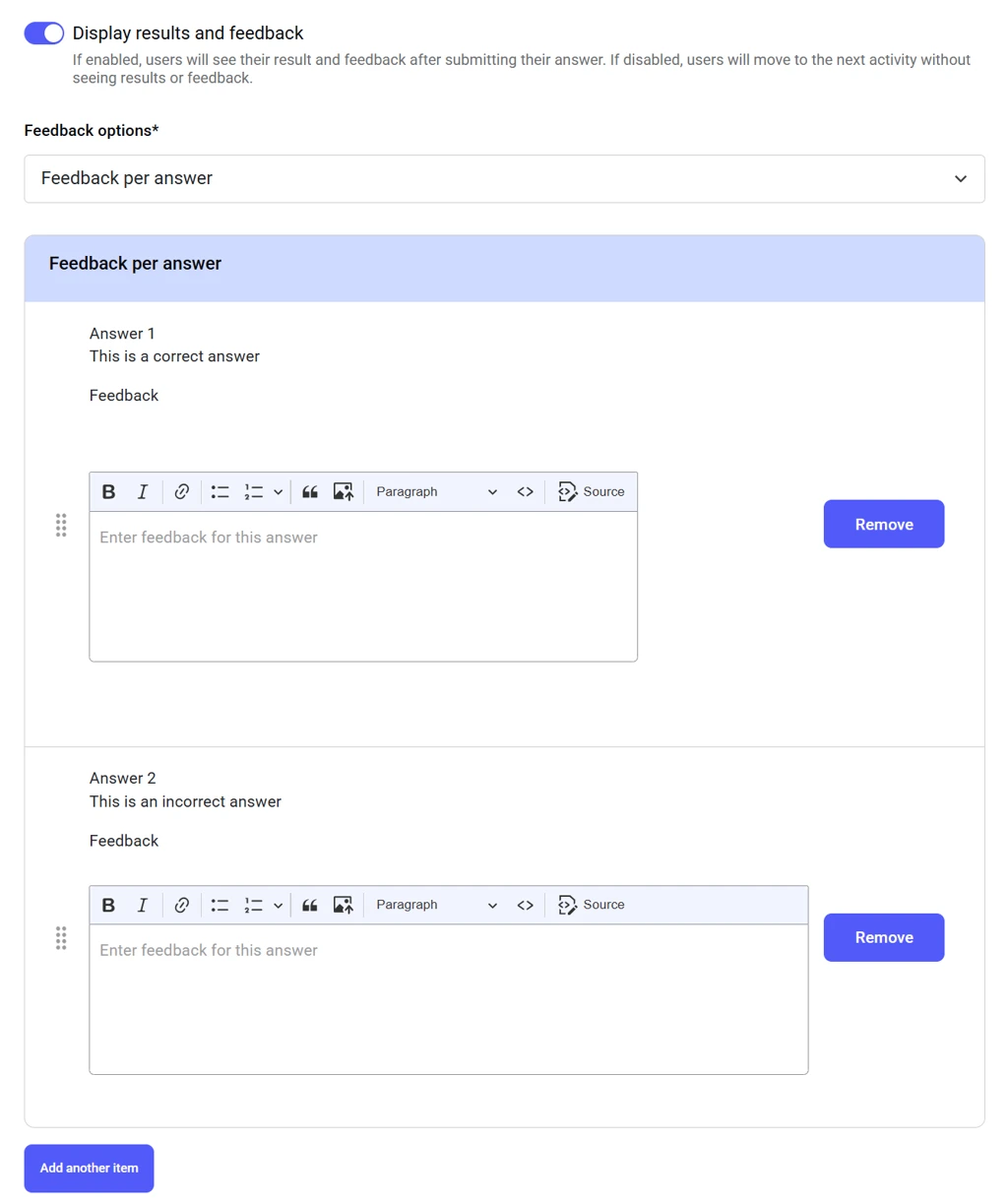
Choose what feedback learners receive after completing this activity.
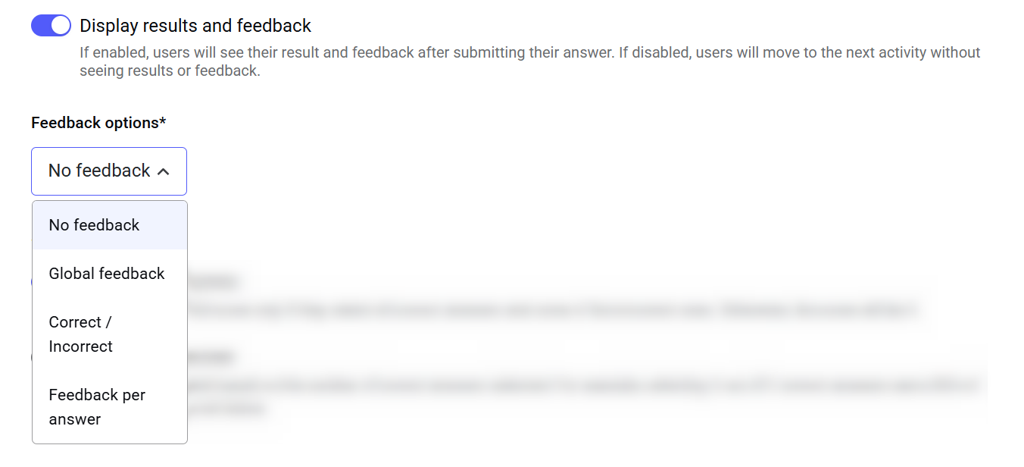
- No feedback
- Global feedback
- Correct / Incorrect
- Feedback per answer
Learners move to the next activity within a module without receiving any feedback.
Choose how the activity is scored:
- If all answers are correct: If learners select all the correct answers and none of the incorrect ones, they earn the full score. Otherwise, the score is 0.
- For each correct answer: Points are awarded based on the number of correct answers selected. For example, selecting 1 out of 2 correct answers earns 50% of the maximum score.
Set the maximum score a learner can get for completing the activity. It is a required field. Assign tags
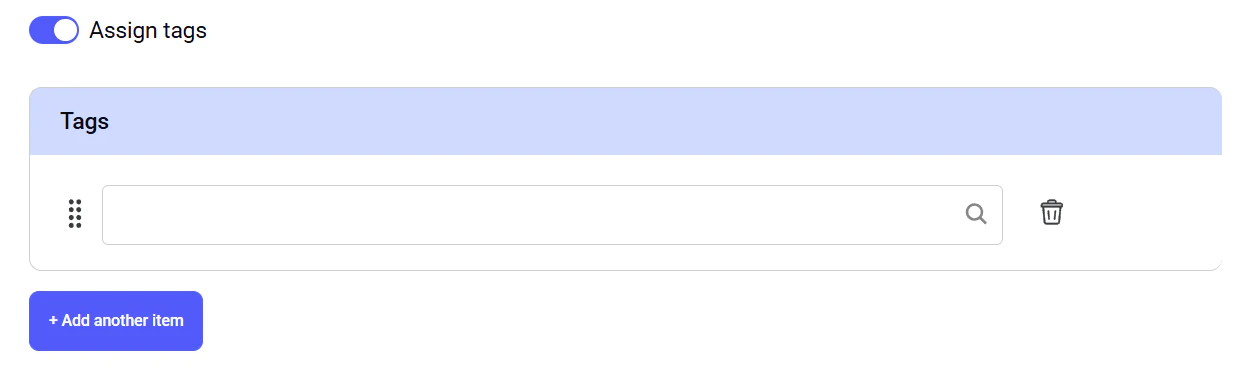
Assign tags to the activity. You can type a new tag name and press Enter to create it, or select an existing tag from the autocomplete suggestions. You can add multiple tags to a single activity.
Specify the language of the activity. This setting cannot be changed afterward.
The default language option is the default platform language.
You can translate the activity into another language using a dedicated translation tool interface.
NOTE: During the activity, all items appear in a randomized stack. Learners drag each item into the appropriate category.
- In theory modules: items show immediate feedback (check or cross) before disappearing.
- In quiz modules: items move into the category and disappear without feedback.
Embedded PDF
To embed a PDF document, click Add activity > Embed PDF. The activity creation interface will open.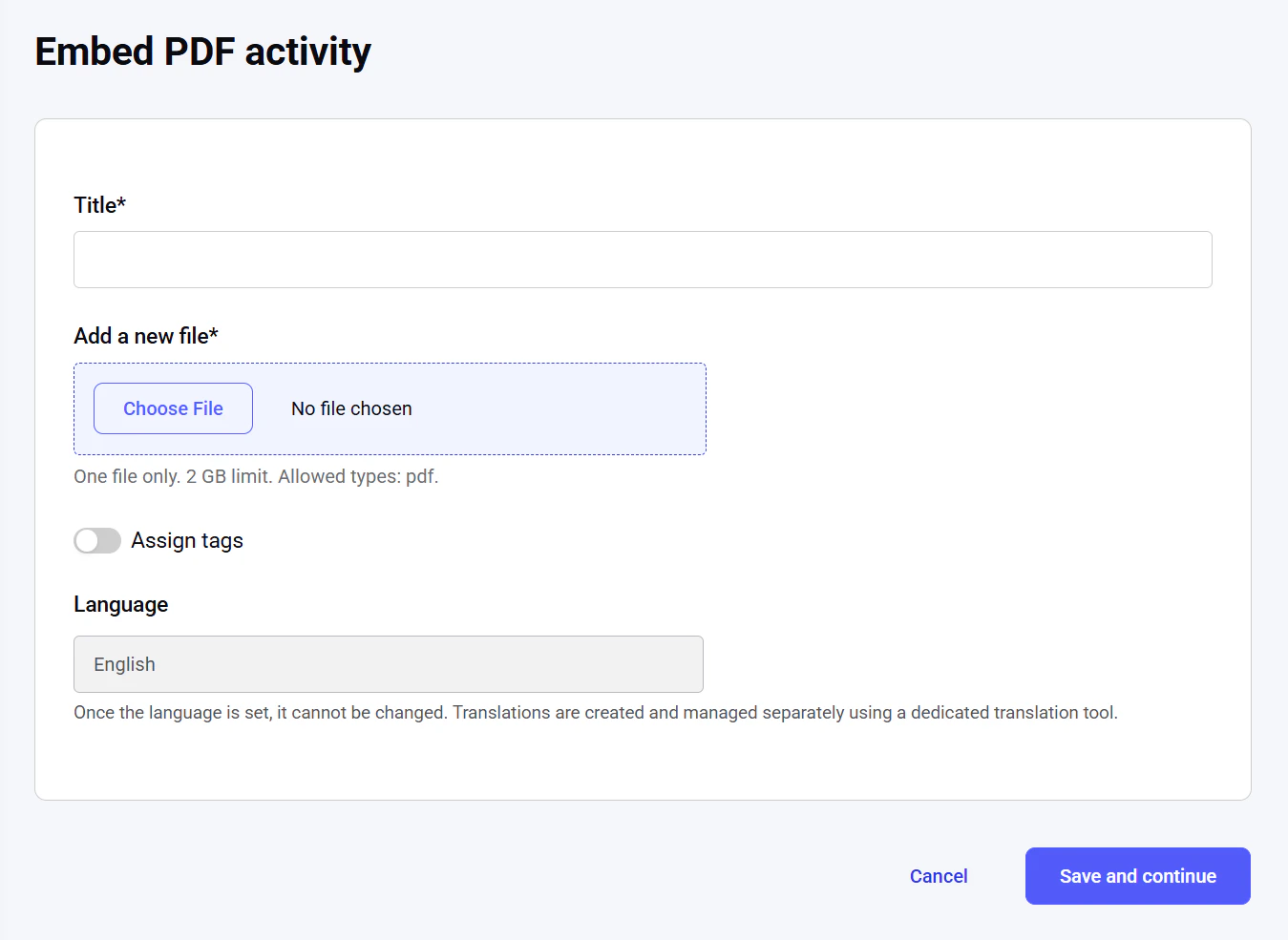
The name of the activity, searchable and visible in the catalog of activities. The maximum length is 255 characters. It is a required field. Add a new file
Upload your PDF file. You can add only one file per activity. The file should be in a .pdf format and under 500 MB. It is a required field. Assign tags
Assign tags to the activity. You can type a new tag name and press Enter to create it, or select an existing tag from the autocomplete suggestions. You can add multiple tags to a single activity.
Specify the language of the activity. This setting cannot be changed afterward.
The default language option is the default platform language.
You can translate the activity into another language using a dedicated translation tool interface. After you have input all the necessary fields on this page, click the Save and continue button. If you created a separate activity, you will be redirected to the Manage activities dashboard. If you created an activity as a part of a training, you will be redirected to the training editing tool, where you can add more activities to your module or more modules to the training. To discard the draft of the activity, click Cancel.
HTML5
To create an HTML5 activity, click Add activity > HTML5. The activity creation interface will open.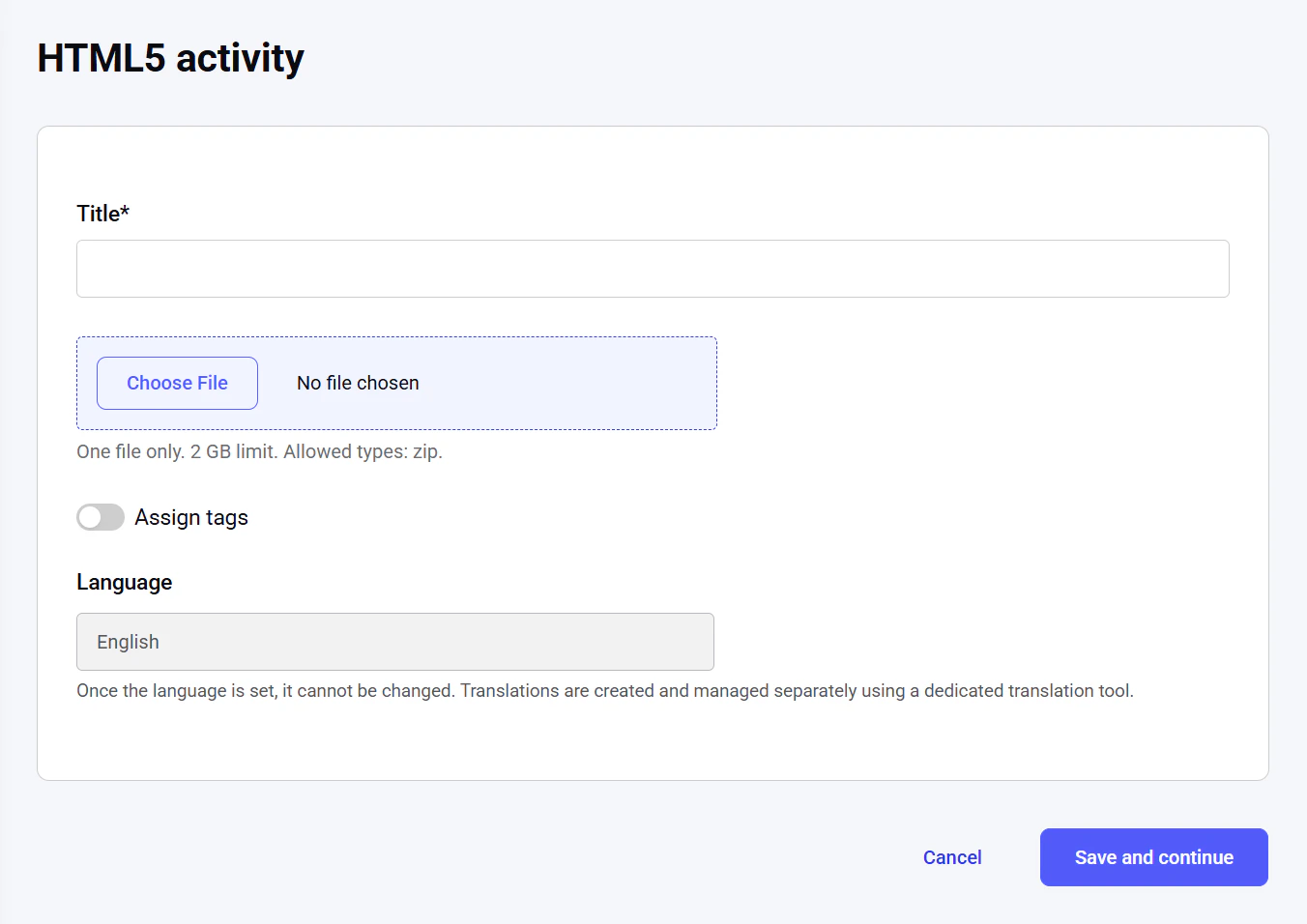
The name of the activity, searchable and visible in the catalog of activities. The maximum length is 255 characters. It is a required field. HTML5 package
Upload your HTML5 package. You can add only one file per activity. The file should be in a .zip format and under 500 MB. It is a required field. Assign tags
Assign tags to the activity. You can type a new tag name and press Enter to create it, or select an existing tag from the autocomplete suggestions. You can add multiple tags to a single activity.
Specify the language of the activity. This setting cannot be changed afterward.
The default language option is the default platform language.
You can translate the activity into another language using a dedicated translation tool interface. After you have input all the necessary fields on this page, click the Save and continue button. If you created a separate activity, you will be redirected to the Manage activities dashboard. If you created an activity as a part of a training, you will be redirected to the training editing tool, where you can add more activities to your module or more modules to the training. To discard the draft of the activity, click Cancel.
Images
To create an image activity, click Add activity > Image. The activity creation interface will open.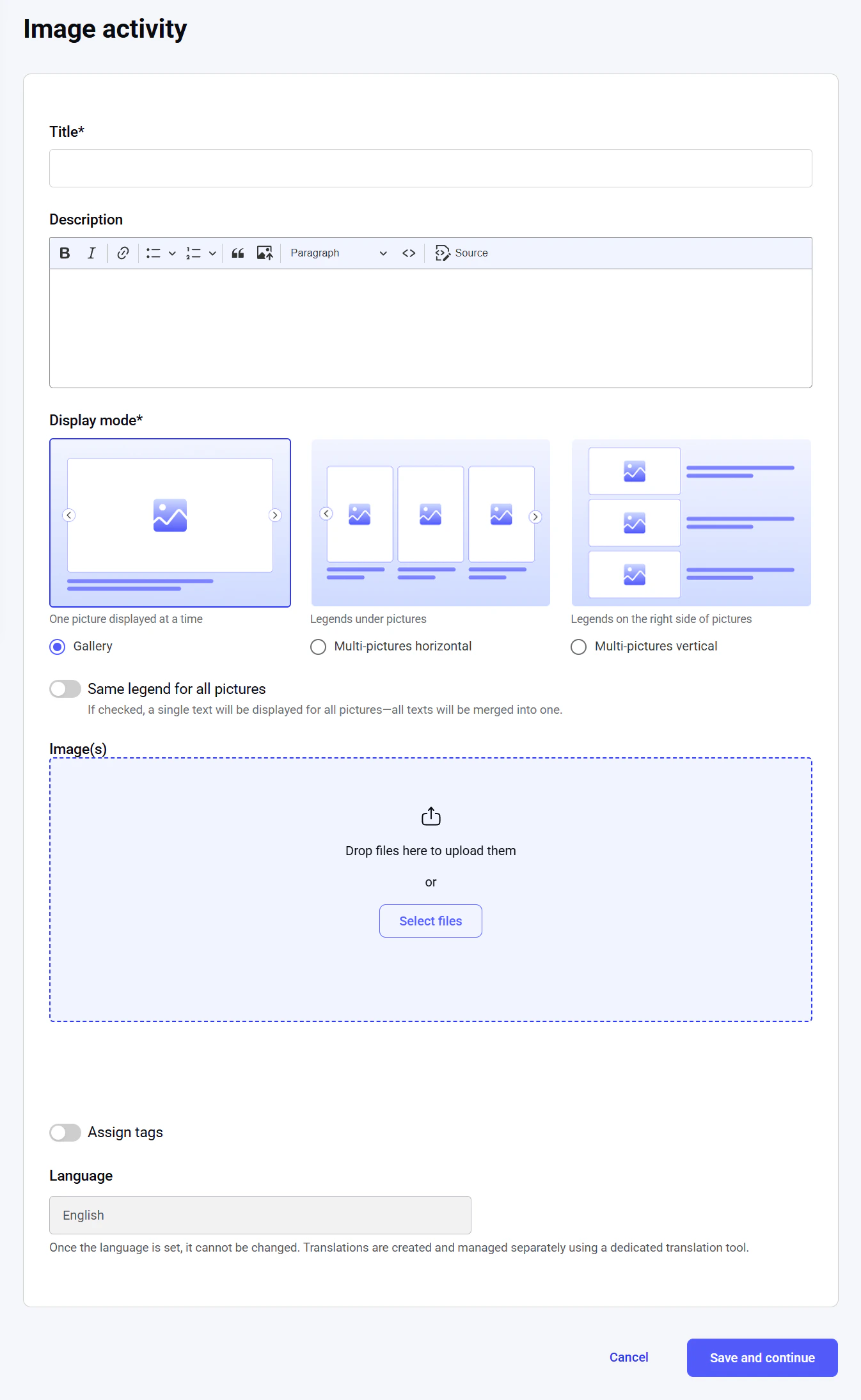
The name of the activity, searchable and visible in the catalog of activities. The maximum length is 255 characters. It is a required field. Description
An overview of the activity for the learners. The text length is unlimited, while the editor tool provides flexible editing capabilities. Display mode
Choose how pictures and their legends are shown:
- Gallery: One picture at a time
- Multi-pictures horizontal: Pictures in a row, with legends below each
- Multi-pictures vertical: Pictures in a column, with legends on the right
If enabled, a single legend will be displayed for all images. Image(s)
Upload your image files. There is no limit to the number of images you can upload, their size, or format. It is a required field. Legend
Caption or description for an image.
After uploading, you can enter a legend for the image, change the display order by dragging the uploaded image box using the dots on the left, or delete an uploaded file by clicking the Remove icon to the right. Assign tags
Assign tags to the activity. You can type a new tag name and press Enter to create it, or select an existing tag from the autocomplete suggestions. You can add multiple tags to a single activity.
Specify the language of the activity. This setting cannot be changed afterward.
The default language option is the default platform language.
You can translate the activity into another language using a dedicated translation tool interface. After you have input all the necessary fields on this page, click the Save and continue button. If you created a separate activity, you will be redirected to the Manage activities dashboard. If you created an activity as a part of a training, you will be redirected to the training editing tool, where you can add more activities to your module or more modules to the training. To discard the draft of the activity, click Cancel.
Video
To create a video activity, click Add activity > Video. The activity creation interface will open.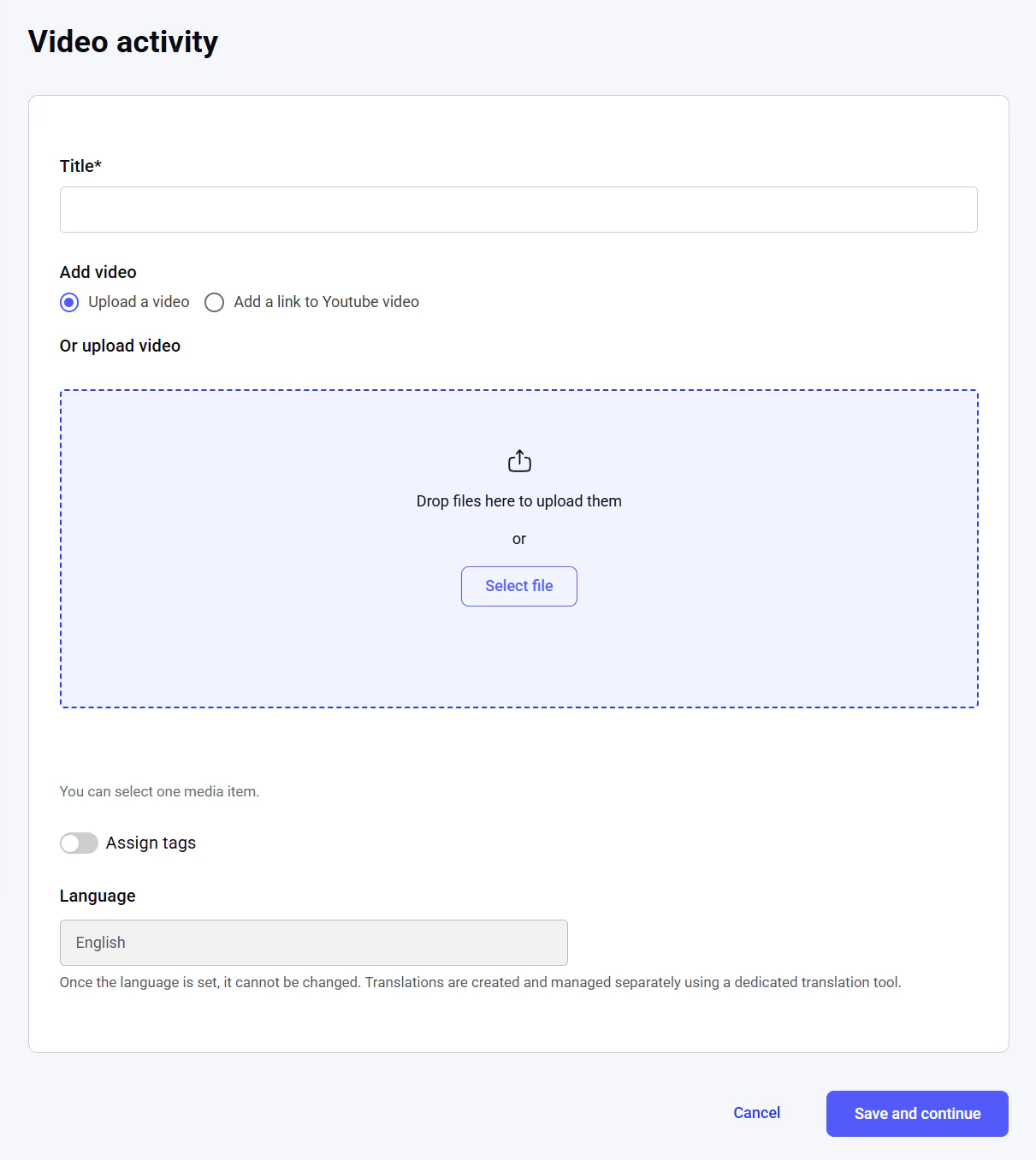
The name of the activity, searchable and visible in the catalog of activities. The maximum length is 255 characters. It is a required field. Embed URL: Input a YouTube or Vimeo video link. The video will be displayed in the embedded video player.
Or upload video: Upload your video file. You can add only one file per activity. It is a required field. Assign tags
Assign tags to the activity. You can type a new tag name and press Enter to create it, or select an existing tag from the autocomplete suggestions. You can add multiple tags to a single activity.
Specify the language of the activity. This setting cannot be changed afterward.
The default language option is the default platform language.
You can translate the activity into another language using a dedicated translation tool interface. After you have input all the necessary fields on this page, click the Save and continue button. If you created a separate activity, you will be redirected to the Manage activities dashboard. If you created an activity as a part of a training, you will be redirected to the training editing tool, where you can add more activities to your module or more modules to the training. To discard the draft of the activity, click Cancel.
SCORM package
To create an activity from a SCORM package, click Add activity > SCORM package. The activity creation interface will open.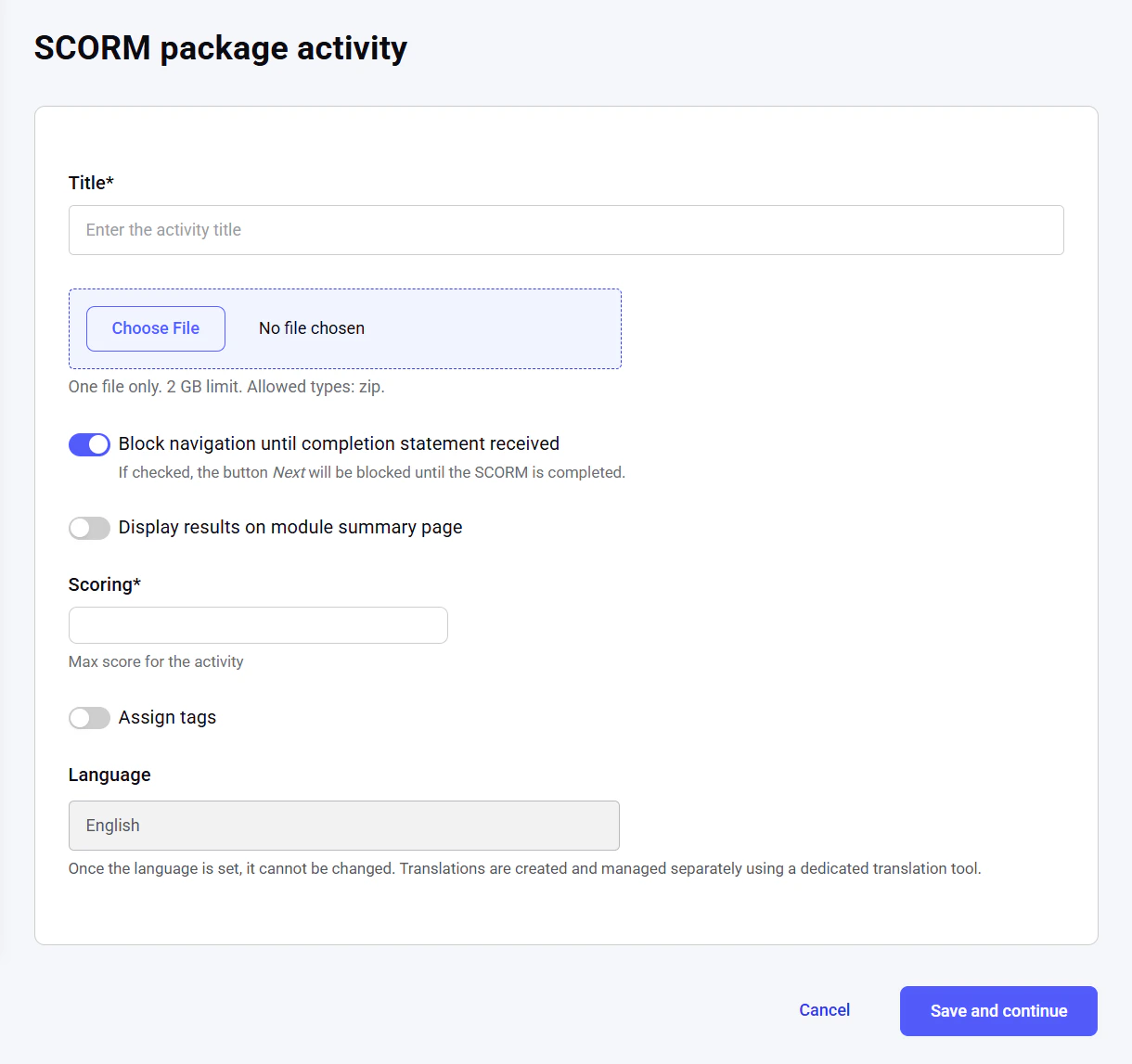
The name of the activity, searchable and visible in the catalog of activities. The maximum length is 255 characters. It is a required field. Add a new file
Upload your SCORM package. You can add only one file per activity. The file should be in a .zip format and under 500 MB. It is a required field. Block navigation until completion statement received
When enabled, it prevents learners from moving to the next activity in a module until they complete the current one. Display results on module summary page
When this setting is enabled and the activity is used in the quiz module with the Result feedback setting enabled, the activity completion results will be displayed on the summary page once the module is completed.
If the module contains several activities with this setting enabled, all the results will be aggregated on the summary page, one under the other. The summary is not displayed for theory modules and quiz modules with the Result feedback setting disabled. Scoring
Set the maximum score a learner can earn for successfully completing the activity. The learner’s score is determined by multiplying the completion percentage reported by the SCORM package by the maximum score (e.g., 50% completion equals half the maximum score). It is a required field. Assign tags
Assign tags to the activity. You can type a new tag name and press Enter to create it, or select an existing tag from the autocomplete suggestions. You can add multiple tags to a single activity.
Specify the language of the activity. This setting cannot be changed afterward.
The default language option is the default platform language.
You can translate the activity into another language using a dedicated translation tool interface. After you have applied all the necessary settings on this page, click the Save and continue button. If you created a separate activity, you will be redirected to the Manage activities dashboard. If you created an activity as a part of a training, you will be redirected to the training editing tool, where you can add more activities to your module or more modules to the training. To discard the draft of the activity, click Cancel.
Long answer question
To create a long-answer question activity, click Add activity > Long answer. The activity creation interface will open.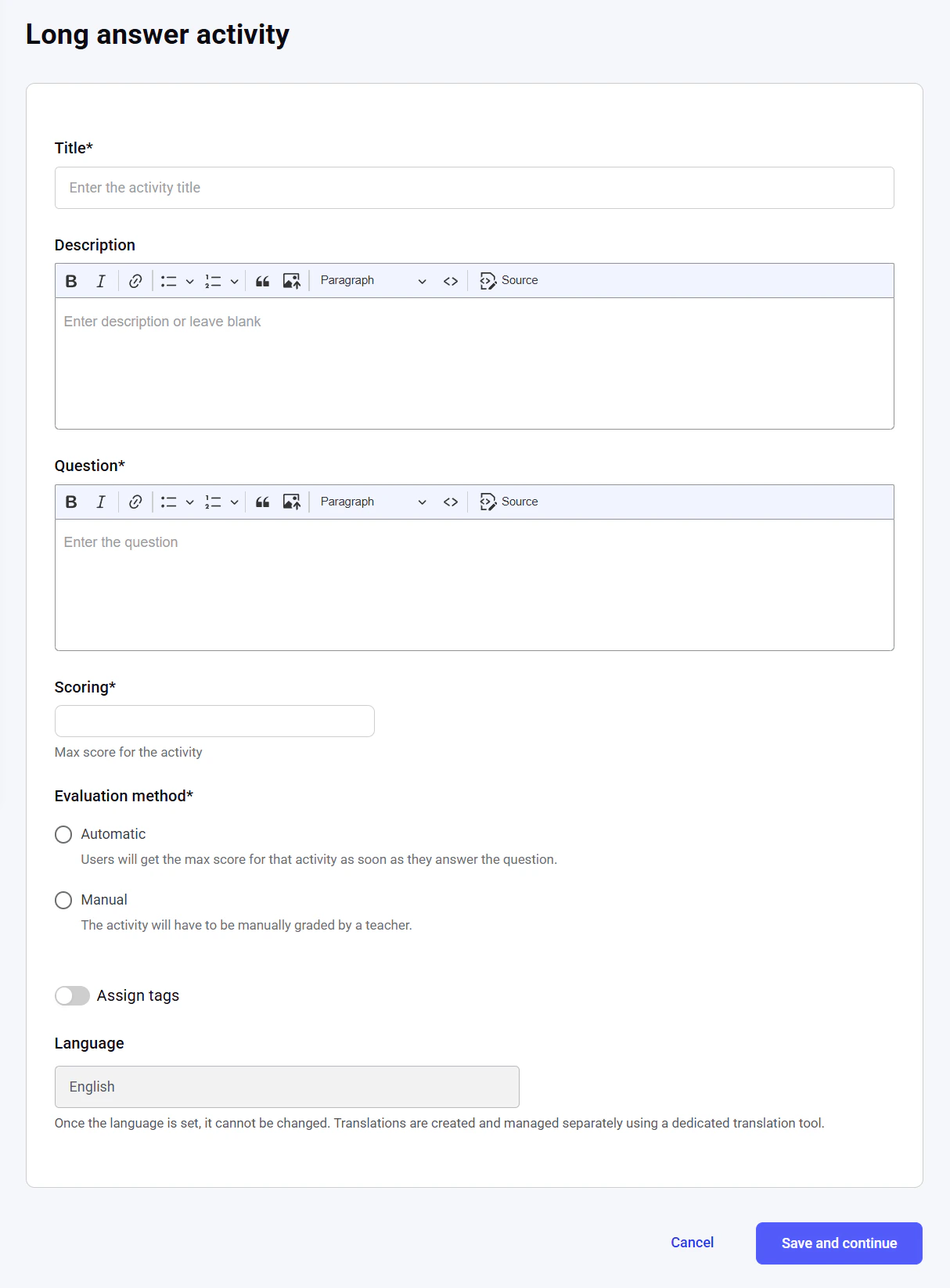
The name of the activity, searchable and visible in the catalog of activities. The maximum length is 255 characters. It is a required field. Description
An overview of the activity for the learners. The text length is unlimited, while the editor tool provides flexible editing capabilities. Question
Enter the open-ended question to which the learners must respond. Scoring
Set the maximum score a learner can earn for successfully completing the activity. The answer is scored manually. It is a required field. Evaluation method
Choose whether the answer will be graded automatically or manually. It is a required field. Assign tags
Assign tags to the activity. You can type a new tag name and press Enter to create it, or select an existing tag from the autocomplete suggestions. You can add multiple tags to a single activity.
Specify the language of the activity. This setting cannot be changed afterward.
The default language option is the default platform language.
You can translate the activity into another language using a dedicated translation tool interface. After you have applied all the necessary settings on this page, click the Save and continue button. If you created a separate activity, you will be redirected to the Manage activities dashboard. If you created an activity as a part of a training, you will be redirected to the training editing tool, where you can add more activities to your module or more modules to the training. To discard the draft of the activity, click Cancel.
True/False question
To create a true/false question activity, click Add activity > True/False. The activity creation interface will open.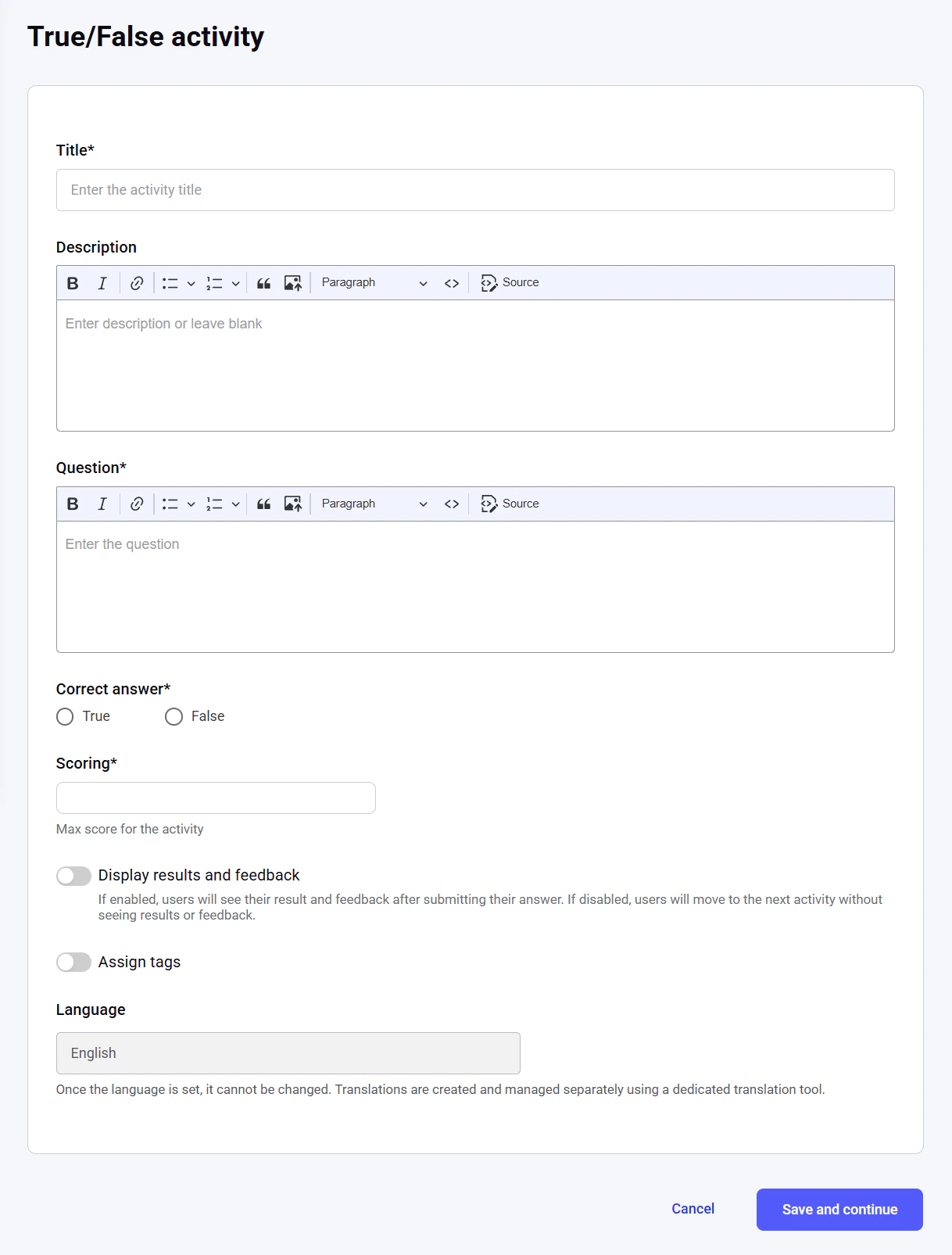
The name of the activity, searchable and visible in the catalog of activities. The maximum length is 255 characters. It is a required field. Description
An overview of the activity for the learners. The text length is unlimited, while the editor tool provides flexible editing capabilities. Question
Enter the true/false question to which the learners must respond. It is a required field. Scoring
Set the score a learner can get for completing the activity successfully, i.e., answering the question correctly. No score is given for incorrect answers. It is a required field. Display results and feedback
Choose what feedback learners receive after completing this activity.
There are three feedback options:
- No feedback
- Global feedback
- Correct / Incorrect
Learners move to the next activity within a module without receiving any feedback.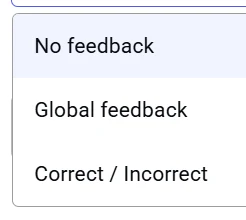
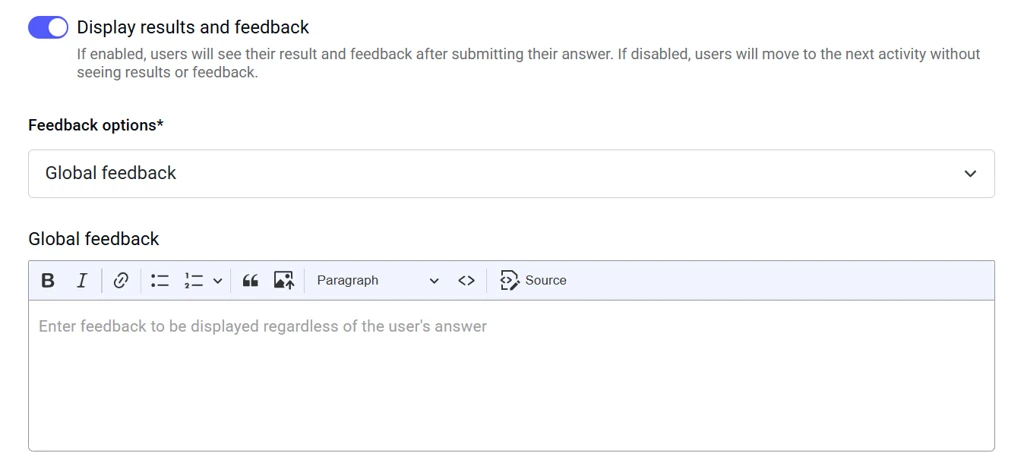
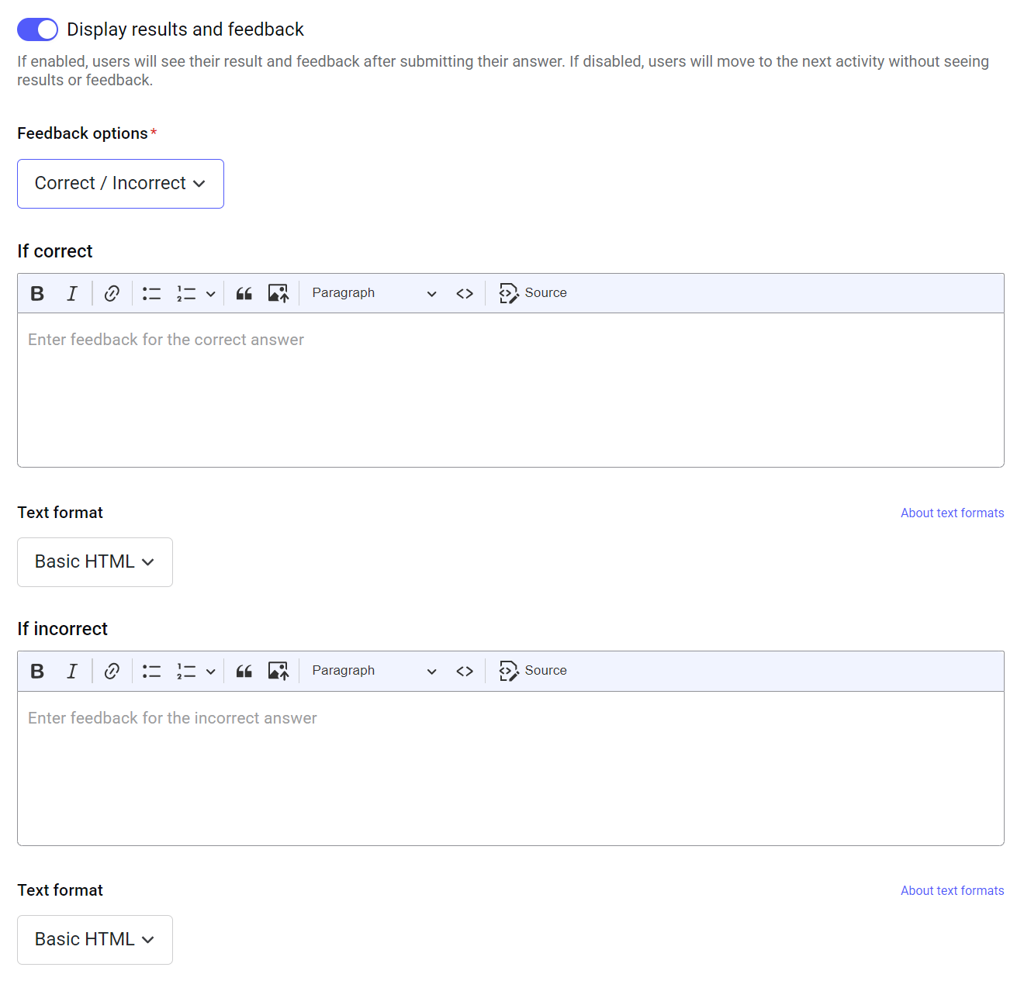
Assign tags to the activity. You can type a new tag name and press Enter to create it, or select an existing tag from the autocomplete suggestions. You can add multiple tags to a single activity.
Specify the language of the activity. This setting cannot be changed afterward.
The default language option is the default platform language.
You can translate the activity into another language using a dedicated translation tool interface. After you have applied all the necessary settings on this page, click the Save and continue button. If you created a separate activity, you will be redirected to the Manage activities dashboard. If you created an activity as a part of a training, you will be redirected to the training editing tool, where you can add more activities to your module or more modules to the training. To discard the draft of the activity, click Cancel.
Multiple-choice question
To create a multiple-choice question activity, click Add activity > Multiple choice. The activity creation interface will open.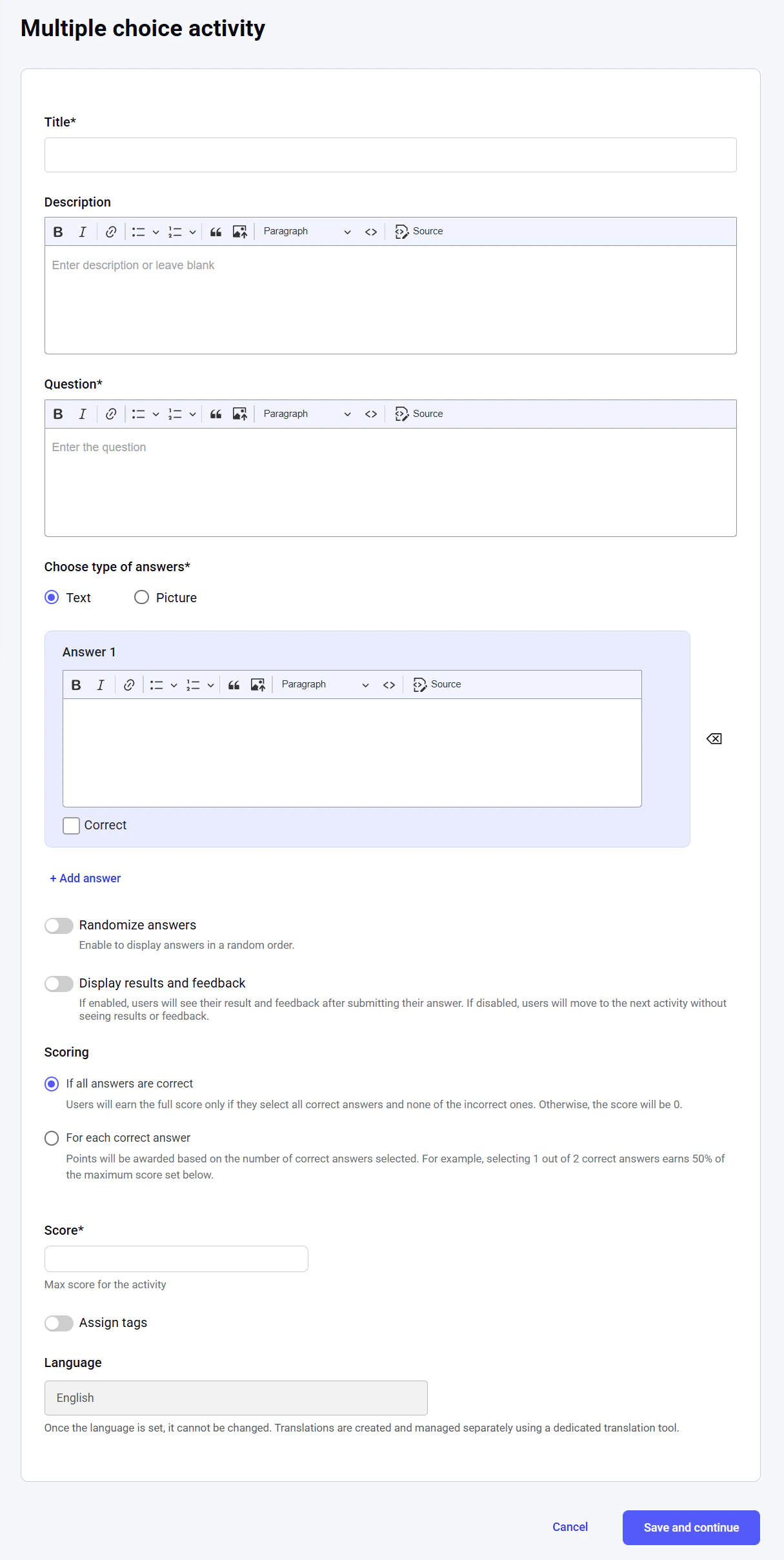
The name of the activity, searchable and visible in the catalog of activities. The maximum length is 255 characters. It is a required field. Description
An overview of the activity for the learners. The text length is unlimited, while the editor tool provides flexible editing capabilities. Question
Enter the true/false question to which the learners must respond. It is a required field. Choose type of answers
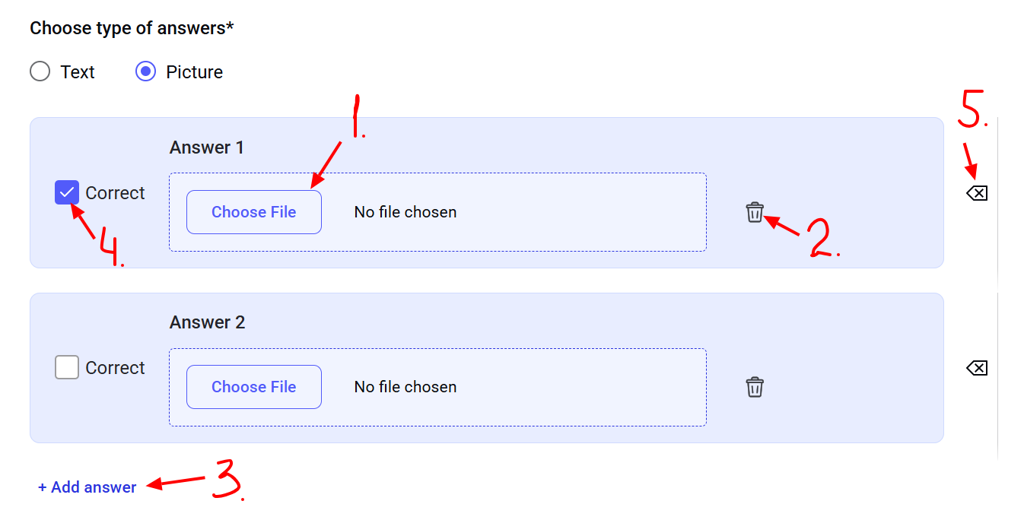
Choose the answer format: text or image.
- Text
- Image
Input the answer option in the text box. The text length is unlimited, and the editor tool offers flexible editing capabilities, including adding an image to the text.
To add another answer option, click Add answer [1].Check the Correct box next to the correct answer [2]. You can check several answers as correct.
To delete an answer option, click the Delete icon next to it [3].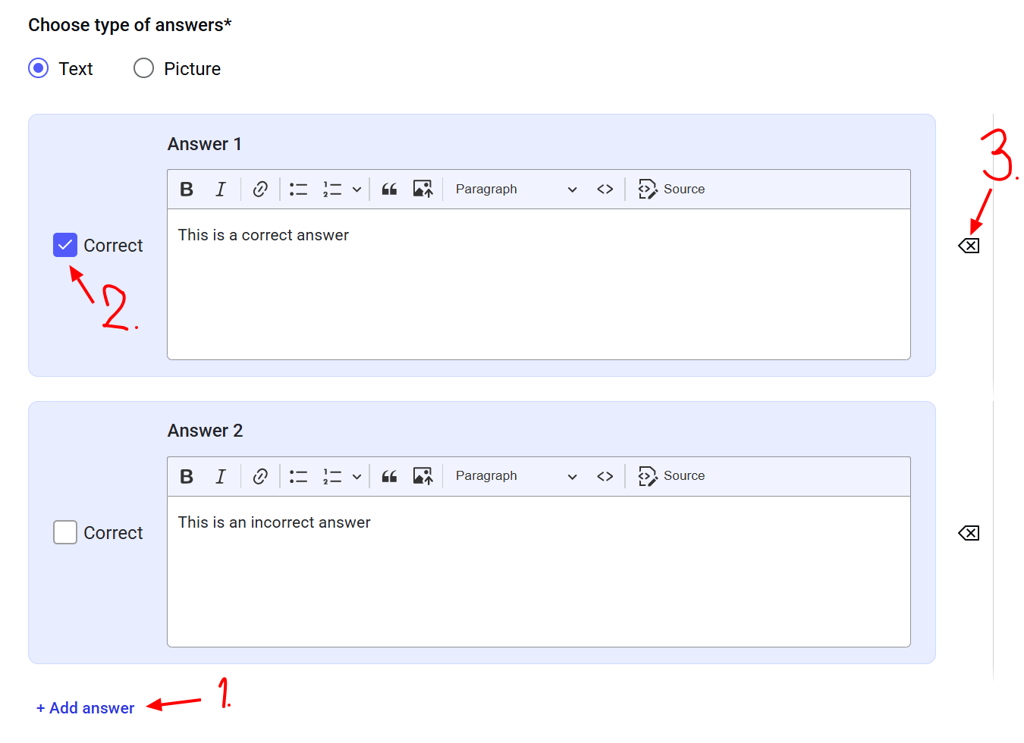
To add another answer option, click Add answer [1].Check the Correct box next to the correct answer [2]. You can check several answers as correct.
To delete an answer option, click the Delete icon next to it [3].
Enable this toggle to display the answer options in a random order. Display results and feedback
Choose what feedback learners receive after completing this activity.
There are four feedback options:
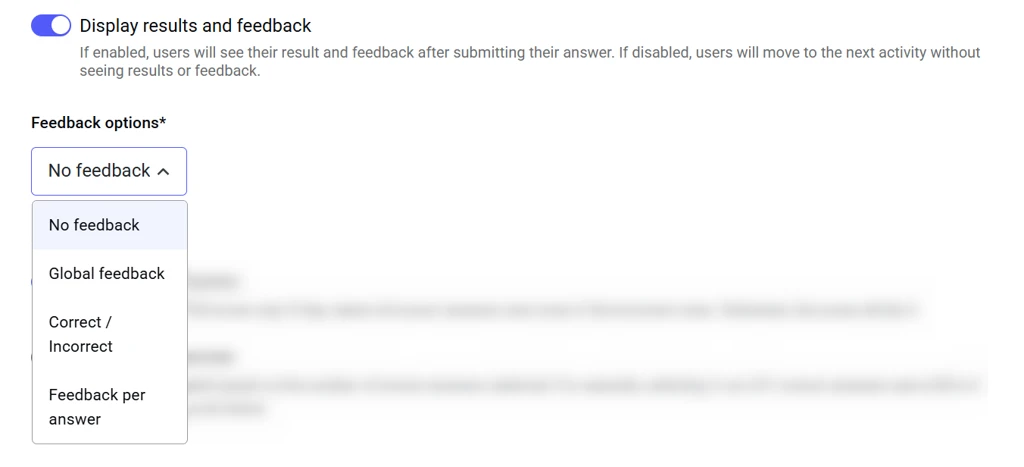
- No feedback
- Global feedback
- Correct / Incorrect
- Feedback per answer
Learners move to the next activity within a module without receiving any feedback.
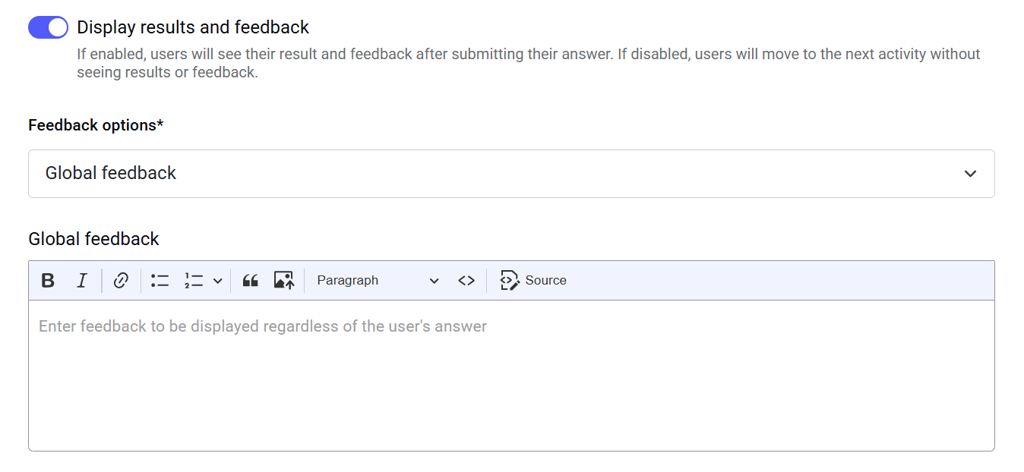
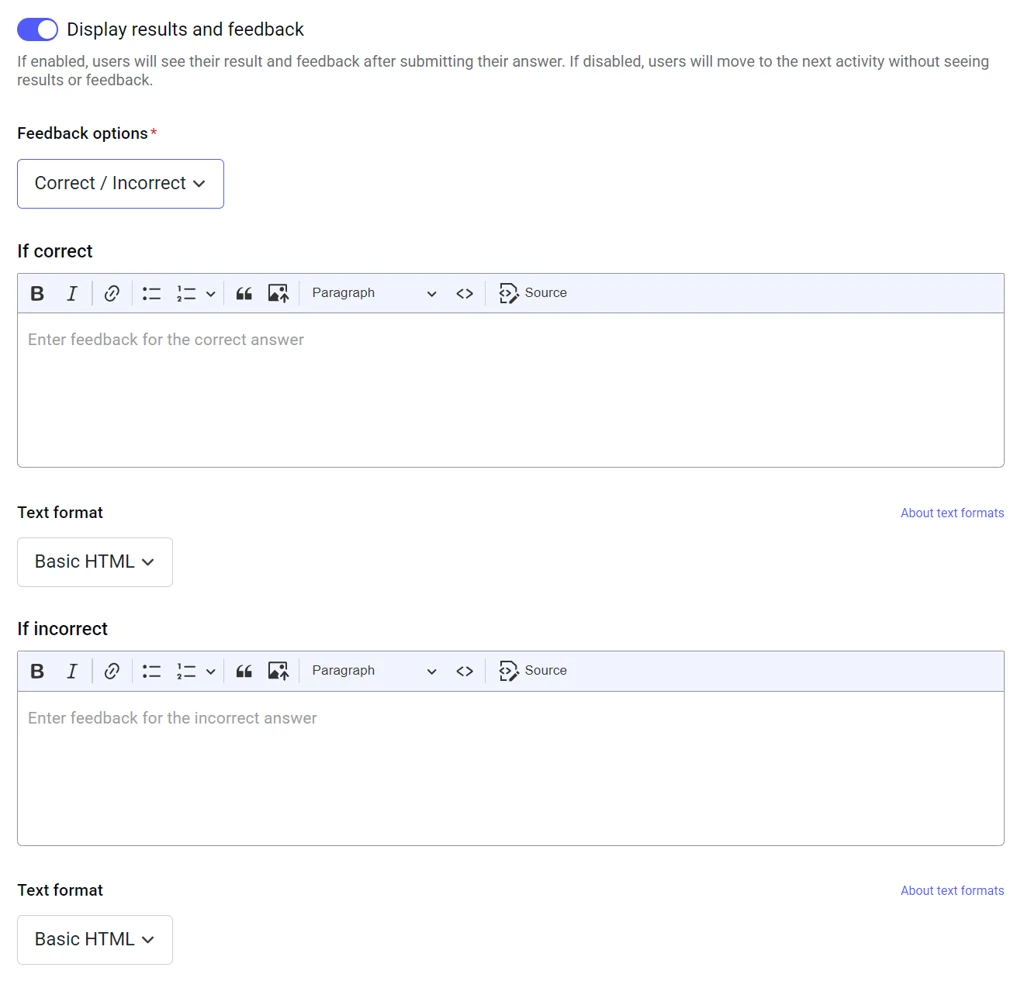
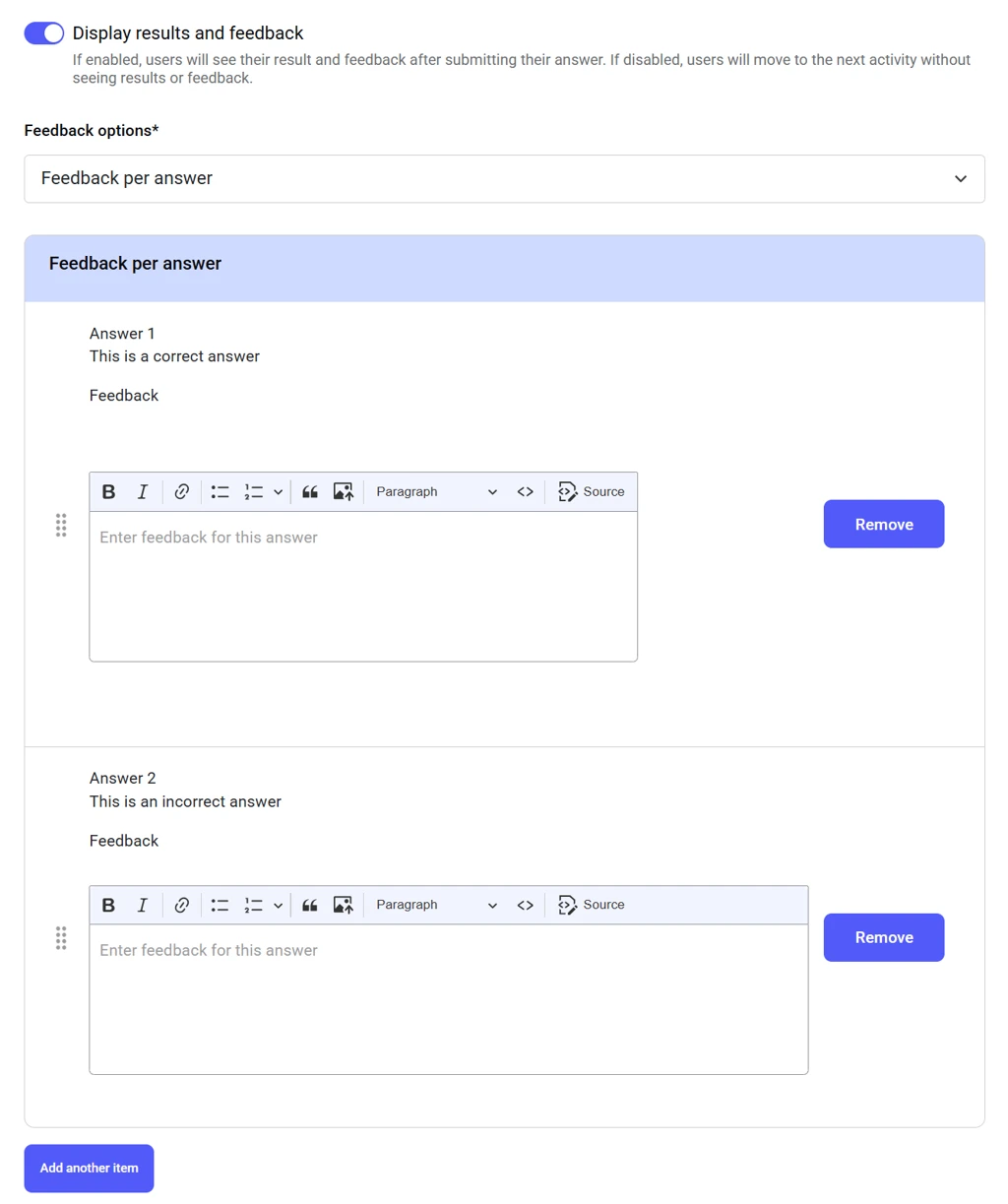
Choose how the activity is scored:
- If all answers are correct: If learners select all the correct answers and none of the incorrect ones, they earn the full score. Otherwise, the score is 0.
- For each correct answer: Points are awarded based on the number of correct answers selected. For example, selecting 1 out of 2 correct answers earns 50% of the maximum score.
Set the maximum score a learner can get for completing the activity. It is a required field. Assign tags
Assign tags to the activity. You can type a new tag name and press Enter to create it, or select an existing tag from the autocomplete suggestions. You can add multiple tags to a single activity.
Specify the language of the activity. This setting cannot be changed afterward.
The default language option is the default platform language.
You can translate the activity into another language using a dedicated translation tool interface. After you have input all the necessary fields on this page, click the Save and continue button. If you created a separate activity, you will be redirected to the Manage activities dashboard. If you created an activity as a part of a training, you will be redirected to the training editing tool, where you can add more activities to your module or more modules to the training. To discard the draft of the activity, click Cancel.
Interactive video
To create an interactive video activity, click Add activity > Interactive video. The activity editing interface will open.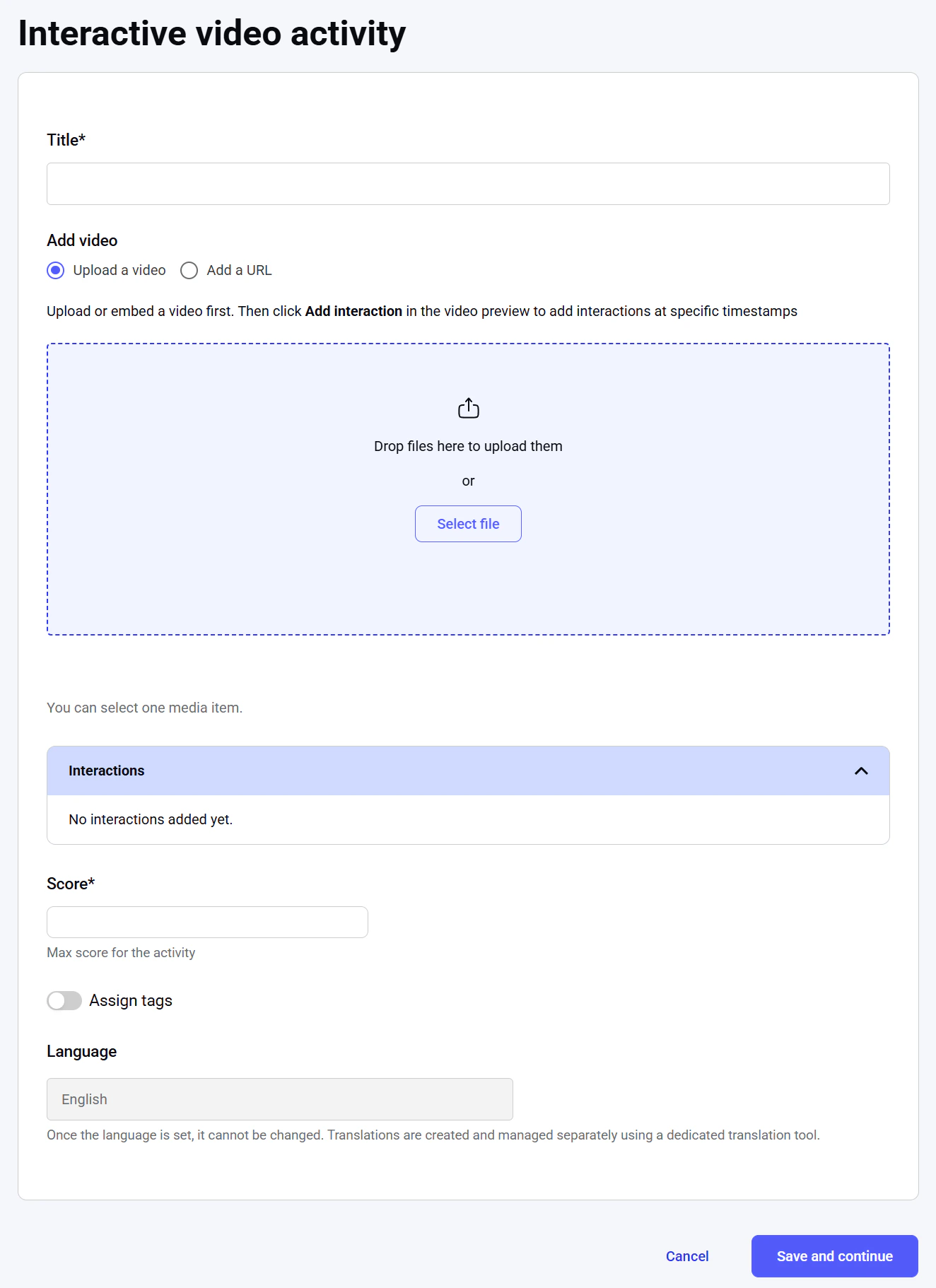
The name of the activity, searchable and visible in the catalog of activities. The maximum length is 255 characters. It is a required field. Add video
Upload your video file or provide a YouTube or Vimeo video link. The video will appear in the embedded player. Only one video can be added per activity. It is a required field. After adding a video, a preview opens. Pause the video at the timestamp where you want to add an interaction, then click the Add interaction button.
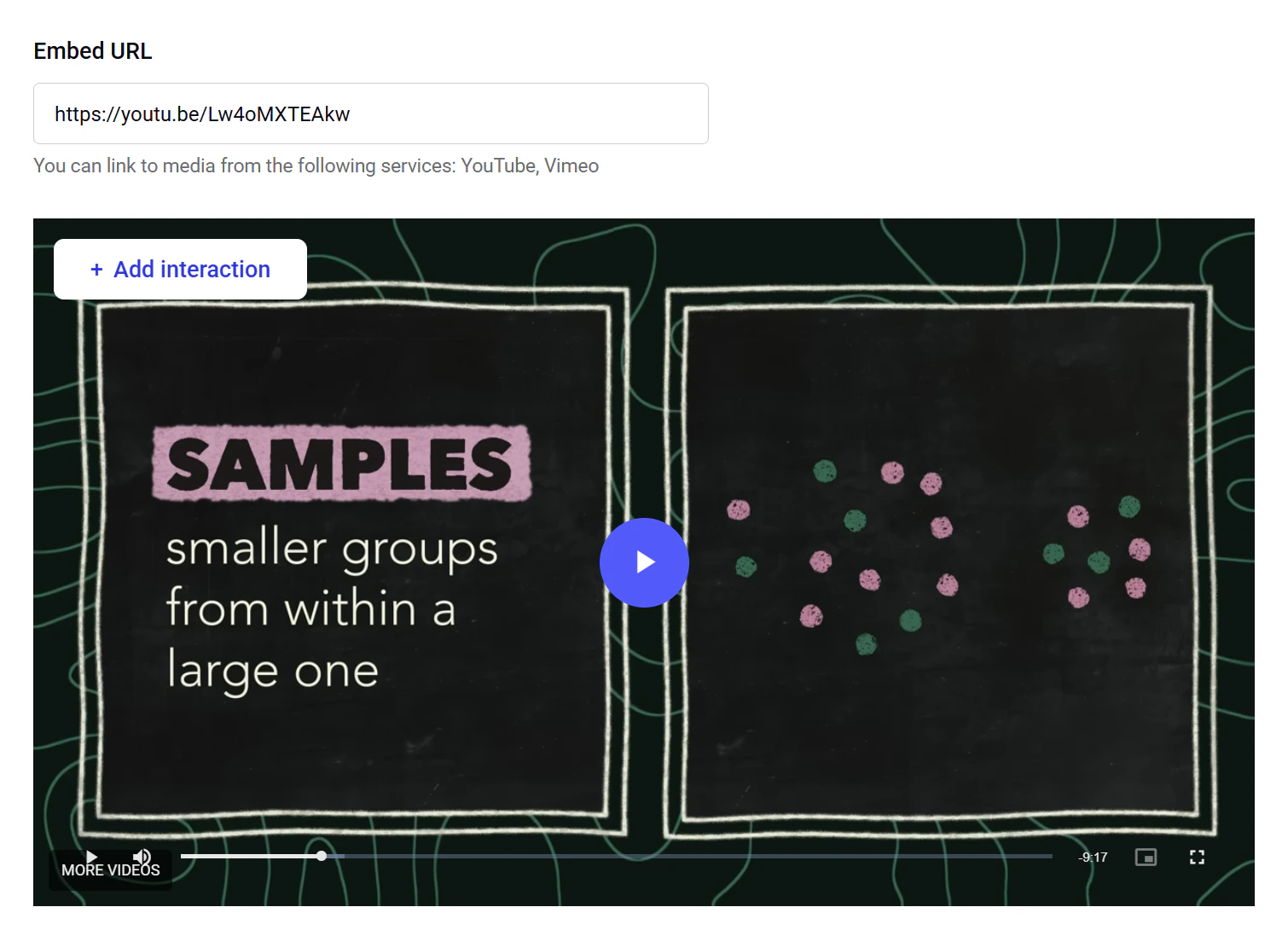
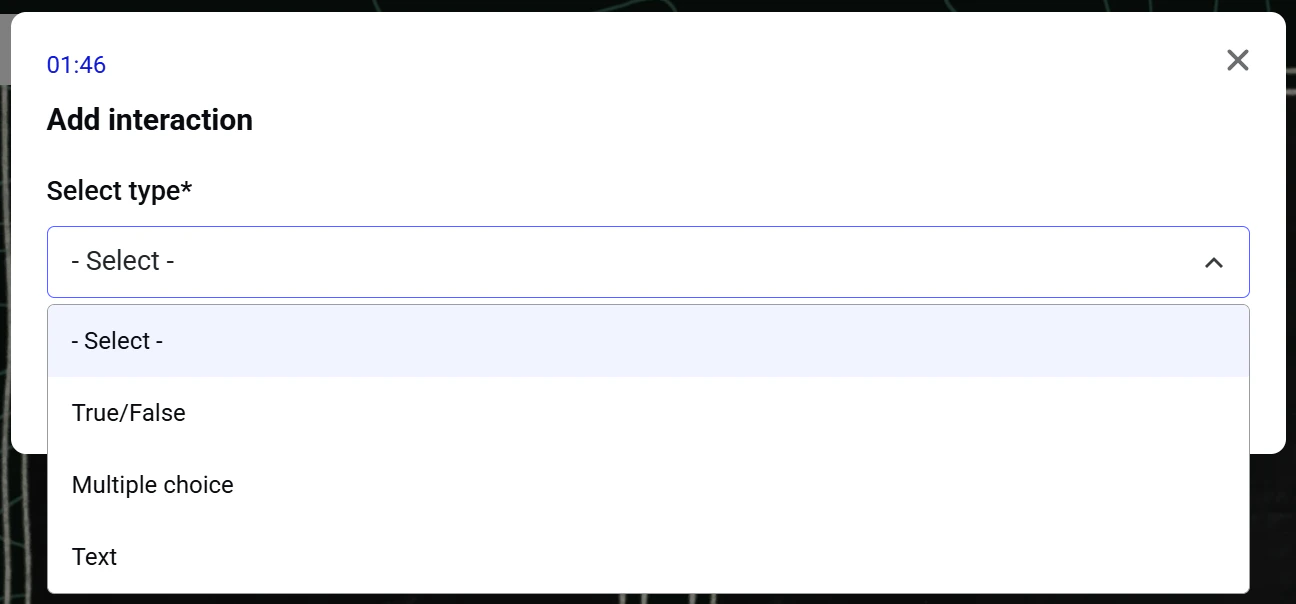
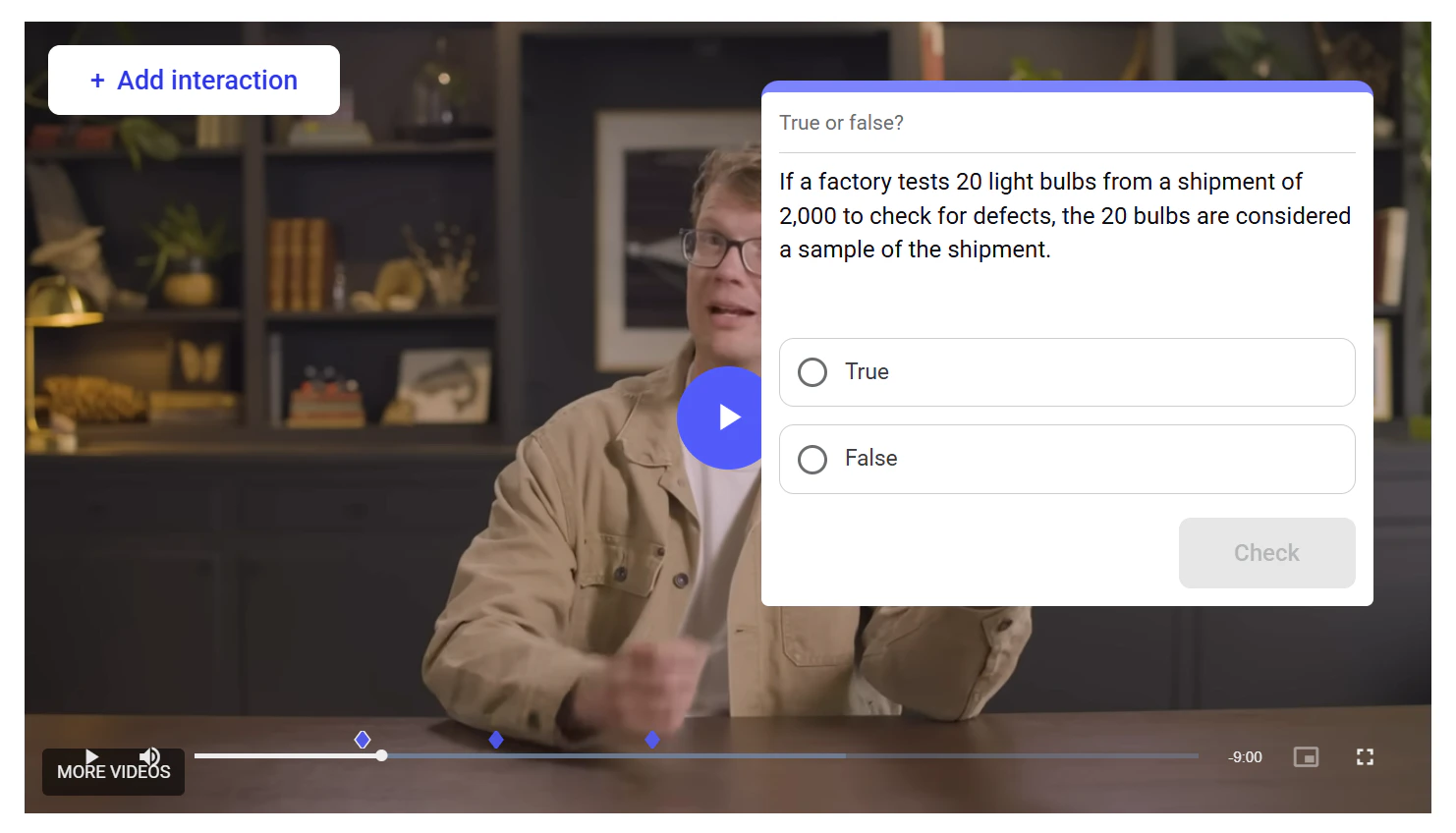
Set the score a learner earns for correctly completing multiple-choice or true/false interactions. The overall score is the average of all scored interactions. Each interaction scores 100% if all answers are correct, 0% if any are incorrect or unanswered. It is a required field. Interactions
The list of interactions added to the video. You can edit or delete added interactions by clicking the corresponding icons.
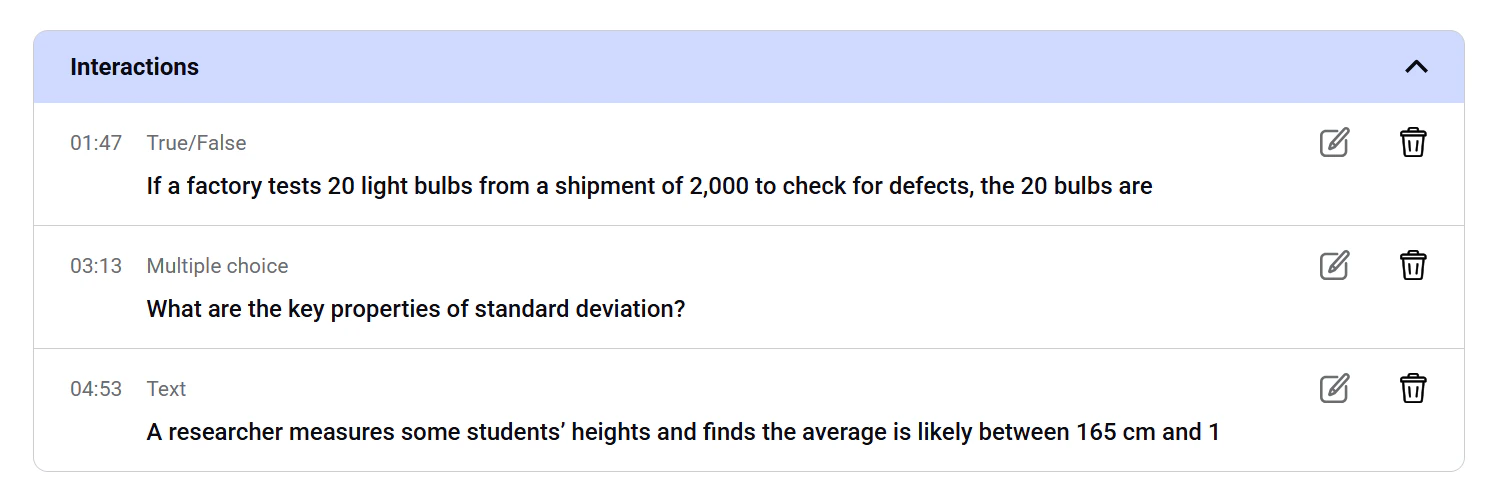
Assign tags to the activity. You can type a new tag name and press Enter to create it, or select an existing tag from the autocomplete suggestions. You can add multiple tags to a single activity.
Specify the language of the activity. This setting cannot be changed afterward.
The default language option is the default platform language.
You can translate the activity into another language using a dedicated translation tool interface. After you have input all the necessary fields on this page, click the Save and continue button. If you created a separate activity, you will be redirected to the Manage activities dashboard. If you created an activity as a part of a training, you will be redirected to the training editing tool, where you can add more activities to your module or more modules to the training. To discard the draft of the activity, click Cancel.
Fill-in-the-blank
To create a fill-in-the-blank activity, where learners must complete a text by entering missing words, click Add activity > Fill-in-the-blanks. The activity creation interface will open.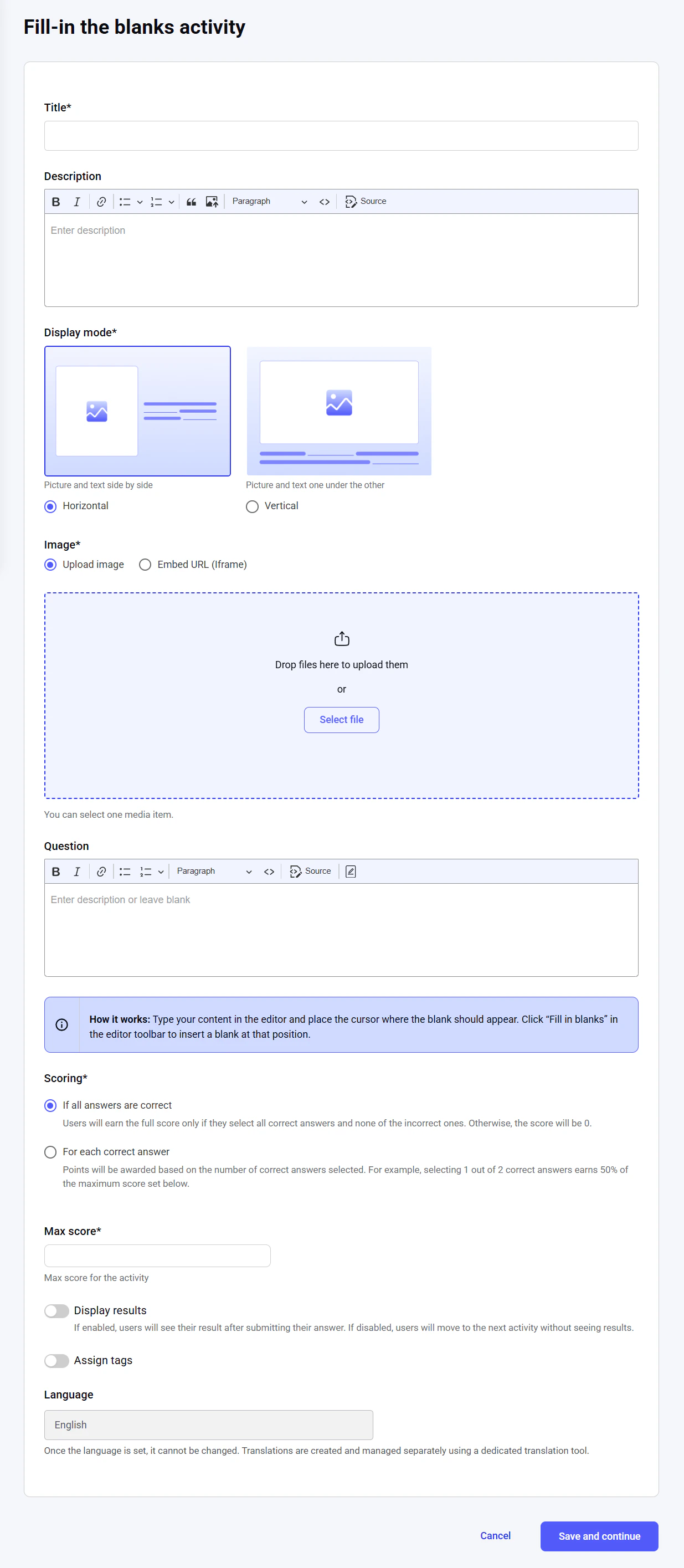
The name of the activity, searchable and visible in the catalog of activities. The maximum length is 255 characters. It is a required field. Description
An overview of the assignment for the learners. The text length is unlimited, while the editor tool provides flexible editing capabilities. It is a required field. Display mode
Choose how the visual and the text with missing words are displayed:
- Horizontal: Side by side
- Vertical: The text under the visual
Upload an image file or enter a URL to embed an iframe. It is a required field. Question
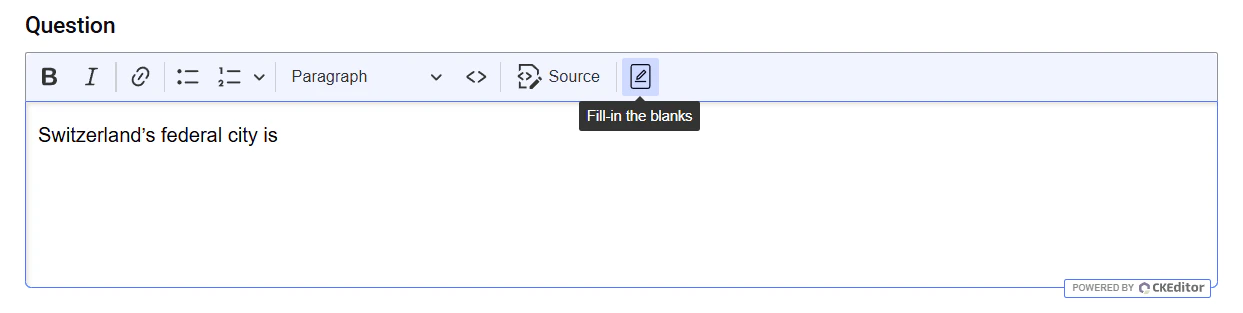
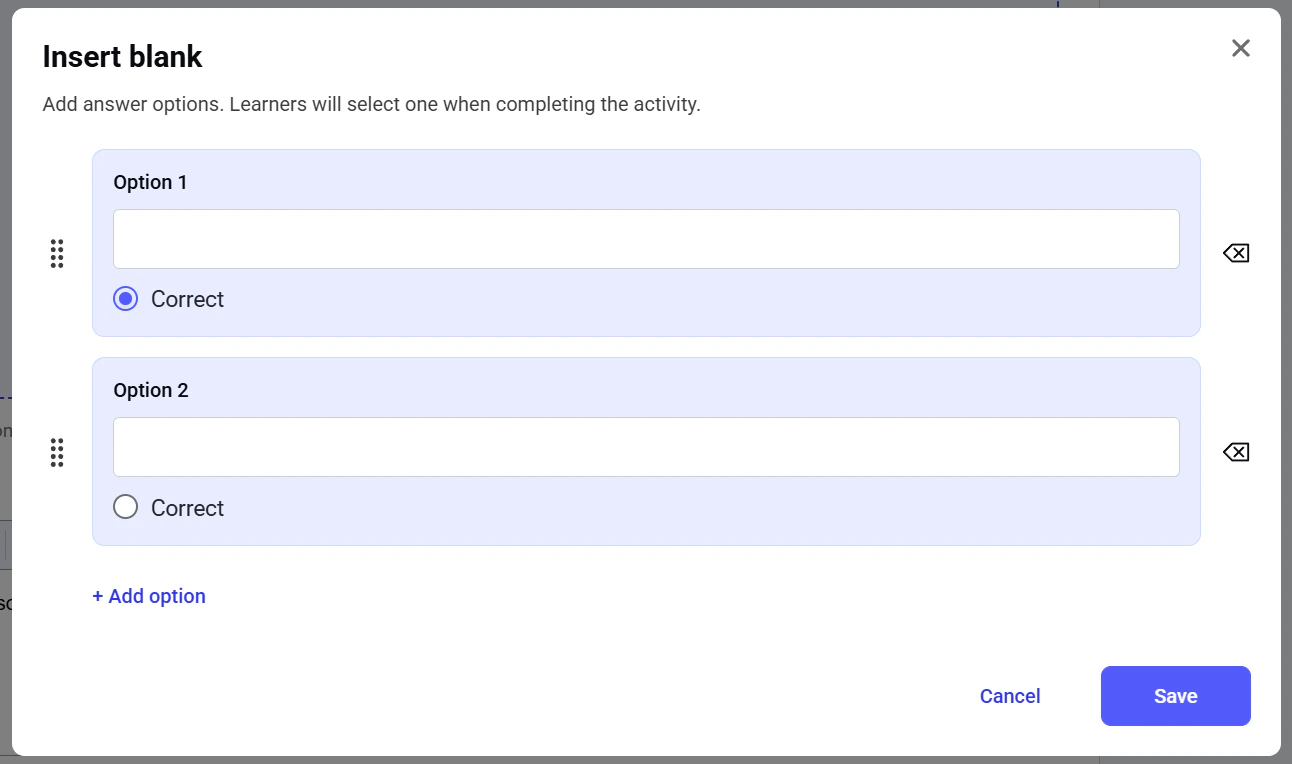
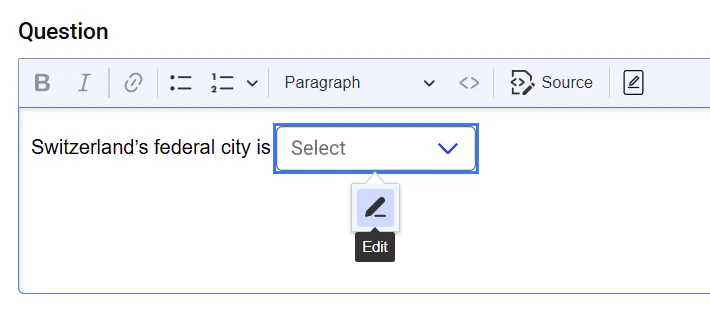
Enter the text in the editor and place the cursor where you want to insert a blank. Click the Fill-in-the-blank icon in the toolbar.
Choose how the activity is scored:
- If all answers are correct: If learners select all the correct answers and none of the incorrect ones, they earn the full score. Otherwise, the score is 0.
- For each correct answer: Points are awarded based on the number of correct answers selected. For example, selecting 1 out of 2 correct answers earns 50% of the maximum score.
Set the maximum score a learner can get for completing the activity. It is a required field. Display results
If enabled, users will see their results after submitting their answers. Assign tags
Assign tags to the activity. You can type a new tag name and press Enter to create it, or select an existing tag from the autocomplete suggestions. You can add multiple tags to a single activity.
Specify the language of the activity. This setting cannot be changed afterward.
The default language option is the default platform language.
You can translate the activity into another language using a dedicated translation tool interface. After you have input all the necessary fields on this page, click the Save and continue button. If you created a separate activity, you will be redirected to the Manage activities dashboard. If you created an activity as a part of a training, you will be redirected to the training editing tool, where you can add more activities to your module or more modules to the training. To discard the draft of the activity, click Cancel.
File upload
To create a file upload activity, where learners must submit their assignment as an uploaded file, click Add activity > File upload. The activity creation interface will open.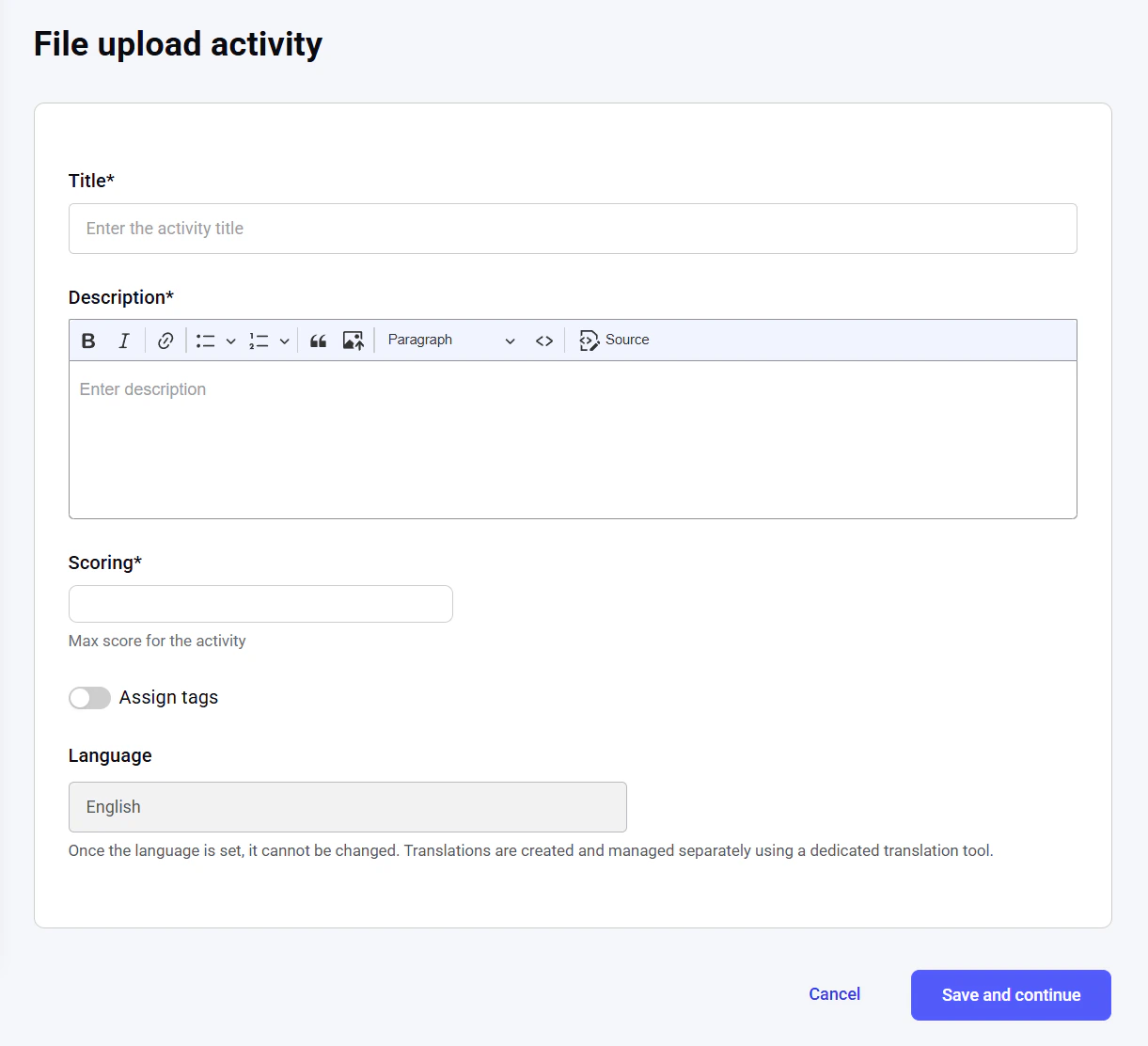
The name of the activity, searchable and visible in the catalog of activities. The maximum length is 255 characters. It is a required field. Description
An overview of the assignment for the learners. The text length is unlimited, while the editor tool provides flexible editing capabilities. It is a required field. Scoring
The score a learner can get for completing the assignment successfully. The assignment is scored manually after a learner uploads a file with the finished task. It is a required field. Assign tags
Assign tags to the activity. You can type a new tag name and press Enter to create it, or select an existing tag from the autocomplete suggestions. You can add multiple tags to a single activity.
Specify the language of the activity. This setting cannot be changed afterward.
The default language option is the default platform language.
You can translate the activity into another language using a dedicated translation tool interface. After you have input all the necessary fields on this page, click the Save and continue button. If you created a separate activity, you will be redirected to the Manage activities dashboard. If you created an activity as a part of a training, you will be redirected to the training editing tool, where you can add more activities to your module or more modules to the training. To discard the draft of the activity, click Cancel.
Editing an activity
To edit an activity, click the Edit icon next to the corresponding line item. You can do it either from the list of activities on the Manage activities dashboard: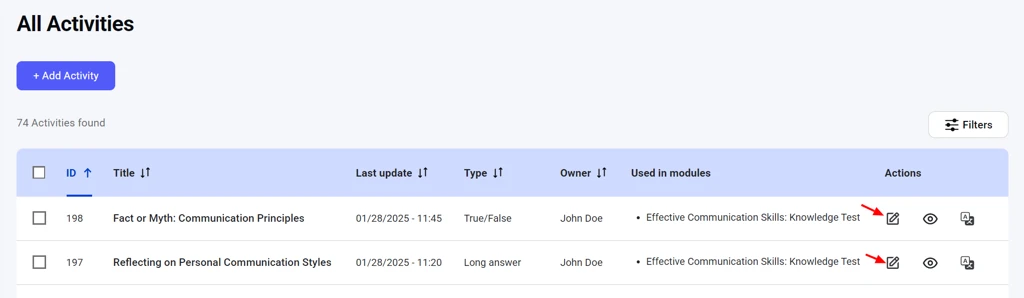
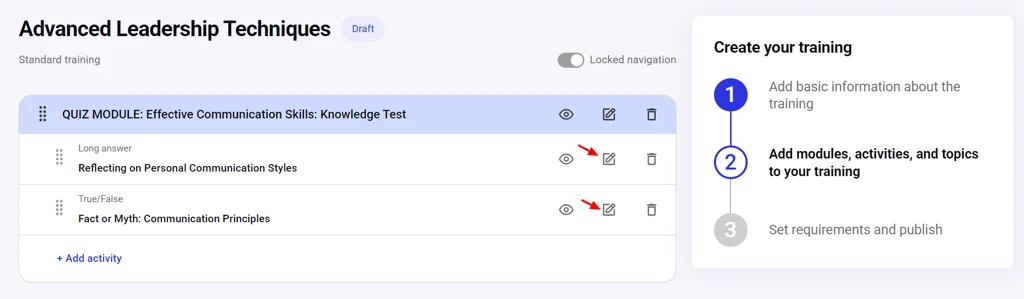
If you apply changes to an activity included in published trainings, this action will automatically create draft revisions for all such trainings. To make these changes take effect for these trainings, you must publish the revisions. Until then, the trainings will display the unedited version of the activity. To learn more about training revisions, check the Training revision section.A warning message will appear, listing all the affected trainings. Click Continue to proceed with saving the changes to the activity and creating draft revisions for related trainings. To discard the changes, click Cancel.