You can access the module creation tool in two ways:
By clicking the Add Module button above the dashboard with the list of all modules. Modules created this way are saved as separate entities and can be added to your chosen training later.
By clicking Add a new module during Step 2 of training creation. Modules created this way are automatically assigned to the given training.
Creating a module via the training creation interface follows the same steps as creating a module separately.You can create two types of modules: a theory module (without assessments) or a quiz module.After you choose the module type, a module creation interface will open, where you can configure the module’s general settings and manage its content.
The general settings are the same for both theory and quiz modules.
On this page, you can set the general settings for the new module:Title: The name of the module, searchable and visible in the catalog of modules. The maximum length is 255 characters. It is a required field.Description: An overview of the module for the learners. The text length is unlimited, while the editor tool provides flexible editing capabilities.Cover image: A cover image that will be displayed in the training catalog and on the training homepage.Language: The language of the module. This setting cannot be changed afterward.The default language option is the default platform language.
You can translate your module into another language using a dedicated translation tool interface. See Translations for more details.
If you create a module as part of a training with locked navigation, you will see additional settings for unlocking the module. These are the same for both theory and quiz modules:There are two ways a learner can unlock the module:
Automatically, after a specified number of days since starting the training.
By successfully completing a previous module:
For quiz modules with a set passing score, achieving a score above the threshold is required to complete the module successfully.
For theory modules and quiz modules without a passing score set, the learner must simply finish them.
Unlocking conditions can be combined and applied only from the second module onward since they depend on completing a previous module.
Navigation and engagement options (Quiz modules only)
The navigation and engagement settings apply only to quiz modules. Here, you can set up how learners interact with the content.Backwards navigation: Allow learners to return to previous activities within the quiz module.Randomize the order of activities: You can either shuffle all activities in the module or randomly select a set number from the list of activities added to the module each time it starts.Limit number of attempts: You can limit the number of times each learner can try to complete the module.Review completed activities: You can enable learners to review the completed module and its activities without restarting it.The navigation and engagement settings can be combined.
For the quiz module, you can choose to display a breakdown of all completed activities on the module results page, showing learner answers alongside the correct ones, based on each activity’s result settings. It is enabled by default.After you have applied all the necessary settings on this page, click the Save and continue button to add activities to your module.To discard the module draft, click Cancel.
Click Add existing activity to open the list of all the available activities.Select all the activities you need. You can search for them by tag and title. You can also sort the list in ascending or descending order by the activity’s ID, title, and type. The order of activities in the module repeats the order of your selection; you can see all the selected activities and their order tagged above the list:To discard a single selected activity, click X next to its tag. To discard all selections, click Clear all to the right of the tags.To confirm your selection, click Add activities. You will return to the training editing interface:To change the order of the activities, drag them by the dots next to the activity title:After you have added all the necessary activities on this page, click the Save button to save the module.To discard the module draft, click Delete.
To edit a module, click Edit next to the corresponding line item.You can do it either from the list of modules on the Manage modules dashboard:Or from the training creating/editing interface, during Step 2:Clicking this icon will open the module editing interface, where you can change its settings and content.
If you apply changes to the Limit number of attempts settings of a quiz module shared between multiple published trainings, this action will automatically create draft revisions for all such trainings. You must publish their revisions so these changes take effect for these trainings. Until then, the trainings will display the module’s unedited version.
To learn more about training revisions, check the Training revision section.
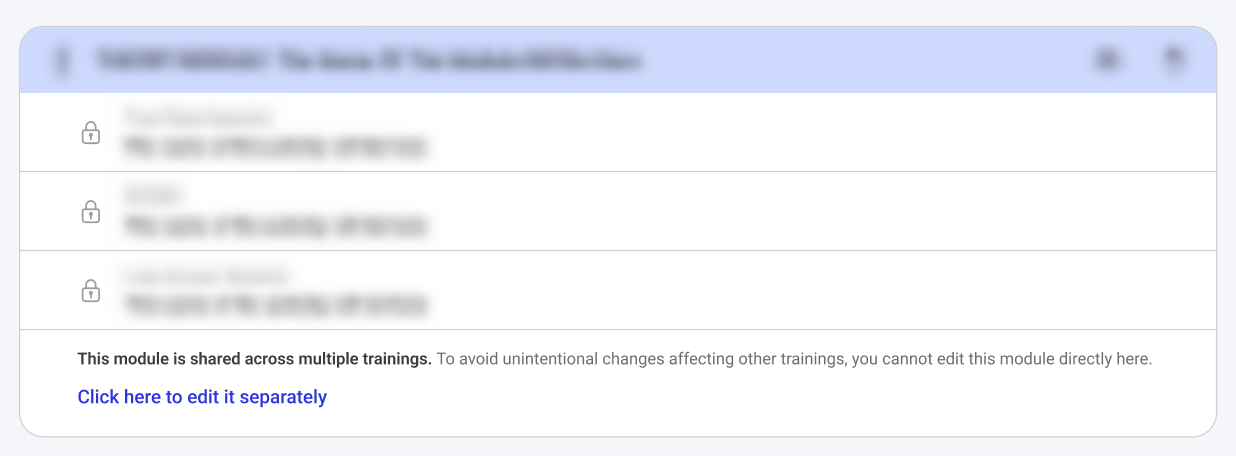
Note: A shared module can only be edited separately. You cannot change the order of activities or add new ones to such a module within the training editing interface. Instead, there will be a link to the dedicated module editing interface:
After you have applied all the necessary settings on this page, click the Save and continue button. To discard the changes, click Cancel.
Assistant
Responses are generated using AI and may contain mistakes.