

NOTE: Proofreaders can only access the languages assigned to them by an administrator.
Types of content available for translation
The tool can translate text extracted from source content. For uploaded files such as images, videos, or PDFs, only accompanying text (titles, descriptions, etc.) is translatable. After a translation is approved by a proofreader, you can upload a translated file in the content editing interface.Translations and training revisioning
Translations are linked to a specific training revision. When a translation is requested, the system checks whether an unpublished (draft) revision already exists. If not, a new unpublished revision is created, and the translation is attached to it. The translation remains unavailable to learners until the revision is published. If the source content is later updated and existing translations are marked as outdated, you can request a new translation, which will be associated with the new revision. To ensure proofreaders always work with the latest version, the source content is locked for editing once the translation process begins. It stays locked until proofreading is completed.The main dashboard
You can access the translation tool under Tools in the left menu.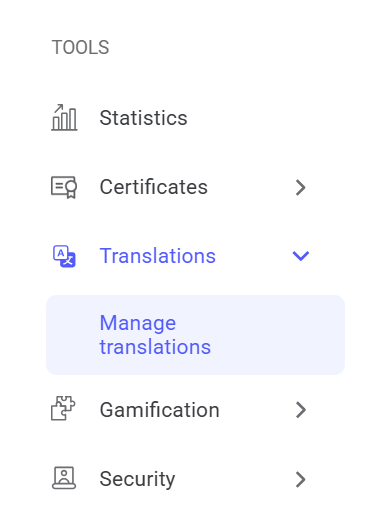
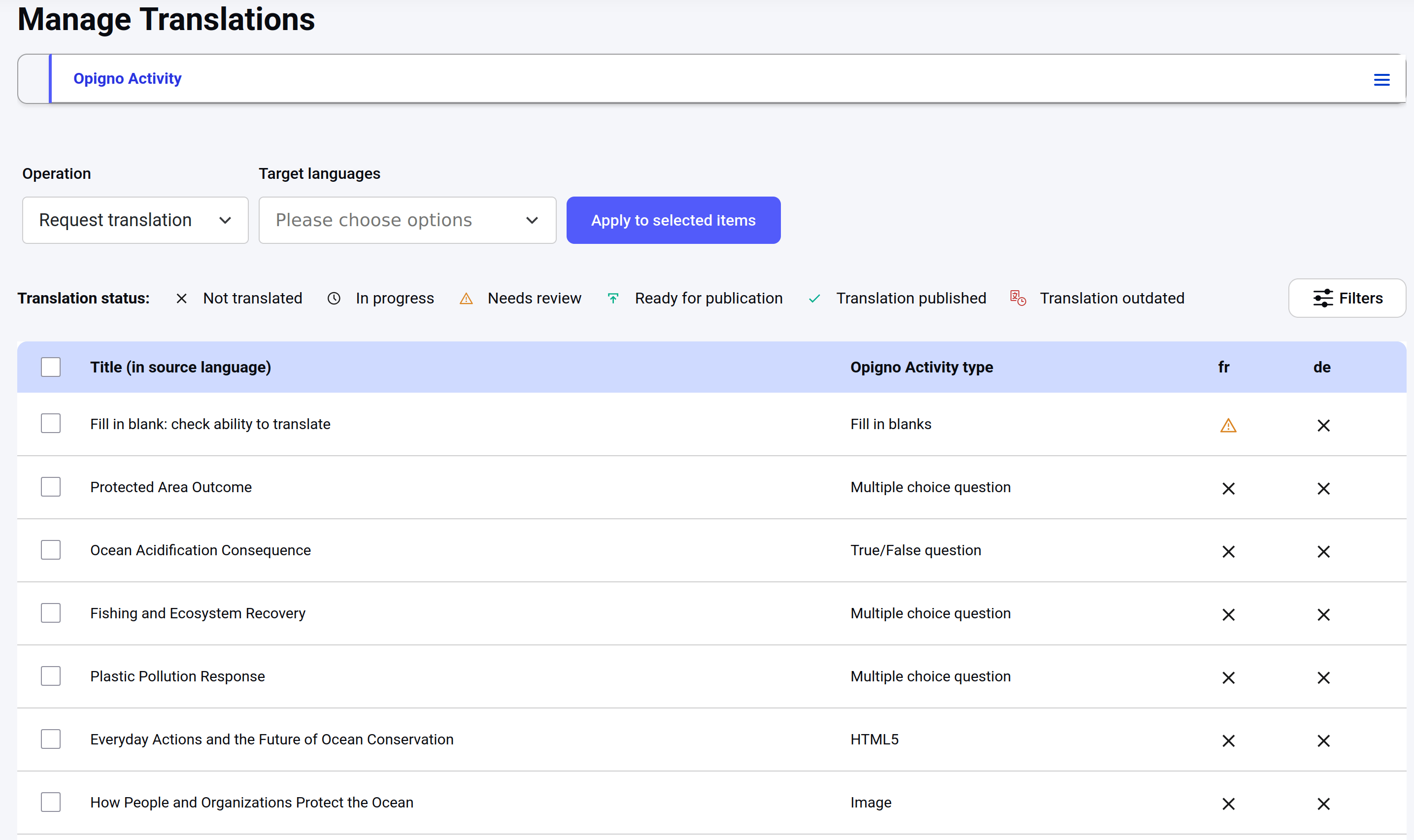
- Title of the item in the source language.
- Subtype of the item.
- Available languages and translation status for each language. The list of available languages is configured on a case-by-case basis, depending on client requirements.
Navigation bar
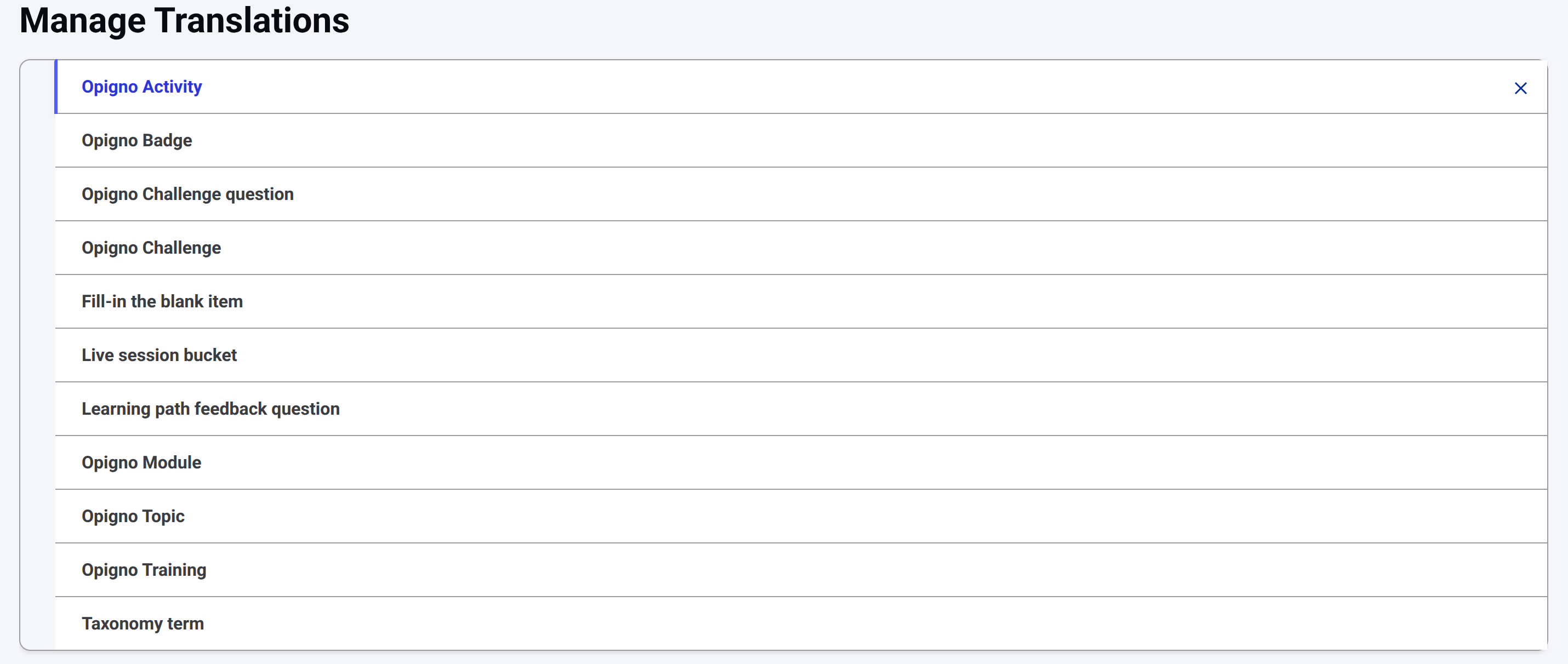
The table shows one content type at a time (e.g., trainings, activities, or topics). Switch between them using the tabs at the top:
-
Request translation: Initiates an AI-generated translation for selected items. If you select fewer than 100 items, the translations are performed immediately. When the request includes 100 items or more, the process may take some time, and you will see the following message:

- Publish translation: Publishes translations approved by the proofreader without editing them.
Proofreader interface
When the AI translation is completed, and the item status changes to Needs review, click the corresponding icon to open the proofreader interface. The interface has two columns:- Source: Text from the source content (not editable).
- Translation: AI-generated translation, which can be edited.
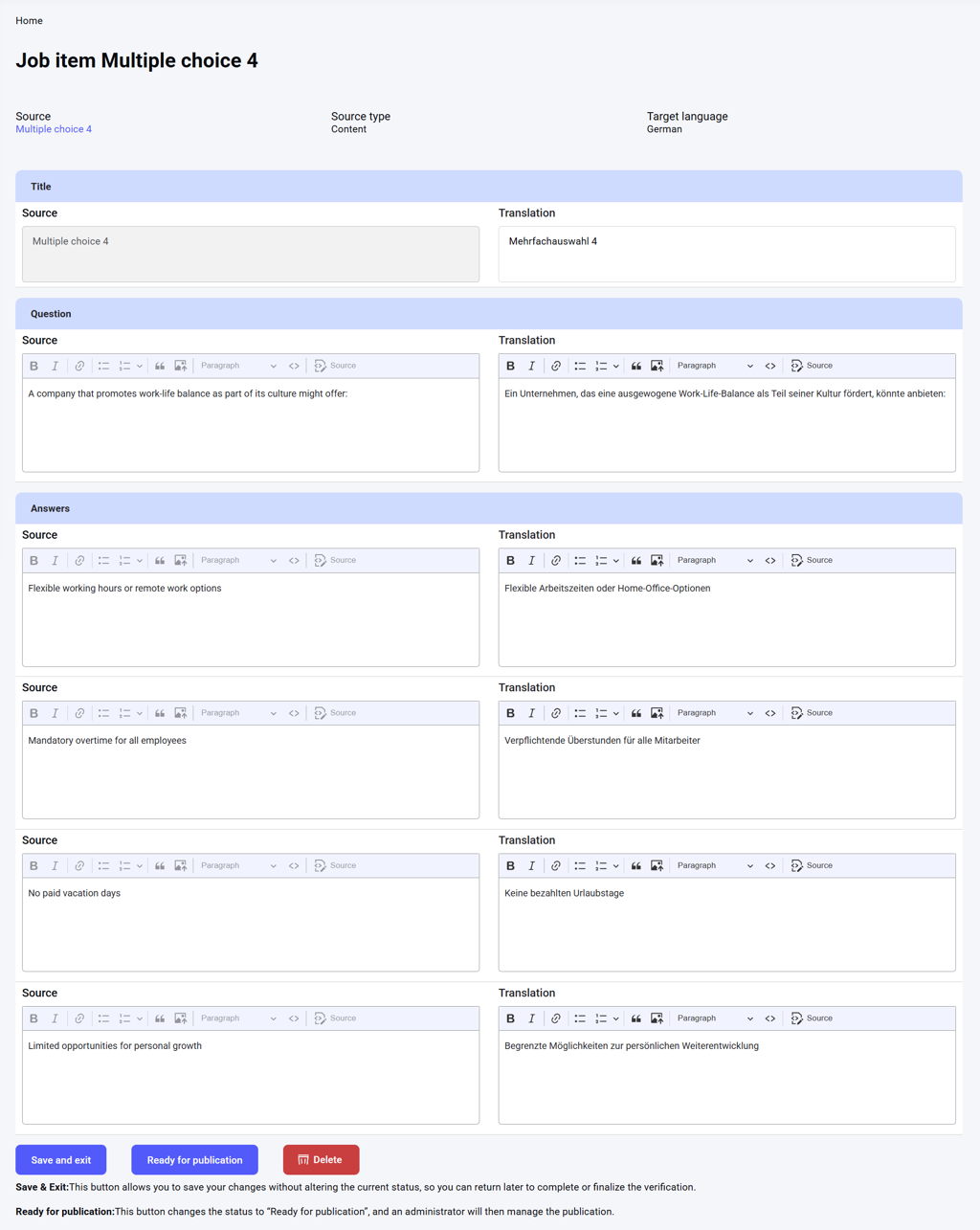
Content editing interface
After proofreading is completed and the item status changes to Ready for publication, click the corresponding icon to open the content editing interface.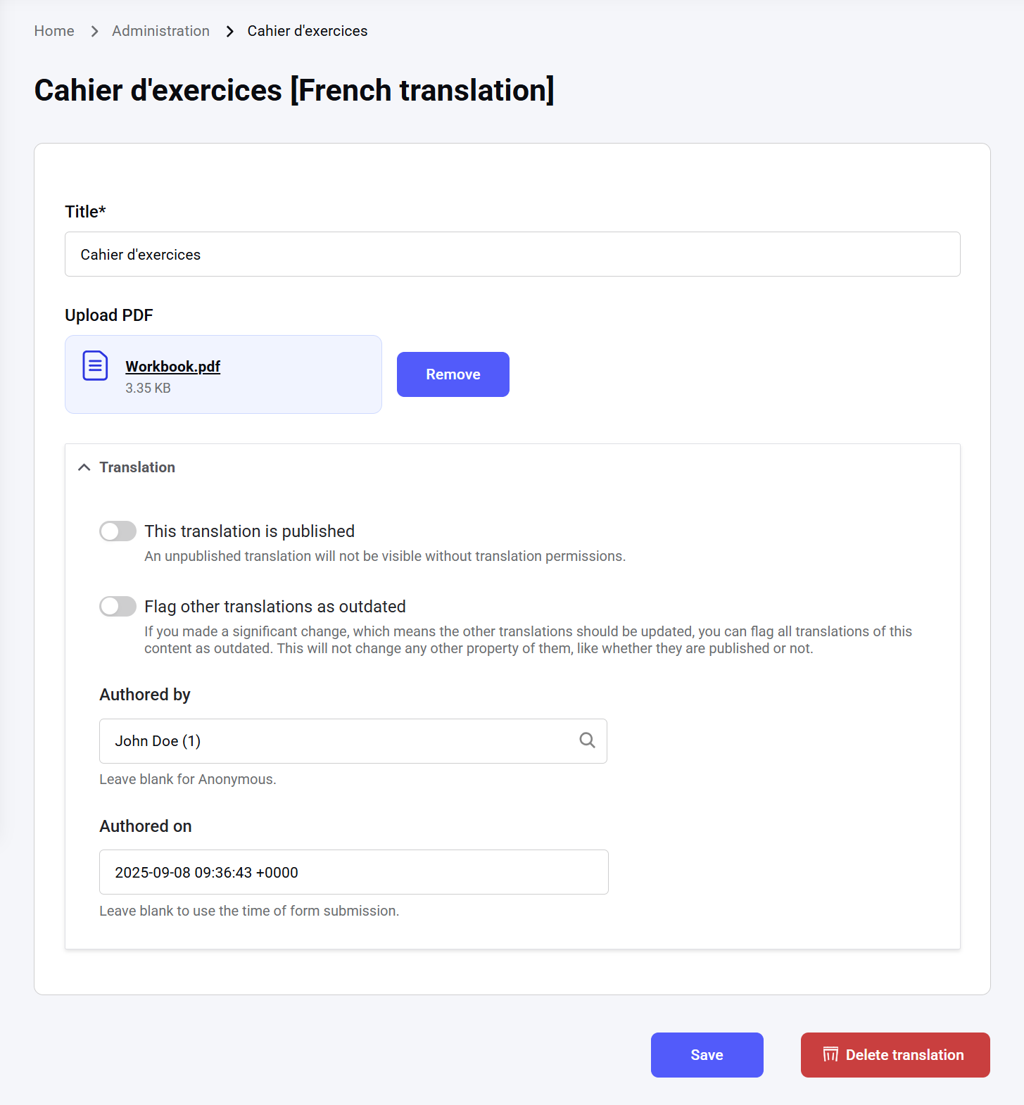
- Make final edits to the translation.
- Upload translated files, if applicable.
- Publish the translation by enabling the This translation is published toggle.
- Flag other translations as outdated (this affects only the translation status on the dashboard).
- Edit metadata, such as the translation author and date, before publishing.