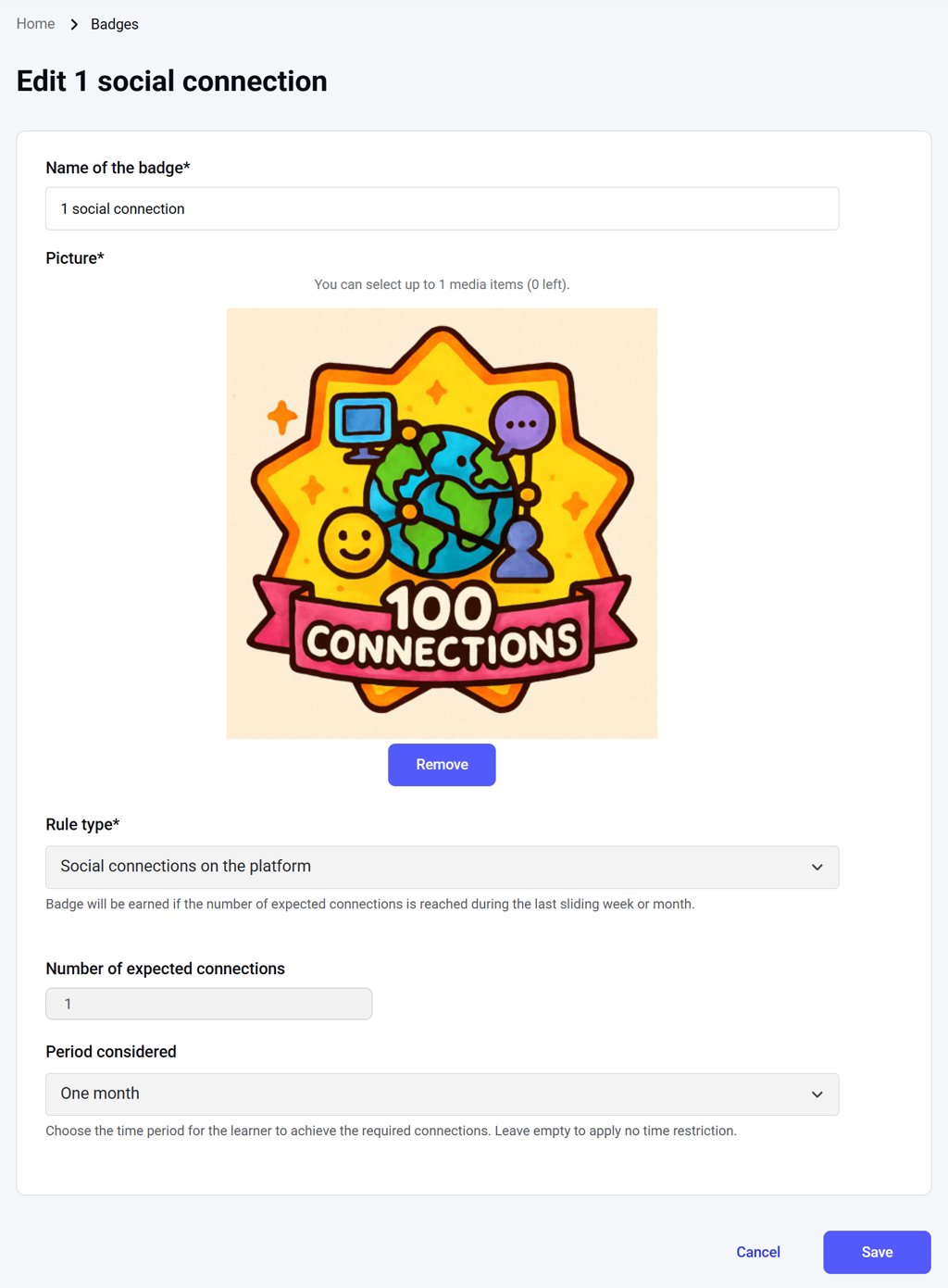
NOTE: Each badge can be awarded only once per user. If a user meets the eligibility criteria multiple times, no new badge will be issued.
NOTE: Badge management is available only to administrators and content editors.
The dashboard
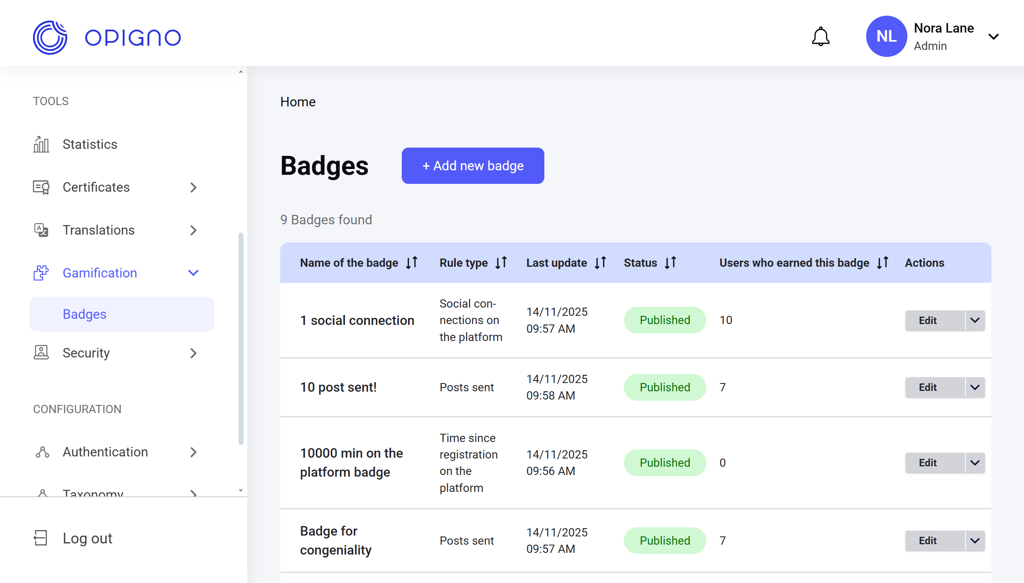
- Badge name
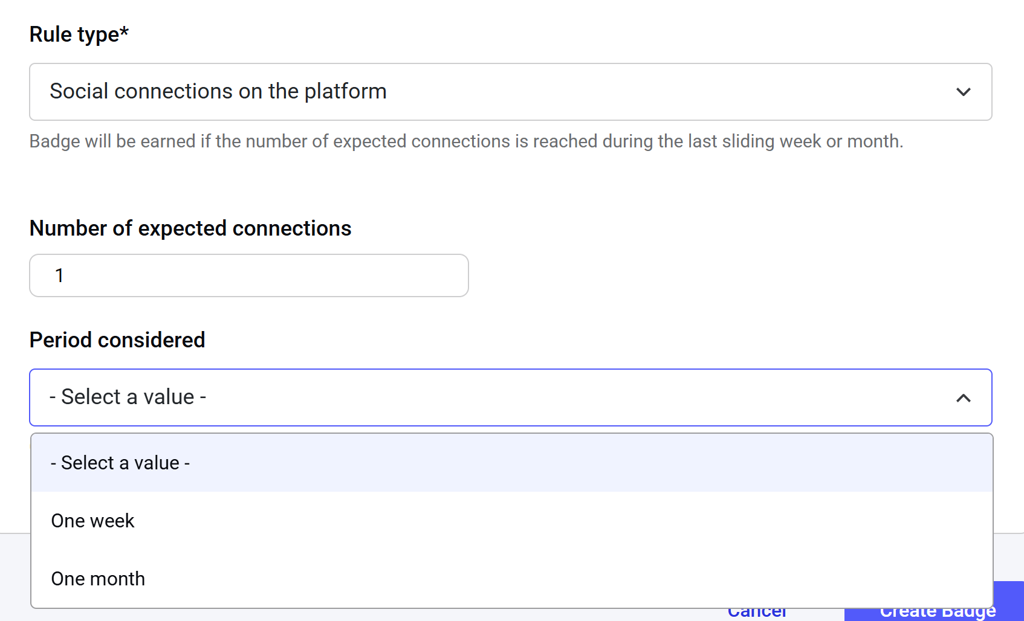
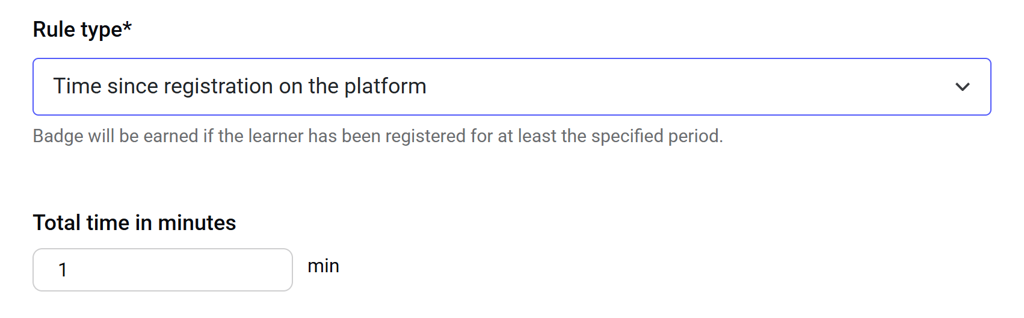
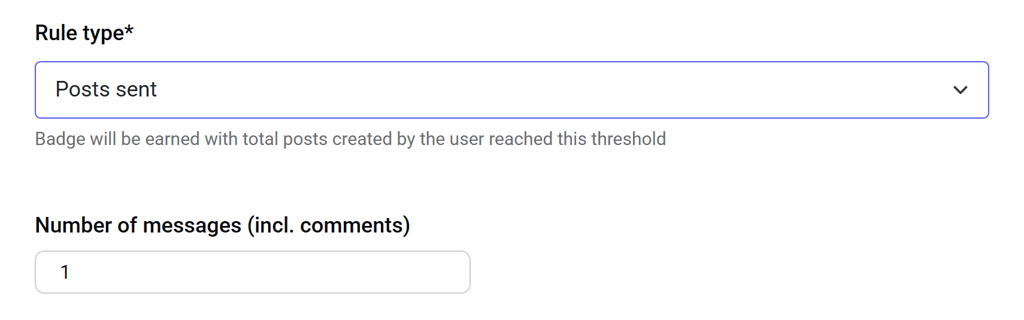
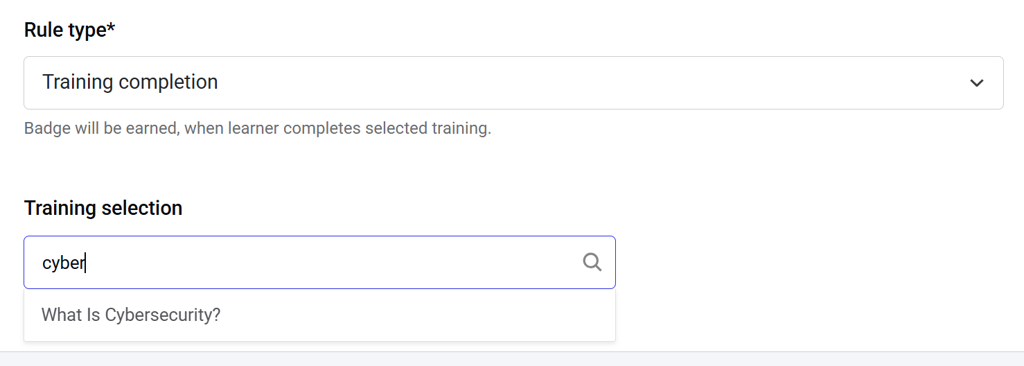
- Rule type: The condition used to award the badge. There are six rule types available:
- Social connections: Number of social connections established within a defined period.
- Account age: Time elapsed since the user’s profile was created. Blocked profiles are not eligible.
- Posts sent: Number of posts and comments submitted by the user.
- Training completion: Achieving 100% progress in a specified training.
- Training passed: Meeting the passing requirements of a specified training.
- Training enrollment: Enrolling in a specified training.
- Last update
- Status: Published / Disabled
- Recipients count: The number of learners who have been awarded this badge.
- Actions: Edit / Publish / Disable
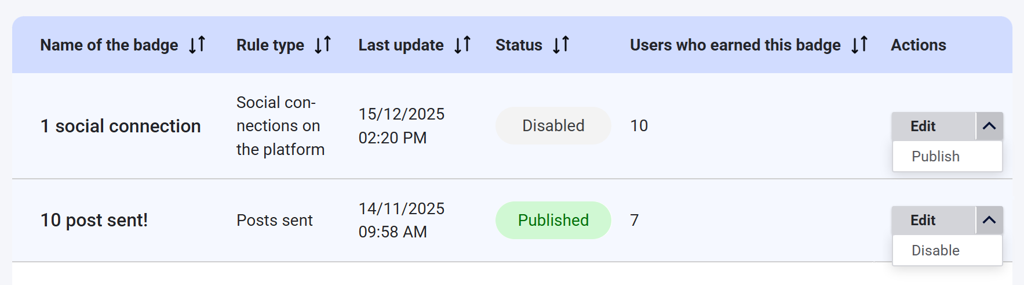
NOTE: A disabled badge remains visible to users who have already earned it, but it cannot be earned by new users.
Creating a new badge
Click the Add new badge button to open the badge creation interface. Here, you can add the name of the badge, upload or generate the badge image, and choose the eligibility rule.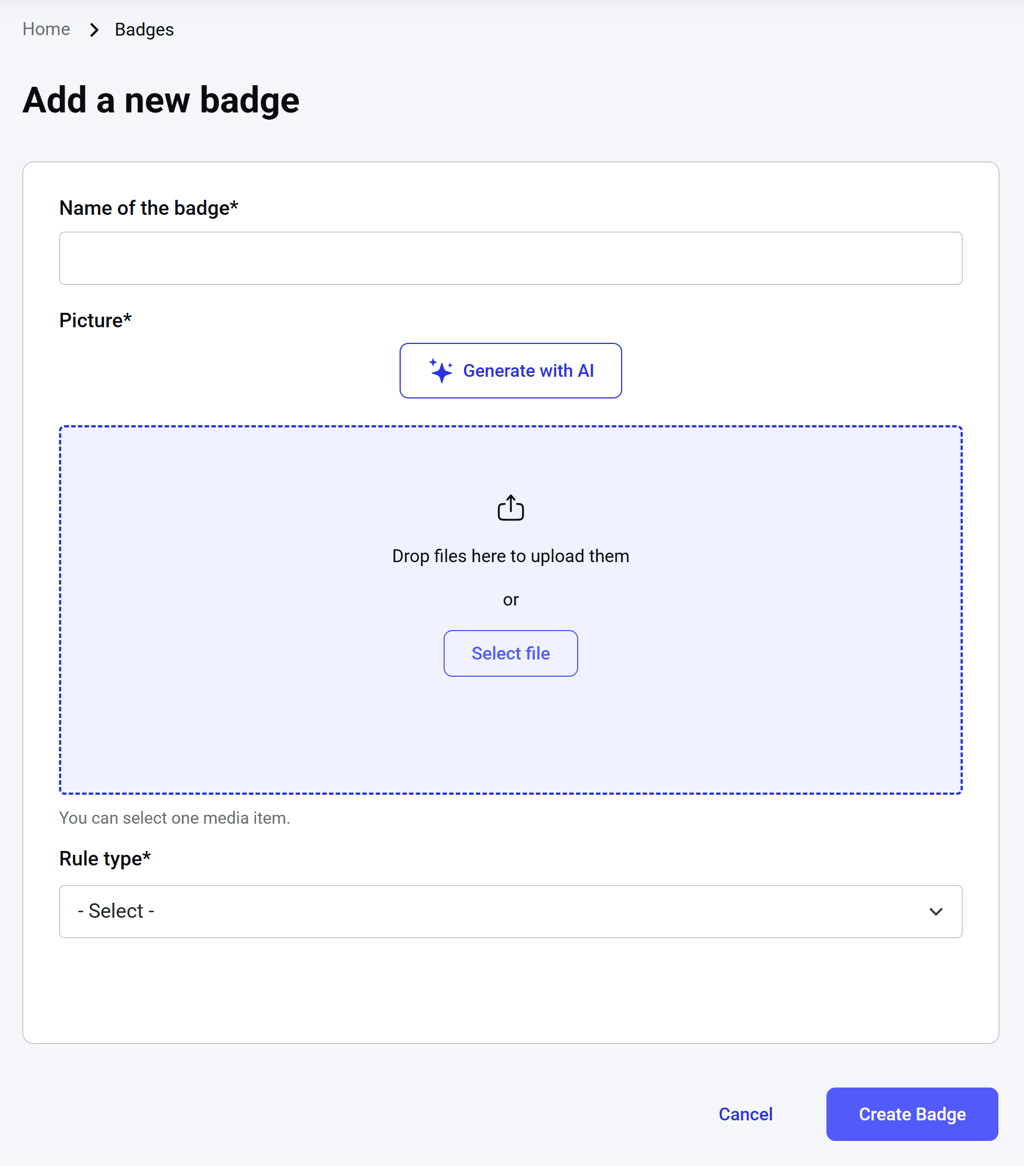
Editing a badge
To edit a badge, click Edit next to the respective item on the badge dashboard under the Actions column. An editing interface will open.