NOTE: Statistics account for only authenticated learner profiles. Administrators, anonymous learners, and blocked users are excluded.
NOTE: Statistics are available only to administrators and statistics managers.
The dashboard
You can access the statistics dashboard from the left-hand menu under Tools.Global statistics
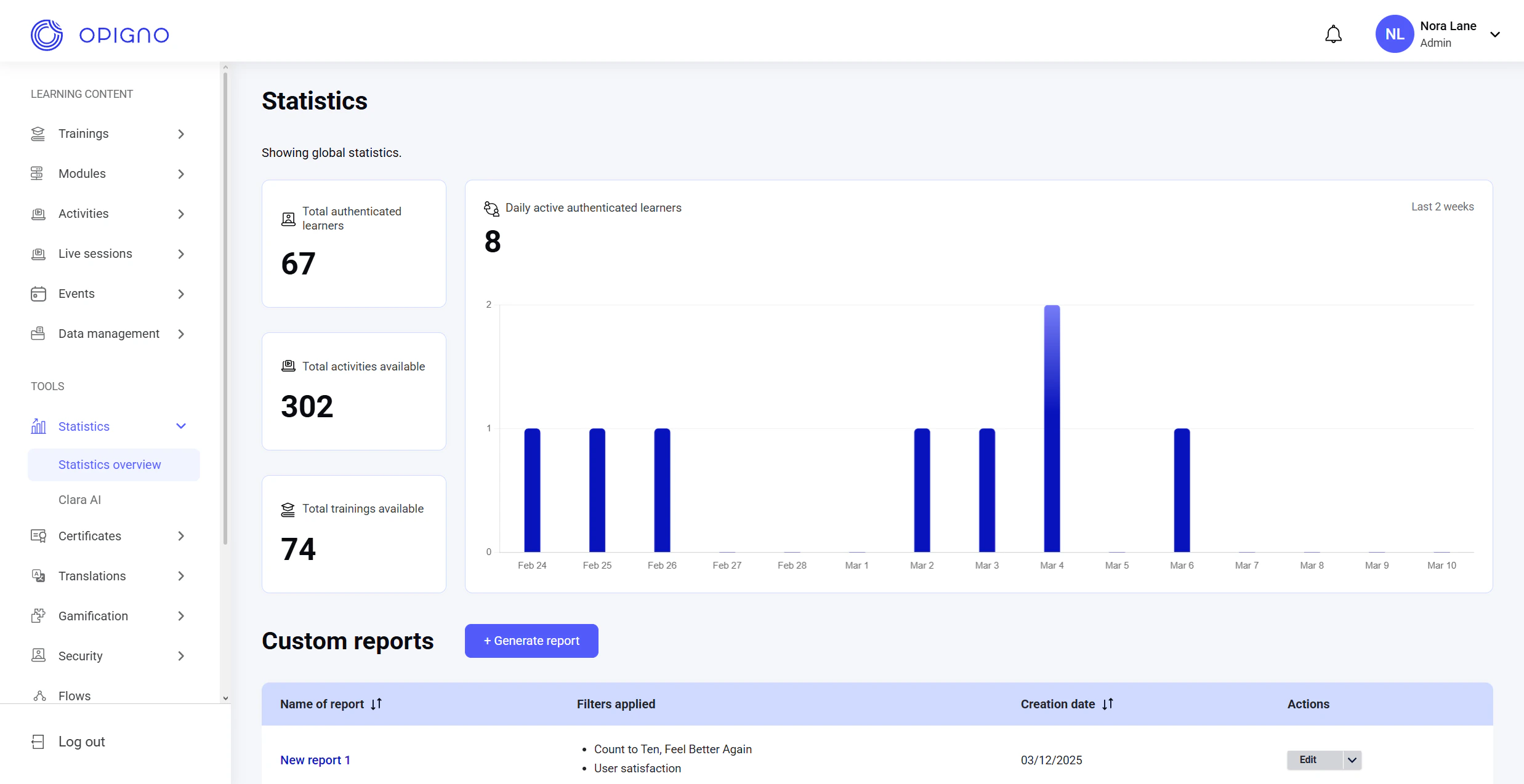
- Total number of users
Counts all authenticated learner accounts within the viewing user’s hierarchy and any sub-hierarchies.
If the viewing user has no hierarchy assigned, all authenticated learners across all hierarchies are counted. - Total number of published activities
Counts all published activities across the platform, regardless of the viewing user’s hierarchy. - Total number of published trainings
Counts all trainings published under the viewing user’s hierarchy and all its sub-hierarchies, plus any trainings not assigned to a specific hierarchy.
If the viewing user has no assigned hierarchy, all published trainings are counted. - Total number of active users per day
Counts all learners within the viewing user’s hierarchy and its sub-hierarchies who submitted at least one activity answer per day.
The chart shows data for the last 14 days.
Custom reports table
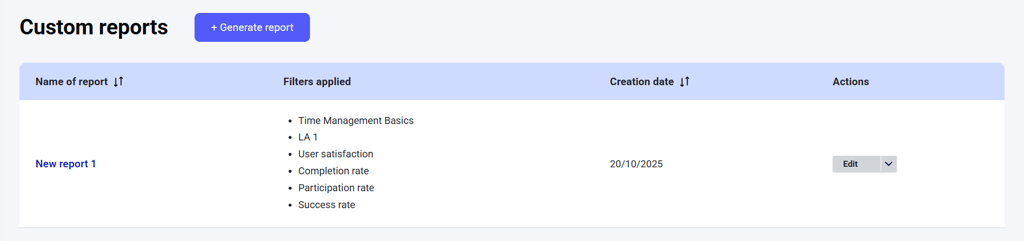
Below the top chart, you’ll find a table listing all custom reports created by the viewing user.NOTE: Each report can be generated for only one training.Users can only see their own reports.
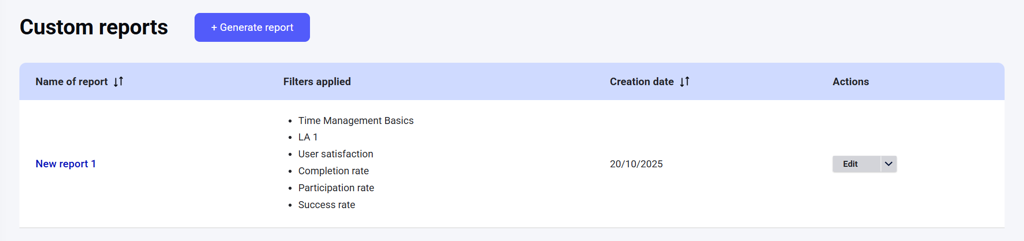
- Name of report
- Filters applied: The configuration of the report — selected training, selected hierarchy or sub-hierarchy, and chosen KPIs
- Creation date
- Actions: Edit or delete
Generating a report
To create a new report, click Generate report below the top chart.
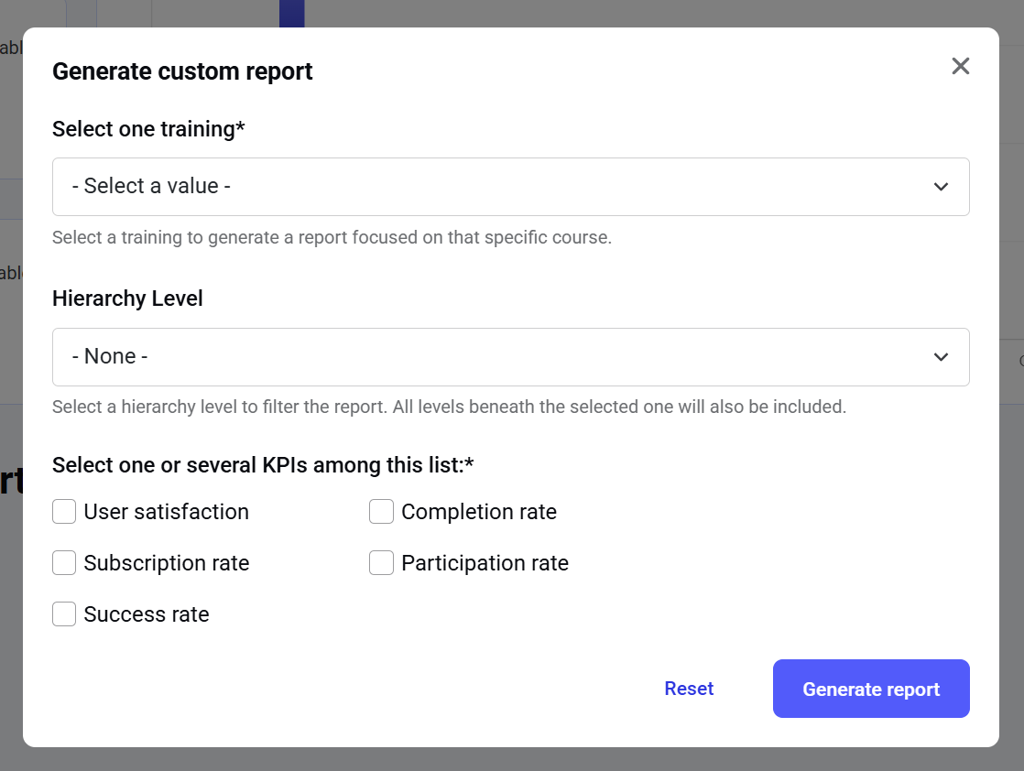
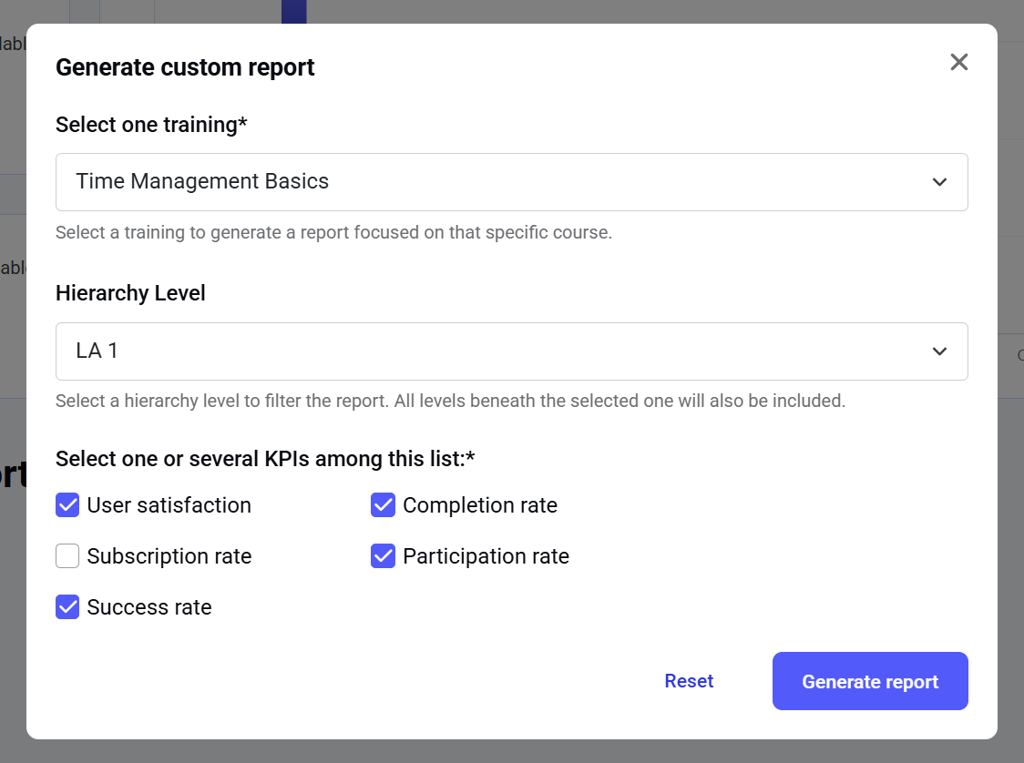
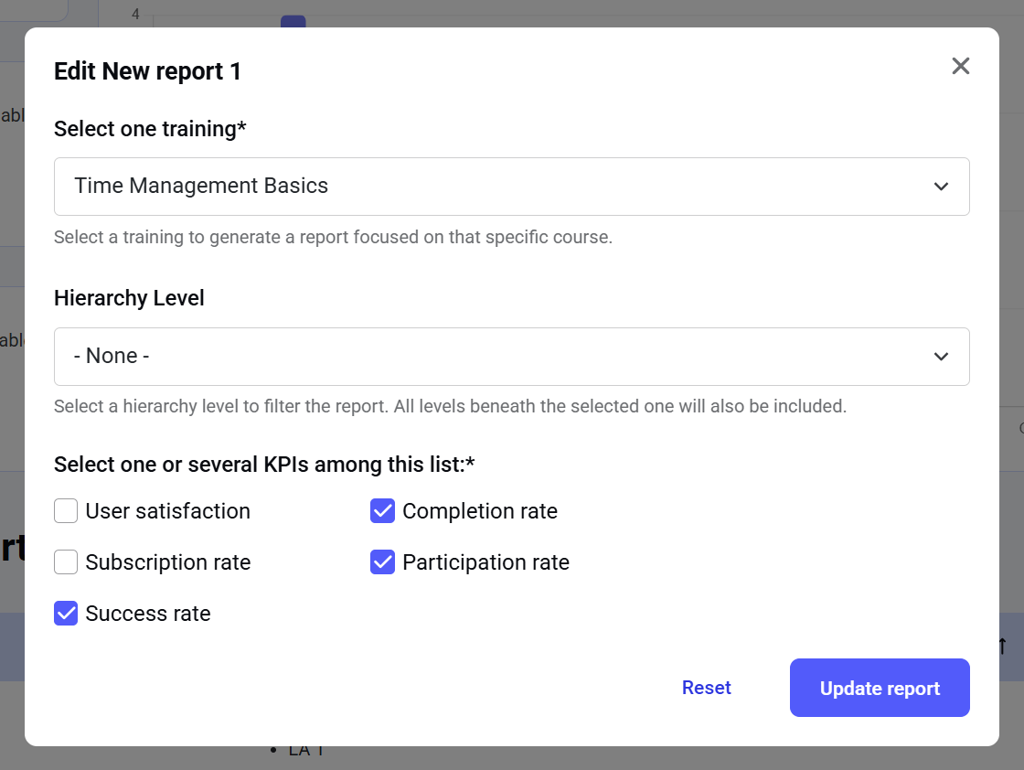
- Training: the training you want statistics for (a required field). Each report can include only one training.
- Hierarchy: a hierarchy or sub-hierarchy to narrow the scope. Each report can include only one hierarchy level or one sub-level. If you select a hierarchy with sub-hierarchies, all sub-levels will automatically be included in the report scope.
If you choose not to select any hierarchy, the report will include all hierarchies. - KPIs: one or more KPIs to include in the report (a required field). There are five KPIs available:
- Learner satisfaction: Average rating (out of 5) of the selected training given by learners in the selected hierarchy, or all learners if no hierarchy is selected. If learners restart a training and submit multiple evaluations, all of their evaluations are included.
- Completion rate: Percentage of learners who completed the training (100% progress) out of all learners in the selected hierarchy or all learners if no hierarchy is selected.
- Subscription rate: Percentage of learners subscribed to the selected training out of all learners in the selected hierarchy, or all learners if no hierarchy is selected.
- Participation rate: Percentage of learners who started the training (clicked Start), even if they are not subscribed, within the selected hierarchy, or all learners if no hierarchy is selected.
- Success rate: Percentage of learners who passed the training within the selected hierarchy or all learners if no hierarchy is selected.
NOTE: For all KPIs except User satisfaction, if a learner has multiple attempts (for example, because a training expired or was restarted due to a new version), only the latest attempt is counted.
Viewing a report
Once generated, the report opens automatically. Click Save to keep the report; it will then appear in the Custom reports table.Training statistics
You can open any saved report later by clicking its name in the Custom reports table.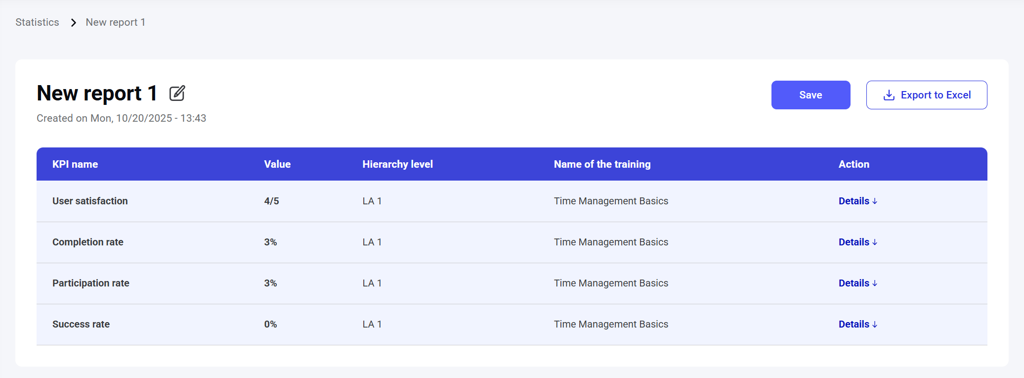
- KPI name
- Value
- Hierarchy level
- Training name
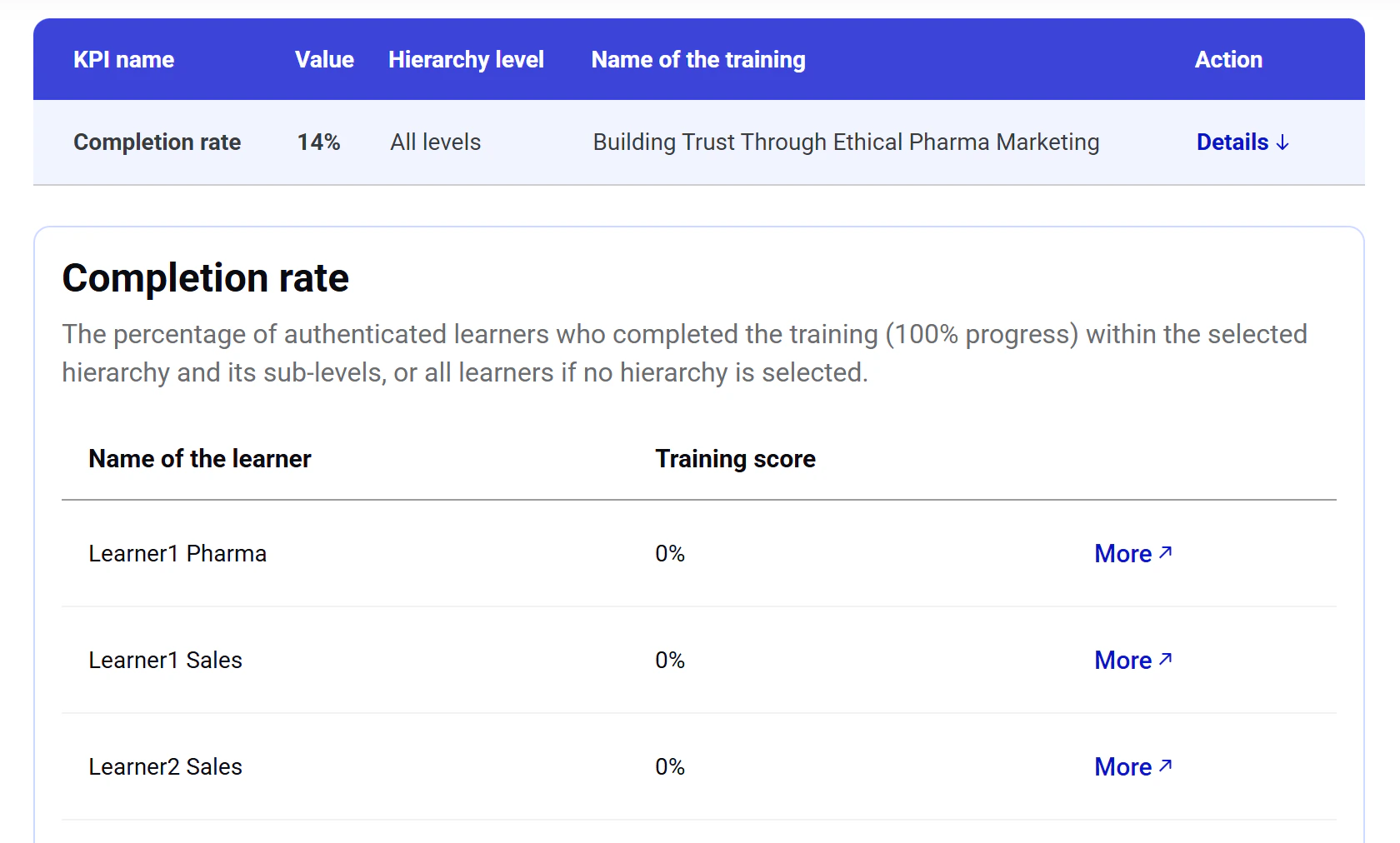
- Actions: a Details link for in-depth data. Clicking it reveals an additional table with more information per the KPI:
- Learner satisfaction: List of learner ratings and feedback comments for the selected training within the selected hierarchy.
- Completion rate: List of learners and their training scores.
- Success rate: List of learners and their training status (not started / in progress / passed/failed/expired).
- Subscription rate: List of learners and their training progress.
- Participation rate: List of learners and their training progress.
Per-user statistics
The interface lists all trainings the selected learner is registered for and their statuses, with the breakdown by module and activity level.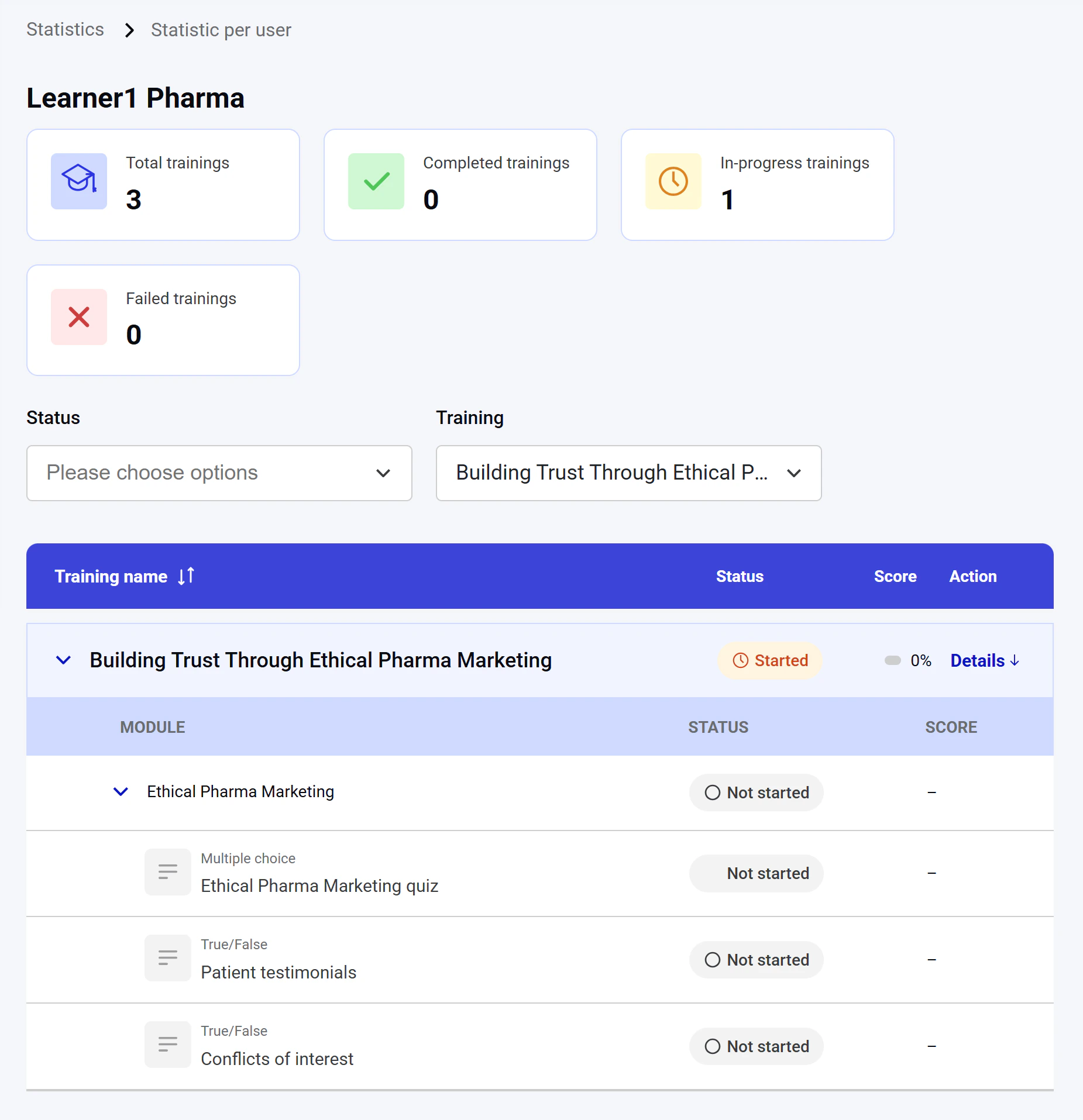
Exporting a report
Click Export to Excel to export the report as an .xls file. The file contains one sheet per KPI with the corresponding details. After generation, a status message with a download link appears at the top of the page.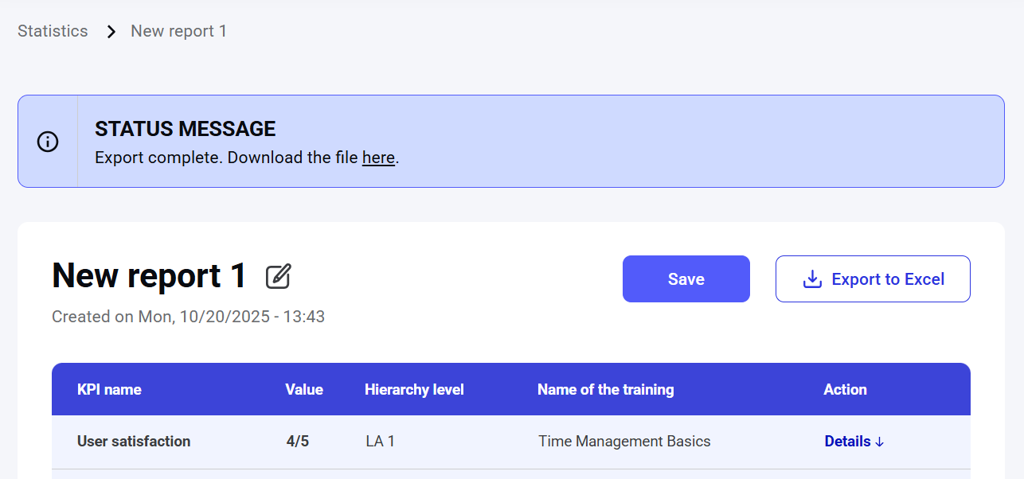
Editing a report
Editing the report name
In the report view, click the Edit icon next to the report name.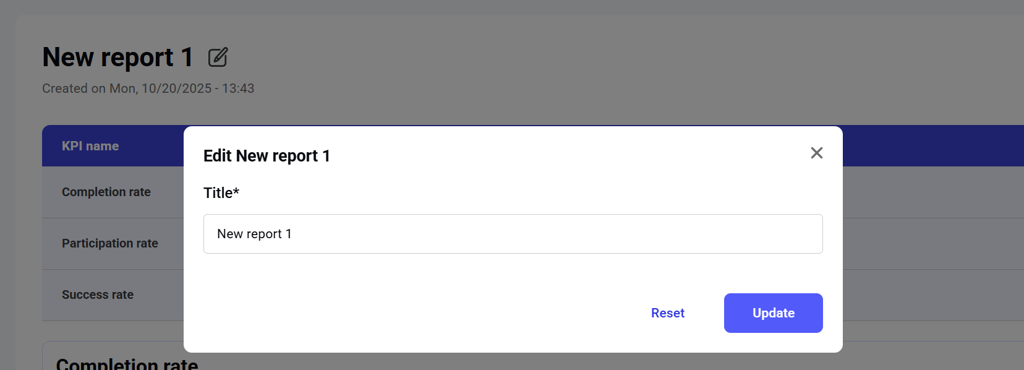
Editing report scope
To modify the training, hierarchy, or KPIs:- Go to the Custom reports table on the Statistics dashboard.
- Open the Actions menu for the report.
- Click Edit.
Deleting a report
To delete a report:- Go to the Custom reports table.
- Open the Actions menu for the report.
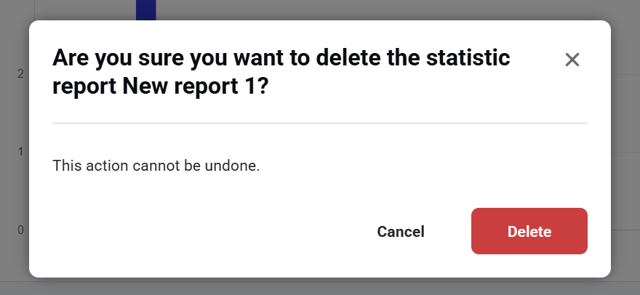
- Click Delete.