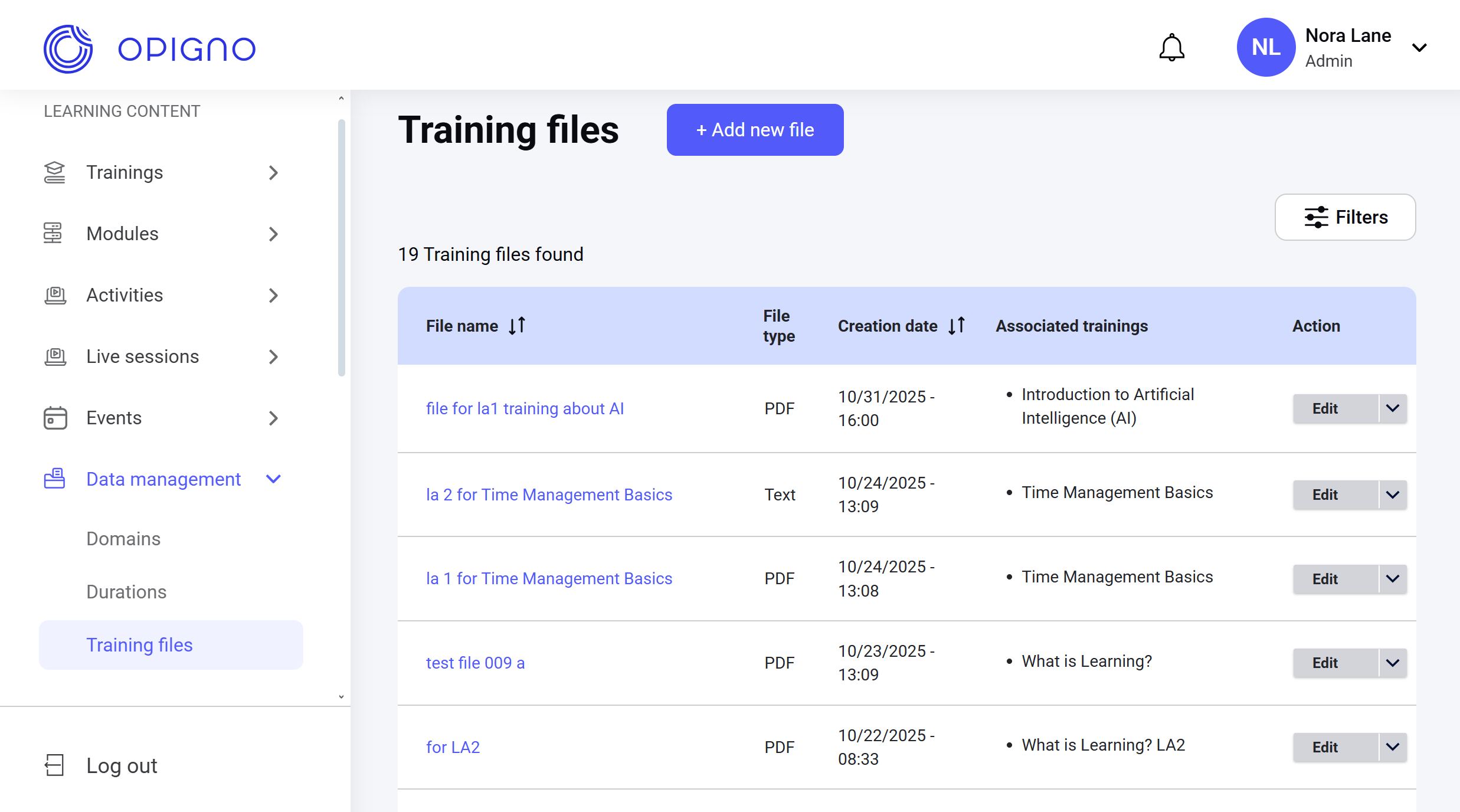
Training files are additional instructional materials you can upload and assign to a training, so that learners can access them in a dedicated tab on the training homepage.To upload and manage files, open the Training files dashboard from the left-hand menu, under Data management.
NOTE: Training file management is available only to administrators and content editors.
The dashboard table shows the list of all uploaded files with the following attributes:
File name
File type: PDF, Excel, Word, PowerPoint, video, image, text.
Creation date
Associated trainings
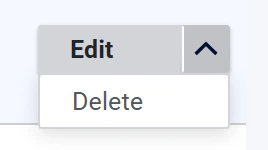
Action: Edit and delete.
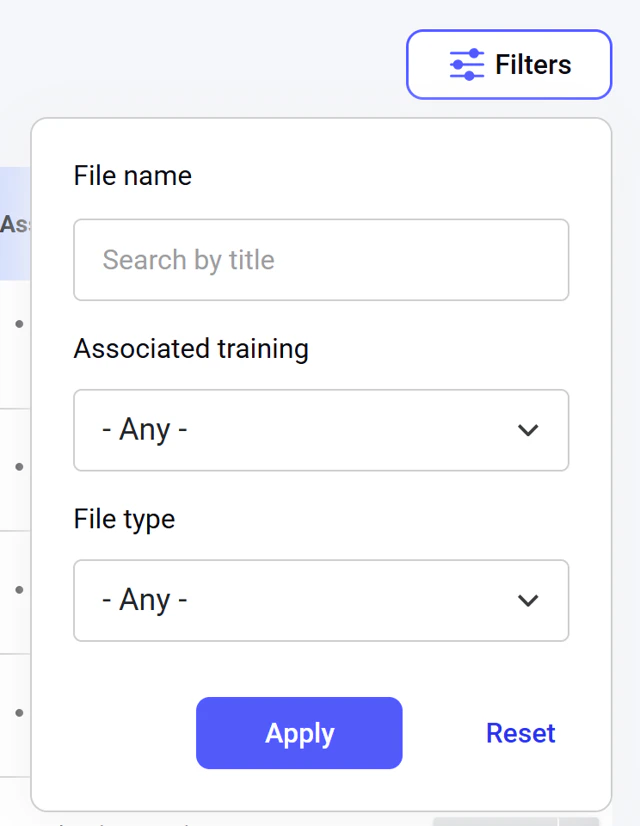
You can sort the list by the file name or creation date. You can also narrow down the list of files using filters: by the file name, associated training, and the file type:
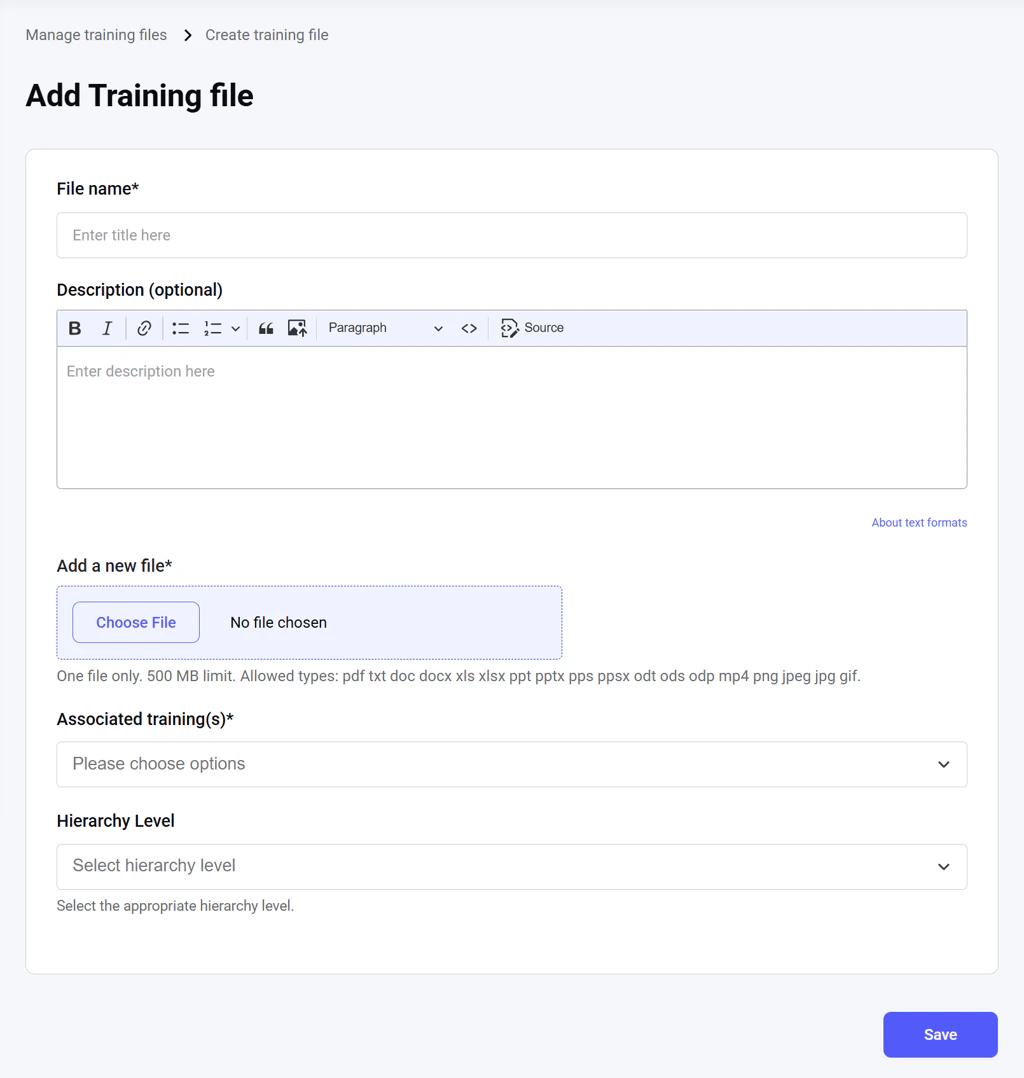
Click the Add new file button above the dashboard table. This will open a dedicated interface:Here, you can upload the file, add its name and description, and assign it to one or several trainings and a hierarchy.The file must be under 500 MB. Available file extensions: pdf, txt, doc, docx, xls, xlsx, ppt, pptx, pps, ppsx, odt, ods, odp, mp4, png, jpeg, jpg, gif.The File name, Add a new file, and Associated training(s) fields are required.Click Save to finish adding the new file.
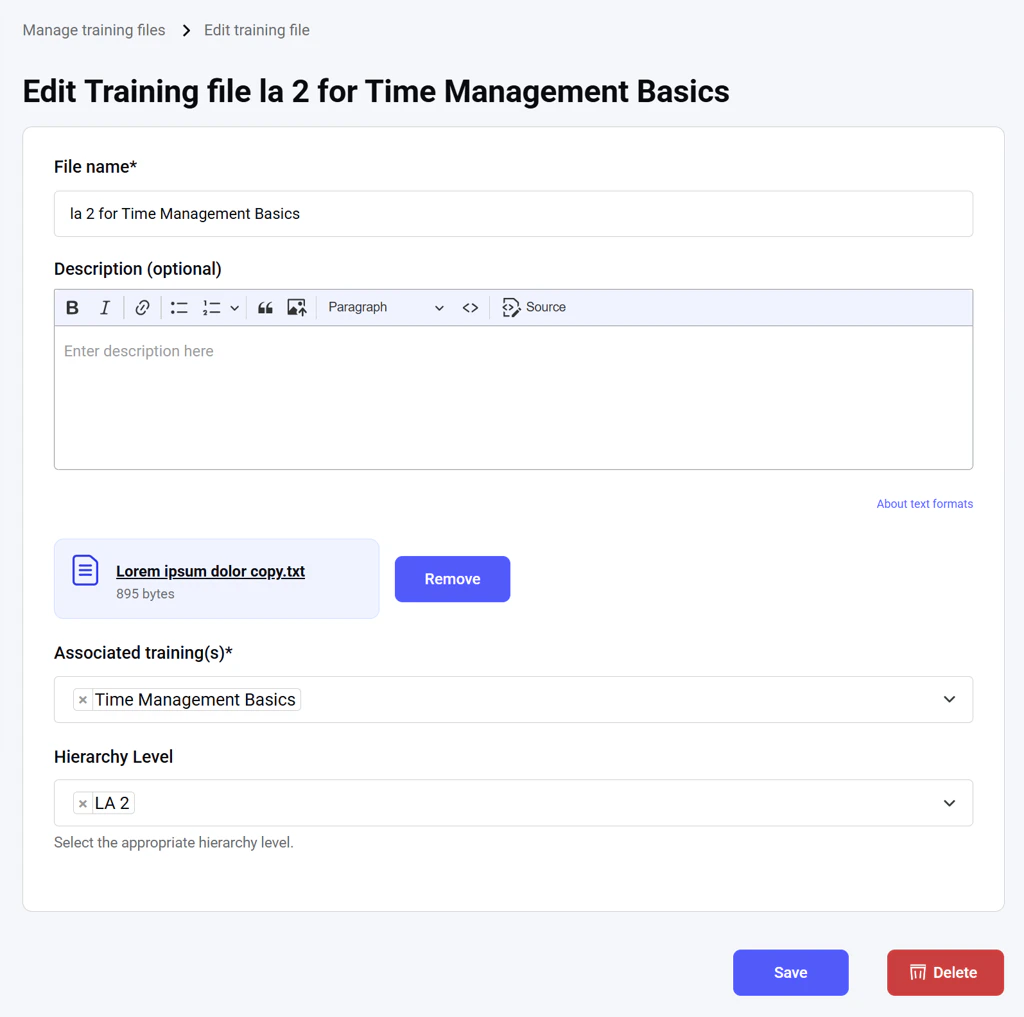
To edit existing files, go to the main dashboard table and click the file name or the Edit button. This will open a dedicated interface, where you can change the file and its parameters.You can also remove the file from the platform by clicking Delete.
Assistant
Responses are generated using AI and may contain mistakes.