

The Manual Scoring interface is available to administrators and coaches.
Introduction
The manual scoring dashboard displays all modules that contain at least one activity requiring manual scoring. Results are filtered by hierarchy:- Administrators can see all submissions.
- Coaches see submissions only from learners within their assigned hierarchy and its sub-hierarchies.
Impact on learners
Manual scoring directly affects what learners see in the learner area and how they progress through the training. Until all manually scored activities in a module are evaluated, the module (and the related training) appears to the learner as Awaiting scoring. A learner cannot review the module before scoring is completed. If the training uses locked navigation, learners cannot access the next module until the previous one has been fully scored.The dashboard
You can access the Manual scoring dashboard from the menu on the left: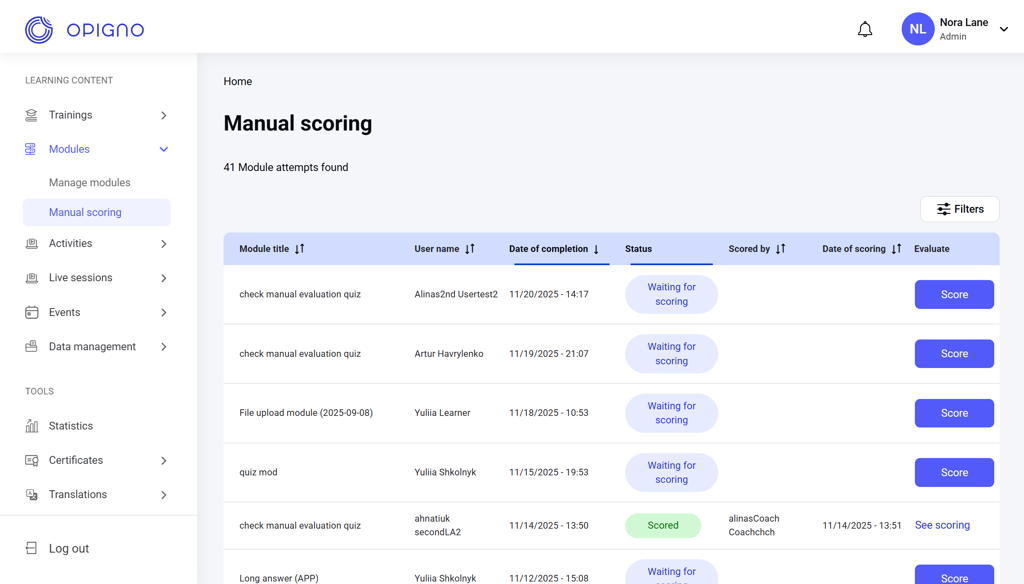
- Module title
- User name (of a learner who submitted the module)
- Date of completion
- Status (Scored / Waiting for scoring)
- Scored by (the user who performed the scoring)
- Date of scoring
- Evaluate:
- Score — open the submission to evaluate
- See scoring — view an existing evaluation
- Status
- Learner name
- Module title
Scoring
Click Score to open the learner’s submission.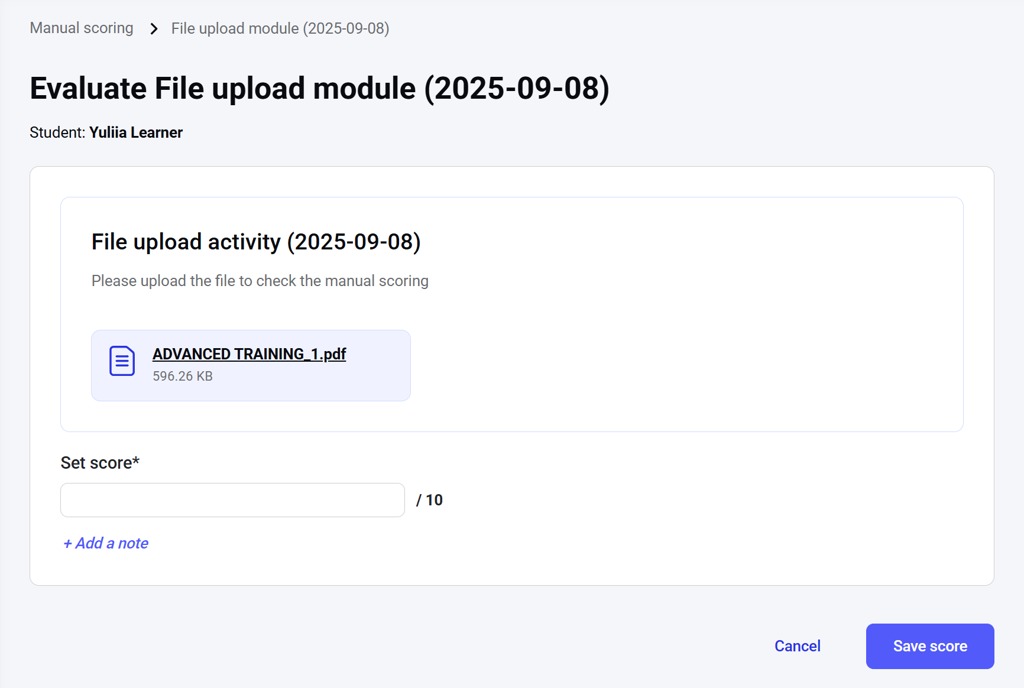
- All activities in the module
- Learner responses
- Scoring fields and comment fields for activities that require manual evaluation
Viewing previous evaluations
Click See scoring on the dashboard to view an already completed evaluation.Coaches cannot modify a submitted score once it has been saved. Only administrators can edit an existing scoring record.