Training is the central, comprehensive learning unit learners interact with, whether through search, purchase, assignment, or certification. It comprises a sequence of modules or activities designed to focus on specific topics or skills. Trainings are highly customizable to accommodate different learning objectives and formats, including:
  • Standard training: A traditional structure with a straightforward sequence of modules and topics for easier navigation.
  • Advanced training: A branching learning path that adapts to the learner’s choices or performance.
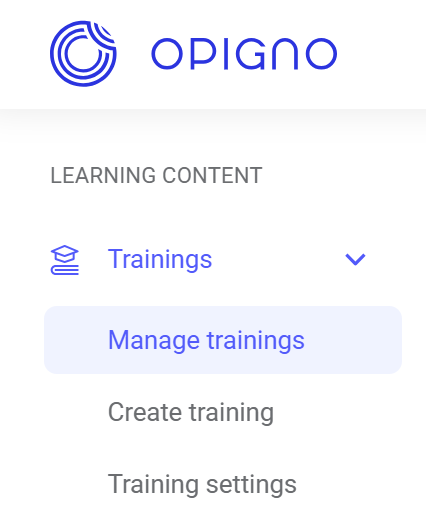
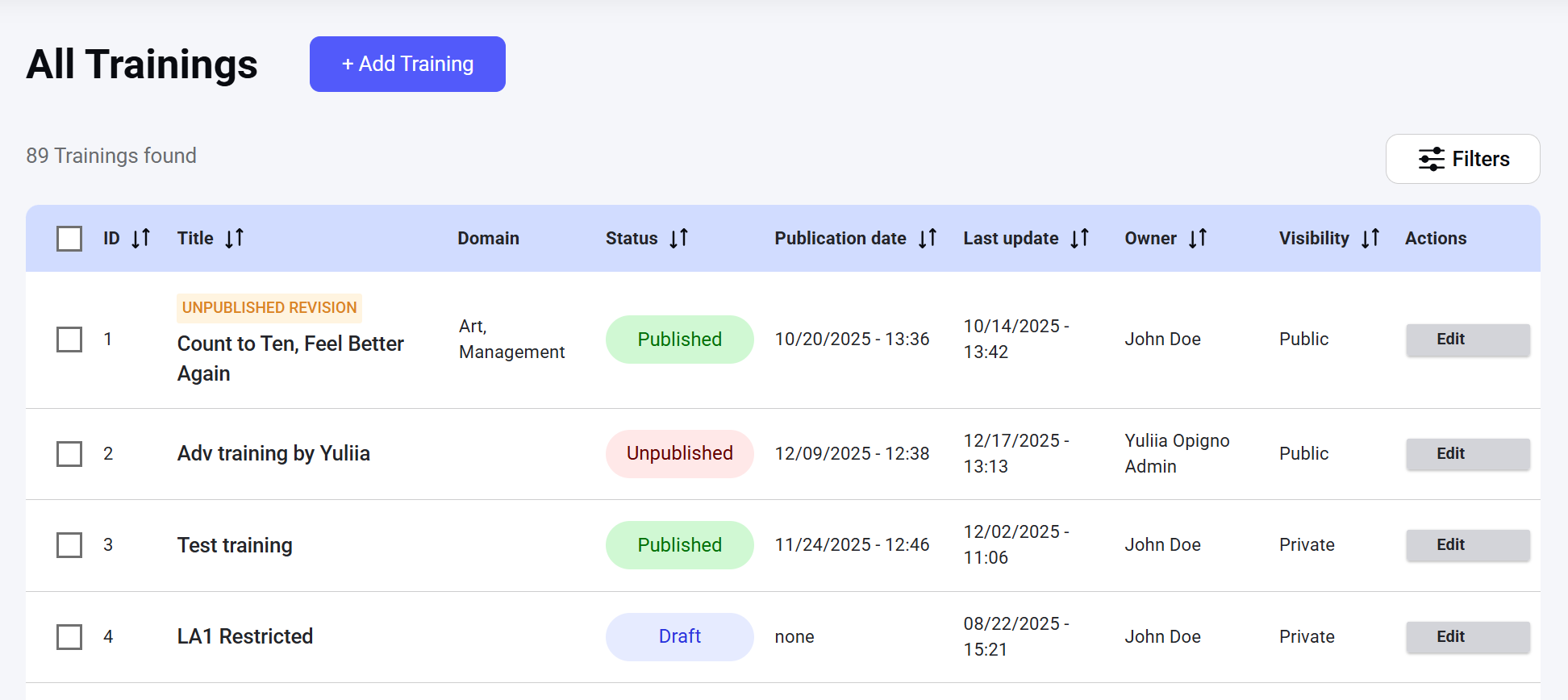
Administrators can add new or existing modules to a training and create or import activities within modules. These modular capabilities ensure reusability and efficient content management. You can access all the published, unpublished, and draft trainings from the Manage trainings on the left menu. Image 2026 02 12 205231898 Image 2026 02 12 205804645 The dashboard table is customizable and can be set to show the following attributes: ID: The ID of the training. Title: The title of the training. Trainings with unpublished revisions have a corresponding stamp above their title. Domain: The taxonomy category associated with the training. Administrators can manage domains separately. Status: The publication status of the training. There are three possible statuses:
  • Draft: The training has been created and saved, but has not been published yet.
  • Published: The training has been published and is accessible to relevant users.
  • Unpublished: The training was published and then unpublished.
Publication date: The date when the training was published. Last update: The time of the last modification of the training or any associated entity (module, activity). Owner: The user who created the training. Visibility: The corresponding setting of the training that manages learner access to the training:
  • Private: Only learners assigned by the administrator can access training and see it in the catalog.
  • Public: Learners can see the training in the catalog without being enrolled by the administrator.
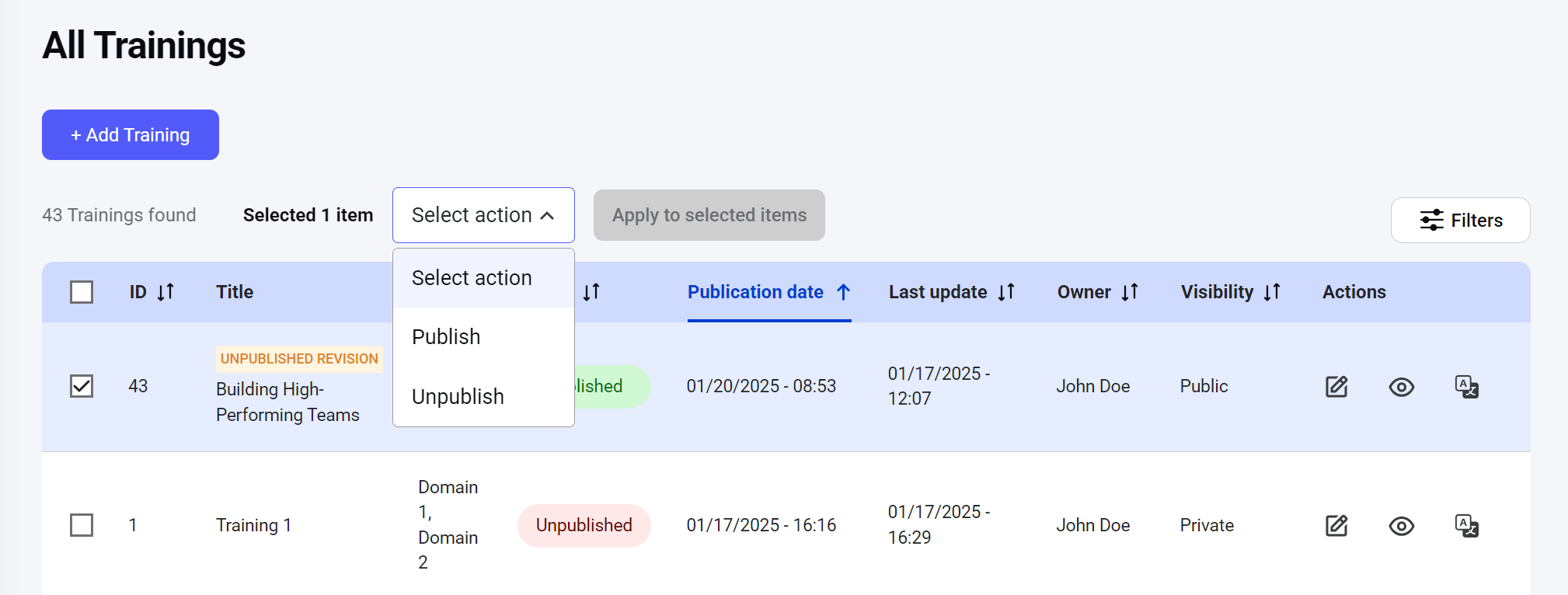
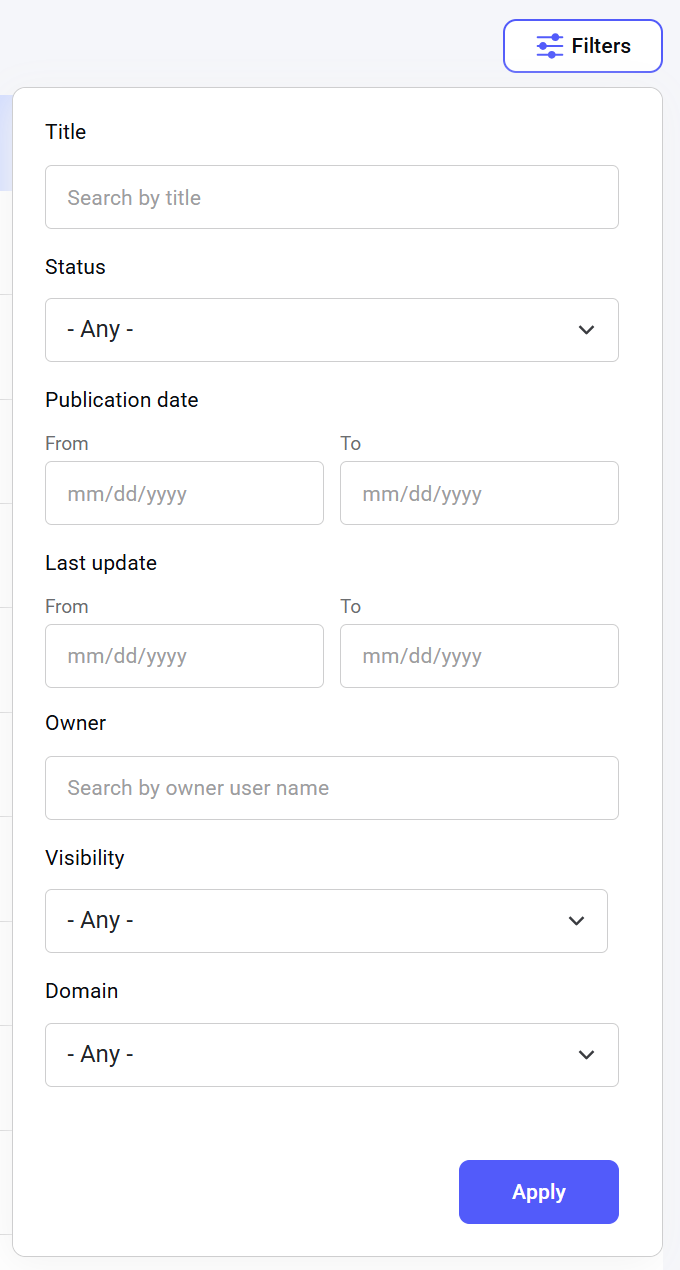
Actions: The Edit button. The table can be sorted by any of these attributes (except Domain) individually to display results in ascending or descending order. To do that, click on the name of the attribute. You can also publish and unpublish selected trainings right from the table by checking the box next to the item and choosing the action from the list above the table: Image 2026 02 12 210028698 To quickly find a training, you can filter the list by several parameters: the training title, publication status, publication and latest update date ranges, the owner, visibility, and domain. Image 2026 02 12 210116901