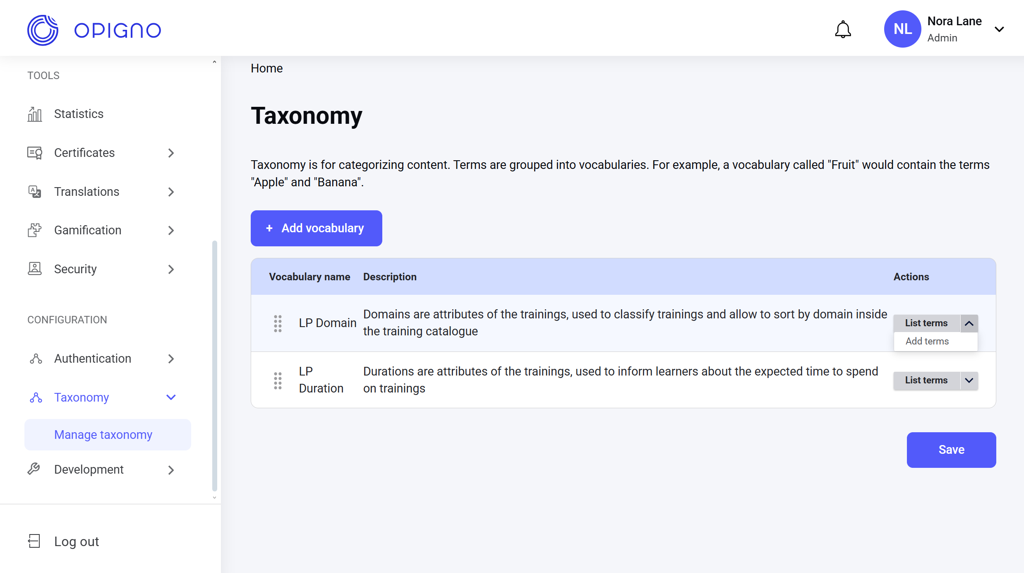
LP Domain: Classifies trainings by topic, allowing sorting and filtering by domain.
LP Duration: Indicates the expected time required to complete a training.
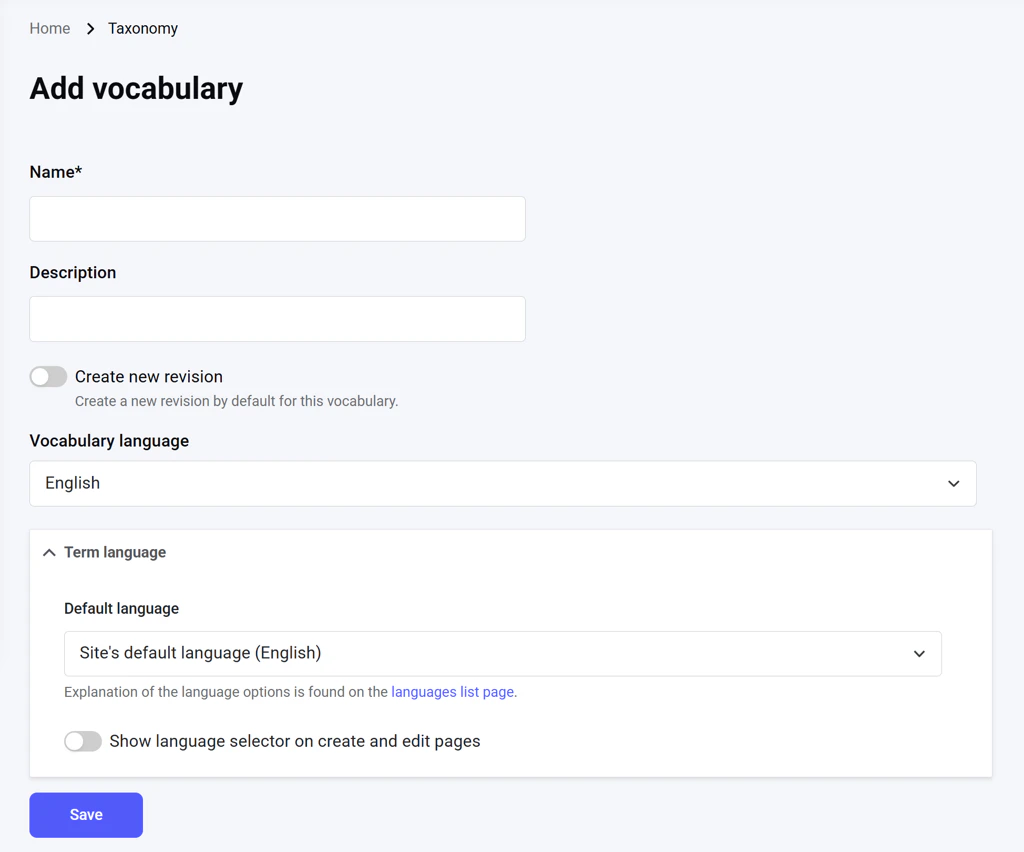
You can rearrange the display order of vocabularies and add new terms to them, but you cannot delete a vocabulary.Opigno’s Custom API allows creating and editing custom vocabularies. To do that, click Add vocabulary. This opens a dedicated interface where you can define the vocabulary’s name, description, and language settings:
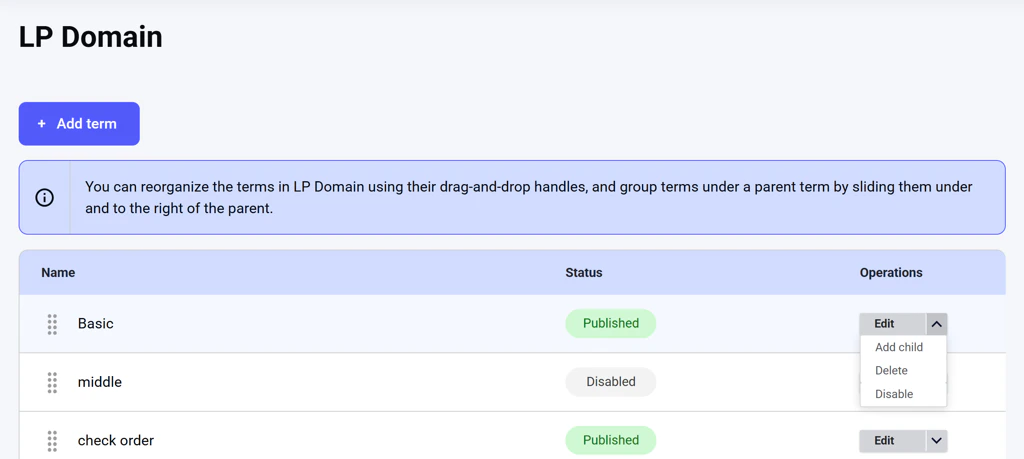
To view or manage the terms in a vocabulary, click List terms next to it on the main dashboard.
From this interface, you can create, edit, publish/disable, delete, rearrange, or group terms:
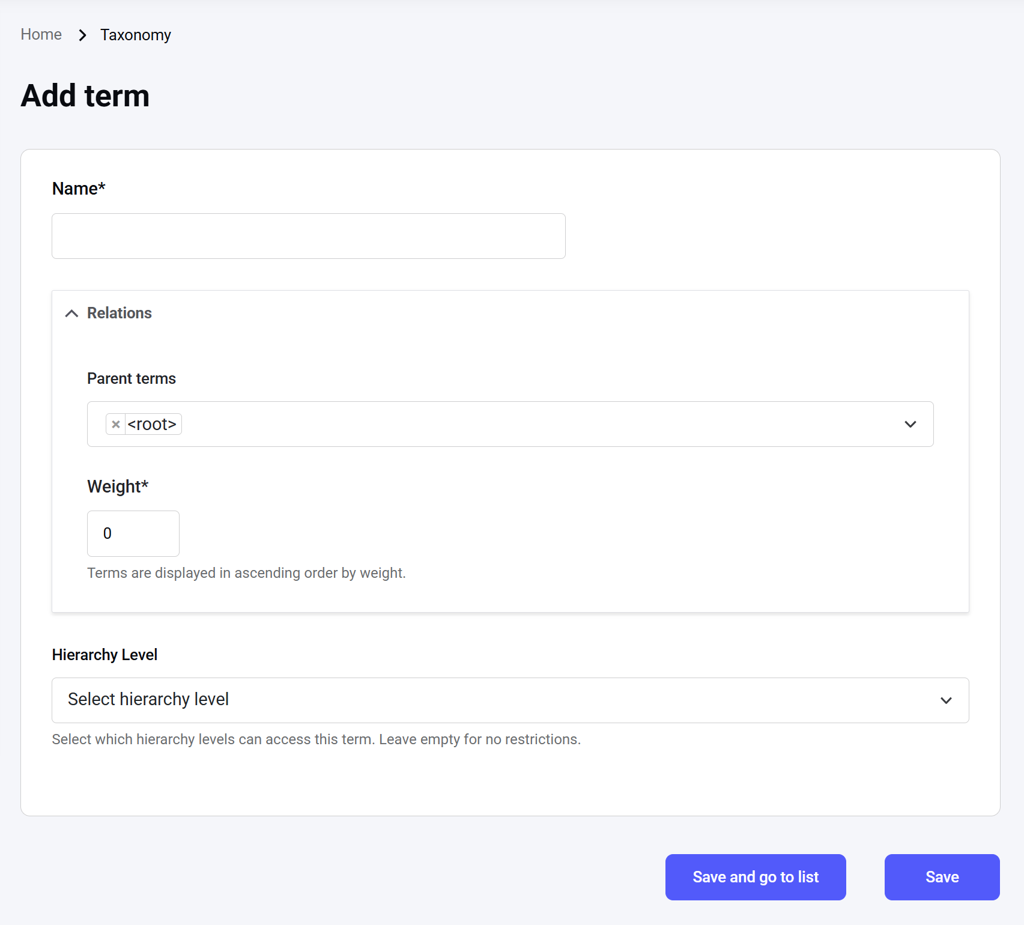
To add a new term, click Add term, which opens the dedicated term creation form:Opigno’s Custom API enables restricting a term to a specific hierarchy level, so content managers only see the terms assigned to their hierarchy when creating trainings.Click Save to save the new term and stay on the current interface to start creating another term.
Click Save and go to list to save the new term and exist to the list of vocabulary terms.
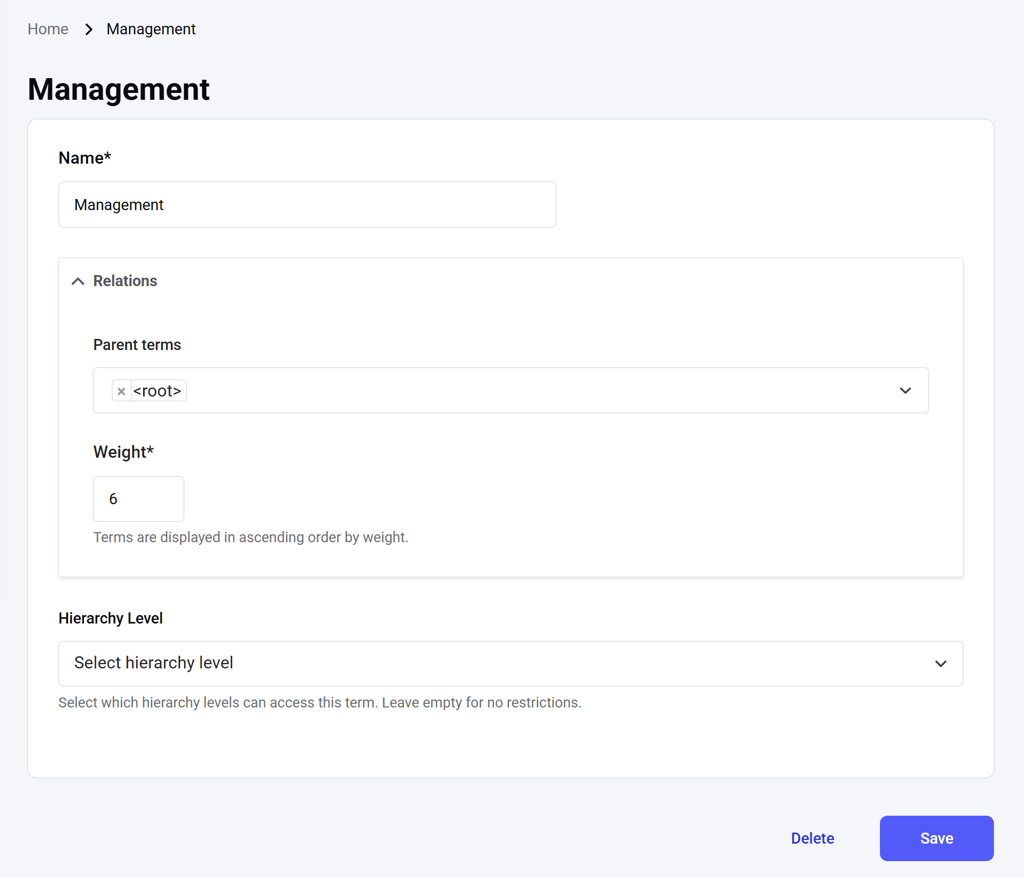
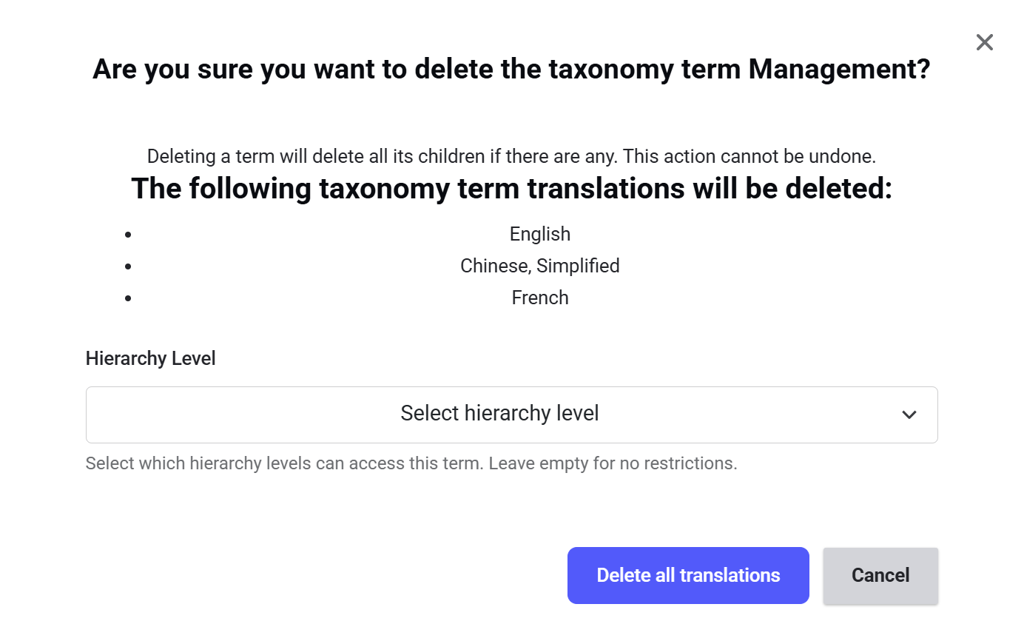
Click the Edit action button in the list of vocabulary terms to open a dedicated interface where you can change the term and its parameters or delete it.Deleting a term automatically deletes all its translations as child entities. The system will list all the affected term entities.
You can also delete the term selectively from a specific hierarchy (Opigno Custom API is required).
Assistant
Responses are generated using AI and may contain mistakes.