User management in the back office concerns back-office user accounts (not learners in learner areas).
NOTE: User management is available only to administrators and user managers.
You can create and manage user accounts with the same or lower roles. For example, a user manager cannot create an administrator account or assign the administrator role to an existing account. You can access the Manage users dashboard from the menu on the left, under Authentication.

The dashboard

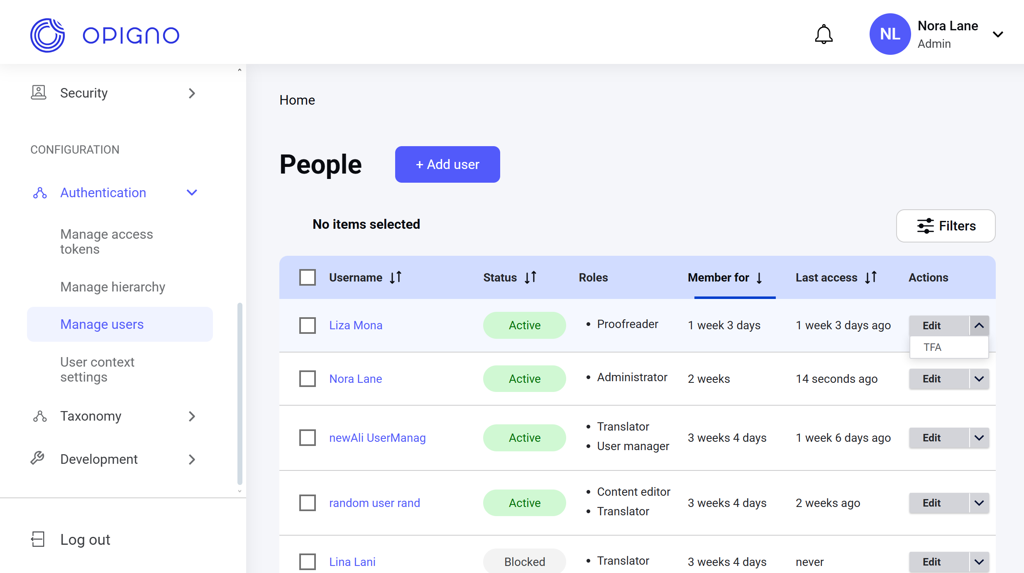
Image 2026 02 17 182938048 The dashboard table shows the list of all user accounts with the following attributes:
  • Username
  • Status: Active / Blocked.
  • Roles:
    • Content editor
    • Administrator
    • Proofreader
    • Translator
    • Coach
    • User manager
    • Statistic manager
  • Member for: The time passed since the account was created.
  • Last access: How long ago the previous login happened.
  • Actions: Edit (edit the account), TFA (two-factor authentication settings).
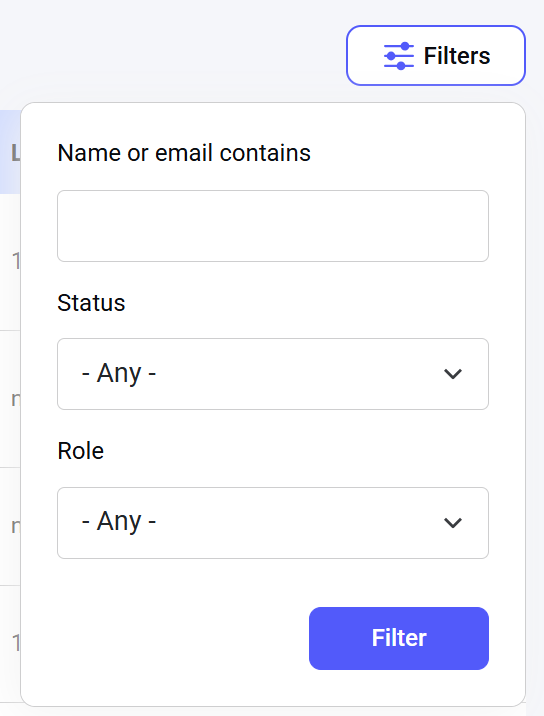
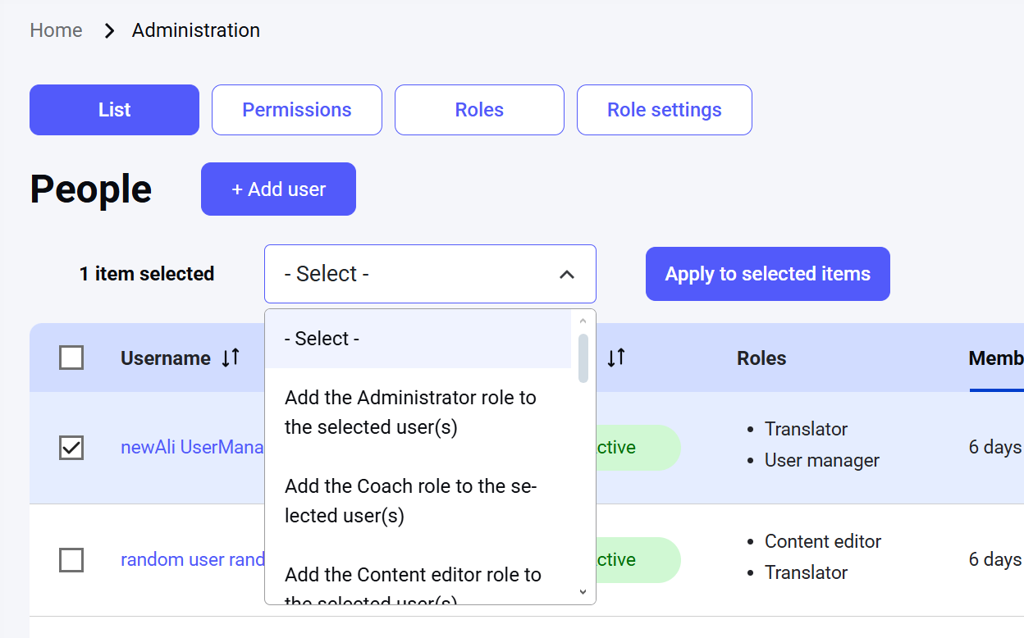
You can sort the list by the account username, status, membership duration, or last access date. You can also narrow down the user list by filters, including the username or email search by word match, the account status, and role: Image 2026 02 17 182955505 To edit accounts directly in the table, select them using the checkboxes. The dropdown menu will appear above the table, listing the actions you can apply. Choose an action from the list and click Apply to selected items. Image 2026 02 17 183016382 The actions available are:
  • Add a role to the selected user(s)
  • Block the selected user(s)
  • Cancel the selected user account(s): Deletes the selected user account(s).
  • Remove the role from the selected user(s)
  • Unblock the selected user(s)

Adding a new user

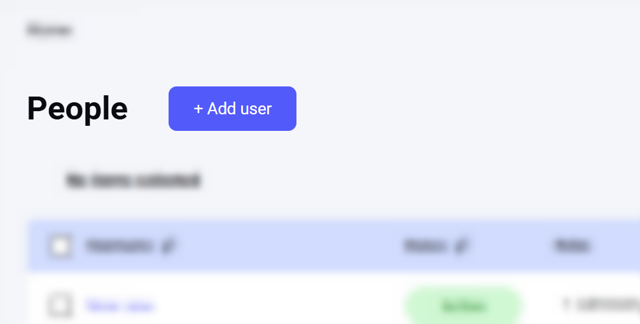
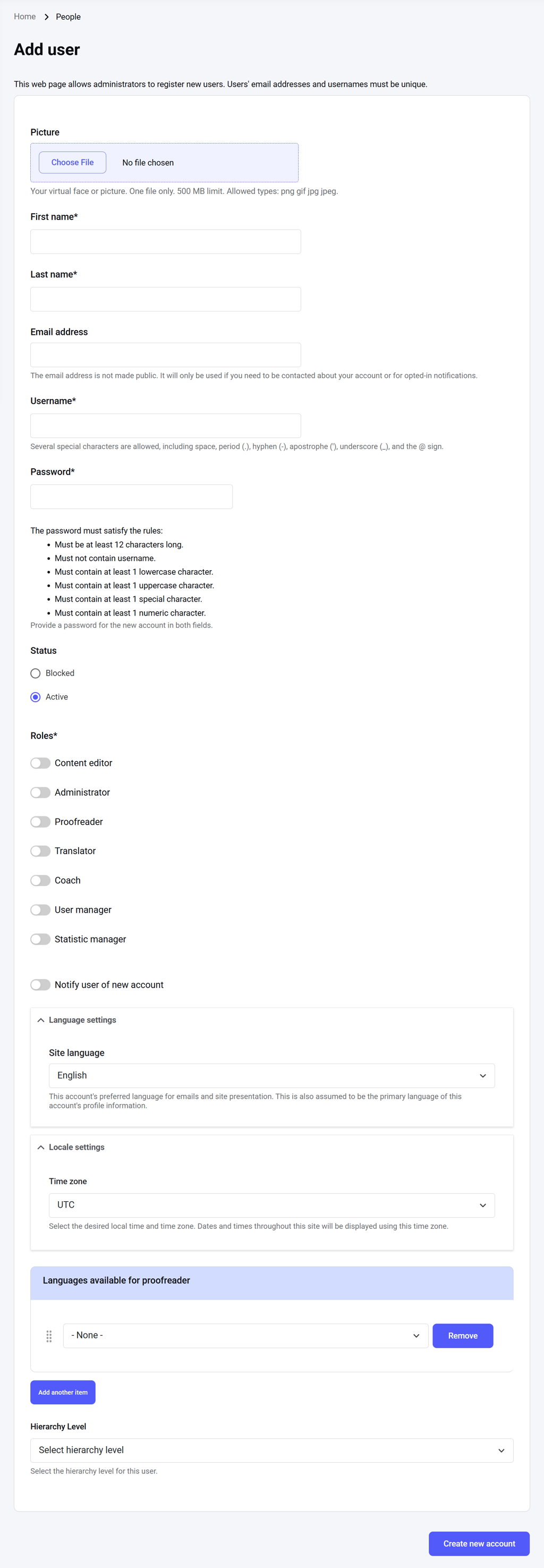
To add a new user, click the Add user button at the top of the dashboard. The user account creation interface will open, where you can enter the user’s first and last name, email address, username, initial password, and assign the status, roles, site language, timezone, and hierarchy. Image 2026 02 17 183044553 Image 2026 02 17 183058100
Editing a user profile

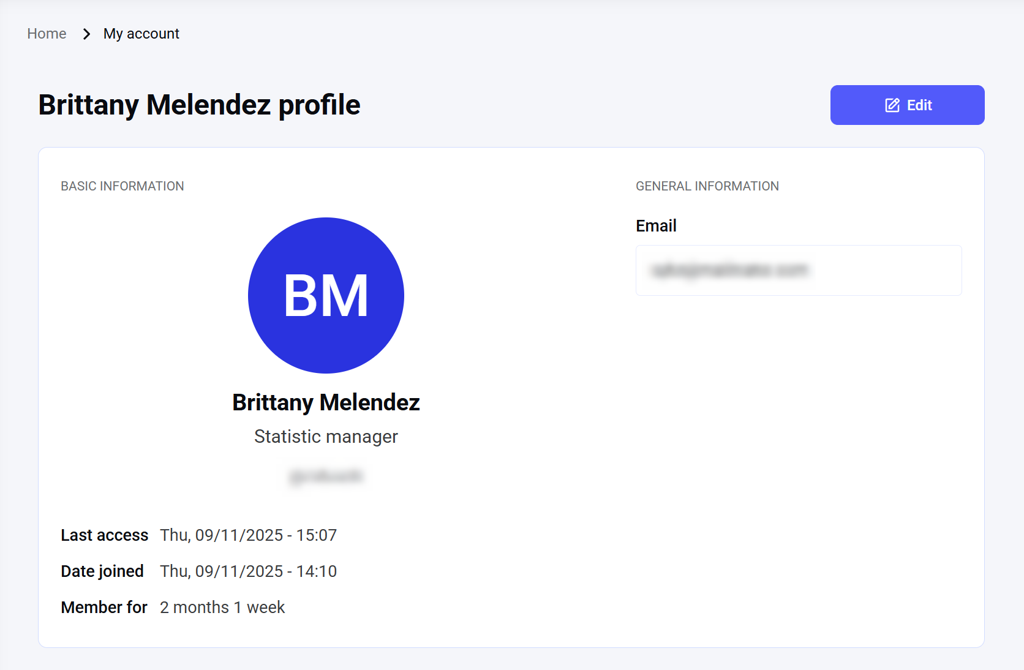
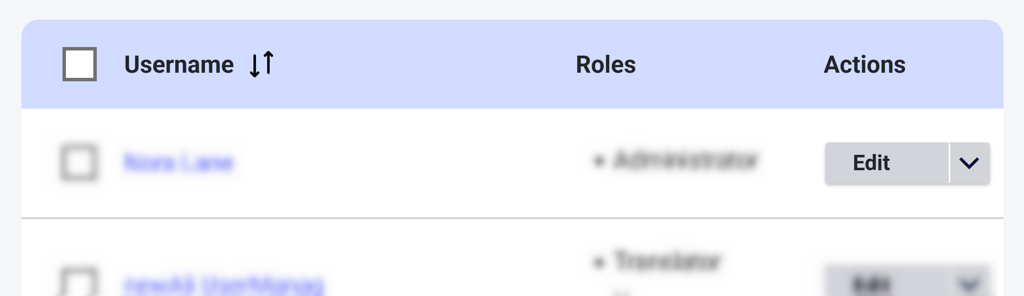
Click on the user name on the dashboard table to access and edit the profile info. Image 2026 02 17 183120563 You can also edit the profile by clicking the Edit button for the respective row in the table. Image 2026 02 17 183150643
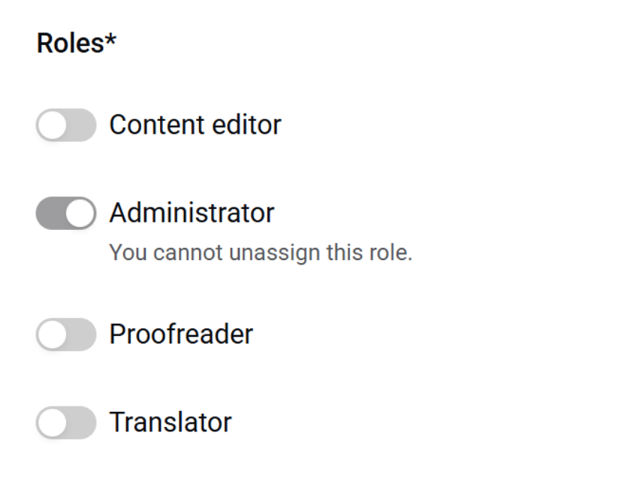
NOTE: If you are an administrator and editing your own profile, you cannot unassign yourself from the administrator role. Only other administrators can do that.Image 2026 02 17 183227212