NOTE: Skills profiles are managed by administrators and global content editors. Create your skills first: a profile can only contain existing top-level skills.
Criticality
For each skill in a profile, choose how strictly it must be proven:
Sub-skills inherit the criticality of their top-level skill, and prerequisites inherit at least the criticality of the skills that depend on them. See What learners can do, by criticality.
Accessing skills profiles
Skills profiles are managed in the Skills section of the back office. The skills profiles overview page lists all existing profiles. From there, you can create, edit and delete profiles.Creating a skills profile manually
- On the skills profiles overview page, click the button to add a new profile.
- Enter the profile’s name.
- Add the profile’s skills. For each skill:
- select a top-level skill using the autocomplete field (new skills cannot be created here);
- select its criticality: Essential, Important or Accessory.
- Save the profile.
Creating a skills profile from a job description with AI
Instead of building a profile from scratch, you can let AI draft it from a job description.- On the skills profiles overview page, click the button to upload a PDF with the job or role description.
- The AI agent analyzes the document and creates a new, unpublished profile containing the applicable top-level skills, each with a suggested criticality.
- Review the draft: remove or add skills, adjust criticalities, then publish the profile.
NOTE: The AI only selects skills from your existing skill framework — it never creates new skills. If it finds no applicable skill, a warning message is displayed and no profile is created.
Viewing a profile’s skills
The profile view shows its top-level skills with their criticality. For each skill:- an icon indicates whether it has prerequisites; click it to display them as a tree, with the criticality of each prerequisite;
- another icon displays the skill’s sub-skills as a tree.
Assigning a skills profile to learners
Assign a profile to learners from Manage users on the learner platform.- A learner can have only one skills profile. Assigning a new profile replaces the previous one.
- The profile’s skills become the learner’s target skills immediately.
Assigning individual target skills
You can also assign a top-level skill to a learner individually, with its own criticality — for example, for a skill that is specific to that person and not to their role. Individual target skills are added to those of the learner’s profile.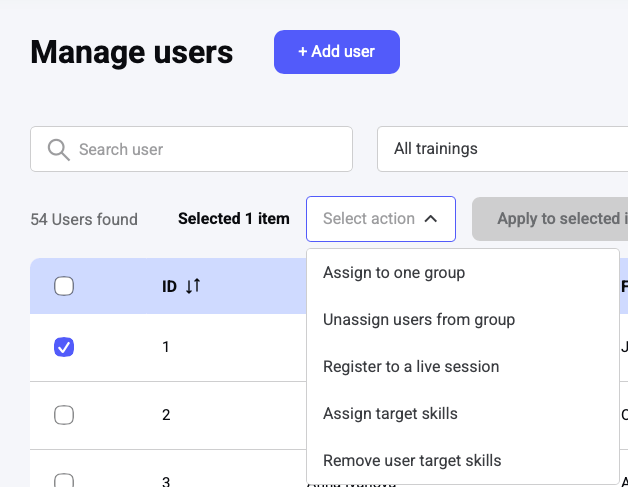
When a learner’s profile changes
When a learner changes role and receives a new profile (or a new individual target skill):- skills they have acquired are kept;
- skills they have claimed are kept, unless the skill now has a higher criticality than when it was claimed. In that case, the skill and all its sub-skills are reset, and the learner must prove them according to the new criticality.
Following learners’ progress
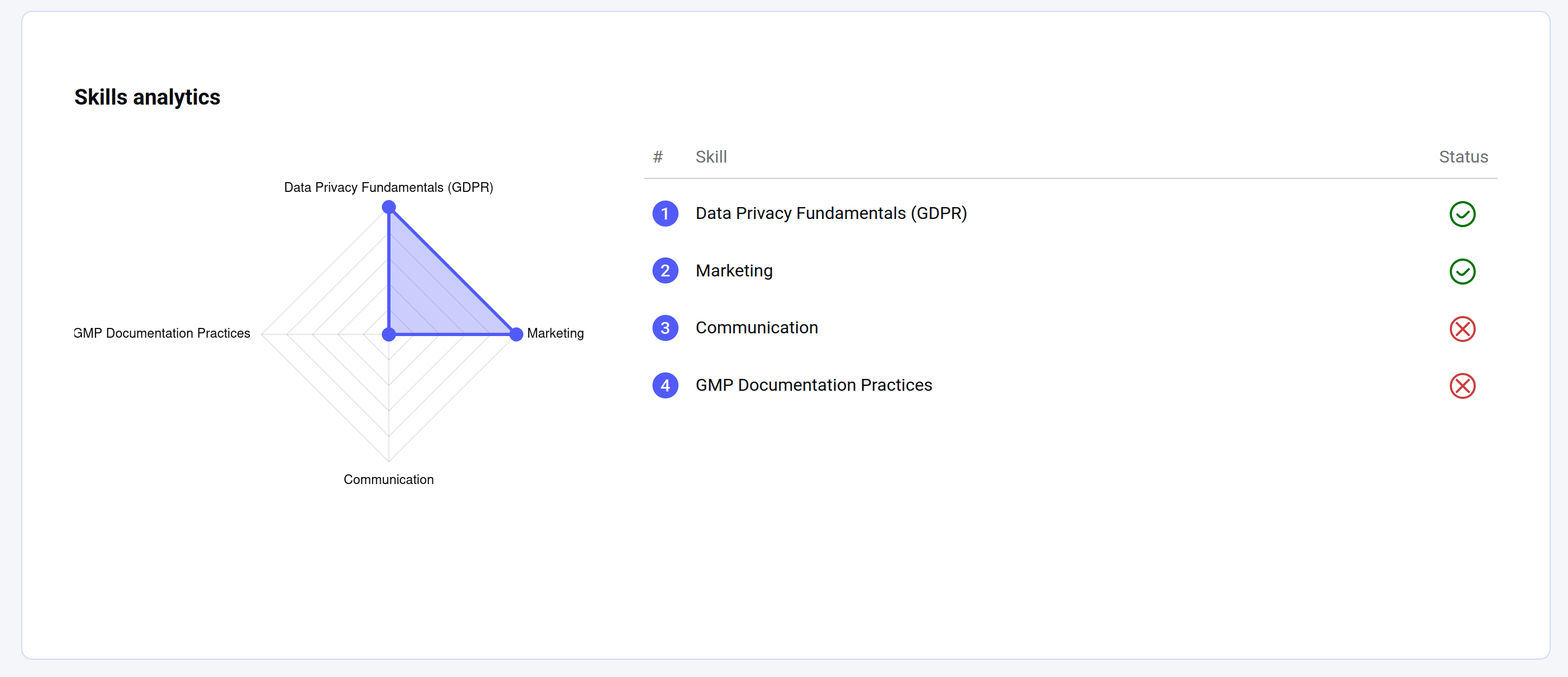
When a learner has target skills, their statistics in the back office show a spider chart of those skills with their progress.