

NOTE: Skills, skills profiles and AI-generated skill trainings are managed in the back office by administrators and global content editors (users with no hierarchy level assigned). Managers can review the skills claimed by learners within their own scope.
The Skills feature is available on the Corporate plan only.
Key concepts
Setting up skills: the overall process
Skills work end to end only when each of the following steps is in place. Follow them in this order.1
Create the skills
Build your skill framework: top-level skills, their sub-skills, and any prerequisites between top-level skills. Optionally assign skills to activities. See Managing skills.
2
Create skills profiles
Group top-level skills into profiles (for example, one per job) and set the criticality of each skill. You can create a profile manually or let AI draft one from a job description. See Skills profiles.
3
Assign skills profiles to learners
Assign one skills profile to each learner. Its skills become the learner’s target skills. See Assigning a profile to learners.
4
Set the learners' initial skills
From their My Skills interface, learners declare the skills they already have: by uploading their CV, from which AI suggests matching skills, or by claiming Accessory skills directly in the list. Skills that are not Accessory must then be approved by a manager or an administrator. See Approving skills claimed by learners.
5
Approve the AI-generated trainings and tests
Each skill has one training and one question pool generated by AI. Review and approve them in the back office, from Skills > Review training content, before learners use them. See Approving AI-generated trainings and tests.
6
Learners close their skills gap
Learners see their target skills with what is acquired and what is missing, and work through the missing skills one by one: they can claim, test or train, depending on the skill’s criticality (see below).
Skill statuses
For every skill, each learner has one of the following statuses, together with a progress percentage:
For a skill with sub-skills, progress reflects the share of its sub-skills already acquired or claimed. The skill reaches 100% only once all its sub-skills are complete and the skill itself is acquired or claimed.
What learners can do, by criticality
A learner always works on skills that are available to them. A skill is locked while:- some of its sub-skills are not yet acquired or claimed (learners progress through a branch from the bottom up), or
- the branch of a prerequisite skill is not yet complete.
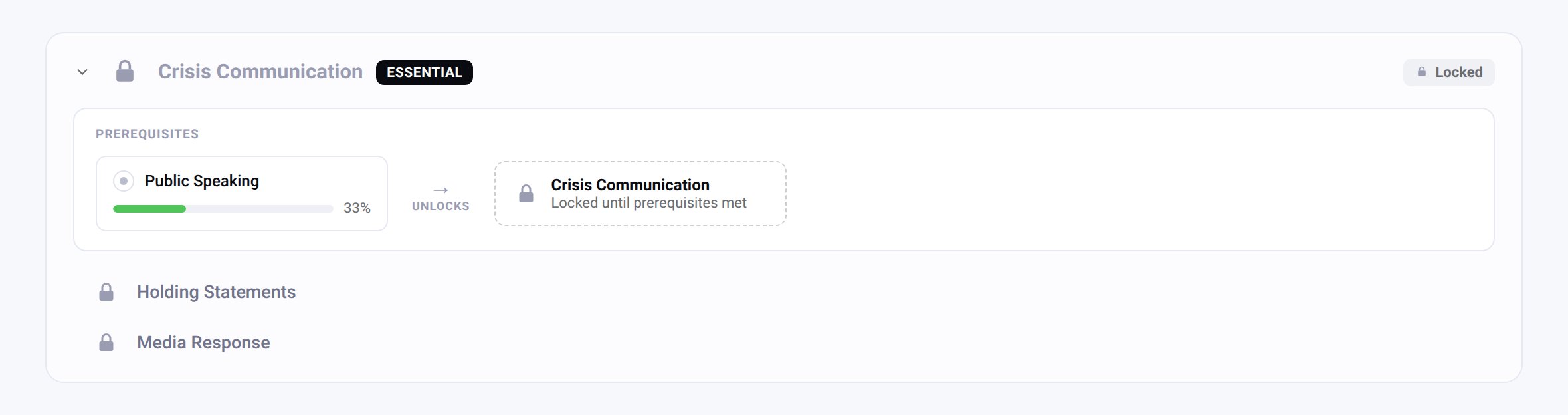
A skill locked until its prerequisite is complete
- Start skill training opens the skill’s training. It ends with a quiz drawn from the skill’s approved question pool.
- Test skill opens a quiz directly, so learners who already master the skill can prove it without taking the training.
- Claim skill marks the skill as Claimed (100%) without any proof and unlocks the next skill.
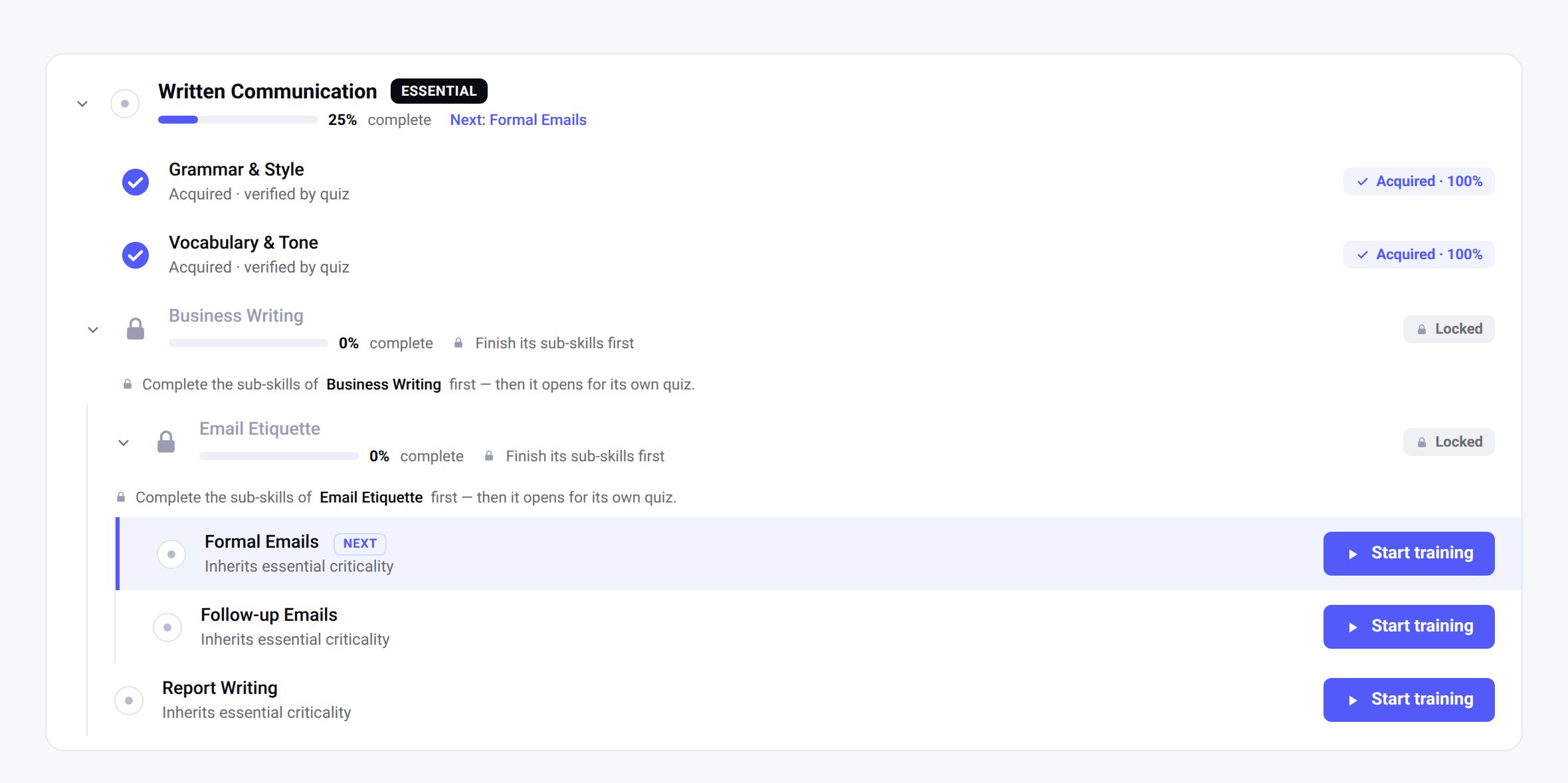
An Essential skill: sub-skills are completed bottom-up, and training is the only option
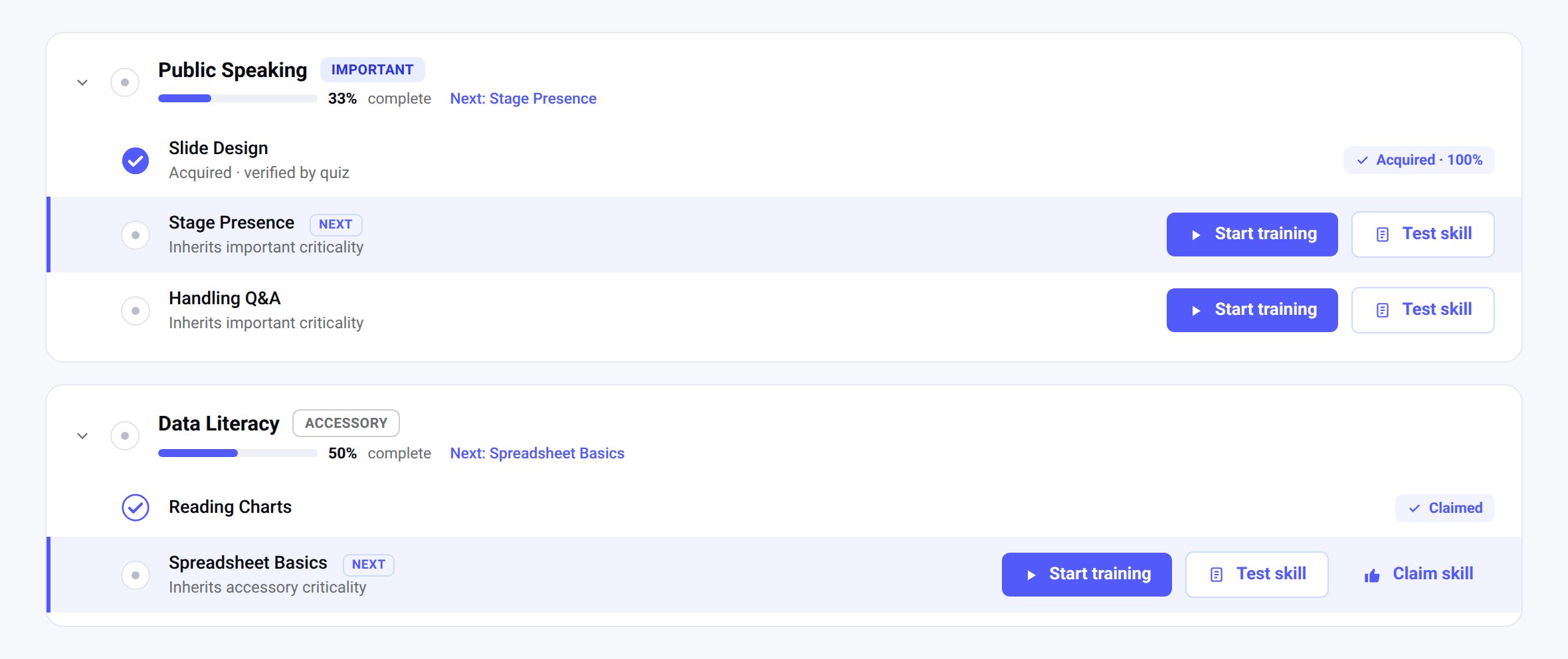
Important skills offer Start training and Test skill; Accessory skills add Claim skill
When the quiz score is below the minimum score
The minimum score is defined in the back office, in the Skills section, under Skill training settings.
Every successful quiz sets the skill to Acquired (100%).
Within this flow, only Accessory skills can end up as Claimed. Important and Essential skills always end up as Acquired, through a verified score. Two paths are not restricted by criticality: acquiring a skill through activities (always score-verified), and the initial skills approved by a manager (the human approval provides the check).
How criticality is inherited
Criticality is set only on top-level skills, in the skills profile (or when a target skill is assigned individually).- Sub-skills inherit the criticality of their top-level skill.
- Prerequisites inherit at least the criticality of the skills that depend on them. For example, if Data analysis is a prerequisite of an Essential skill, Data analysis is treated as Essential for that learner, even if the profile sets it as Accessory. Inherited criticality can raise a skill’s criticality, never lower it.
Where learners see their skills
Learners see their target skills on the My Skills page of the learner portal, in two tabs: Skills profile and Individually assigned skills. The page shows:- their overall progress toward the profile, with the number of skills mastered, ready to start and still locked;
- their skill shape, a chart comparing their progress with the full profile;
- Where to focus: the top-level skills still to complete, with their criticality;
- the list of top-level skills with their criticality, which can be expanded to show sub-skills. Acquired and claimed skills, locked skills and the next suggested skill are clearly marked, and the available actions are shown on each skill.
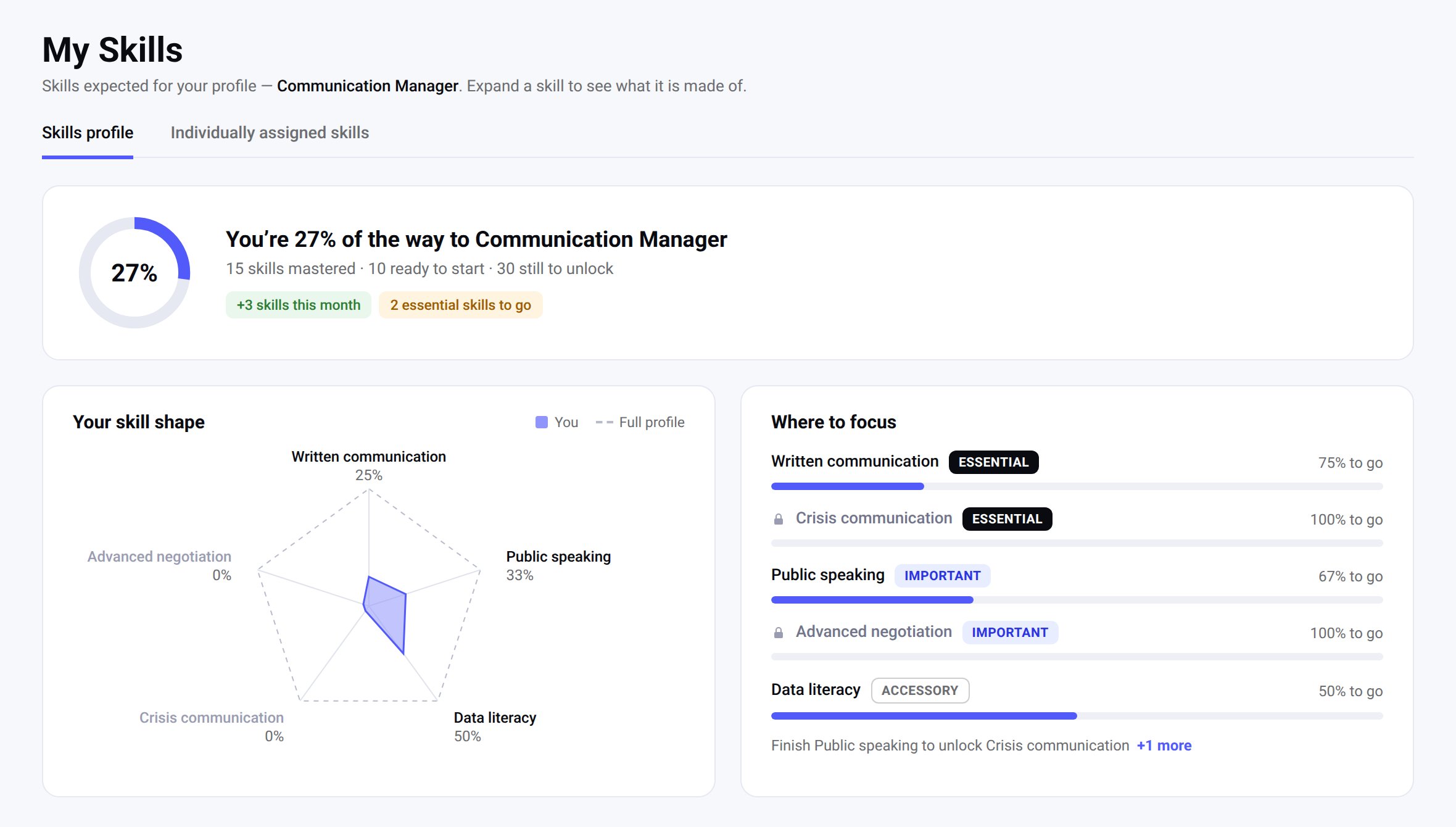
The My Skills page of a learner
Related pages
Managing skills
Create skills, sub-skills and prerequisites.
Skills profiles
Define the skills expected for a role and assign them to learners.
Approving claimed skills
Review the initial skills declared by learners.
Approving AI-generated trainings
Review the training and question pool of each skill.