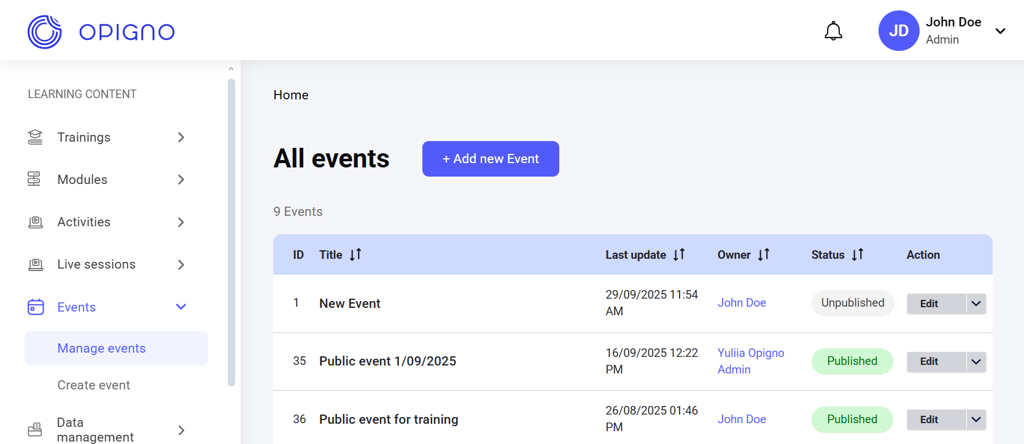
Events are non-instructional activities. Unlike live sessions, events are not tied to a learning path. Instead, they represent general activities and organizational events. They do not appear in the module sequence, do not affect passing requirements, are not scored, and attendance is not tracked. In the learner area, events appear as public events in the calendar. Events can be restricted to a specific learner area or its sublevels. You can also make events training-specific, meaning they are visible only to learners enrolled in that training. Events are managed as learning content entities within a dedicated interface. You can access it from Manage events on the left menu.

Events dashboard

Image 2026 02 16 182604574 The event dashboard displays a table that you can customize to show the following attributes: ID: Unique identifier of the event. Title: The title of the event. Last update: Date of the last modification to the event. Owner: The user who created the event. Status: The publication status of the event. There are two possible statuses:
  • Published: The event is active and visible to learners.
  • Unpublished: The event is unpublished and not visible to learners.

You can sort the table by any attribute in ascending or descending order by clicking the column header. Actions: Apart from attributes, each event has three actions: Image 2026 02 16 182700763 Image 2026 02 16 182713676
  1. Edit: Opens the creation interface, where you can modify the event settings.
  2. Publish: Available from the drop-down arrow next to Edit. Publishes the event, making it visible for learners.
  3. Unpublish: Available from the drop-down arrow next to Edit. Unpublishes the event, hiding it from learners.
