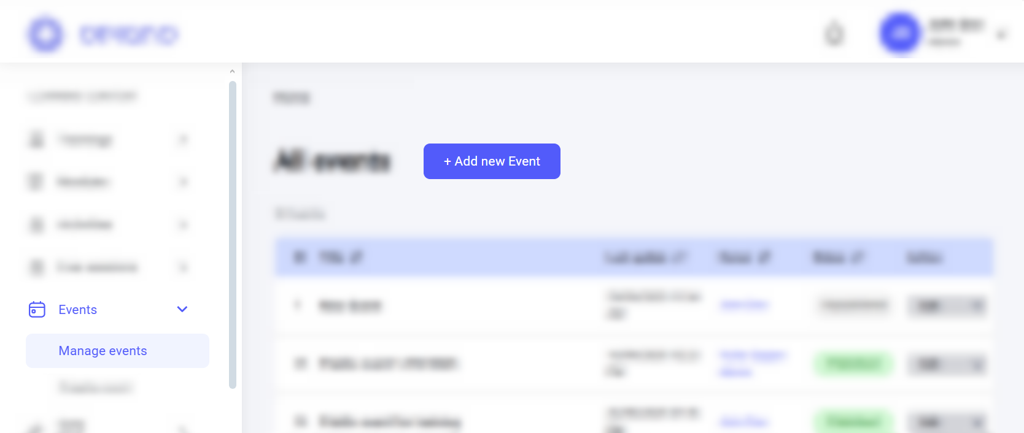
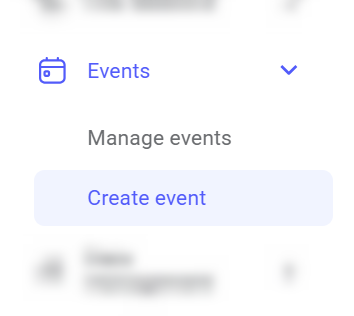
You can access the event creation tool in two ways:
  1. Click the Add new event button above the Manage events dashboard: Image 2026 02 16 182935834
  2. Click Create event in the menu on the left. Image 2026 02 16 183006235
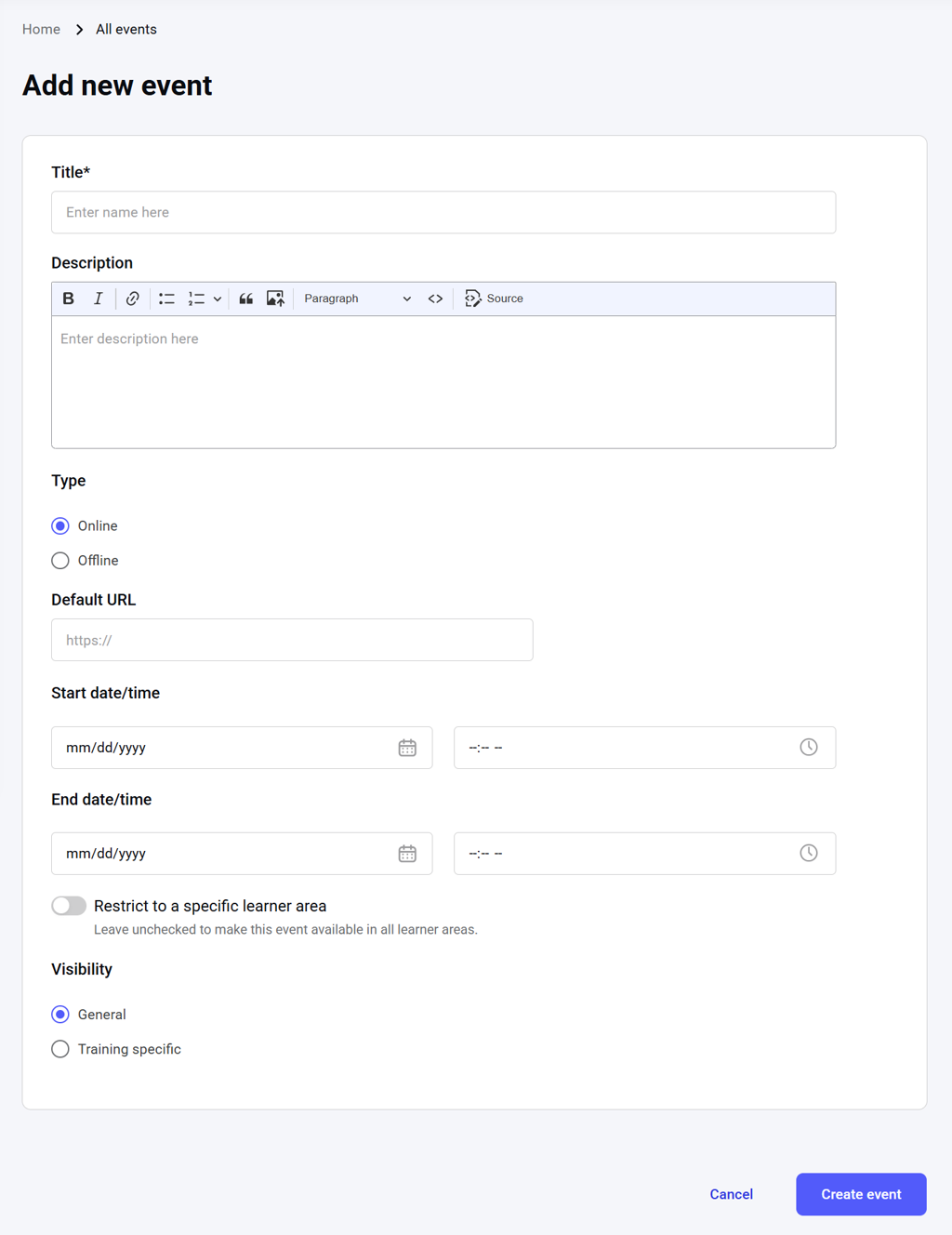
The event creation tool will open, where you can configure the basic details of the event: Image 2026 02 16 183441564 Title: The name of the event, searchable and visible in the calendar. The maximum length is 255 characters. It is a required field. Description: An overview of the event for the learners. The text length is unlimited, while the editor tool provides flexible editing capabilities. Type: Choose whether the event is:
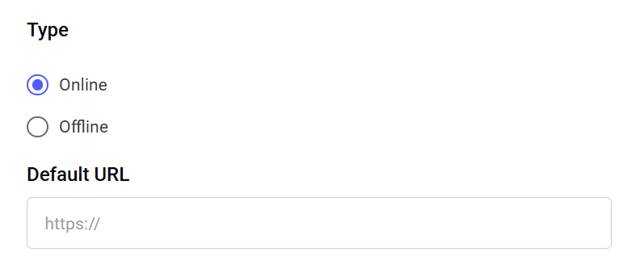
  • Online: If you choose this option, you can enter a video conference URL. Image 2026 02 16 183123368
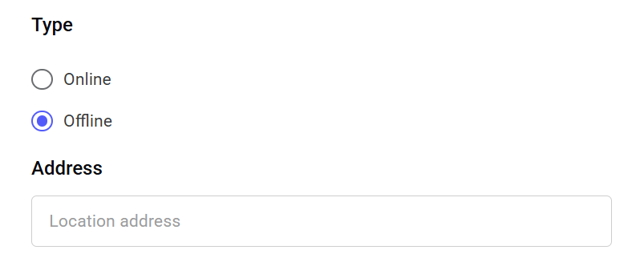
  • Offline: If you choose this option, you can enter the physical location of the event. Image 2026 02 16 183142058
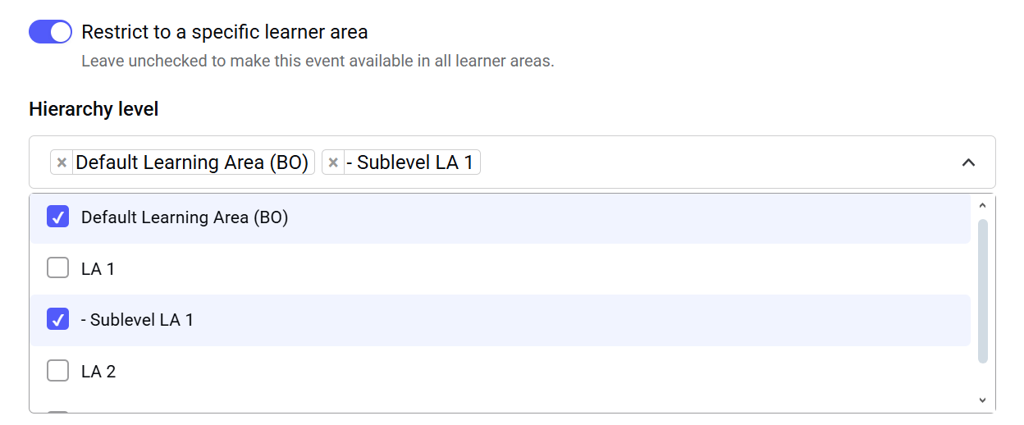
Start date/time: The start date and time of the event. End data/time: The end date and time of the event. Restrict to a specific learner area: Here, you can limit the event to one or more learner areas (or their sublevels). If enabled but no learner area is selected, the event will remain visible to all areas. Image 2026 02 16 183206237 Visibility: Choose who can see the event:
  • General: Visible to every learner in the selected learner area(s).
  • Training specific: Visible only to learners enrolled in a single chosen training (from the list of published trainings in the learner area).
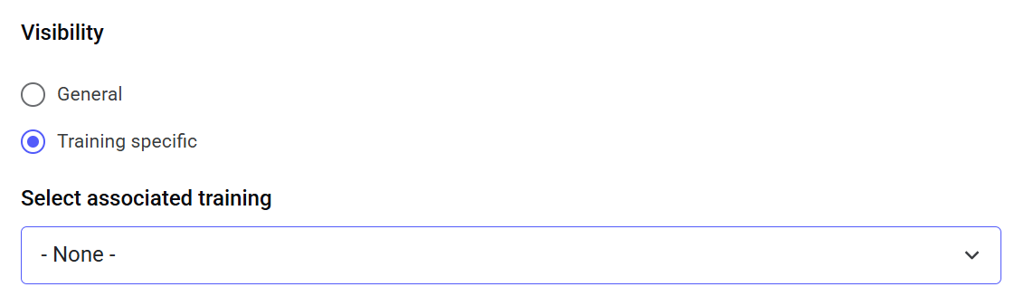
Image 2026 02 16 183236827 After you have applied all the necessary settings on this page, click the Create event button to save the event. To discard the draft of the event, click Cancel.