

Prerequisites
Before setting up authentication, ensure you have:- Administrator access to your Opigno Enterprise instance
- At least one hierarchy top level created in your instance
- Understanding of your learning area structure
Generating Access Tokens
To connect Zapier to your Opigno Enterprise instance, you need to generate an access token first.1
Navigate to Token Management
- Log into your Opigno Enterprise backoffice
- Go to the Authentication section in the left sidebar
- Click Manage access tokens
2
Create New Token
- Click the Add access token button
- Fill out the token configuration form (see details below)
- Save your credentials securely
Token Configuration Fields
When creating a new access token, you’ll need to configure several important fields:Access Token Learning Area
string
required
The learning area this token will be restricted to. Each token is typically limited to a single learning area for security purposes.
Token Name
string
required
A human-readable label to identify this token. Use descriptive names like “Zapier Integration - Sales Team” or “Marketing Automation Token”.
Expiration Date
date
default:"1 year"
The token’s expiration date. Default is set to 1 year, but you can adjust this based on your internal security policies.
Client ID and Secret Key
string
required
The OAuth2 client ID for your application. This unique identifier is generated when you create the access token.
string
required
The OAuth2 client secret for your application. This is a sensitive credential that must be kept secure.
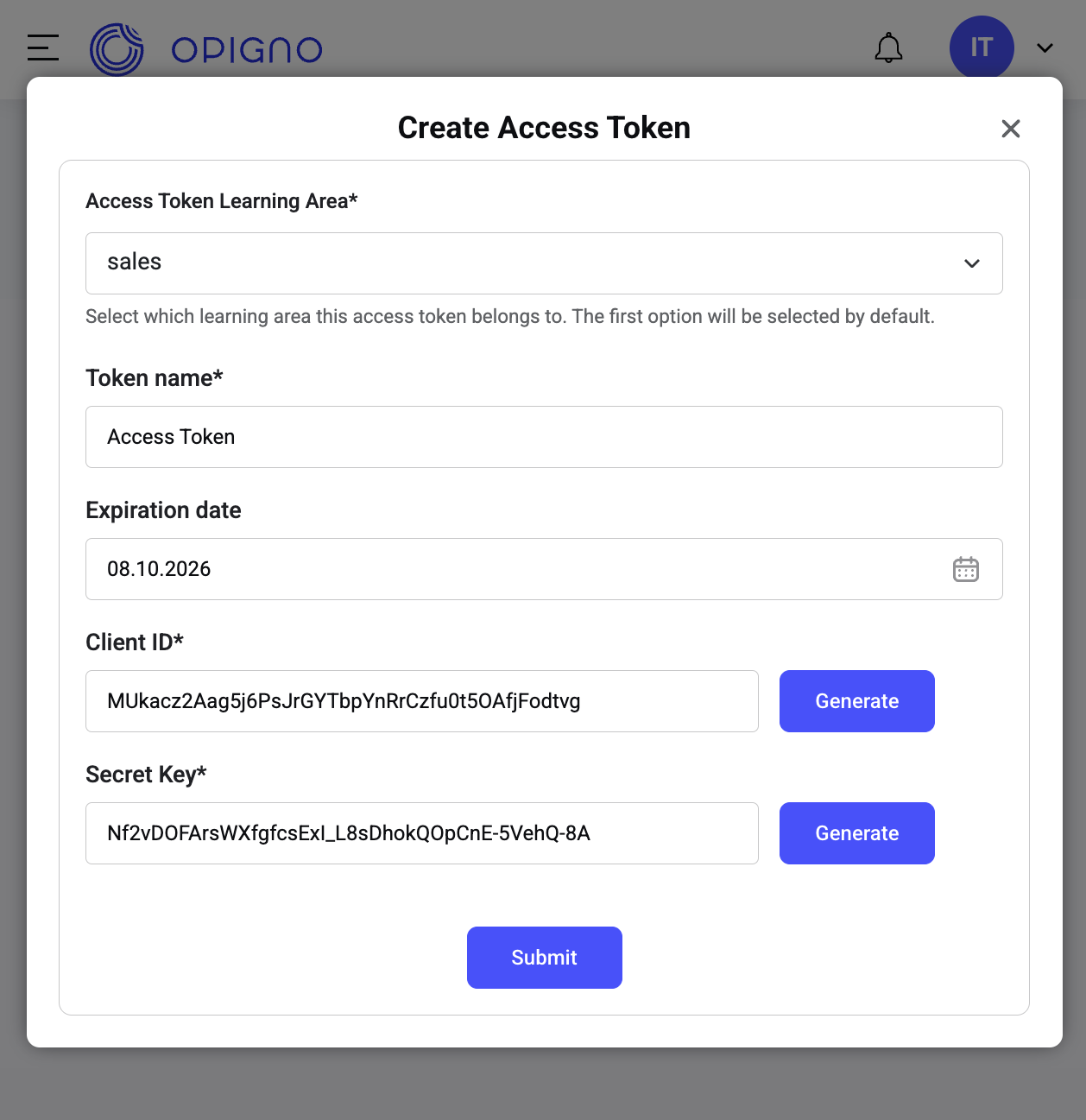
Example of the access token creation form
Zapier Configuration
Once you have your access token credentials, configure Zapier to connect to your Opigno Enterprise instance.Required Configuration Fields
Configure these fields in your Zapier integration:string
required
The base URL of your Opigno backoffice instance. This is the main domain where your Opigno application is hosted.Format:
https://yourcompany.opigno.cloud or https://yourdomain.comMake sure to use the exact URL format without trailing slashes or additional paths.
string
required
The OAuth2 client ID for your application. This unique identifier is generated when you create an access token in your Opigno instance.Where to find:
- Navigate to your Opigno backoffice
- Go to Configuration → Authentication → Manage access tokens
- Click + Add access token
- Copy the generated Client ID
string
required
The OAuth2 client secret for your application. This is a sensitive credential that must be kept secure.Where to find: The secret key is available only immediately after token creation and is stored as a hash for validation. If you lose it, you’ll need to generate a new token.
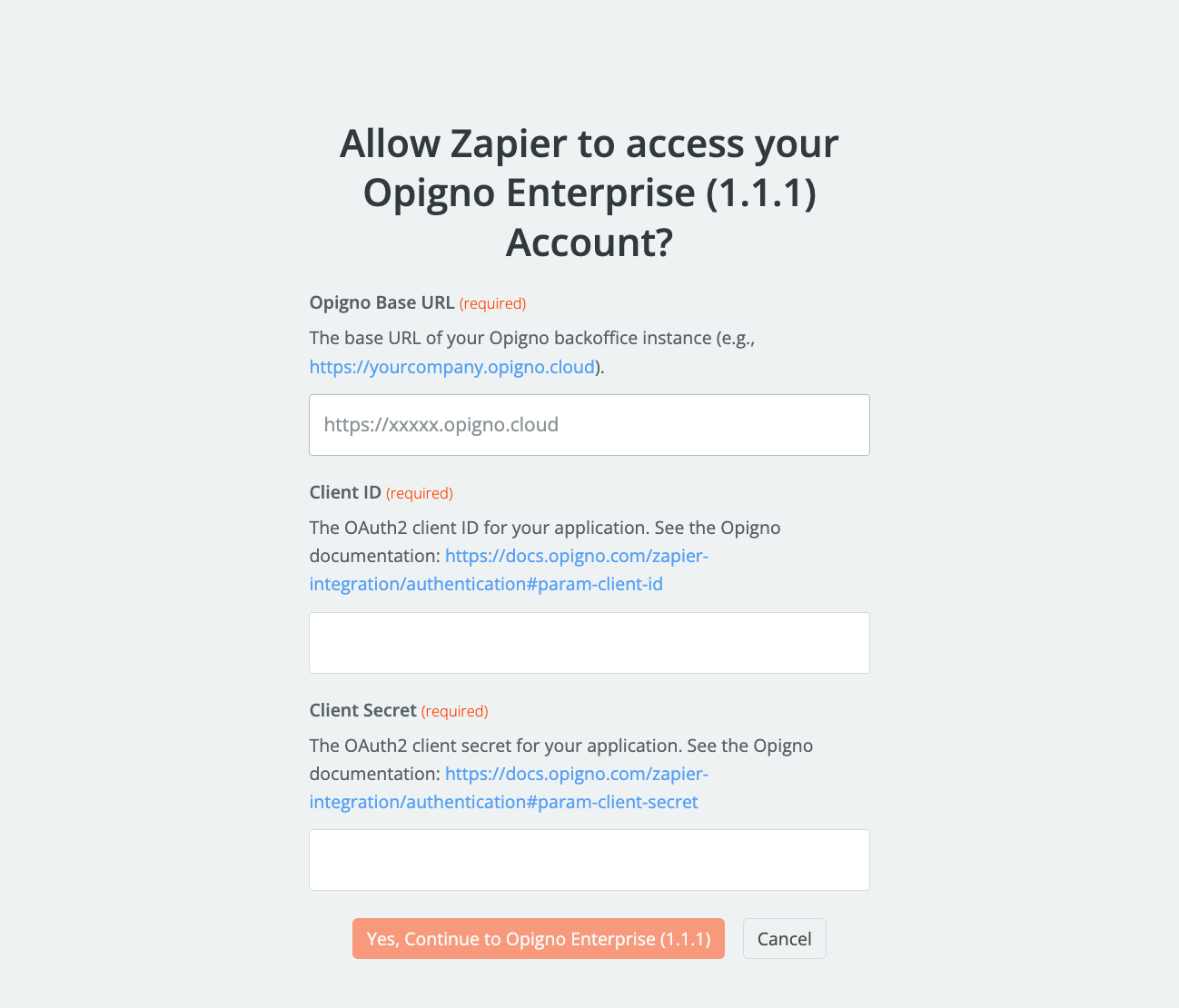
Zapier configuration interface for Opigno Enterprise
Testing Your Connection
After configuring all fields, test your connection to ensure everything is working correctly:1
Save Configuration
- Enter all required fields in Zapier
- Click Save to store your configuration
2
Test Connection
- Click Test to verify the connection
- Check for any error messages
- Verify you can access your learning area data
If the test is successful, you’ll see a confirmation message and can proceed to configure your Zapier workflows.
Next Steps
Once authentication is configured successfully:Understanding Learning Areas
Learn how to configure user access and permissions within your learning areas.
Set Up Hierarchy Levels
Understand how to set up and manage your organizational hierarchy.