> ## Documentation Index
> Fetch the complete documentation index at: https://docs.opigno.com/llms.txt
> Use this file to discover all available pages before exploring further.
# Training files
**Training files** are additional instructional materials you can upload and assign to a training, so that learners can access them in a dedicated tab on the training homepage.
To upload and manage files, open the **Training files** dashboard from the left-hand menu, under **Data management**.
**NOTE:** Training file management is available only to **administrators** and **content editors**.
## The dashboard
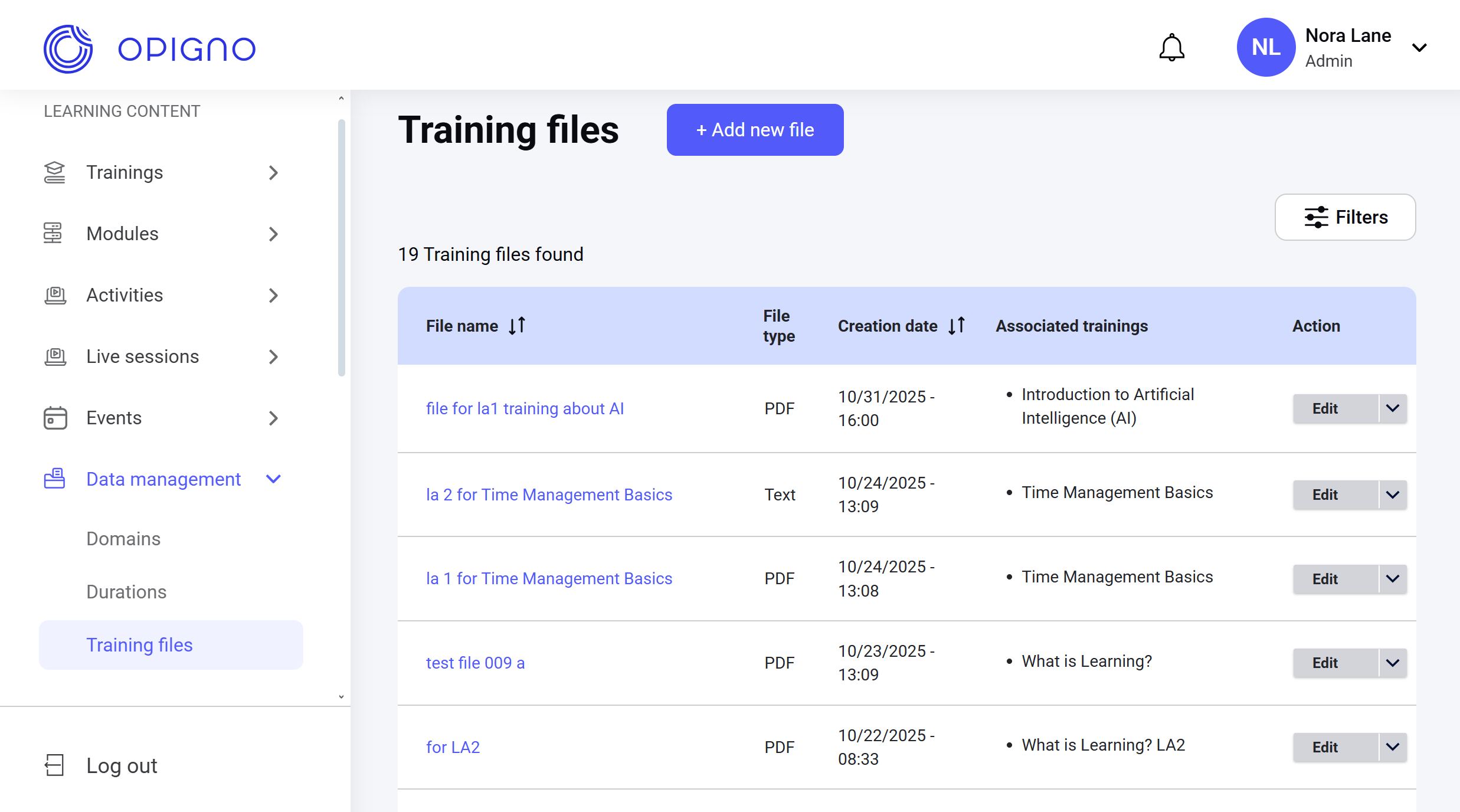 The dashboard table shows the list of all uploaded files with the following attributes:
* **File name**
* **File type**: PDF, Excel, Word, PowerPoint, video, image, text.
* **Creation date**
* **Associated trainings**
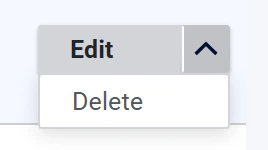
* **Action**: Edit and delete.
The dashboard table shows the list of all uploaded files with the following attributes:
* **File name**
* **File type**: PDF, Excel, Word, PowerPoint, video, image, text.
* **Creation date**
* **Associated trainings**
* **Action**: Edit and delete.
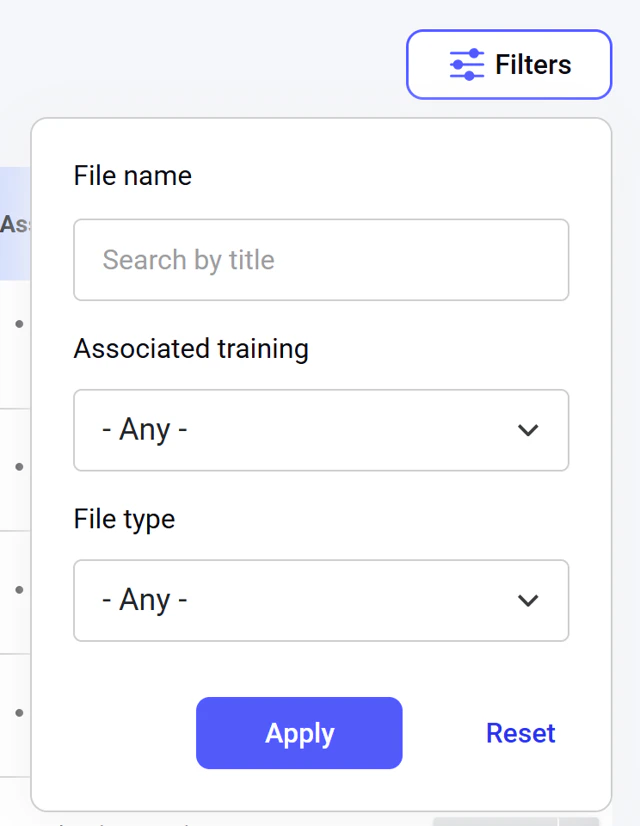
 You can sort the list by the file name or creation date. You can also narrow down the list of files using filters: by the file name, associated training, and the file type:
 ## Adding a new training file
Click the **Add new file** button above the dashboard table. This will open a dedicated interface:
## Adding a new training file
Click the **Add new file** button above the dashboard table. This will open a dedicated interface:
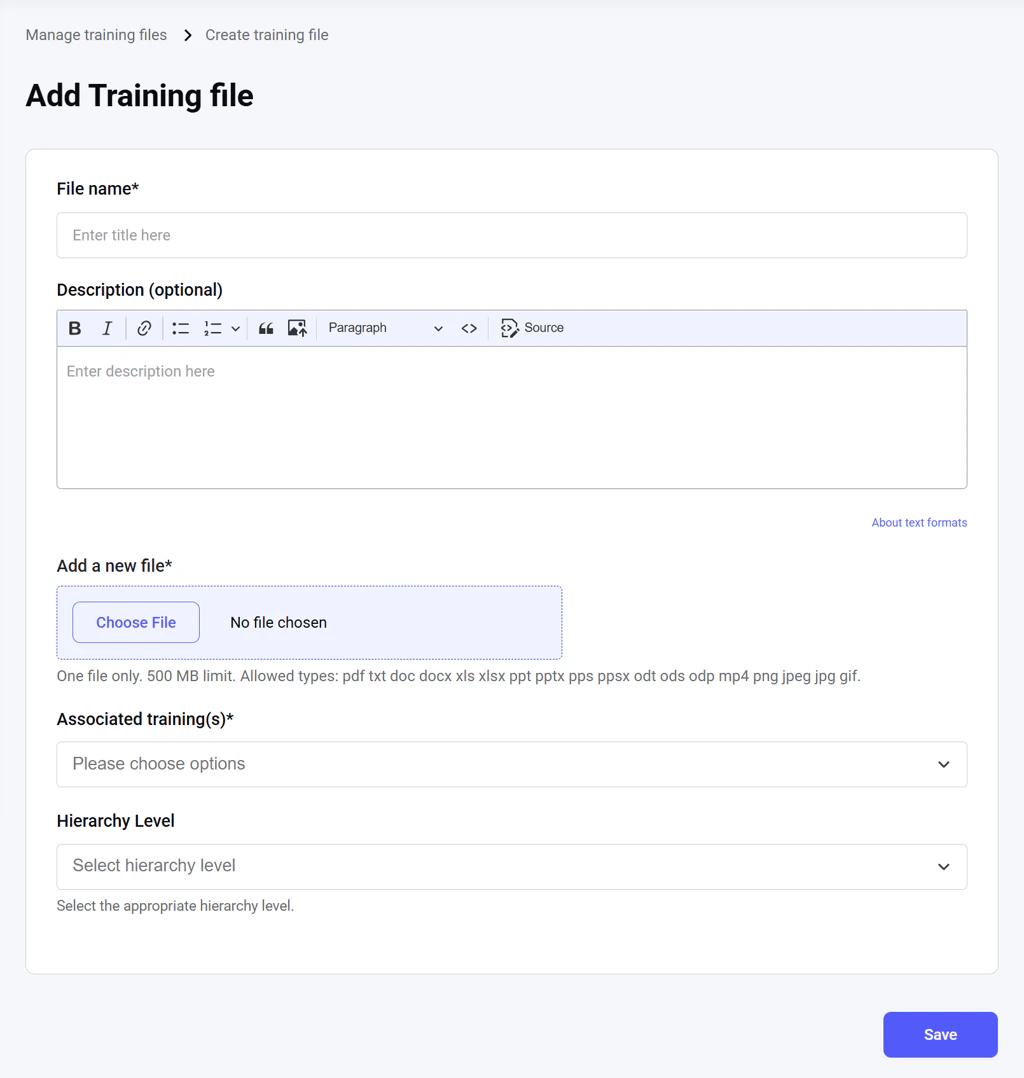 Here, you can upload the file, add its name and description, and assign it to one or several trainings and a hierarchy.
The file must be under 500 MB. Available file extensions: pdf, txt, doc, docx, xls, xlsx, ppt, pptx, pps, ppsx, odt, ods, odp, mp4, png, jpeg, jpg, gif.
The **File name**, **Add a new file**, and **Associated training(s)** fields are required.
Click **Save** to finish adding the new file.
## Editing a training file
To edit existing files, go to the main dashboard table and click the file name or the **Edit** button. This will open a dedicated interface, where you can change the file and its parameters.
Here, you can upload the file, add its name and description, and assign it to one or several trainings and a hierarchy.
The file must be under 500 MB. Available file extensions: pdf, txt, doc, docx, xls, xlsx, ppt, pptx, pps, ppsx, odt, ods, odp, mp4, png, jpeg, jpg, gif.
The **File name**, **Add a new file**, and **Associated training(s)** fields are required.
Click **Save** to finish adding the new file.
## Editing a training file
To edit existing files, go to the main dashboard table and click the file name or the **Edit** button. This will open a dedicated interface, where you can change the file and its parameters.
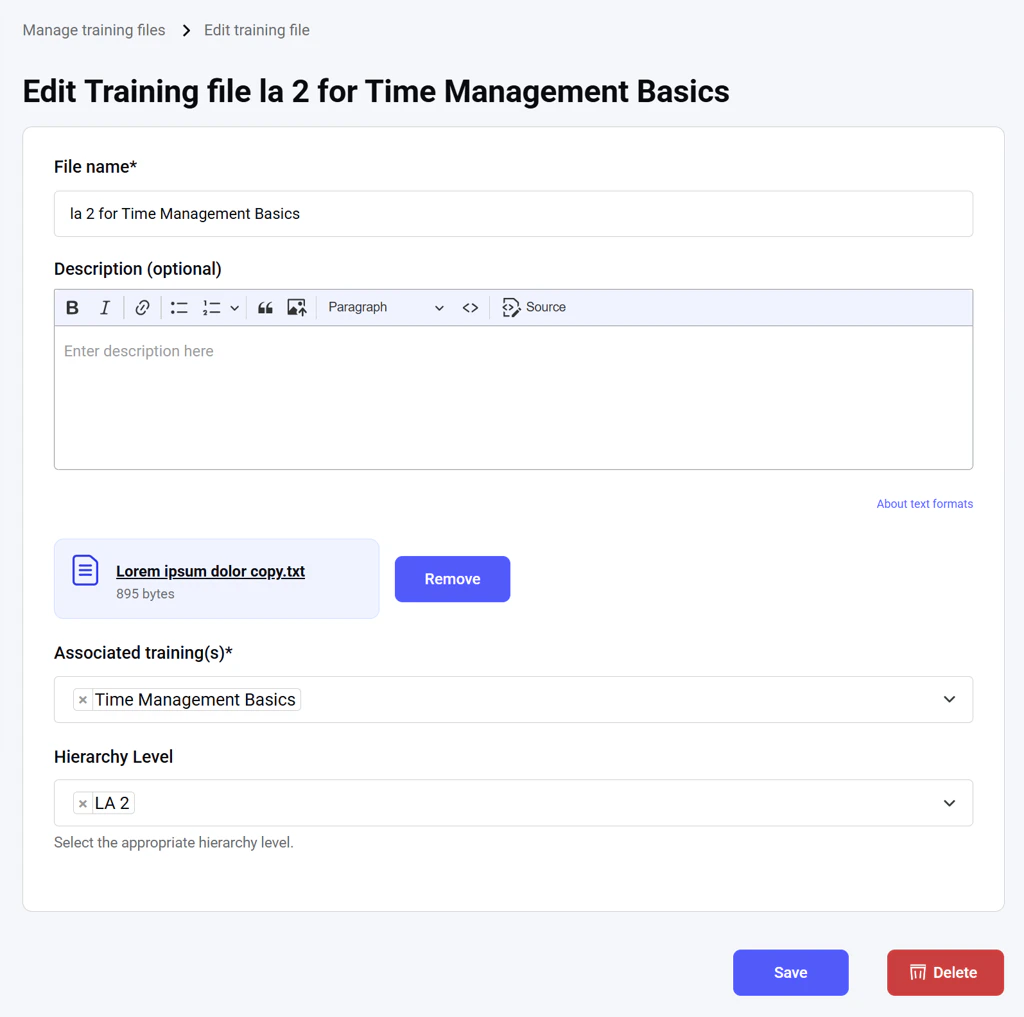 You can also remove the file from the platform by clicking **Delete**.