> ## Documentation Index
> Fetch the complete documentation index at: https://docs.opigno.com/llms.txt
> Use this file to discover all available pages before exploring further.
# Taxonomy
Taxonomies are terms used to categorize learning content. Terms are grouped into vocabularies, which help organize and filter trainings.
**NOTE:** The Taxonomies dashboard is available only to **administrators** and **root-level** **content editors** (users with no hierarchy level assigned).
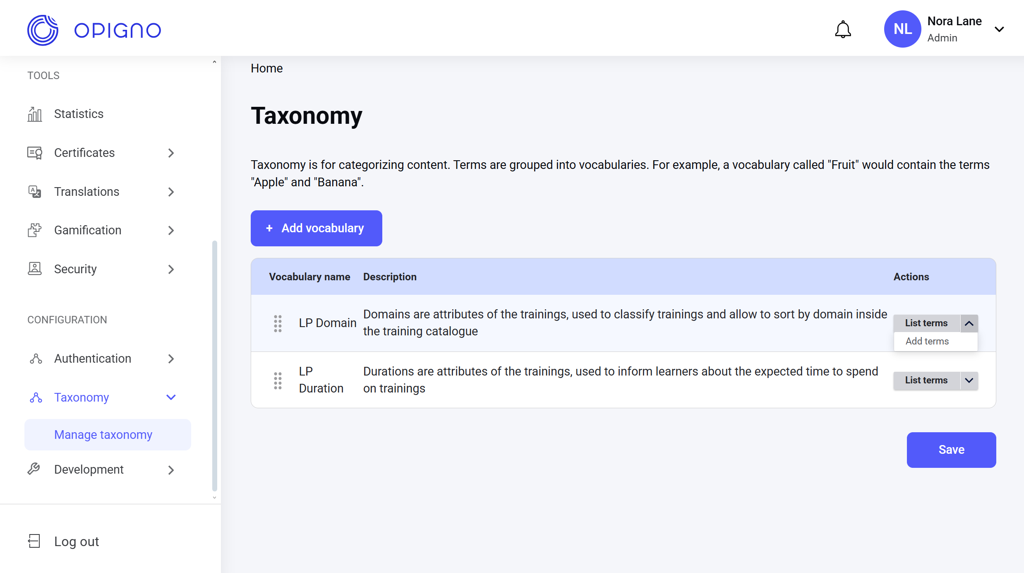
You can access the Taxonomy dashboard from the menu on the left:
 ## Managing vocabularies
Two vocabularies are available by default:
* **LP Domain:** Classifies trainings by topic, allowing sorting and filtering by domain.
* **LP Duration:** Indicates the expected time required to complete a training.
You can rearrange the display order of vocabularies and add new terms to them, but you cannot delete a vocabulary.
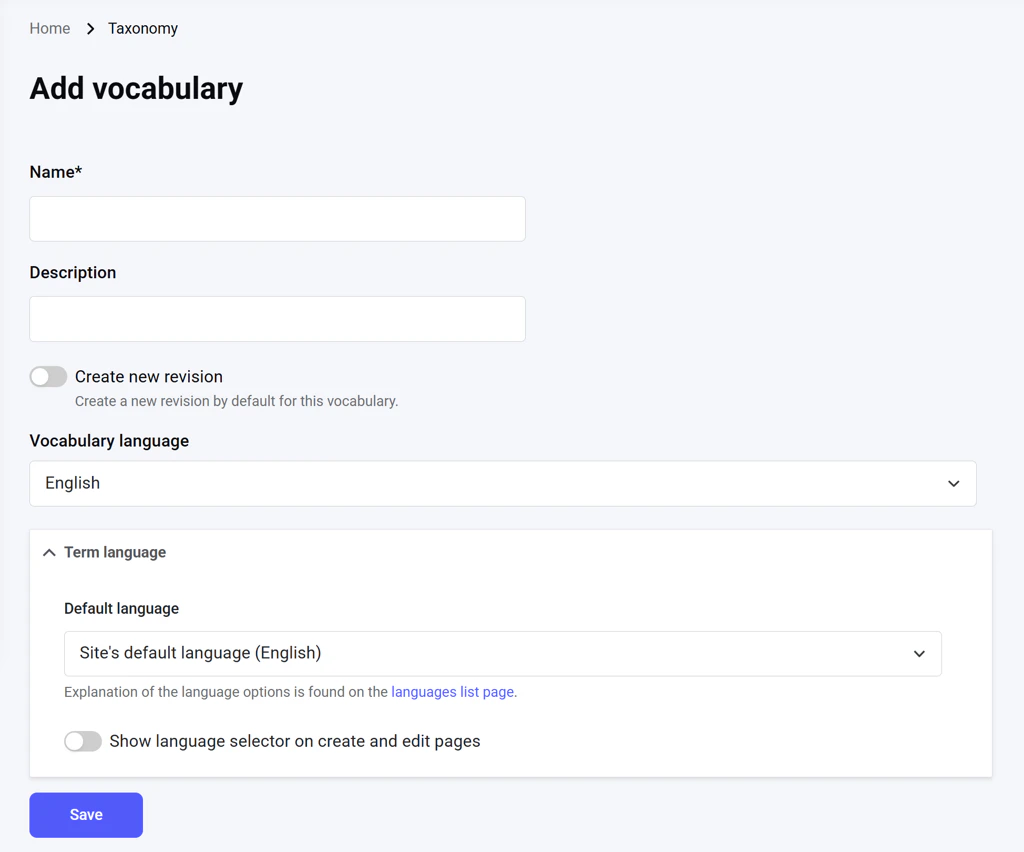
**Opigno’s Custom API** allows creating and editing custom vocabularies. To do that, click **Add vocabulary**. This opens a dedicated interface where you can define the vocabulary’s name, description, and language settings:
## Managing vocabularies
Two vocabularies are available by default:
* **LP Domain:** Classifies trainings by topic, allowing sorting and filtering by domain.
* **LP Duration:** Indicates the expected time required to complete a training.
You can rearrange the display order of vocabularies and add new terms to them, but you cannot delete a vocabulary.
**Opigno’s Custom API** allows creating and editing custom vocabularies. To do that, click **Add vocabulary**. This opens a dedicated interface where you can define the vocabulary’s name, description, and language settings:
 ## Managing terms
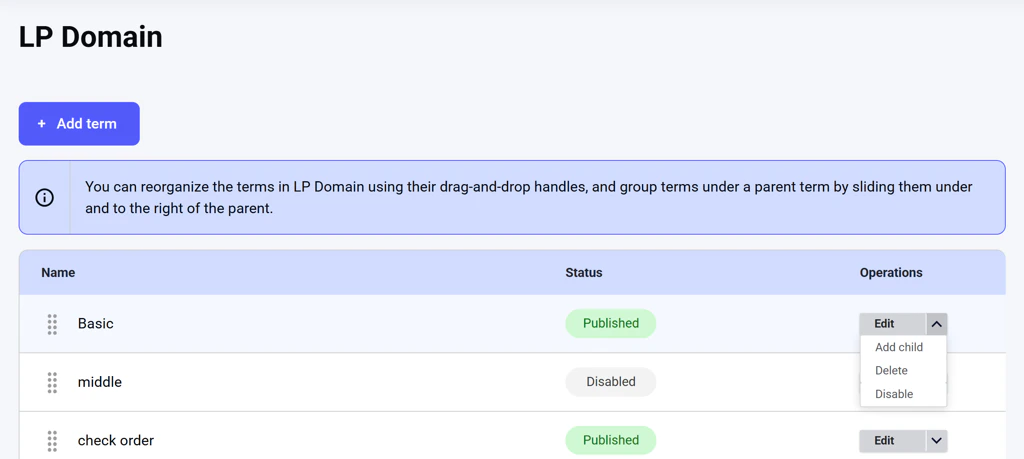
To view or manage the terms in a vocabulary, click **List terms** next to it on the main dashboard.\
From this interface, you can create, edit, publish/disable, delete, rearrange, or group terms:
## Managing terms
To view or manage the terms in a vocabulary, click **List terms** next to it on the main dashboard.\
From this interface, you can create, edit, publish/disable, delete, rearrange, or group terms:
 ### Creating a new term
To add a new term, click **Add term**, which opens the dedicated term creation form:
### Creating a new term
To add a new term, click **Add term**, which opens the dedicated term creation form:
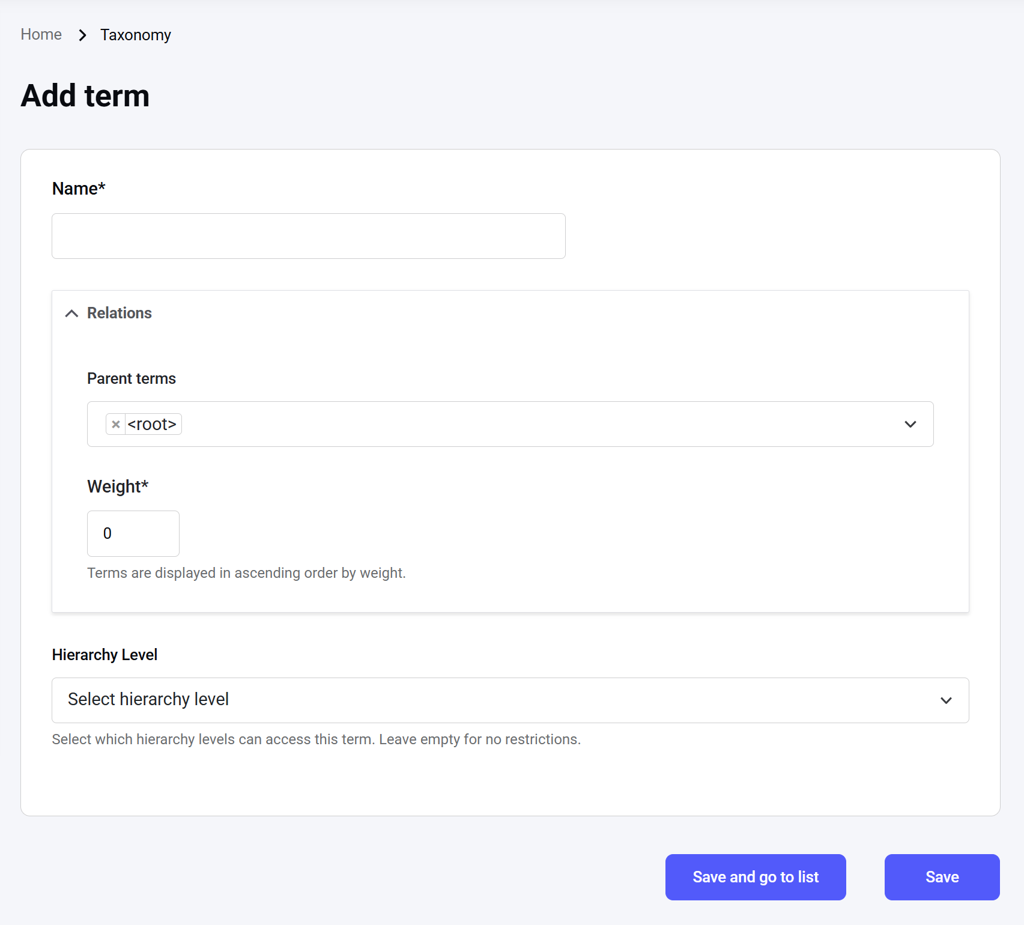 **Opigno’s Custom API** enables restricting a term to a specific hierarchy level, so content managers only see the terms assigned to their hierarchy when creating trainings.
Click **Save** to save the new term and stay on the current interface to start creating another term.\
Click **Save and go to list** to save the new term and exist to the list of vocabulary terms.
### Editing a vocabulary term
Click the **Edit** action button in the list of vocabulary terms to open a dedicated interface where you can change the term and its parameters or delete it.
**Opigno’s Custom API** enables restricting a term to a specific hierarchy level, so content managers only see the terms assigned to their hierarchy when creating trainings.
Click **Save** to save the new term and stay on the current interface to start creating another term.\
Click **Save and go to list** to save the new term and exist to the list of vocabulary terms.
### Editing a vocabulary term
Click the **Edit** action button in the list of vocabulary terms to open a dedicated interface where you can change the term and its parameters or delete it.
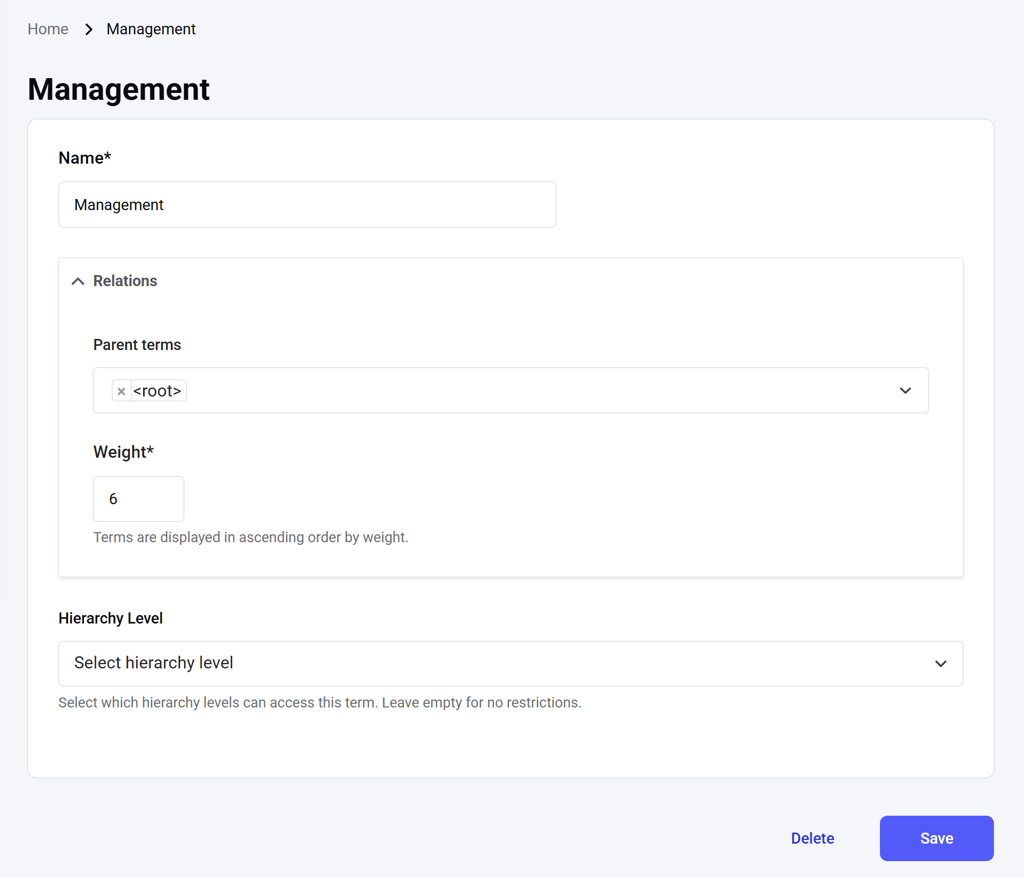 Deleting a term automatically deletes all its translations as child entities. The system will list all the affected term entities.
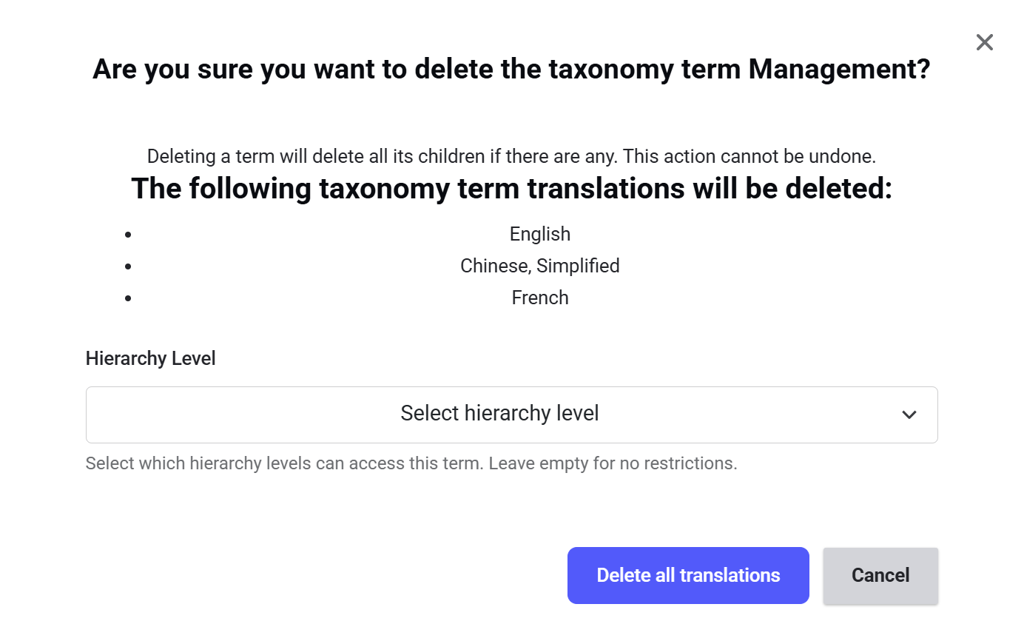 You can also delete the term selectively from a specific hierarchy **(Opigno Custom API is required)**.