> ## Documentation Index
> Fetch the complete documentation index at: https://docs.opigno.com/llms.txt
> Use this file to discover all available pages before exploring further.
# Skills management
Skills let you describe the competencies learners develop and automatically track when each one is acquired, based on learner performance across the activities you associate with it.
**NOTE:** Skills management is available only to **administrators** and **global content editors** (users with no hierarchy level assigned).
A skill is a translatable [taxonomy](https://docs.opigno.com/taxonomy) term. You define skills once, associate them with activities, and the platform determines whether a learner has acquired each skill from the way they perform on those activities.
## The Skills dashboard
You can access the **Skills** dashboard from the menu on the left.
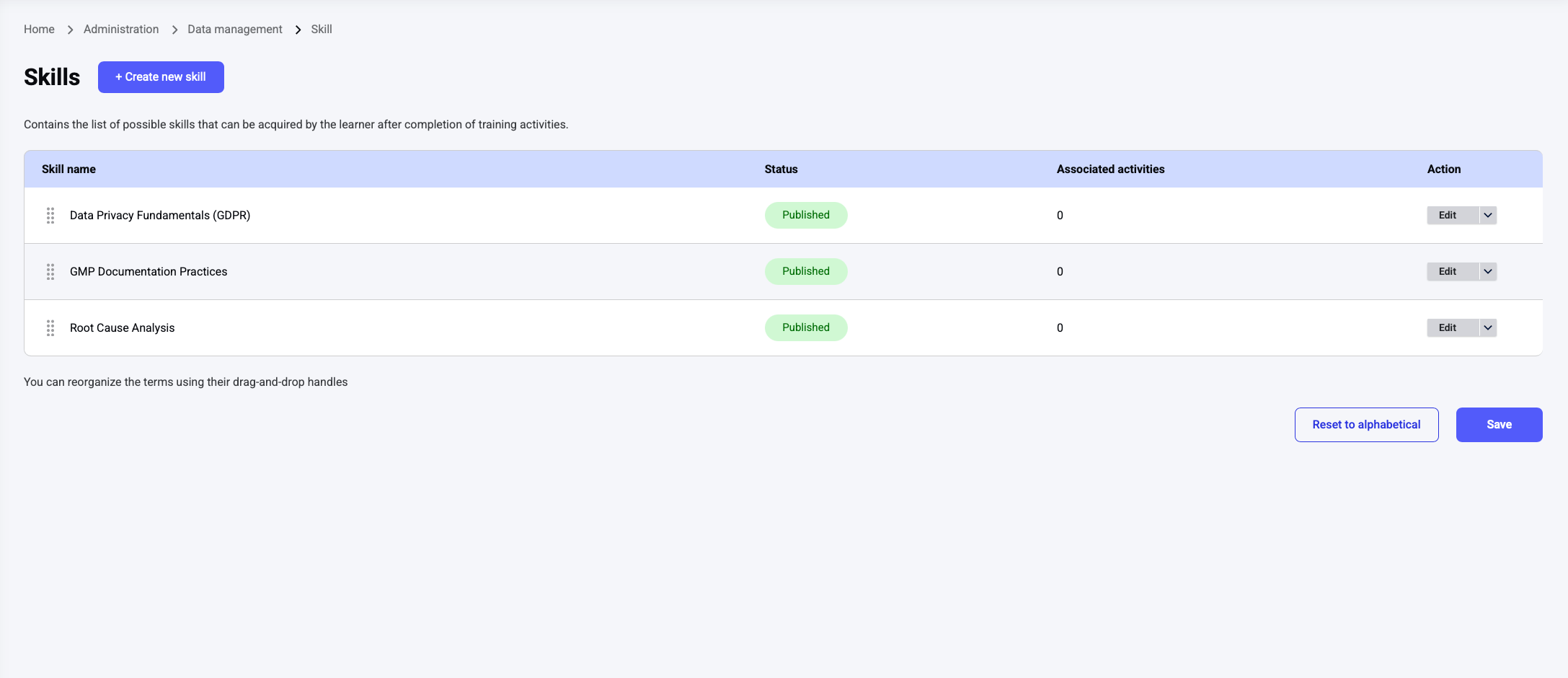 The dashboard lists all skills in a table with the following columns:
* **Skill name**
* **Status**: Active or Disabled.
* **Associated activities**: The number of activities the skill is assigned to. Click the number to open a popup listing those activities.
* **Actions**: Edit, Disable, or Enable (see below).
## Creating a skill
Click the **Create new skill** button at the top of the dashboard and define the skill's name.
Optionally, you can also:
* **Select parent skills** to organize skills into a multi-level hierarchy.
* **Assign a hierarchy level** to the skill. When a skill has a hierarchy level:
* Content managers can select skills at the same or lower levels.
* Only learners at the same or higher levels can see the skill.
The dashboard lists all skills in a table with the following columns:
* **Skill name**
* **Status**: Active or Disabled.
* **Associated activities**: The number of activities the skill is assigned to. Click the number to open a popup listing those activities.
* **Actions**: Edit, Disable, or Enable (see below).
## Creating a skill
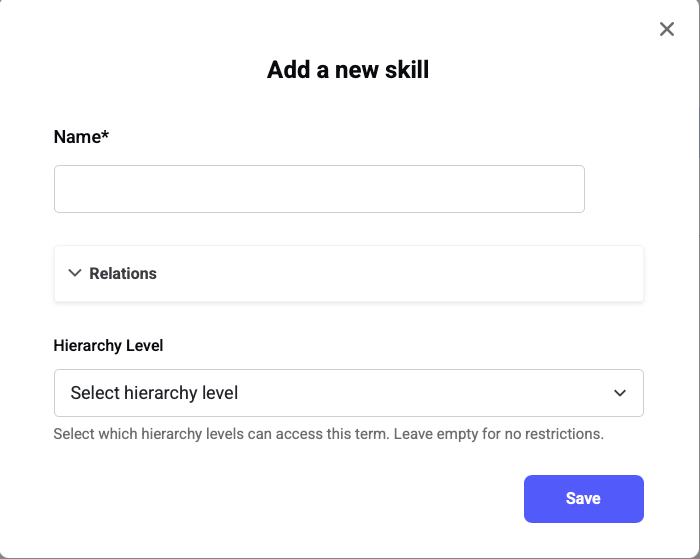
Click the **Create new skill** button at the top of the dashboard and define the skill's name.
Optionally, you can also:
* **Select parent skills** to organize skills into a multi-level hierarchy.
* **Assign a hierarchy level** to the skill. When a skill has a hierarchy level:
* Content managers can select skills at the same or lower levels.
* Only learners at the same or higher levels can see the skill.
 ## Editing a skill
Click the **Edit** action next to a skill to update its name.
## Enabling and disabling skills
Use the **Disable** and **Enable** actions to control whether a skill is active.
* A skill can be disabled only if it is **not** assigned to any activity.
* Disabled skills remain visible in the **acquired skills** of learners who have already earned them.
* Re-enabling a previously disabled skill does **not** reassociate it with the activities it was linked to before.
## Assigning skills to activities
You assign skills to activities when [creating or editing an activity](https://docs.opigno.com/activity-creation), not from the Skills dashboard.
1. In the activity interface, toggle on **Assign skills**.
2. Select up to **3 skills** using the autocomplete field, or click **Assign skills with AI** to let Opigno AI detect the applicable skills.
## Editing a skill
Click the **Edit** action next to a skill to update its name.
## Enabling and disabling skills
Use the **Disable** and **Enable** actions to control whether a skill is active.
* A skill can be disabled only if it is **not** assigned to any activity.
* Disabled skills remain visible in the **acquired skills** of learners who have already earned them.
* Re-enabling a previously disabled skill does **not** reassociate it with the activities it was linked to before.
## Assigning skills to activities
You assign skills to activities when [creating or editing an activity](https://docs.opigno.com/activity-creation), not from the Skills dashboard.
1. In the activity interface, toggle on **Assign skills**.
2. Select up to **3 skills** using the autocomplete field, or click **Assign skills with AI** to let Opigno AI detect the applicable skills.
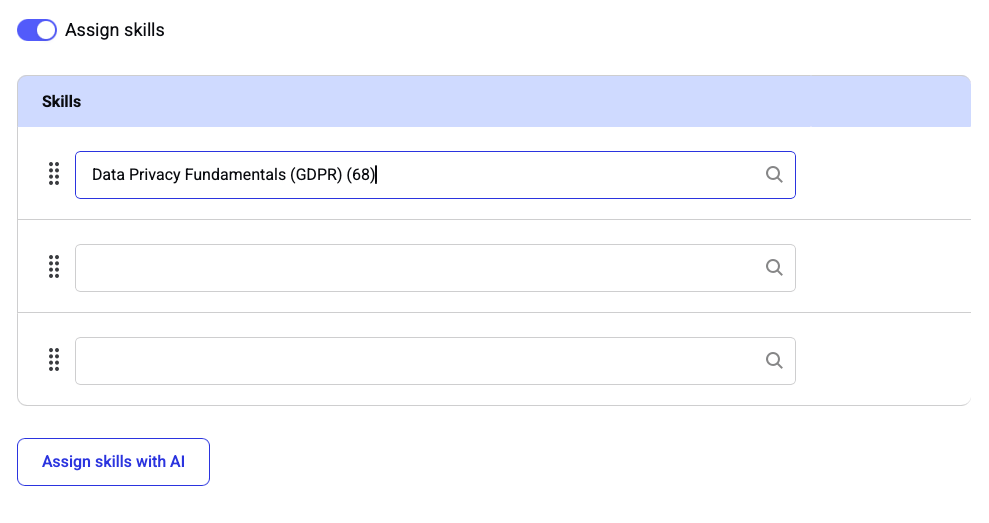 The AI maps the most relevant skills to the activity, drawing from your existing skills. If it finds no skill with sufficient confidence, it returns nothing.
**NOTE:** New skills cannot be created from the activity interface — only existing skills can be assigned.
## How a skill is acquired
A learner acquires a skill once they answer **3 consecutive activities** associated with that skill correctly — meaning a score above **90%** on each.
The following rules apply:
* If a learner repeats an activity, it is counted only once toward a skill.
* If new skills are added to an activity a learner has already completed and they repeat it, only the **newly added** skills are considered.
* Once acquired, a skill is **never lost** — for example, if the learner restarts the training, takes another training containing the same activity, or later answers that activity incorrectly.
**NOTE:** Skills cannot be acquired from activities that belong to a theory module.
## Target skills and the skills spider chart
For each learner, managers (or Clara) can define the **target skills** expected of that person — for example, based on their job description.
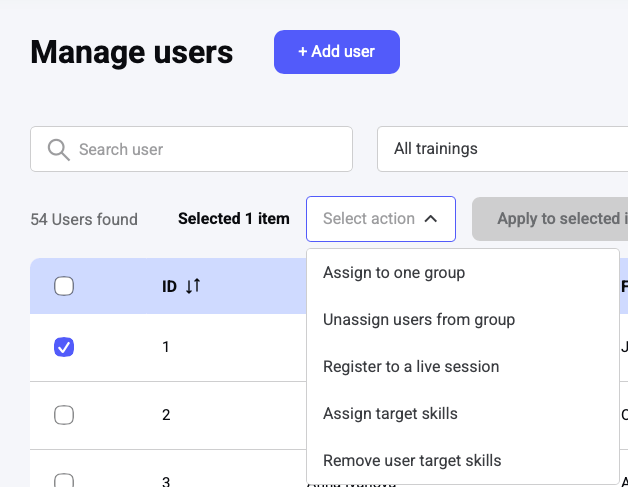
To assign target skills, open the **Manage users** interface on the learner platform, select one or several learners, and use the **Assign target skills** action.
The AI maps the most relevant skills to the activity, drawing from your existing skills. If it finds no skill with sufficient confidence, it returns nothing.
**NOTE:** New skills cannot be created from the activity interface — only existing skills can be assigned.
## How a skill is acquired
A learner acquires a skill once they answer **3 consecutive activities** associated with that skill correctly — meaning a score above **90%** on each.
The following rules apply:
* If a learner repeats an activity, it is counted only once toward a skill.
* If new skills are added to an activity a learner has already completed and they repeat it, only the **newly added** skills are considered.
* Once acquired, a skill is **never lost** — for example, if the learner restarts the training, takes another training containing the same activity, or later answers that activity incorrectly.
**NOTE:** Skills cannot be acquired from activities that belong to a theory module.
## Target skills and the skills spider chart
For each learner, managers (or Clara) can define the **target skills** expected of that person — for example, based on their job description.
To assign target skills, open the **Manage users** interface on the learner platform, select one or several learners, and use the **Assign target skills** action.
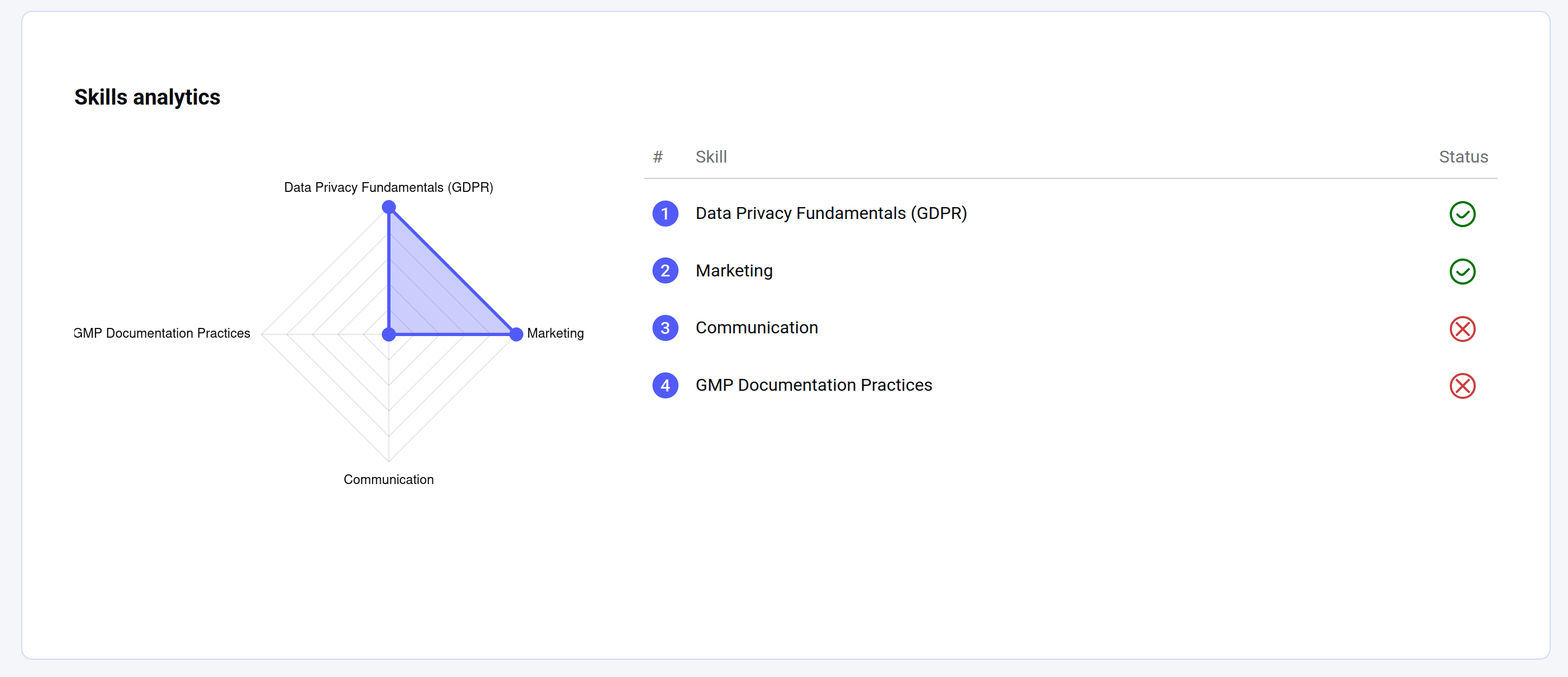
 When target skills are defined, the learner's [statistics](https://docs.opigno.com/statistics) interface in the back office displays a spider chart of those skills, marking each one as acquired or not.