> ## Documentation Index
> Fetch the complete documentation index at: https://docs.opigno.com/llms.txt
> Use this file to discover all available pages before exploring further.
# Manual scoring
The Manual Scoring interface is available to **administrators** and **coaches**.
## Introduction
The manual scoring dashboard displays all modules that contain at least one activity requiring manual scoring. Results are filtered by hierarchy:
* Administrators can see all submissions.
* Coaches see submissions only from learners within their assigned hierarchy and its sub-hierarchies.
### Impact on learners
Manual scoring directly affects what learners see in the learner area and how they progress through the training.
Until all manually scored activities in a module are evaluated, the module (and the related training) appears to the learner as **Awaiting scoring**.
A learner cannot review the module before scoring is completed.
If the training uses **locked navigation**, learners cannot access the next module until the previous one has been fully scored.
## The dashboard
You can access the Manual scoring dashboard from the menu on the left:
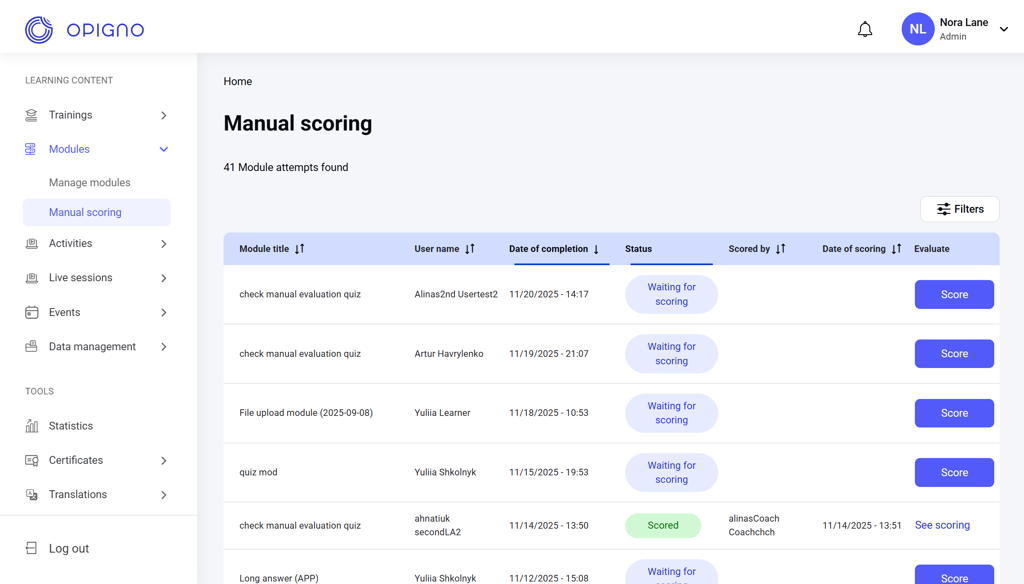 The dashboard lists all modules awaiting manual scoring or already evaluated. Each row includes:
* **Module title**
* **User name** (of a learner who submitted the module)
* **Date of completion**
* **Status** (Scored / Waiting for scoring)
* **Scored by** (the user who performed the scoring)
* **Date of scoring**
* **Evaluate**:
* **Score** — open the submission to evaluate
* **See scoring** — view an existing evaluation
You can use the **Filters** panel to narrow down results by:
* Status
* Learner name
* Module title
## Scoring
Click **Score** to open the learner's submission.
The dashboard lists all modules awaiting manual scoring or already evaluated. Each row includes:
* **Module title**
* **User name** (of a learner who submitted the module)
* **Date of completion**
* **Status** (Scored / Waiting for scoring)
* **Scored by** (the user who performed the scoring)
* **Date of scoring**
* **Evaluate**:
* **Score** — open the submission to evaluate
* **See scoring** — view an existing evaluation
You can use the **Filters** panel to narrow down results by:
* Status
* Learner name
* Module title
## Scoring
Click **Score** to open the learner's submission.
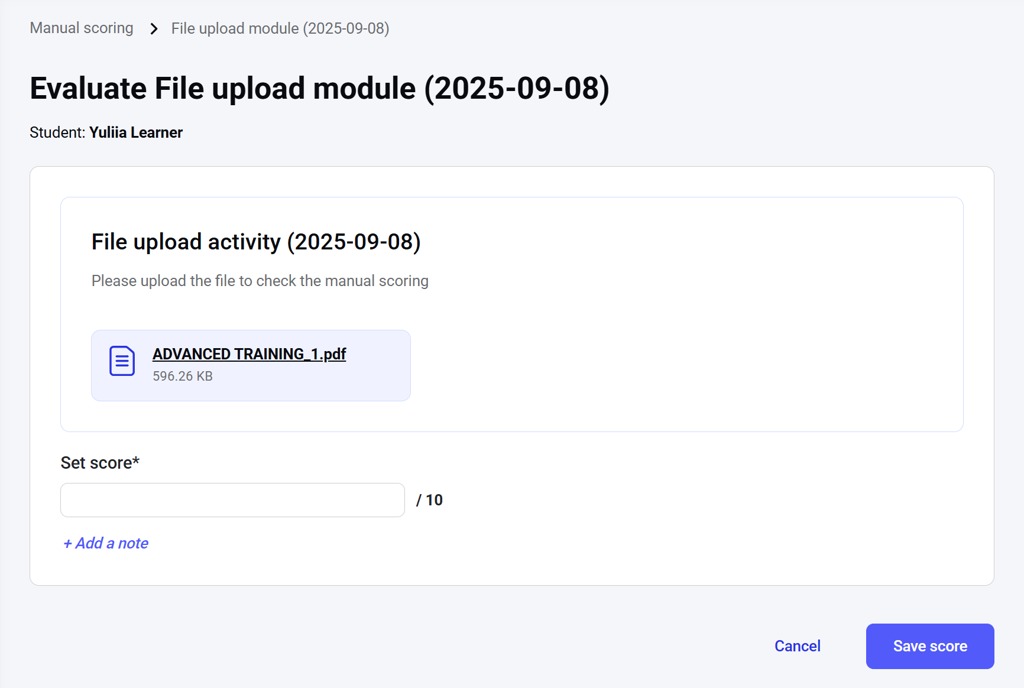 The interface displays the full module content (similar to the preview), including:
* All activities in the module
* Learner responses
* Scoring fields and comment fields for activities that require manual evaluation
### Viewing previous evaluations
Click **See scoring** on the dashboard to view an already completed evaluation.
**Coaches** **cannot modify** a submitted score once it has been saved. Only **administrators can edit** an existing scoring record.
The interface displays the full module content (similar to the preview), including:
* All activities in the module
* Learner responses
* Scoring fields and comment fields for activities that require manual evaluation
### Viewing previous evaluations
Click **See scoring** on the dashboard to view an already completed evaluation.
**Coaches** **cannot modify** a submitted score once it has been saved. Only **administrators can edit** an existing scoring record.