> ## Documentation Index
> Fetch the complete documentation index at: https://docs.opigno.com/llms.txt
> Use this file to discover all available pages before exploring further.
# Live session creation
You can access the live session creation tool in two ways:
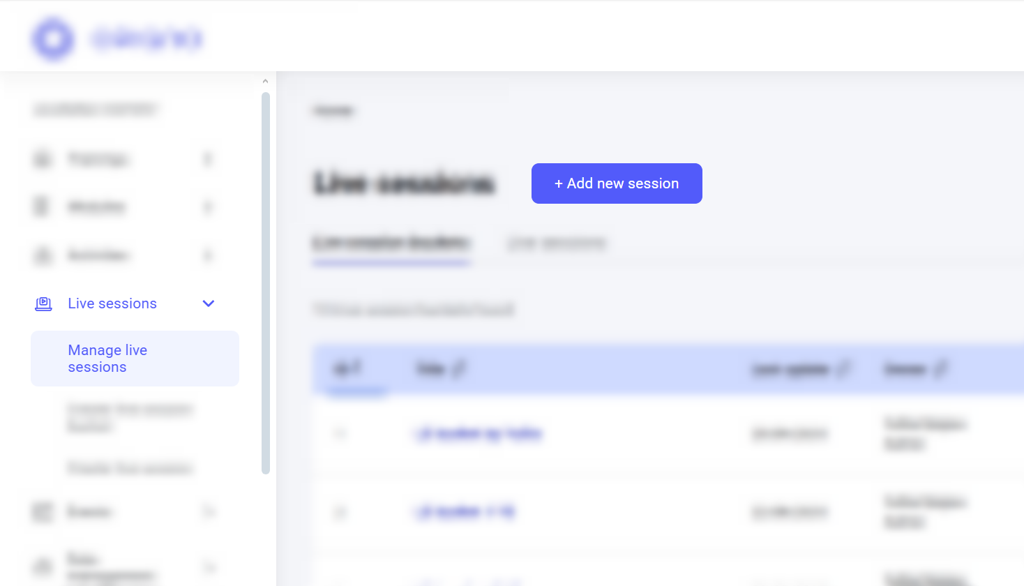
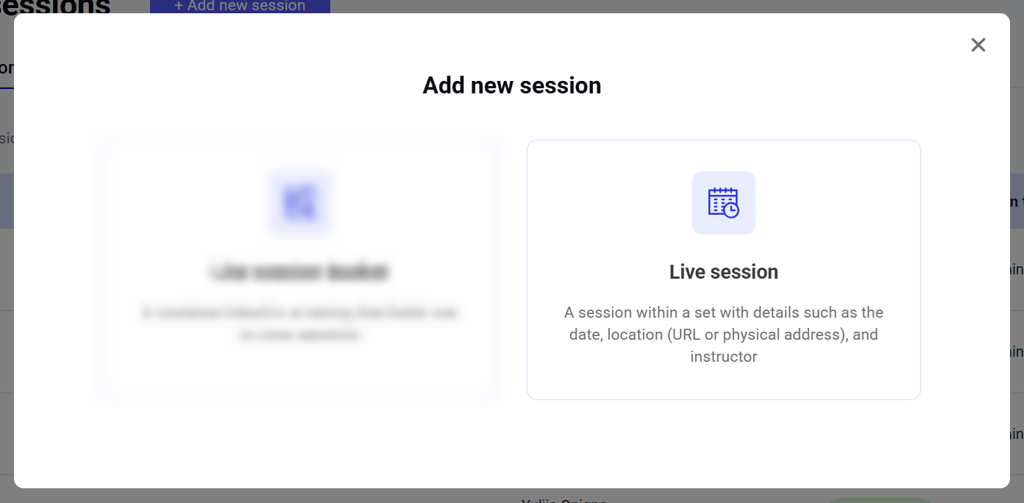
1. Click the **Add new session** button above the **Manage live sessions** dashboard and choose **Live session** in a pop-up.
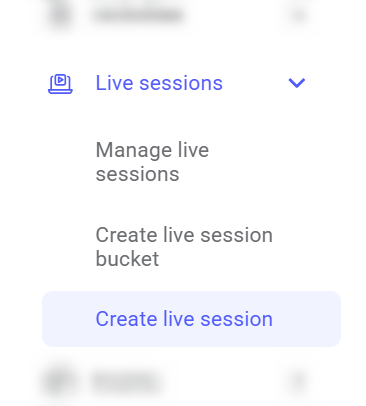
 2. Or click **Create live session** menu item on the left.
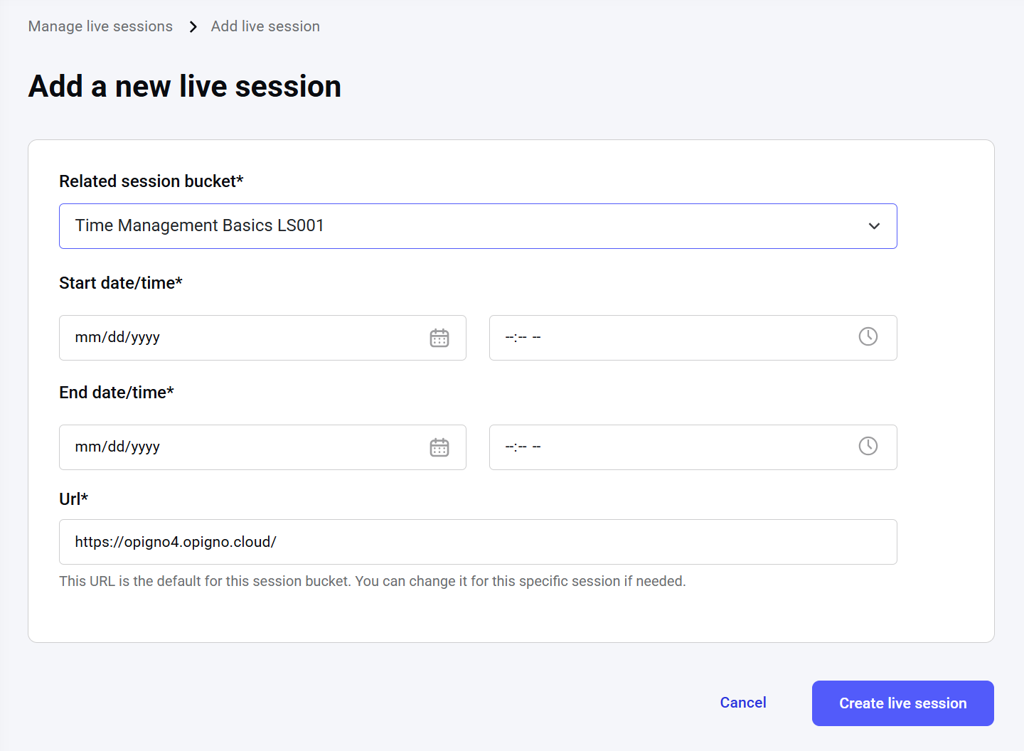
 A live session creation tool will open, where you can set the start and end date for the live session and add it to a published bucket. **All fields are required.**
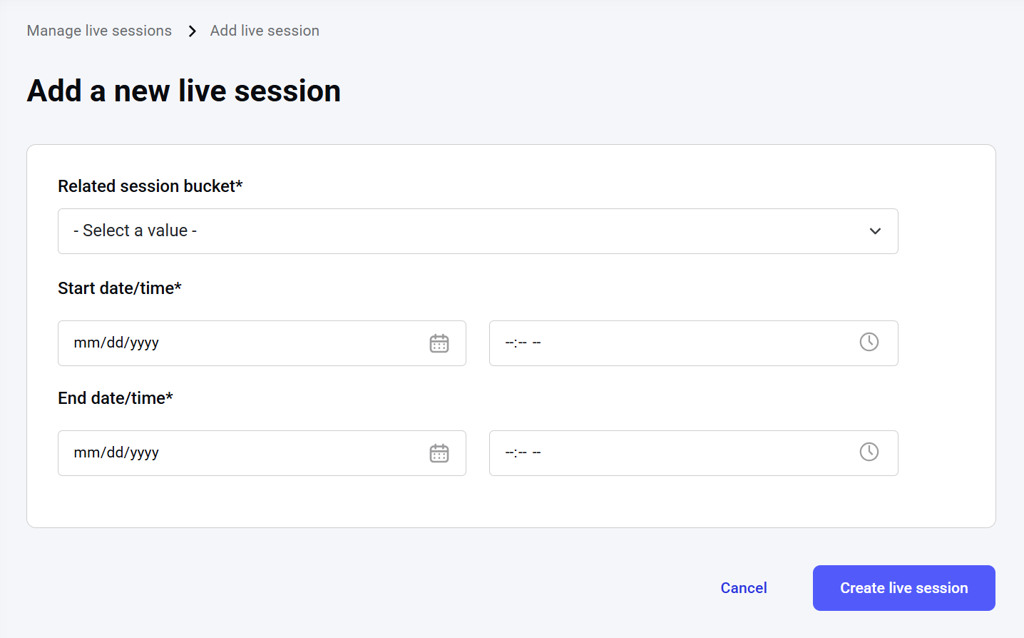 After you choose a bucket to which this live session will be added, a location/URL field will appear with the default bucket location/URL input automatically. You can change it for this live session if needed.
 **NOTE:** When you add a live session to a published bucket, that live session is published automatically.
After you have applied all the necessary settings on this page, click the **Create live session** button to save the session.
To discard the draft of the live session, click **Cancel**.
**NOTE:** When you add a live session to a published bucket, that live session is published automatically.
After you have applied all the necessary settings on this page, click the **Create live session** button to save the session.
To discard the draft of the live session, click **Cancel**.