> ## Documentation Index
> Fetch the complete documentation index at: https://docs.opigno.com/llms.txt
> Use this file to discover all available pages before exploring further.
# Assigning Content to Hierarchy Levels
> Learn how to assign trainings, taxonomy terms, and other content to specific hierarchy levels in Opigno Enterprise
## Overview
In Opigno Enterprise, you can assign various types of content to specific hierarchy levels to control access and visibility. This ensures that users only see content relevant to their position in your organizational structure.
Content assigned to a hierarchy level is automatically accessible to all users assigned to that level and its sub-levels, creating an efficient content distribution system.
## Content Types That Support Hierarchy Assignment
Opigno Enterprise allows you to assign hierarchy levels to multiple types of content:
Learning paths, courses, and training programs
Supplementary materials and resources
Live sessions, webinars, and scheduled events
Categories, topics, and classification terms
Hierarchy assignments work across all content types, giving you consistent control over what users can access based on their organizational position.
***
## Assigning Trainings to Hierarchy Levels
The most common use case is assigning training programs to specific departments, teams, or organizational units.
1. Log into your Opigno Enterprise backoffice
2. Go to the **Content** section in the left sidebar
3. Click **Manage trainings**
4. Locate the training you want to assign
5. Click the **Edit** button next to the training name
1. Scroll down the training configuration page
2. Locate the **Hierarchy Level** field (usually in the access or visibility section)
Choose the hierarchy level where this training should be available.
**Selection behavior:**
* **No selection**: Training is available to all learning areas
* **Specific level**: Training is restricted to users at that level and below
* **Multiple levels**: Some configurations allow selecting multiple levels
When you assign content to a hierarchy level, it automatically becomes available to all sub-levels beneath it. For example, assigning to "Sales Department" makes it available to "Sales Team A" and "Sales Team B" if they're sub-levels.
1. Click **Save** to apply changes and return to the training list, or
2. Click **Save and continue** to keep the edit form open for additional modifications
After saving, the training is immediately assigned to the selected hierarchy level and becomes accessible to appropriate users.
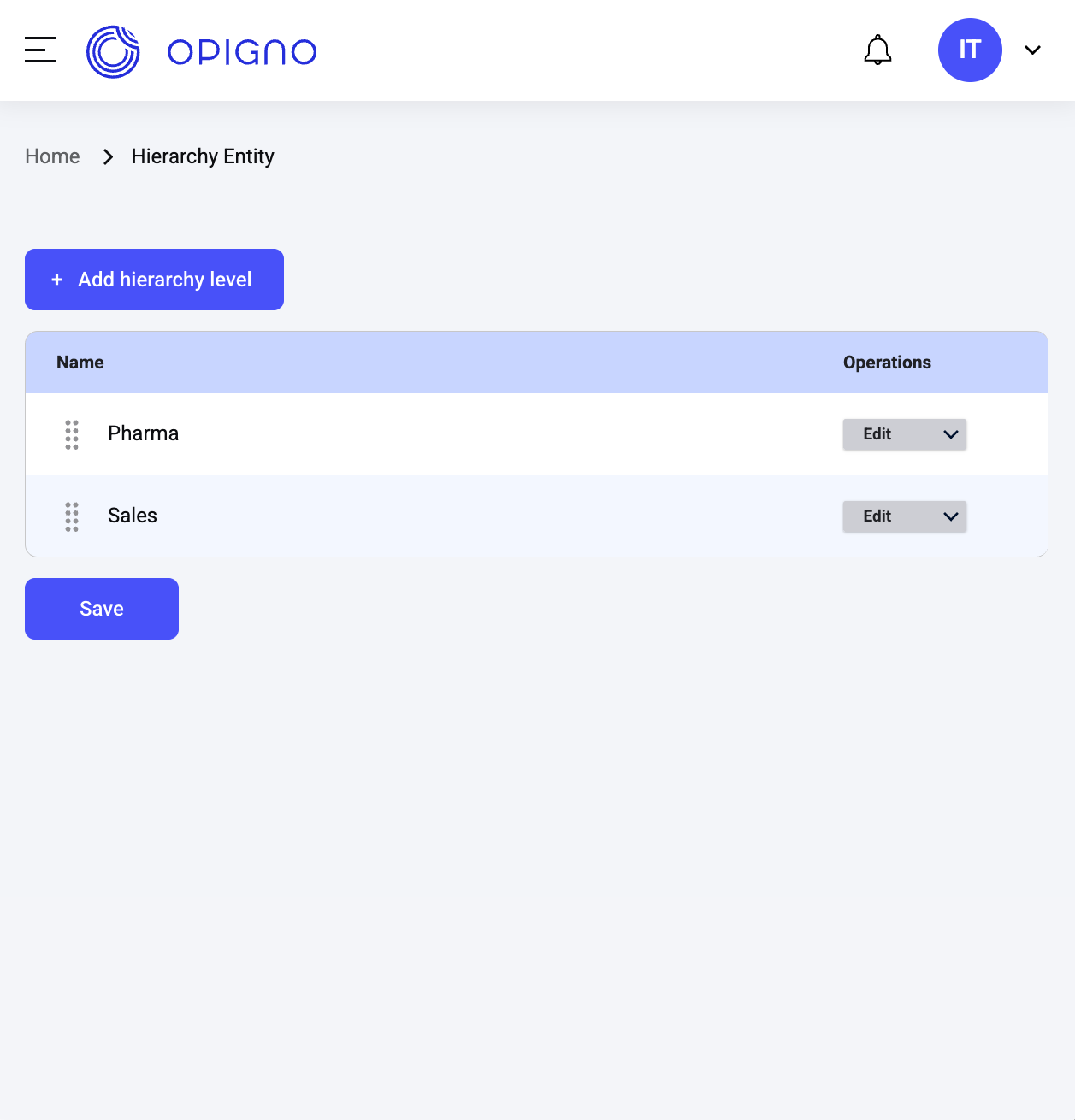
### Training Assignment Example
 ### Common Training Assignment Scenarios
**Use case:** Sales training for the sales department only
**Configuration:**
* Training: "Advanced Sales Techniques"
* Hierarchy Level: "Sales Department"
* **Result:** Only sales team members can access this training
**Use case:** Mandatory compliance training for everyone
**Configuration:**
* Training: "Company Policies 2025"
* Hierarchy Level: Top-level (or no selection)
* **Result:** All users across all departments can access
**Use case:** Technical training for specific engineering team
**Configuration:**
* Training: "Advanced React Development"
* Hierarchy Level: "Engineering Team - Frontend"
* **Result:** Only frontend engineering team members see this training
***
## Assigning Other Content Types
The hierarchy assignment process is consistent across different content types.
### Training Files
Training files are supplementary resources like PDFs, documents, and reference materials.
1. Go to **Content** → **Training files**
2. Click **Edit** on the file you want to assign
3. Find the **Hierarchy Level** field
4. Select the appropriate level from the dropdown
5. Click **Save**
### Event Calendar
Event calendar items include live sessions, webinars, and scheduled learning events.
1. Go to **Content** → **Event Calendar**
2. Select the event you want to assign and click **Edit**
3. Locate the **Hierarchy Level** field in event settings
4. Choose the hierarchy level for this event
5. Save your changes
Events assigned to a hierarchy level will only appear in the calendar view for users at that level or below, helping keep calendars relevant and uncluttered.
### Taxonomy Terms
Taxonomy terms are categories, tags, and classification systems used to organize content.
1. Go to **Structure** → **Taxonomy**
2. Select the vocabulary (e.g., "Topics", "Skills", "Categories")
3. Find the term you want to assign and click **Edit**
4. Find the **Hierarchy Level** field
5. Select the appropriate organizational level
6. Save the taxonomy term
Taxonomy terms assigned to hierarchy levels can only be used to categorize content at the same or lower levels. This prevents organizational information leakage across departments.
## API Integration
For automated hierarchy assignment through Zapier or custom integrations:
API endpoint to programmatically assign trainings to hierarchy levels
Remove training assignments from hierarchy levels via API
API endpoint for assigning taxonomy terms to hierarchy levels
Complete API reference for hierarchy level operations
***
## Learn More
Learn how content inheritance works and flows through organizational levels
Learn how to create and manage hierarchy levels themselves
### Common Training Assignment Scenarios
**Use case:** Sales training for the sales department only
**Configuration:**
* Training: "Advanced Sales Techniques"
* Hierarchy Level: "Sales Department"
* **Result:** Only sales team members can access this training
**Use case:** Mandatory compliance training for everyone
**Configuration:**
* Training: "Company Policies 2025"
* Hierarchy Level: Top-level (or no selection)
* **Result:** All users across all departments can access
**Use case:** Technical training for specific engineering team
**Configuration:**
* Training: "Advanced React Development"
* Hierarchy Level: "Engineering Team - Frontend"
* **Result:** Only frontend engineering team members see this training
***
## Assigning Other Content Types
The hierarchy assignment process is consistent across different content types.
### Training Files
Training files are supplementary resources like PDFs, documents, and reference materials.
1. Go to **Content** → **Training files**
2. Click **Edit** on the file you want to assign
3. Find the **Hierarchy Level** field
4. Select the appropriate level from the dropdown
5. Click **Save**
### Event Calendar
Event calendar items include live sessions, webinars, and scheduled learning events.
1. Go to **Content** → **Event Calendar**
2. Select the event you want to assign and click **Edit**
3. Locate the **Hierarchy Level** field in event settings
4. Choose the hierarchy level for this event
5. Save your changes
Events assigned to a hierarchy level will only appear in the calendar view for users at that level or below, helping keep calendars relevant and uncluttered.
### Taxonomy Terms
Taxonomy terms are categories, tags, and classification systems used to organize content.
1. Go to **Structure** → **Taxonomy**
2. Select the vocabulary (e.g., "Topics", "Skills", "Categories")
3. Find the term you want to assign and click **Edit**
4. Find the **Hierarchy Level** field
5. Select the appropriate organizational level
6. Save the taxonomy term
Taxonomy terms assigned to hierarchy levels can only be used to categorize content at the same or lower levels. This prevents organizational information leakage across departments.
## API Integration
For automated hierarchy assignment through Zapier or custom integrations:
API endpoint to programmatically assign trainings to hierarchy levels
Remove training assignments from hierarchy levels via API
API endpoint for assigning taxonomy terms to hierarchy levels
Complete API reference for hierarchy level operations
***
## Learn More
Learn how content inheritance works and flows through organizational levels
Learn how to create and manage hierarchy levels themselves