> ## Documentation Index
> Fetch the complete documentation index at: https://docs.opigno.com/llms.txt
> Use this file to discover all available pages before exploring further.
# Event creation
You can access the event creation tool in two ways:
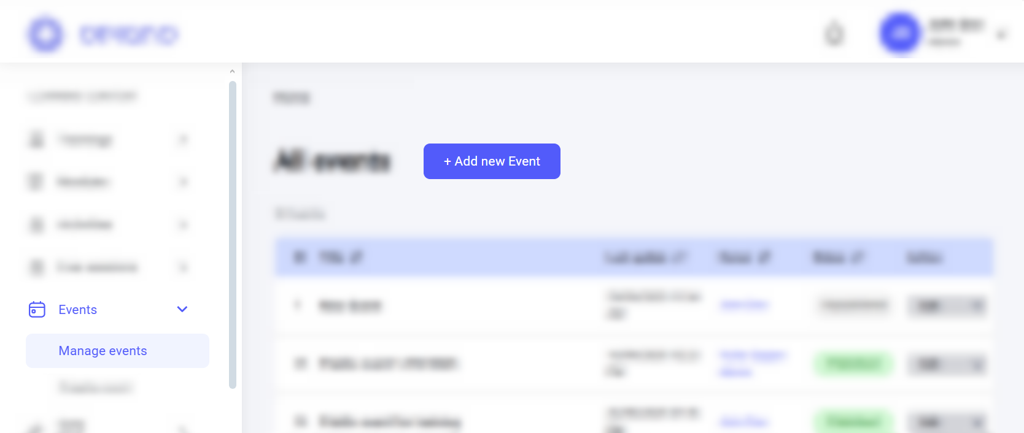
1. Click the **Add new event** button above the **Manage events** dashboard:
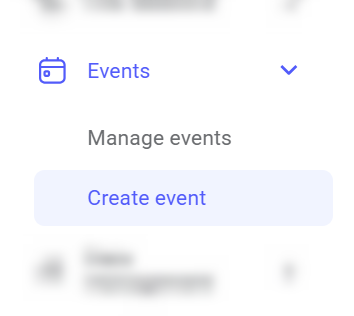
 2. Click **Create event** in the menu on the left.
 The event creation tool will open, where you can configure the basic details of the event:
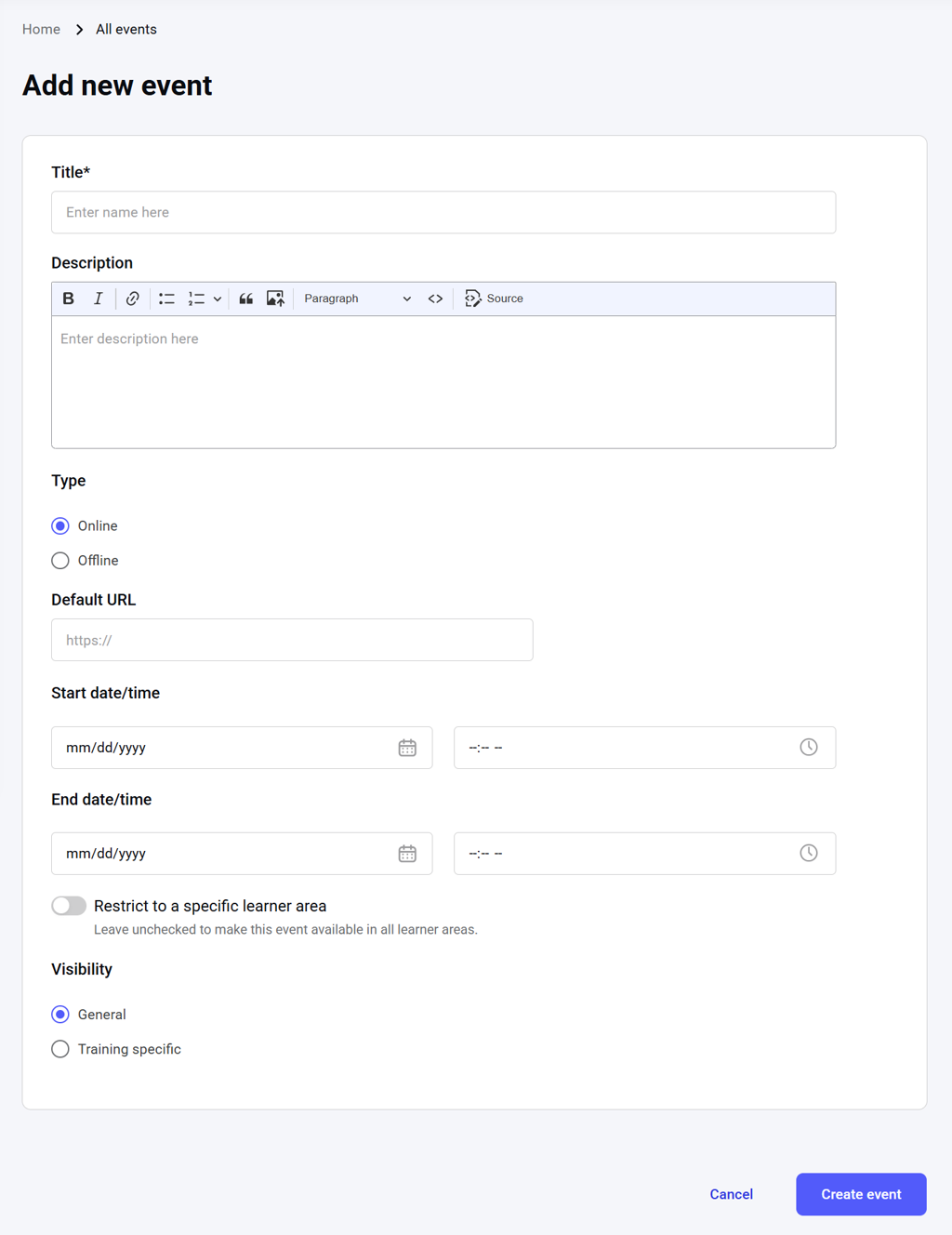 **Title**: The name of the event, searchable and visible in the calendar. The maximum length is 255 characters. **It is a required field.**
**Description**: An overview of the event for the learners. The text length is unlimited, while the editor tool provides flexible editing capabilities.
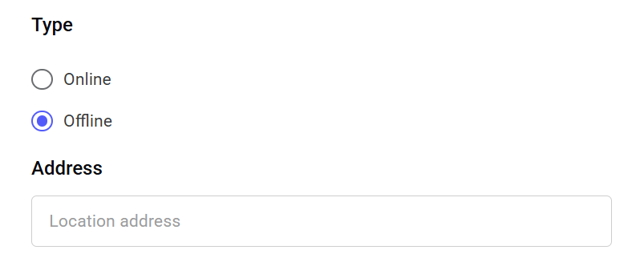
**Type**: Choose whether the event is:
* **Online**: If you choose this option, you can enter a video conference URL.
**Title**: The name of the event, searchable and visible in the calendar. The maximum length is 255 characters. **It is a required field.**
**Description**: An overview of the event for the learners. The text length is unlimited, while the editor tool provides flexible editing capabilities.
**Type**: Choose whether the event is:
* **Online**: If you choose this option, you can enter a video conference URL.
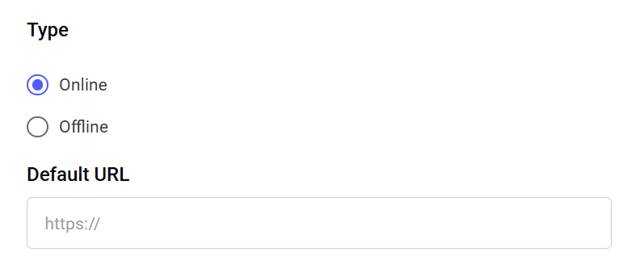 * **Offline**: If you choose this option, you can enter the physical location of the event.
 **Start date/time**: The start date and time of the event.
**End data/time**: The end date and time of the event.
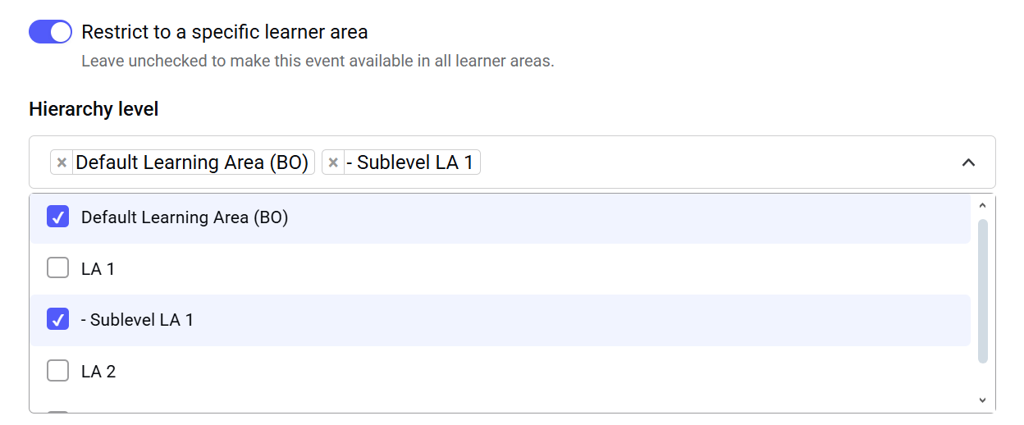
**Restrict to a specific learner area**: Here, you can limit the event to one or more learner areas (or their sublevels). If enabled but no learner area is selected, the event will remain visible to all areas.
**Start date/time**: The start date and time of the event.
**End data/time**: The end date and time of the event.
**Restrict to a specific learner area**: Here, you can limit the event to one or more learner areas (or their sublevels). If enabled but no learner area is selected, the event will remain visible to all areas.
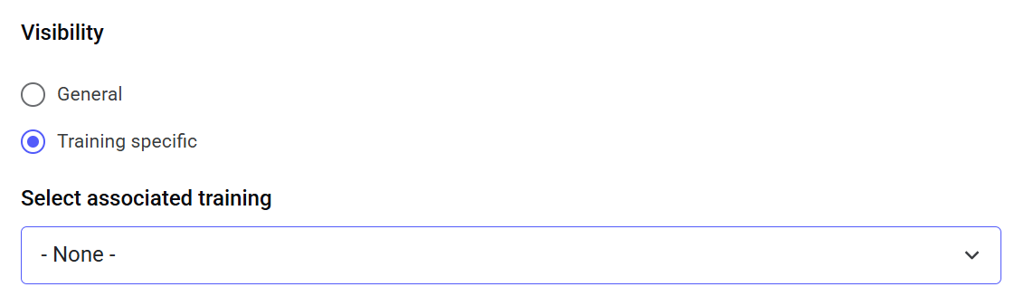
 **Visibility**: Choose who can see the event:
* **General**: Visible to every learner in the selected learner area(s).
* **Training specific**: Visible only to learners enrolled in a single chosen training (from the list of published trainings in the learner area).
**Visibility**: Choose who can see the event:
* **General**: Visible to every learner in the selected learner area(s).
* **Training specific**: Visible only to learners enrolled in a single chosen training (from the list of published trainings in the learner area).
 After you have applied all the necessary settings on this page, click the **Create event** button to save the event.
To discard the draft of the event, click **Cancel**.
After you have applied all the necessary settings on this page, click the **Create event** button to save the event.
To discard the draft of the event, click **Cancel**.