> ## Documentation Index
> Fetch the complete documentation index at: https://docs.opigno.com/llms.txt
> Use this file to discover all available pages before exploring further.
# E-commerce with Stripe
> Sell access to trainings with one-time Stripe payments, configure the integration from the backoffice, and follow every checkout from the Stripe sessions log.
Opigno Enterprise can sell access to a training through **one-time payments** powered by [Stripe](https://stripe.com). When a training is set up for sale, the standard **Enroll** call to action in the learner area is replaced by a **Purchase** action: the learner pays on Stripe's hosted checkout page and is enrolled automatically once the payment is confirmed.
The integration is optional. When it is disabled, all trainings keep their standard enrollment behavior with no side effects. Recurring subscriptions and refunds are out of scope and are managed directly by you in your Stripe account.
You are responsible for your own Stripe account and for creating the products and prices you want to sell (one product per paid training).
## Setting up the integration
The Stripe settings are available in the backoffice under **Development → Stripe settings → Settings**.
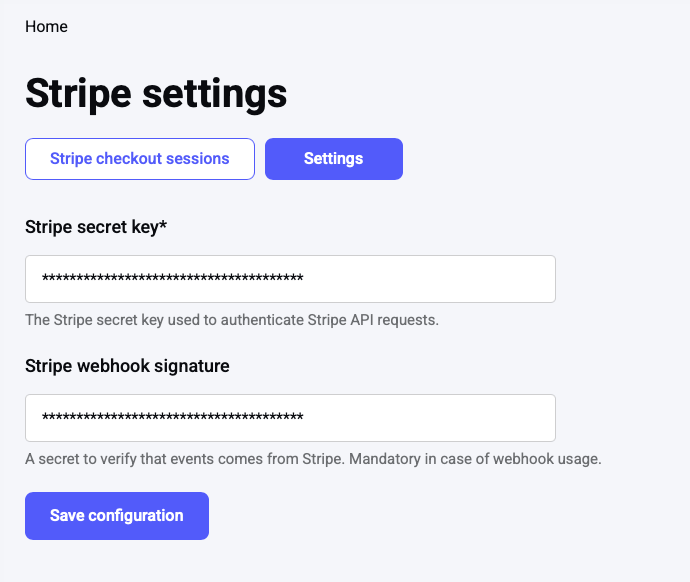 Two values are required:
**Stripe secret key**: The secret key used to authenticate API requests to Stripe. Use your **test** key (starts with `sk_test_`) while validating the setup, and your **live** key (starts with `sk_live_`) in production.
**Stripe webhook signature**: The signing secret (starts with `whsec_`) used to verify that incoming events genuinely come from Stripe. It is mandatory as soon as the webhook is used — every event is checked against this secret and any request with a missing or invalid signature is rejected.
Click **Save configuration** to apply the settings.
Keep your secret key and webhook signing secret confidential. Never share them or commit them to a repository.
## Making a training payable
A training becomes payable by adding a Stripe product reference to it. On the training's **passing requirements**, enable the commerce option and enter the Stripe identifier of the product you want to sell.
As soon as this reference is set, the training is treated as paid: its **Enroll** / **Login and enroll** buttons become **Purchase** / **Login and purchase** in the learner area. If you remove the reference, the training reverts to standard enrollment.
## Following payments: Stripe checkout sessions
Every checkout initiated from the learner area is recorded in **Development → Stripe settings → Stripe checkout sessions**. This log lets you follow and audit each payment.
Two values are required:
**Stripe secret key**: The secret key used to authenticate API requests to Stripe. Use your **test** key (starts with `sk_test_`) while validating the setup, and your **live** key (starts with `sk_live_`) in production.
**Stripe webhook signature**: The signing secret (starts with `whsec_`) used to verify that incoming events genuinely come from Stripe. It is mandatory as soon as the webhook is used — every event is checked against this secret and any request with a missing or invalid signature is rejected.
Click **Save configuration** to apply the settings.
Keep your secret key and webhook signing secret confidential. Never share them or commit them to a repository.
## Making a training payable
A training becomes payable by adding a Stripe product reference to it. On the training's **passing requirements**, enable the commerce option and enter the Stripe identifier of the product you want to sell.
As soon as this reference is set, the training is treated as paid: its **Enroll** / **Login and enroll** buttons become **Purchase** / **Login and purchase** in the learner area. If you remove the reference, the training reverts to standard enrollment.
## Following payments: Stripe checkout sessions
Every checkout initiated from the learner area is recorded in **Development → Stripe settings → Stripe checkout sessions**. This log lets you follow and audit each payment.
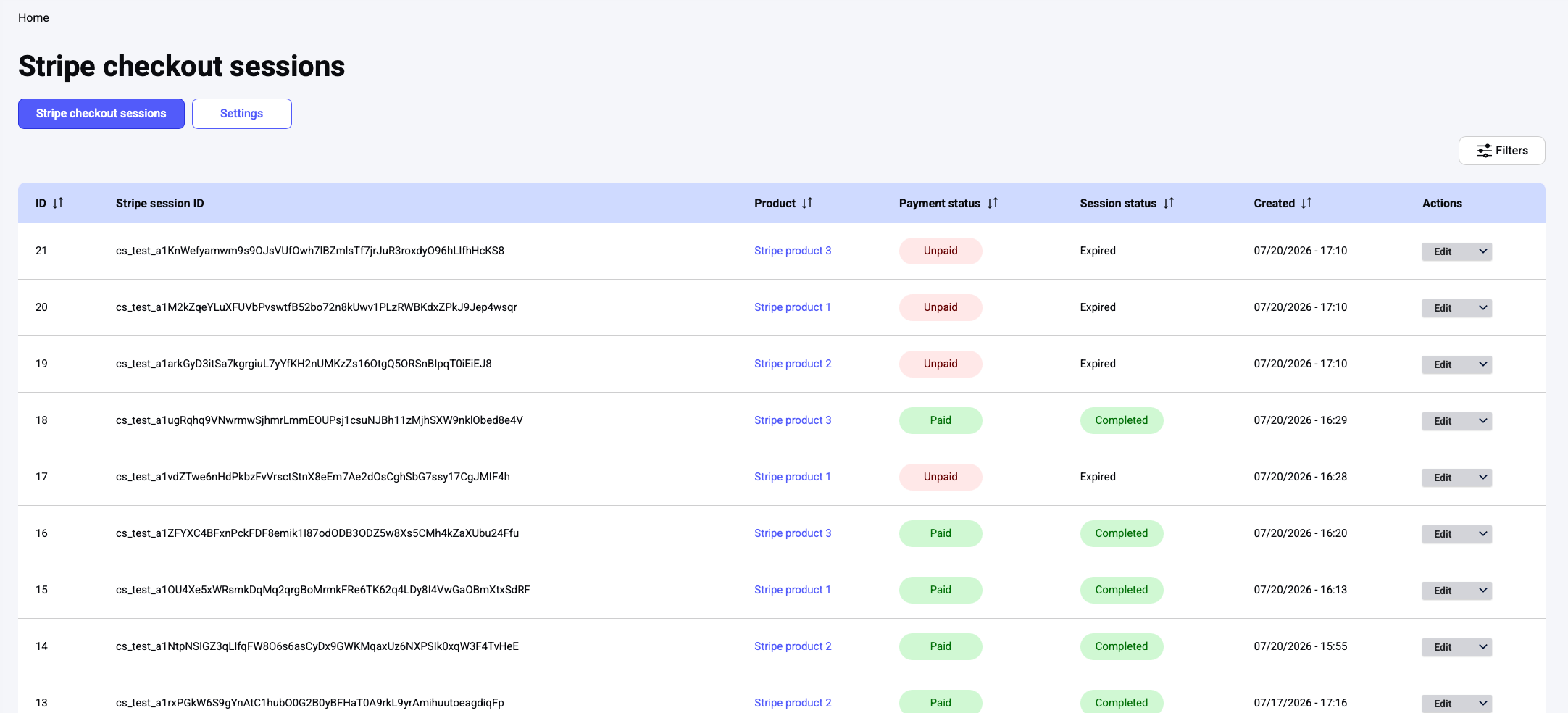 Each row shows:
**ID**: The internal identifier of the session in Opigno.
**Stripe session ID**: The identifier of the checkout session on Stripe's side (starts with `cs_`), useful for cross-referencing in your Stripe dashboard.
**Product**: The Stripe product the learner is purchasing.
**Payment status**: Whether Stripe has received the payment — **Paid** or **Unpaid**.
**Session status**: The lifecycle of the checkout session — **Pending** (checkout created, payment not completed yet), **Completed** (payment confirmed and access granted), or **Expired** (the checkout session lapsed before payment).
**Created**: The date and time the session was created.
**Actions**: The **Edit** button to open the session details.
You can sort the table by clicking a column header, and narrow the list with the **Filter** button.
## What the learner sees
For a payable training, the learner journey is:
The learner opens the training in the catalog and clicks **Purchase** (or **Login and purchase** if they are not signed in yet).
Opigno prepares the checkout and redirects the learner to Stripe's secure, hosted payment page, where they complete the payment.
After a successful payment, Stripe redirects the learner back to a confirmation page that links to the training homepage.
Once Stripe confirms the payment, the learner is automatically enrolled and can start the training.
Enrollment is granted only after Stripe confirms the payment, so access remains reliable even if the learner closes the browser during checkout. Instant methods such as cards grant access immediately; delayed methods (for example bank transfer or SEPA) grant access once the payment settles.
## Registration during purchase
A learner must be signed in to buy a training. When an unauthenticated visitor clicks **Login and purchase**, they are prompted to **log in** or **create an account** first. After authenticating, they return to the purchase flow and complete the payment as above.
Each row shows:
**ID**: The internal identifier of the session in Opigno.
**Stripe session ID**: The identifier of the checkout session on Stripe's side (starts with `cs_`), useful for cross-referencing in your Stripe dashboard.
**Product**: The Stripe product the learner is purchasing.
**Payment status**: Whether Stripe has received the payment — **Paid** or **Unpaid**.
**Session status**: The lifecycle of the checkout session — **Pending** (checkout created, payment not completed yet), **Completed** (payment confirmed and access granted), or **Expired** (the checkout session lapsed before payment).
**Created**: The date and time the session was created.
**Actions**: The **Edit** button to open the session details.
You can sort the table by clicking a column header, and narrow the list with the **Filter** button.
## What the learner sees
For a payable training, the learner journey is:
The learner opens the training in the catalog and clicks **Purchase** (or **Login and purchase** if they are not signed in yet).
Opigno prepares the checkout and redirects the learner to Stripe's secure, hosted payment page, where they complete the payment.
After a successful payment, Stripe redirects the learner back to a confirmation page that links to the training homepage.
Once Stripe confirms the payment, the learner is automatically enrolled and can start the training.
Enrollment is granted only after Stripe confirms the payment, so access remains reliable even if the learner closes the browser during checkout. Instant methods such as cards grant access immediately; delayed methods (for example bank transfer or SEPA) grant access once the payment settles.
## Registration during purchase
A learner must be signed in to buy a training. When an unauthenticated visitor clicks **Login and purchase**, they are prompted to **log in** or **create an account** first. After authenticating, they return to the purchase flow and complete the payment as above.