> ## Documentation Index
> Fetch the complete documentation index at: https://docs.opigno.com/llms.txt
> Use this file to discover all available pages before exploring further.
# Durations
**Durations** are a taxonomy used to indicate the expected time required to complete a training. It is used to categorize learning content for easy filtering.
To manage **Durations**, open the corresponding dashboard from the left-hand menu under **Data management**.
**NOTE:** Duration management is available only to **administrators** and **content editors**.
## The dashboard
From this interface, you can create, edit, publish/disable, delete, group, and rearrange taxonomy terms:
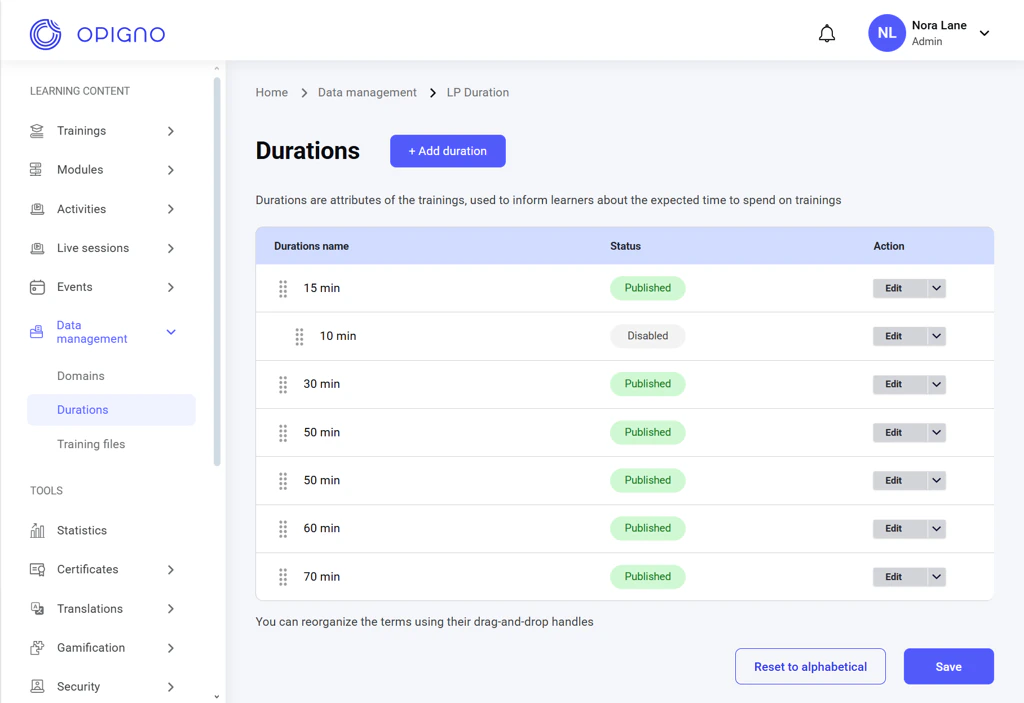 The dashboard table shows the list of all duration terms with the following attributes:
* **Duration name**
* **Status** (Published/Disabled)
* **Action** (Edit/Publish/Disable buttons)
**NOTE:** The disabled term can’t be assigned to trainings, but it will still be displayed for a training to which it was previously assigned.
## Adding a new duration term
Click the **Add duration** button above the table to open a pop-up window where you can set up a new duration term:
The dashboard table shows the list of all duration terms with the following attributes:
* **Duration name**
* **Status** (Published/Disabled)
* **Action** (Edit/Publish/Disable buttons)
**NOTE:** The disabled term can’t be assigned to trainings, but it will still be displayed for a training to which it was previously assigned.
## Adding a new duration term
Click the **Add duration** button above the table to open a pop-up window where you can set up a new duration term:
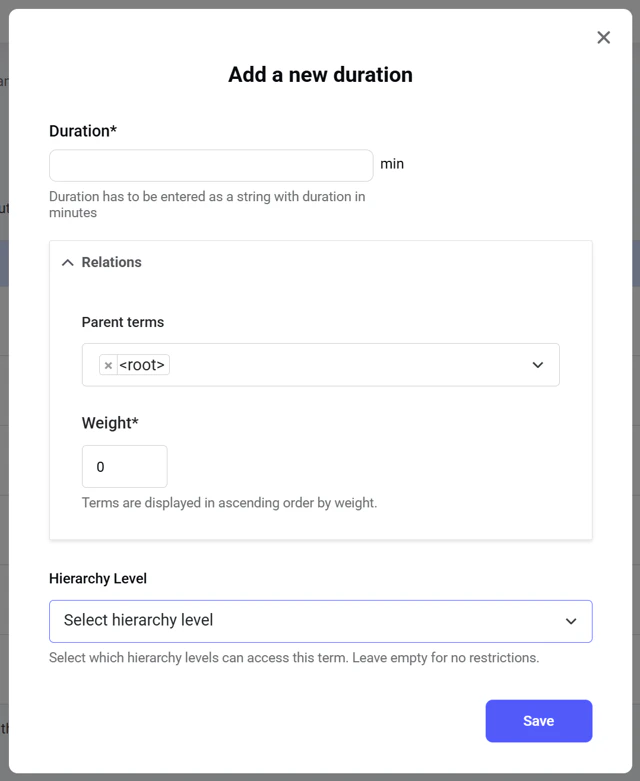 Enter only a numerical value in minutes into the **Duration** field.
You can create groups of terms under a parent term. To add a term to a group, choose a parent term under the **Relations** setting and set up the weight for the term you create, which affects the display order of the terms in the group.
**Opigno’s Custom API** enables restricting a term to a specific hierarchy level, so content managers only see the terms assigned to their hierarchy when creating trainings.
## Editing a duration term
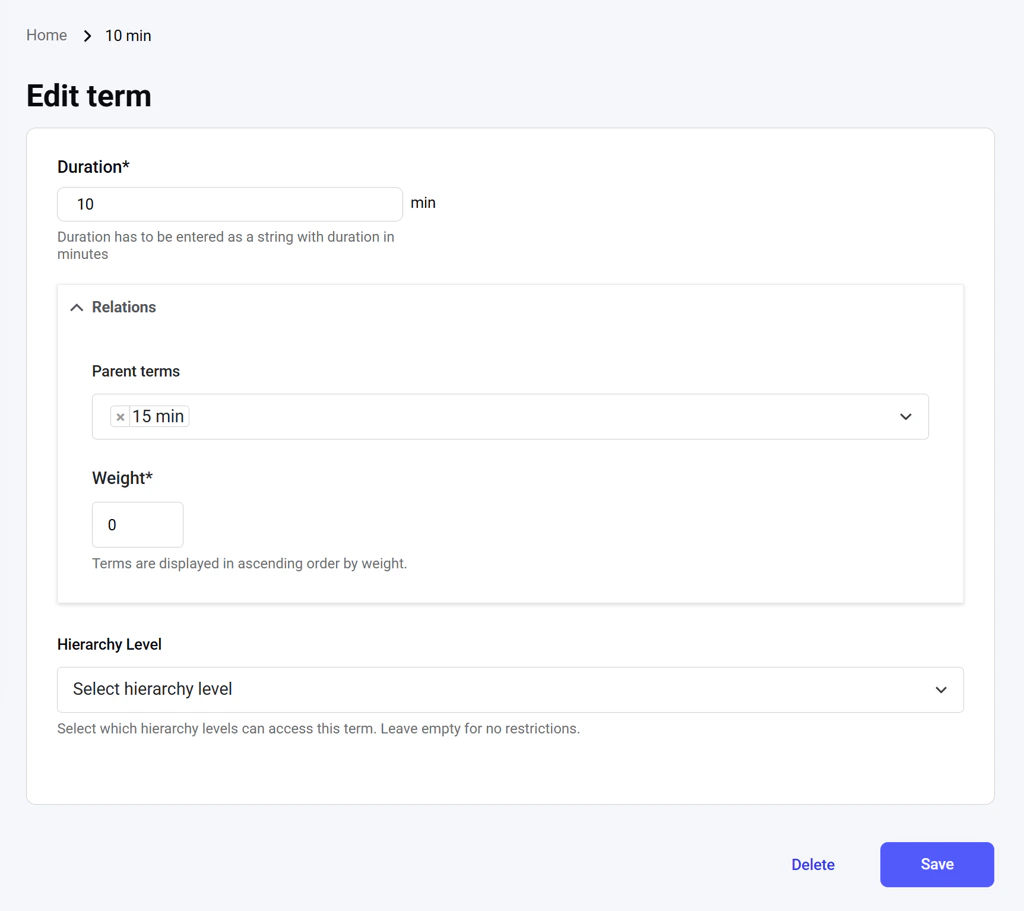
Click the **Edit** action button in the duration terms list to open a dedicated interface where you can change the term and its parameters or delete it.
Enter only a numerical value in minutes into the **Duration** field.
You can create groups of terms under a parent term. To add a term to a group, choose a parent term under the **Relations** setting and set up the weight for the term you create, which affects the display order of the terms in the group.
**Opigno’s Custom API** enables restricting a term to a specific hierarchy level, so content managers only see the terms assigned to their hierarchy when creating trainings.
## Editing a duration term
Click the **Edit** action button in the duration terms list to open a dedicated interface where you can change the term and its parameters or delete it.
 Deleting a term automatically deletes all its translations as child entities. The system will list all the affected term entities.
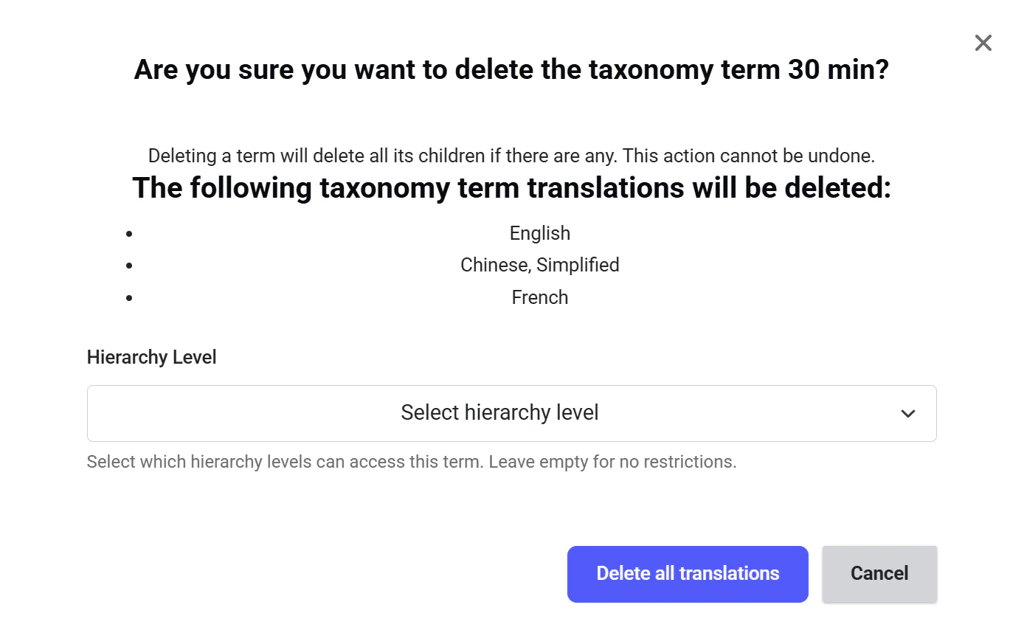 You can also delete the duration term selectively from a specific hierarchy **(Opigno Custom API is required)**.