> ## Documentation Index
> Fetch the complete documentation index at: https://docs.opigno.com/llms.txt
> Use this file to discover all available pages before exploring further.
# Challenges
**Challenges** are time-limited events in which learners compete to answer a series of questions quickly and correctly, earning points and leaderboard rankings (if enabled).
**NOTE:** Battles are built on questions from the shared question bank. If you haven't set up questions yet, see [**Questions**](https://docs.opigno.com/questions) before proceeding.
**NOTE:** Only users with the **administrator** and **content editor** roles can access challenges. Content managers only see challenges for their hierarchy level or below.
Challenges are managed under **Tools > Gamification** in the left-hand menu.
### Dashboard
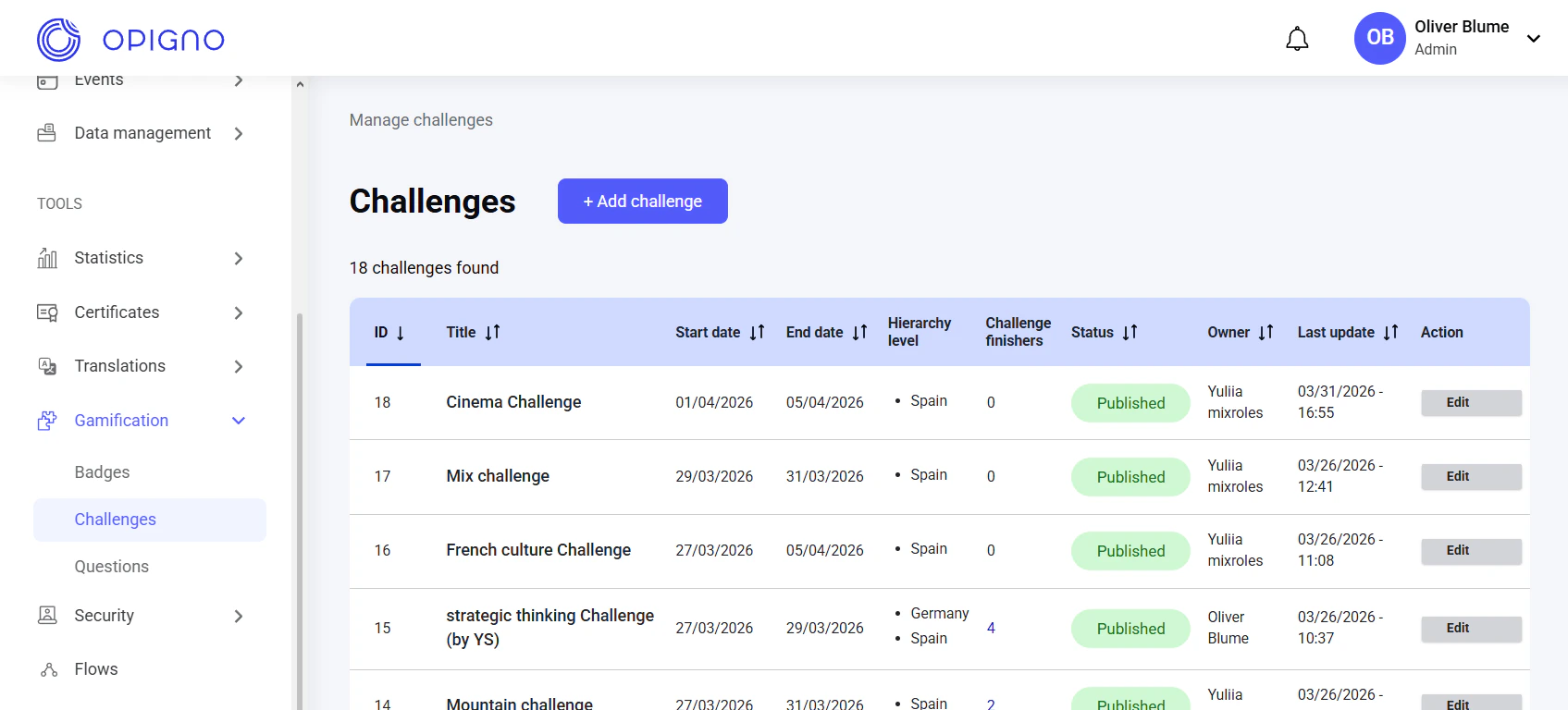 The dashboard table shows all the challenges with the following attributes:
* **Challenge ID**
* **Title**
* **Start and end dates**: The challenge's opening and closing dates
* **Hierarchy level restriction**: If no hierarchy is selected, all users can access the challenge.
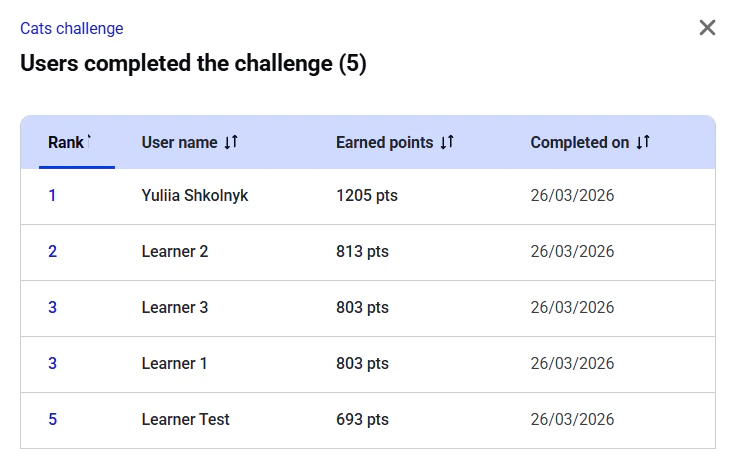
* **Challenge finishers**: The number of learners who completed the challenge. Click the number to view the complete list of participants, their ranking from highest to lowest score, and completion dates.
The dashboard table shows all the challenges with the following attributes:
* **Challenge ID**
* **Title**
* **Start and end dates**: The challenge's opening and closing dates
* **Hierarchy level restriction**: If no hierarchy is selected, all users can access the challenge.
* **Challenge finishers**: The number of learners who completed the challenge. Click the number to view the complete list of participants, their ranking from highest to lowest score, and completion dates.
 * **Status**: Published/Unpublished
* **Owner** (creator)
* **Last update date**
* **Action**: Edit and Publish/Unpublish
**NOTE:** You cannot edit a challenge after its start date.
### Creating a new challenge
Click the **Add challenge** button to open the challenge creation interface. The process consists of two steps.
#### Step 1. Adding basic settings
* **Status**: Published/Unpublished
* **Owner** (creator)
* **Last update date**
* **Action**: Edit and Publish/Unpublish
**NOTE:** You cannot edit a challenge after its start date.
### Creating a new challenge
Click the **Add challenge** button to open the challenge creation interface. The process consists of two steps.
#### Step 1. Adding basic settings
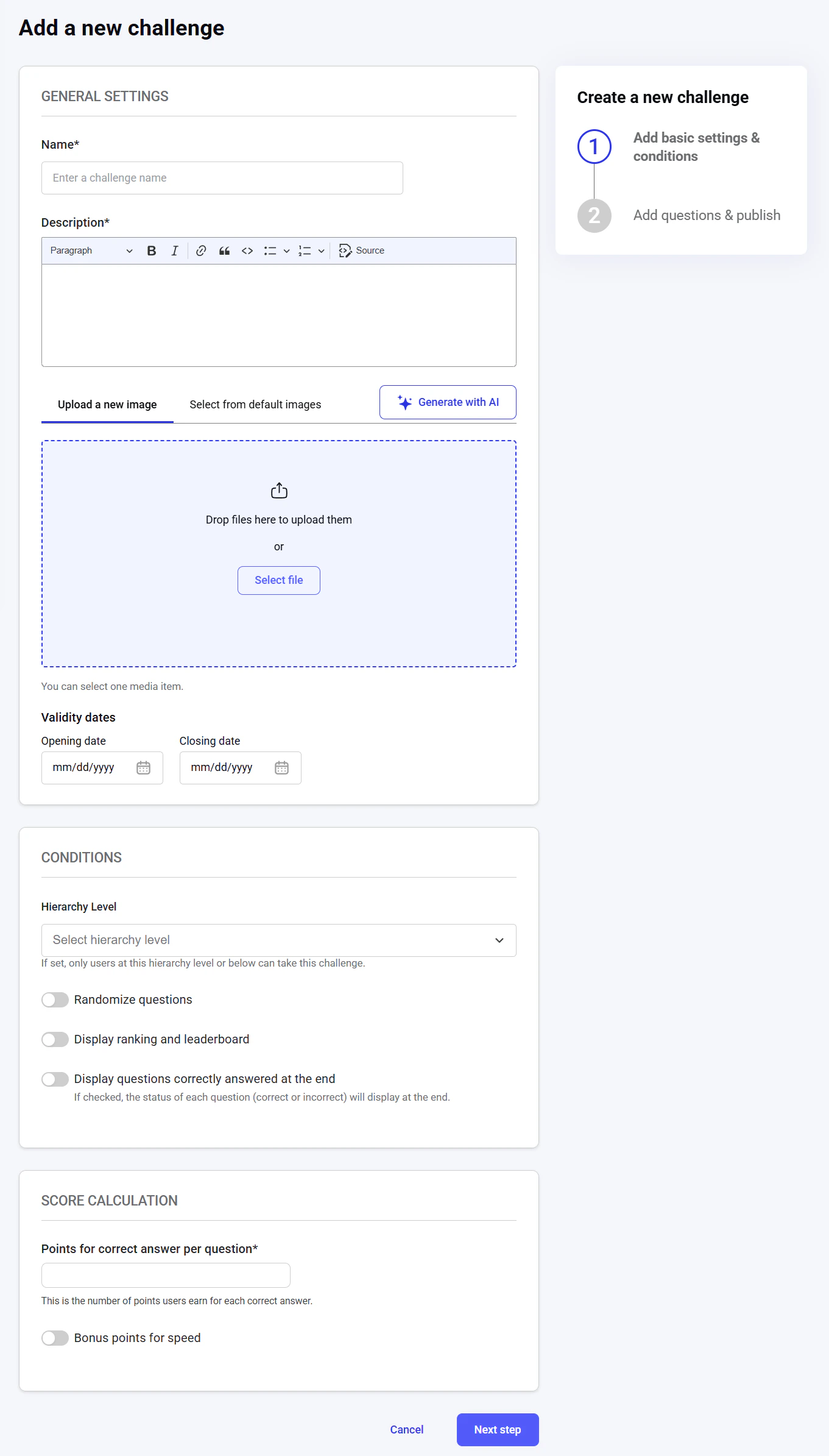 On this page, you can set the general settings for the new challenge:
**Name**: The challenge title visible to learners. **It is a required field.**
**Description**: Explain the challenge's purpose and rules. **It is a required field.**
**Image**: Upload, select, or generate a visual representing the challenge.
**Validity dates**: Set the opening and closing dates, i.e., when the challenge becomes available to learners and when it ends. **It is a required field.**
**Conditions**:
On this page, you can set the general settings for the new challenge:
**Name**: The challenge title visible to learners. **It is a required field.**
**Description**: Explain the challenge's purpose and rules. **It is a required field.**
**Image**: Upload, select, or generate a visual representing the challenge.
**Validity dates**: Set the opening and closing dates, i.e., when the challenge becomes available to learners and when it ends. **It is a required field.**
**Conditions**:
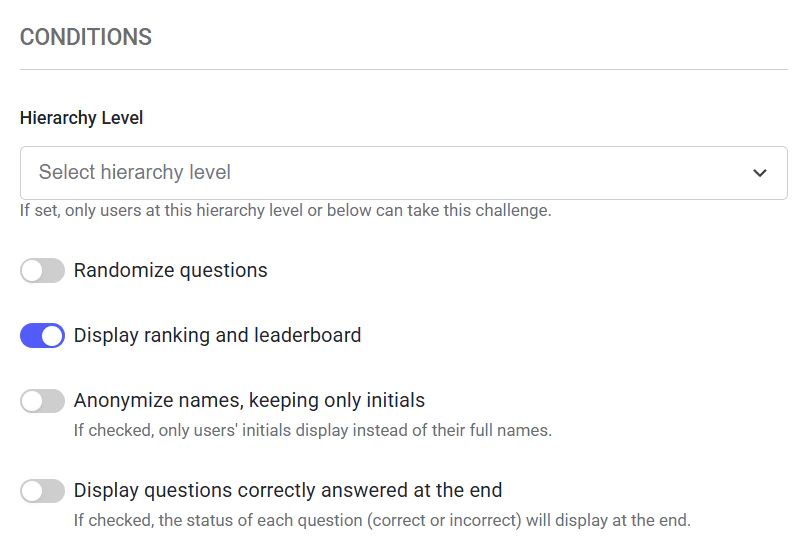 * **Hierarchy level**: Restrict access to the specific hierarchy level so only users at this level or below can participate; leave empty to allow all users.
* **Randomize questions**: Enable the shuffle of question order for each learner.
* **Display ranking and leaderboard**: Enable the display of competitive standings.
* **Anonymize names**: If ranking display is enabled, you can set the leaderboard to show only learners' initials instead of full names.
* **Display questions correctly answered**: Enable showing the status of each question's answer (correct/incorrect) at the end.
**Score calculation:**
* **Hierarchy level**: Restrict access to the specific hierarchy level so only users at this level or below can participate; leave empty to allow all users.
* **Randomize questions**: Enable the shuffle of question order for each learner.
* **Display ranking and leaderboard**: Enable the display of competitive standings.
* **Anonymize names**: If ranking display is enabled, you can set the leaderboard to show only learners' initials instead of full names.
* **Display questions correctly answered**: Enable showing the status of each question's answer (correct/incorrect) at the end.
**Score calculation:**
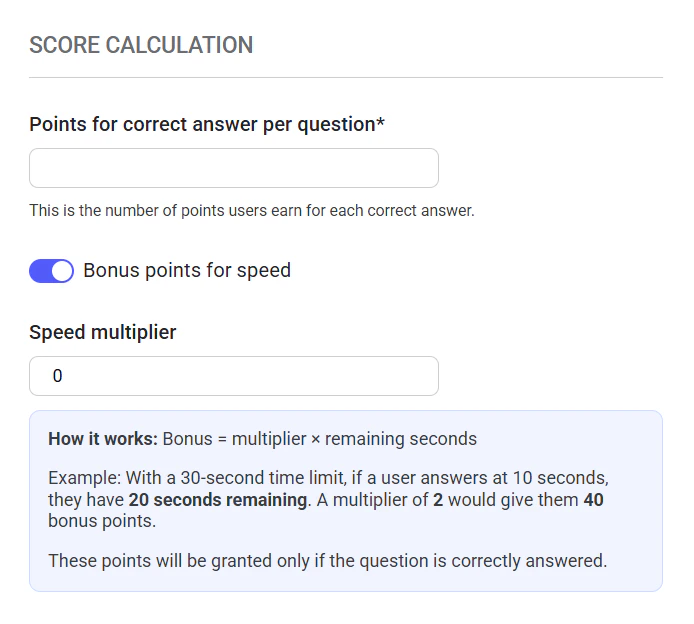 * **Points for correct answer per question**: Base points awarded for each correct response. **It is a required field.**
* **Bonus points for speed**: If enabled, learners earn extra points based on the number of seconds remaining from the question's time limit. If the multiplier is set to 0, the time-based bonus is disabled.
**NOTE:** The time limit for each question is **set individually** when creating or editing a question. To learn more about creating new questions, see [**Creating a new question**](https://docs.opigno.com/challenges#creating-a-new-question). Bonus points are awarded **only for correct answers**.
Click **Next step** to save the settings and proceed to adding the questions.
#### Step 2. Adding questions
* **Points for correct answer per question**: Base points awarded for each correct response. **It is a required field.**
* **Bonus points for speed**: If enabled, learners earn extra points based on the number of seconds remaining from the question's time limit. If the multiplier is set to 0, the time-based bonus is disabled.
**NOTE:** The time limit for each question is **set individually** when creating or editing a question. To learn more about creating new questions, see [**Creating a new question**](https://docs.opigno.com/challenges#creating-a-new-question). Bonus points are awarded **only for correct answers**.
Click **Next step** to save the settings and proceed to adding the questions.
#### Step 2. Adding questions
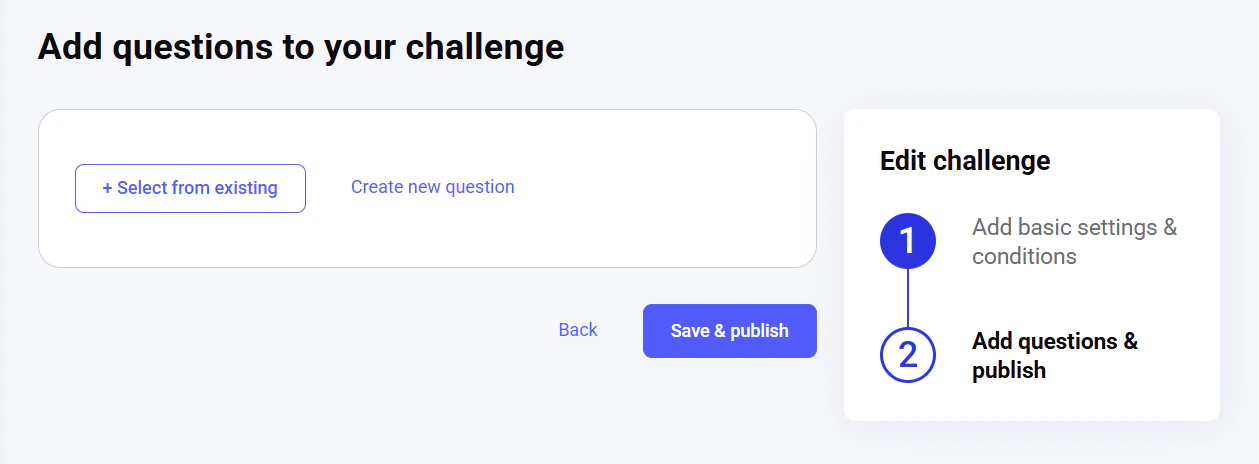 On this next step, you can add existing questions to the challenge or create new ones.
To learn more about creating new questions, see [**Creating a new question**](https://docs.opigno.com/challenges#creating-a-new-question).
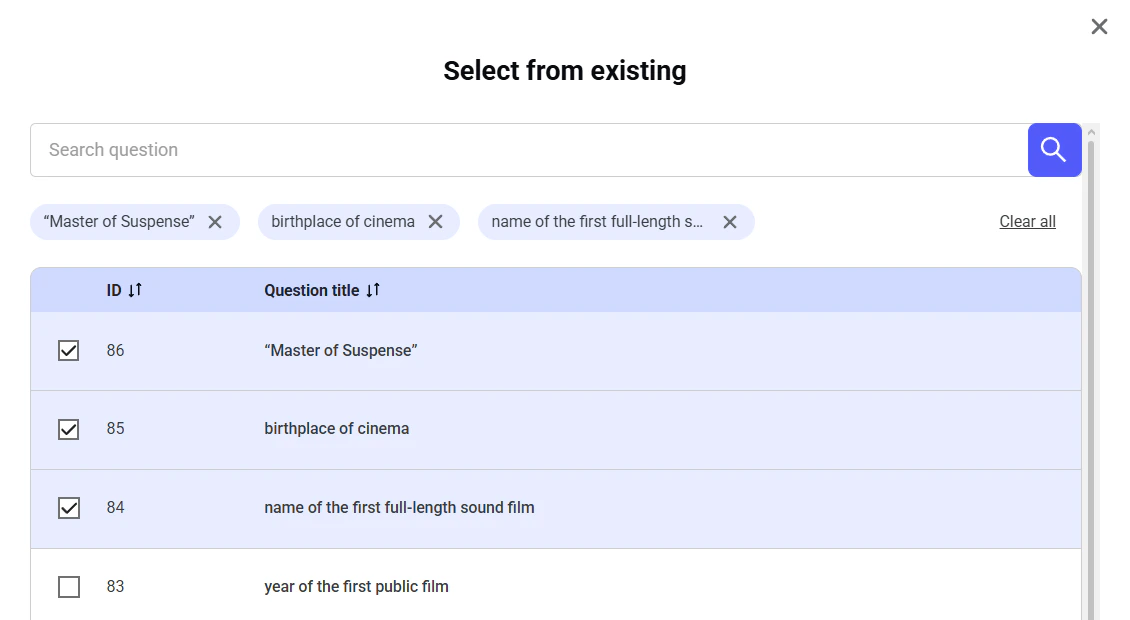
Click **Select from existing** to open the list of all the available questions and check the questions you want to add. You can search for them by title and sort the list in ascending or descending order by question ID or title.
To discard a single selection, click **X** next to its tag. To discard all selections, click **Clear all** to the right of the tags. To confirm your selection, click **Add question(s)**.
On this next step, you can add existing questions to the challenge or create new ones.
To learn more about creating new questions, see [**Creating a new question**](https://docs.opigno.com/challenges#creating-a-new-question).
Click **Select from existing** to open the list of all the available questions and check the questions you want to add. You can search for them by title and sort the list in ascending or descending order by question ID or title.
To discard a single selection, click **X** next to its tag. To discard all selections, click **Clear all** to the right of the tags. To confirm your selection, click **Add question(s)**.
 After configuring the challenge, click **Save & publish** to publish it. To discard the changes and return to the previous step, click **Back**.