> ## Documentation Index
> Fetch the complete documentation index at: https://docs.opigno.com/llms.txt
> Use this file to discover all available pages before exploring further.
# Badges
Badges are visual rewards for learner engagement and achievements on the platform.
Once earned, badges are displayed in the **My learning** interface in the learner area.
**NOTE:** Each badge can be awarded only once per user. If a user meets the eligibility criteria multiple times, no new badge will be issued.
You can access the **Badges** dashboard via **Gamification** under **Tools** in the left-hand menu.
**NOTE:** Badge management is available only to **administrators** and **content editors**.
## The dashboard
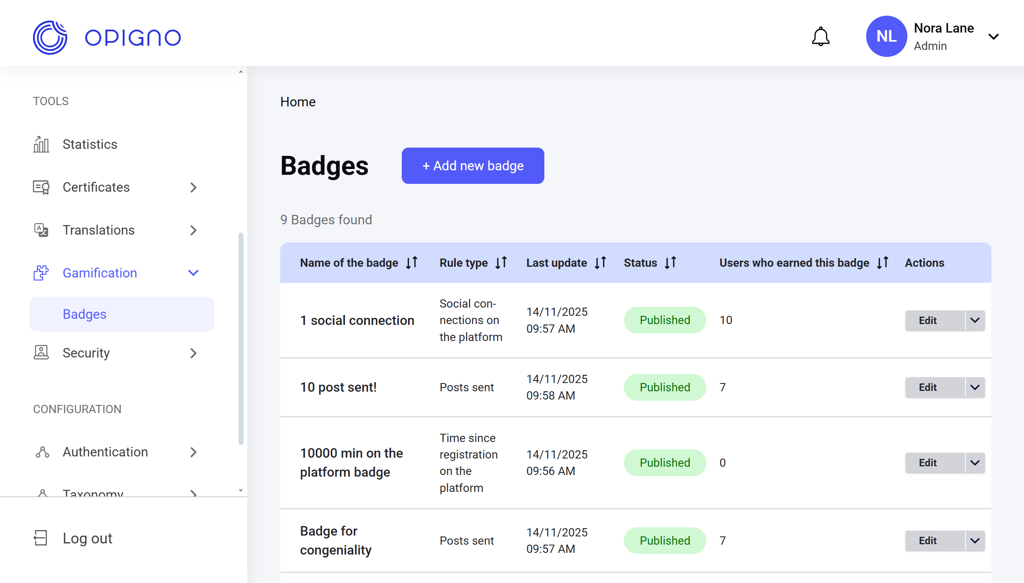 The dashboard table shows all the badges with the following attributes:
* **Badge name**
* **Rule type**: The condition used to award the badge. There are six rule types available:
* **Social connections**: Number of social connections established within a defined period.
* **Account age**: Time elapsed since the user’s profile was created. Blocked profiles are not eligible.
* **Posts sent**: Number of posts and comments submitted by the user.
* **Training completion**: Achieving 100% progress in a specified training.
* **Training passed**: Meeting the passing requirements of a specified training.
* **Training enrollment**: Enrolling in a specified training.
* **Last update**
* **Status**: Published / Disabled
* **Recipients count**: The number of learners who have been awarded this badge.
* **Actions**: Edit / Publish / Disable
The dashboard table shows all the badges with the following attributes:
* **Badge name**
* **Rule type**: The condition used to award the badge. There are six rule types available:
* **Social connections**: Number of social connections established within a defined period.
* **Account age**: Time elapsed since the user’s profile was created. Blocked profiles are not eligible.
* **Posts sent**: Number of posts and comments submitted by the user.
* **Training completion**: Achieving 100% progress in a specified training.
* **Training passed**: Meeting the passing requirements of a specified training.
* **Training enrollment**: Enrolling in a specified training.
* **Last update**
* **Status**: Published / Disabled
* **Recipients count**: The number of learners who have been awarded this badge.
* **Actions**: Edit / Publish / Disable
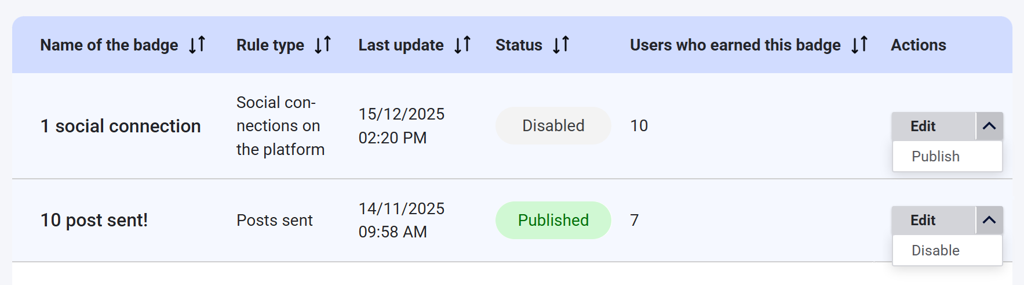 **NOTE:** A disabled badge remains visible to users who have already earned it, but it cannot be earned by new users.
## Creating a new badge
Click the **Add new badge** button to open the badge creation interface.
Here, you can add the name of the badge, upload or generate the badge image, and choose the eligibility rule.
**NOTE:** A disabled badge remains visible to users who have already earned it, but it cannot be earned by new users.
## Creating a new badge
Click the **Add new badge** button to open the badge creation interface.
Here, you can add the name of the badge, upload or generate the badge image, and choose the eligibility rule.
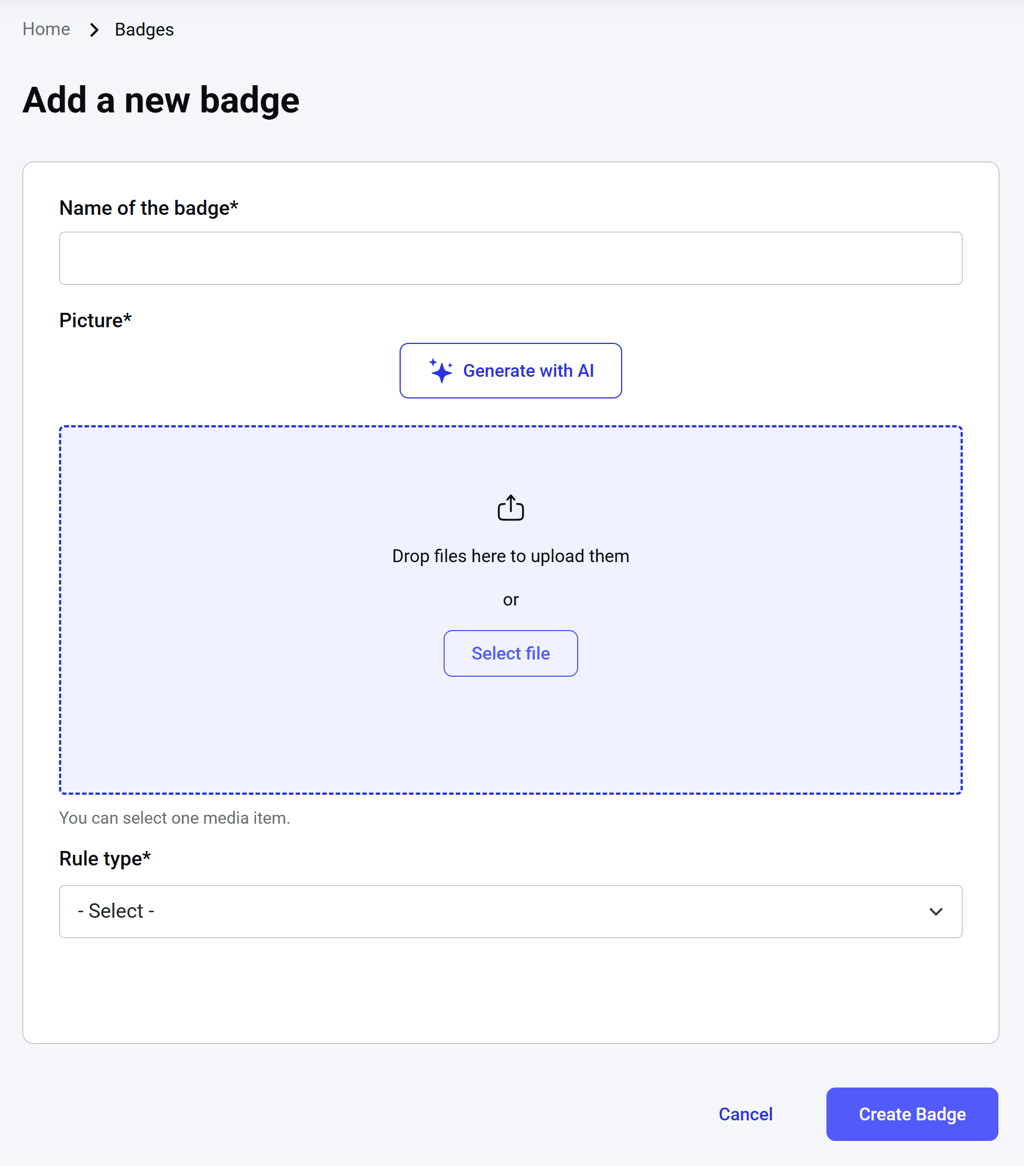 Rule settings depend on the selected **rule type**:
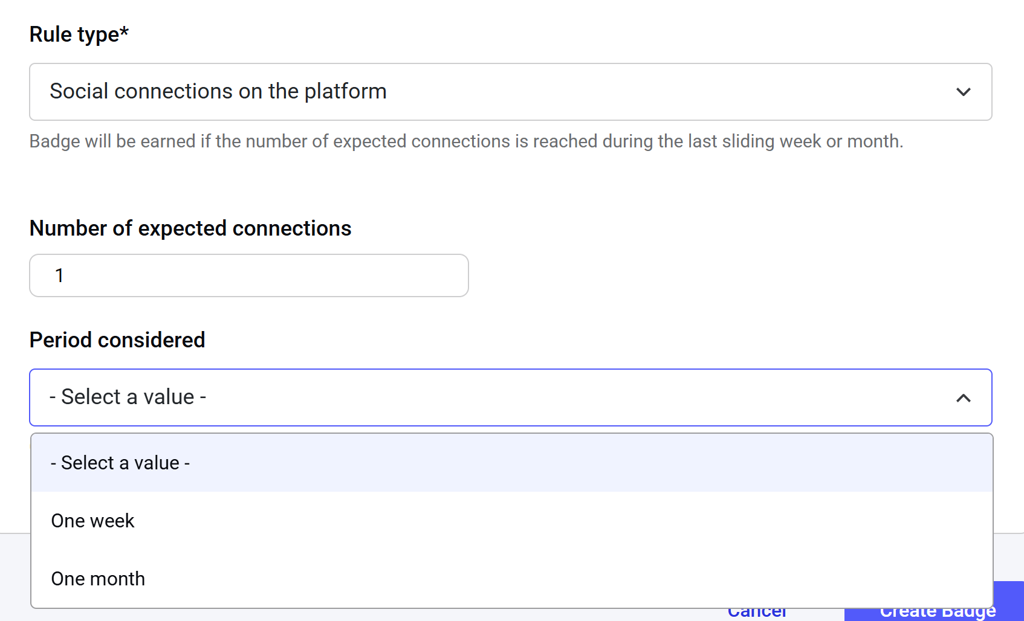
**Social connections**: Define the minimum number of connections and the time period (week or month).
Rule settings depend on the selected **rule type**:
**Social connections**: Define the minimum number of connections and the time period (week or month).
 **Account age**: Define the minimum time since the account was created.
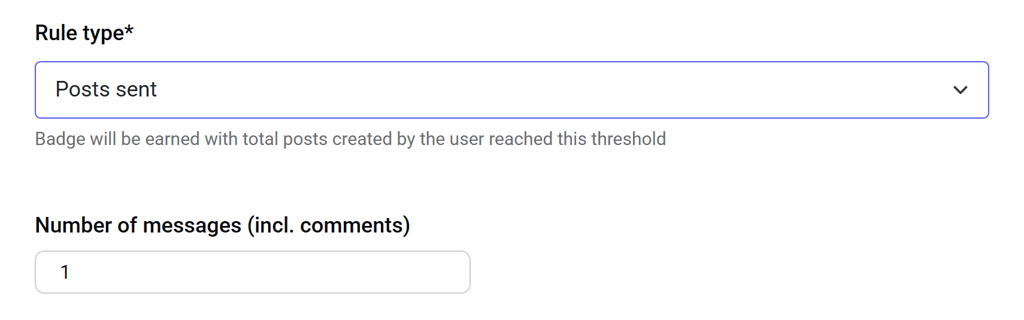
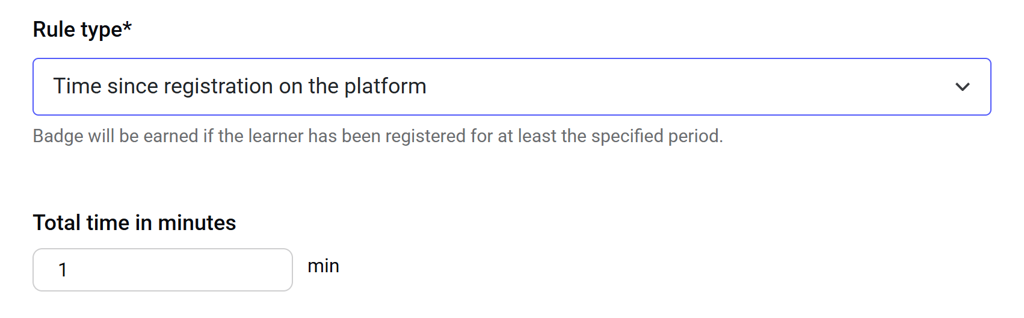 **Posts sent**: Define the minimum number of posts and comments.
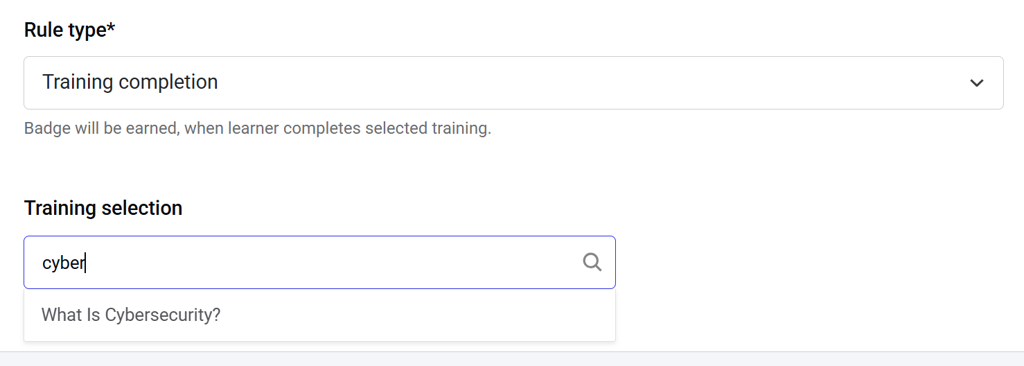
 **Training-based rules**: Provide an autocomplete field to select the training by name.
 After configuring the settings, click **Create badge** to publish the new badge.
To discard the badge draft, click **Cancel**.
## Editing a badge
To edit a badge, click **Edit** next to the respective item on the badge dashboard under the **Actions** column. An editing interface will open.
After configuring the settings, click **Create badge** to publish the new badge.
To discard the badge draft, click **Cancel**.
## Editing a badge
To edit a badge, click **Edit** next to the respective item on the badge dashboard under the **Actions** column. An editing interface will open.
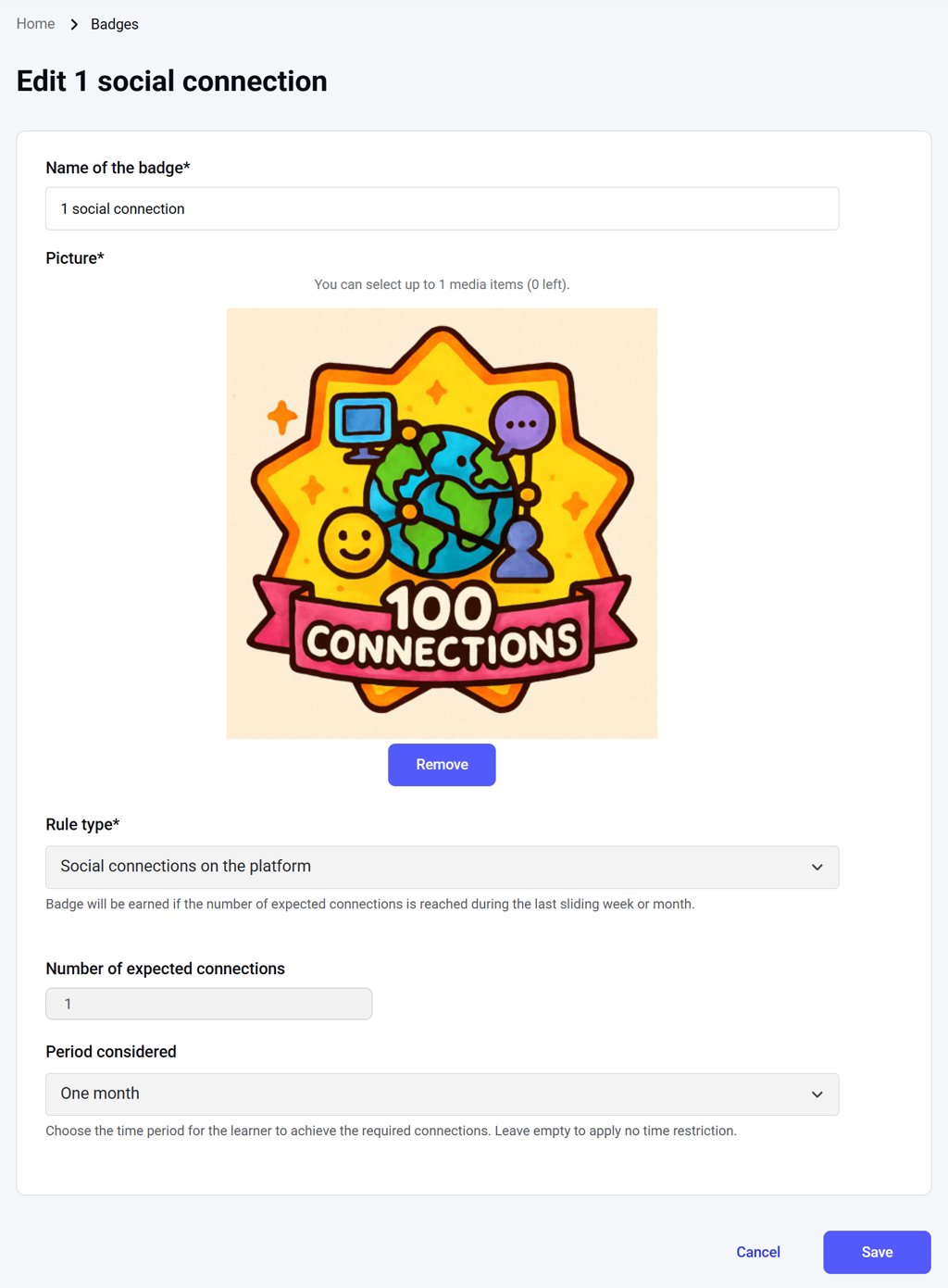 Only the badge name and image can be edited. **Eligibility rules cannot be changed.** Any updates to the name or image will also apply to users who have already earned the badge.